

Portal User Roles
Compare the user roles in the CommPeak Portal and learn which sections and pages each one opens, so you can give every user on your account the right access.
A user role defines which sections of the CommPeak Portal a user can open and what they can do there. You assign roles when you create or edit a user in Settings > Users & Departments, so each person on your CommPeak account gets only the access their work requires.
This article covers the following topics:
- Roles at a glance
- Role descriptions
- Access by Portal page
- Combining roles
- What only the main user and Admins can do
- Assigning or changing roles.
Roles at a glance
Your account has one main user (the account owner) and as many additional users as you need. The main user and users with the Admin role can open every Portal section. The other five roles each open a part of the Portal, and a user can have more than one of them.
The table shows the access level of each role in the main Portal sections: Full for every page of the section, Partial for some of its pages, and None for no access.
| Role | VoIP Services | Cloud PBX & Dialer | DIDs | Phone Reputation | Messaging | Speech-to-Text | LookUp | Billing |
|---|---|---|---|---|---|---|---|---|
| Admin | Full | Full | Full | Full | Full | Full | Full | Full |
| Reports | Partial | None | Partial | Full | Partial | Partial | Partial | Partial |
| Tech. Configuration | Partial | Partial | Partial | Full | Partial | Full | Full | None |
| Finance | Partial | None | Partial | Full | Full | None | None | Partial |
| Orders | None | None | Partial | Full | Partial | Partial | Full | None |
| Support | None | None | None | None | None | None | None | None |
For the exact pages behind each Partial, see Access by Portal page.
Whatever their roles, all users can do the following:
- Open the Home page and the Portal notifications.
- Open a support ticket, follow their own tickets in My Tickets, and visit the Help center.
- Choose which notification emails they receive, within the notification groups their roles cover.
Role descriptions
Admin
The Admin role gives a user the same access as the main user, with a few exceptions.
- Who it is for: An operations manager or a team lead who runs the account day to day.
- Access: Every Portal section. Admins also create, edit, and delete users, assign roles, manage departments, review the Audit Log, and change the Call Recordings settings.
- Limits: Admins can't edit or delete the main user or other Admins, grant or revoke the Admin role, or pass the main user status to someone else.
- Example: Give the Admin role to the manager who sets up your services and adds new team members.
Reports
The Reports role is a view of your traffic and spending, with no access to configuration.
- Who it is for: Analysts, team leads, and account managers who follow call volumes, quality, and costs.
- Access: Call Records (CDR), Daily Calls, Calls by Destination, and Call Graphs; Proactive Monitoring; the DID reports (Origination CDR, SMS Report, and Voicemails Report); Phone Reputation; Speech-to-Text recognition results; HLR LookUp results; and, in Billing, Balance History and Payment History.
- Limits: No access to SIP accounts, caller IDs, PBX and Dialer instances, DID settings, invoices, or adding credit. A user with this role can't convert speech or run a new lookup.
- Example: Give the Reports role to the team lead who checks the daily call statistics and the account spending.
Tech. Configuration
The Tech. Configuration role covers everything that defines how your traffic flows, and nothing about money.
- Who it is for: Your technical or NOC team, VoIP engineers, and developers who integrate with CommPeak.
- Access: SIP Accounts (Trunks), Caller IDs, Proactive Monitoring, WebCall Widgets, and call records; PBX and Dialer instances; DID management, voicemail playbacks, and DID reports; Phone Reputation; all of Speech-to-Text and LookUp; Settings > API Access (API keys and authorized applications); and Network Monitor - Pinger.
- Limits: No access to Billing, rates, DID identities, or the Daily Calls, Calls by Destination, and Call Graphs reports.
- Example: Give the Tech. Configuration role to the engineer who connects your PBX to CommPeak and manages SIP accounts and API keys.
Finance
The Finance role covers payments, billing documents, and prices.
- Who it is for: Accountants and the finance team.
- Access: Add Credit; in Billing, Invoices, Payment History, Recurring Payments, Recurring Services, Proforma Invoices, and Credit Lines; Voice Rates, NPA/NXX Rates, and SMS Rates; DID management and identities; and Phone Reputation.
- Limits: No access to Balance History (it requires the Reports role), SIP accounts, caller IDs, PBX and Dialer instances, Speech-to-Text, or HLR LookUp.
- Example: Give the Finance role to the person who pays invoices and adds credit.
Orders
The Orders role is for buying and provisioning services.
- Who it is for: Team members who order and set up numbers and services.
- Access: DID management, identities, and voicemail playbacks; Convert Speech and Recognitions in Speech-to-Text; all of LookUp; and Phone Reputation.
- Limits: No access to Billing, rates, SIP accounts, or caller IDs. To order new DID numbers or create a PBX, the user also needs the Tech. Configuration role.
- Example: Give the Orders and Tech. Configuration roles to the person who orders DID numbers and configures them.
Support
The Support role is a seat for handling support tickets, with almost no other Portal access.
- Who it is for: Team members who follow up on your company's requests to CommPeak support.
- Access: All the support tickets of your company in My Tickets, or only the tickets of the departments the user belongs to, and Network Monitor - Pinger.
- Limits: No access to services, reports, or Billing. A user whose only role is Support doesn't see the account balance, the Messaging section, Call us, or Affiliates.
- Example: Give the Support role to the help desk agent who tracks your tickets, and assign them to a department to limit the tickets they see.
Access by Portal page
The table lists the Portal pages and actions that each role opens. To find a page, type its name in the search box above the table. The main user and Admins can use all of them.
| Section | Page or action | Reports | Tech. Configuration | Finance | Orders | Support |
|---|---|---|---|---|---|---|
| VoIP Services | SIP Accounts (Trunks) | No | Yes | No | No | No |
| VoIP Services | Caller IDs | No | Yes | No | No | No |
| VoIP Services | Voice Rates and NPA/NXX Rates | No | No | Yes | No | No |
| VoIP Services | Proactive Monitoring | Yes | Yes | No | No | No |
| VoIP Services | WebCall Widgets and WebCall Widget CDRs | No | Yes | No | No | No |
| VoIP Services | Call Records (CDR) | Yes | Yes | No | No | No |
| VoIP Services | Daily Calls, Calls by Destination, and Call Graphs | Yes | No | No | No | No |
| Cloud PBX & Dialer | Classic PBX Instances and PBX & Dialer Instances | No | Yes | No | No | No |
| Cloud PBX & Dialer | Creating a PBX | No | With Orders | No | With Tech. Configuration | No |
| DIDs | New Order | No | With Finance or Orders | With Tech. Configuration | With Tech. Configuration | No |
| DIDs | Management | No | Yes | Yes | Yes | No |
| DIDs | Identities | No | No | Yes | Yes | No |
| DIDs | Voicemail Playbacks | No | Yes | No | Yes | No |
| DIDs | External Numbers, when enabled on the account | Yes | Yes | Yes | Yes | Yes |
| DIDs | Origination CDR, SMS Report, and Voicemails Report | Yes | Yes | No | No | No |
| Phone Reputation | Reputation Checks and Reputation History | Yes | Yes | Yes | Yes | No |
| Messaging | All Messaging pages except SMS Rates, when messaging is enabled on the account | Yes | Yes | Yes | Yes | No |
| Messaging | SMS Rates | No | No | Yes | No | No |
| Speech-to-Text | Recognitions | Results only | Yes | No | Yes | No |
| Speech-to-Text | Convert Speech | No | Yes | No | Yes | No |
| Speech-to-Text | Speech-to-Text API tokens | No | Yes | No | No | No |
| LookUp | Recent LookUps and Results | Yes | Yes | No | Yes | No |
| LookUp | New LookUp | No | Yes | No | Yes | No |
| Billing | Add Credit | No | No | Yes | No | No |
| Billing | Invoices | No | No | Yes | No | No |
NOTEThe main menu can show a page that your roles don't include. If a page opens with a message that you aren't authorized, ask the main user or an Admin to add the role that opens it.
Combining roles
A user can have several roles at the same time. Roles add up: the user gets everything that each of their roles opens, and no role takes access away.
Some tasks need two roles together:
- Ordering new DID numbers: Tech. Configuration together with Orders or Finance.
- Creating a PBX: Tech. Configuration together with Orders.
- Seeing the complete Billing section: Finance together with Reports, because only Reports opens Balance History.
NOTEWhen you remove a role from a user, they also stop receiving the notification emails that only this role covers. For details, see Email Notifications.
What only the main user and Admins can do
The roles above never open the following pages and actions. They belong to the main user and to users with the Admin role:
- Opening Settings > Users & Departments to create, edit, and delete users, assign roles, and manage departments.
- Reviewing the account activity in the Audit Log.
- Changing the Call Recordings settings.
- Managing the HLR LookUp API tokens.
Some actions belong to the main user alone:
- Granting or revoking the Admin role.
- Editing or deleting users with the Admin role.
- Changing the main user.
Assigning or changing roles
You assign roles with the checkboxes under Roles in the Create new user and Edit user forms.
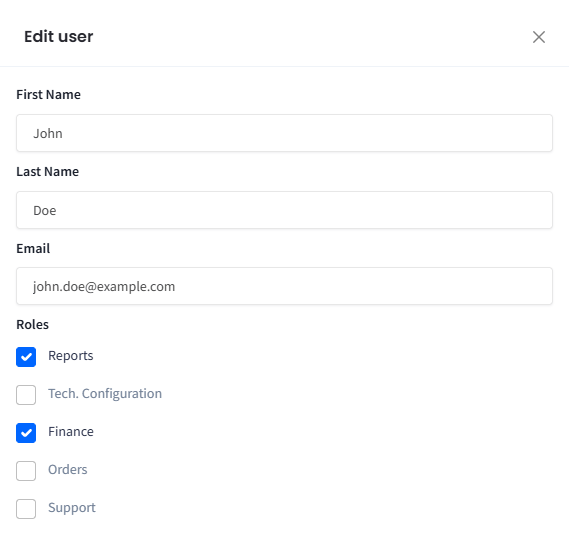
Roles checkboxes in the Edit user form
For the steps, see Creating users and Editing users.
Related articles
- Users: Create, edit, and delete the users on your account.
- Departments: Group users and limit the support tickets they see.
- Audit Log: Review who did what on your account.
- Email Notifications: Choose who receives which notification emails.
Updated about 13 hours ago