

Recordings
This guide covers step-by-step instructions for uploading files, generating recordings in multiple languages, and managing them in your settings.
You can upload playback files or generate recordings via Text to Speech for use across your IVR and various CommPeak Dialer configurations, such as specific campaigns, user groups, or tenant-wide settings.
Upload/generate playbacks
To upload a file or to generate a playback: Go to Settings > General Settings > Recordings.
To add a new recording, simply click + Add Recording to open the configuration window, where you can choose from two methods:

- Text-to-Speech Generation: You can create your own playback recordings in various languages using the Text to Speech feature. For some languages, there are several voice options that you can test and choose from.
Enter a unique name for the recording and select your preferred language and voice from the dropdown menus. Input the desired text and click Generate to create the audio file automatically.
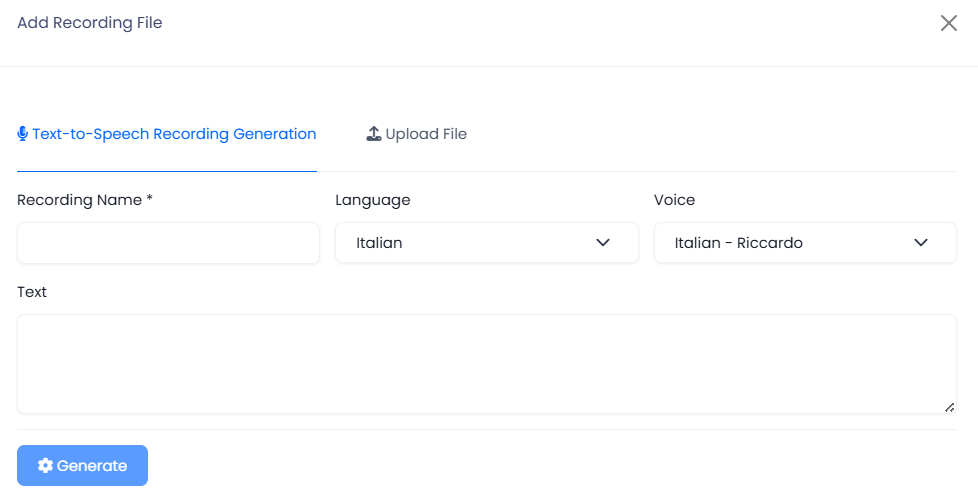
Text-to-Speech Recording Generation window
-
File Upload: Select Upload File and provide a name and language for the recording. You can use the Voice field to add descriptive notes about the content or the speaker, making it easier to search and manage your library. Select your local file and click Upload File to complete the process.
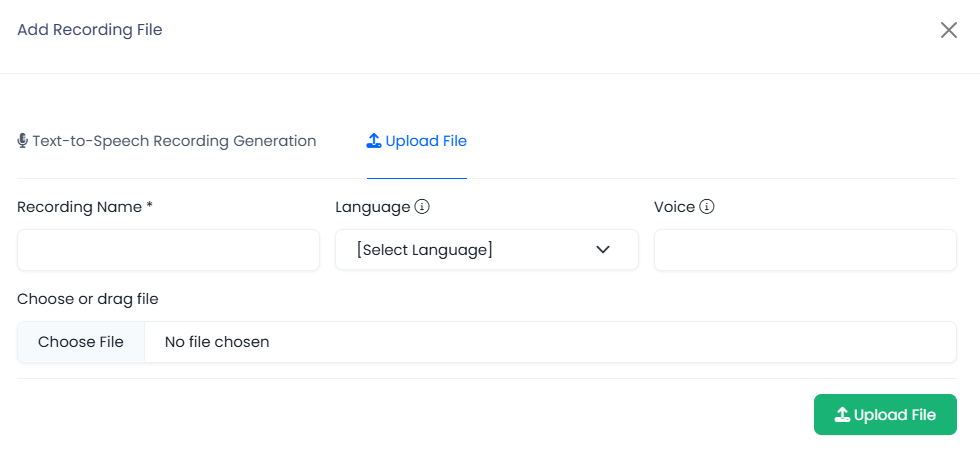
File upload window
Once the recording is generated or the upload is complete, the file will appear on the Recordings page and will be immediately available for use within the Dialer.
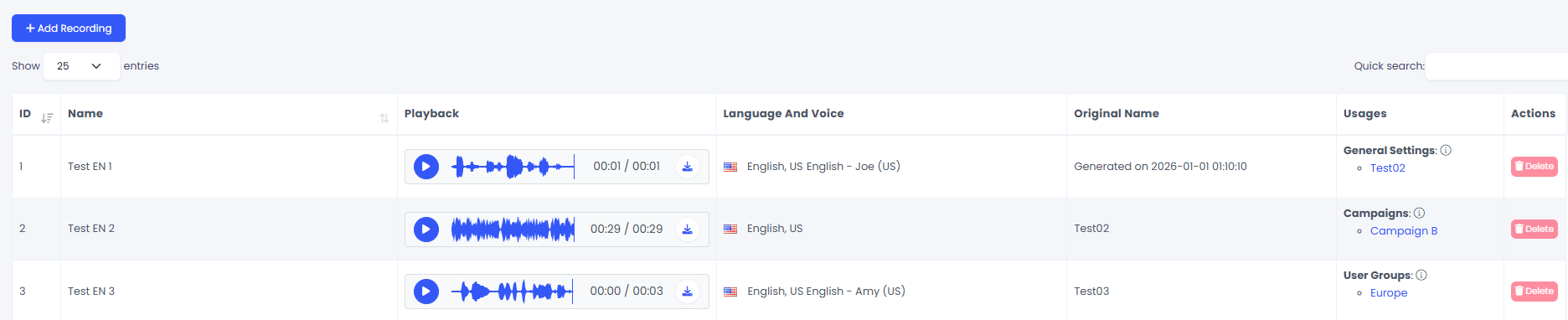
The existing playback recordings under the "Recording" page
Recording table explanation
| Column | Description |
|---|---|
| ID | The unique system identifier for the recording |
| Name | The playback name |
| Playback | Allows you to listen to the audio directly or download the file to your device |
| Language and Voice | Identifies the language used in the recording and the specific voice profile assigned to it |
| Original Name | Displays the original filename uploaded or the generation timestamp of the recording |
| Usages | This column displays all active locations for a recording, providing direct links to the relevant IVR, Campaign, Group, or General Settings pages where it is currently in use |
| Actions | Provides the option to permanently remove the recording from the system. |
Updated 6 days ago