

Setting Triggers in Zapier
How to set automatic email sending in SendGrid after you receive an incoming message via TextPeak.
You can create triggers to send data to Zapier and perform further actions after customers respond to your SMS messages or click links.
NoteYou can find more information about triggering Zaps in the Zapier Help Center.
To create a Zapier integration, complete several steps as follows.
Step 1: Start creating a zap
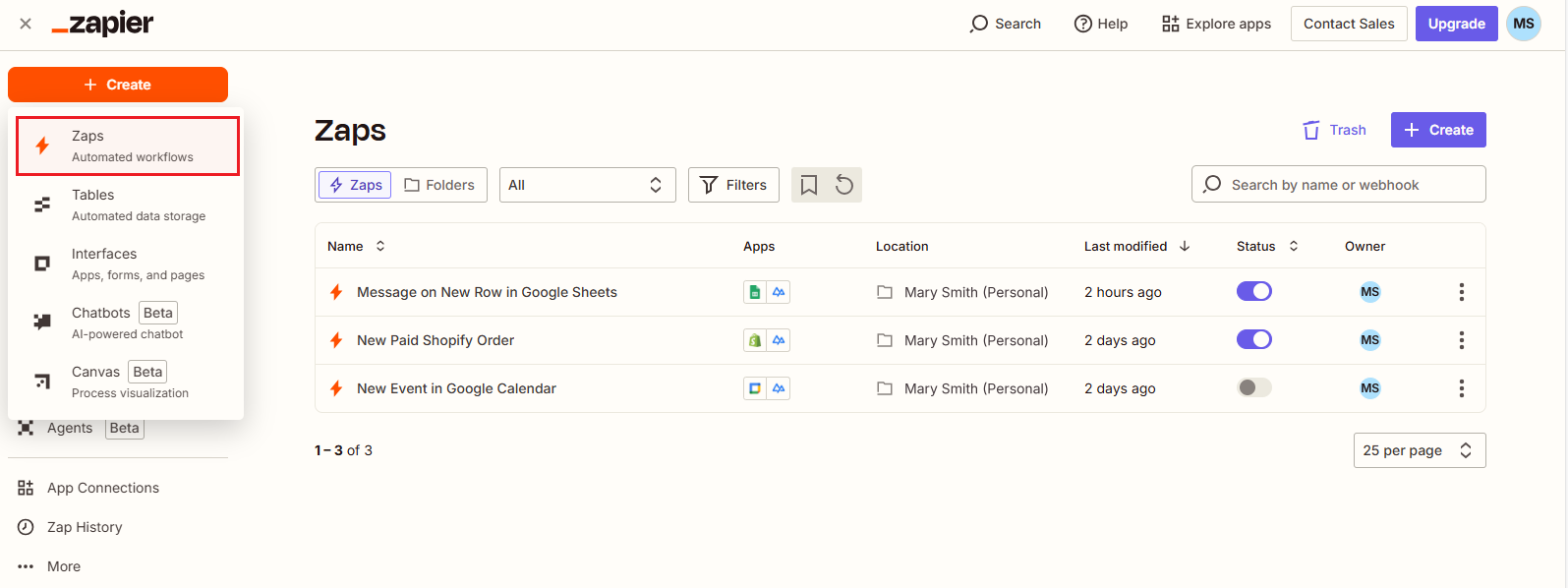
On your Zapier home page, click + Create in the top left of the page and select Zaps from the drop-down list.
Step 2: Name your zap
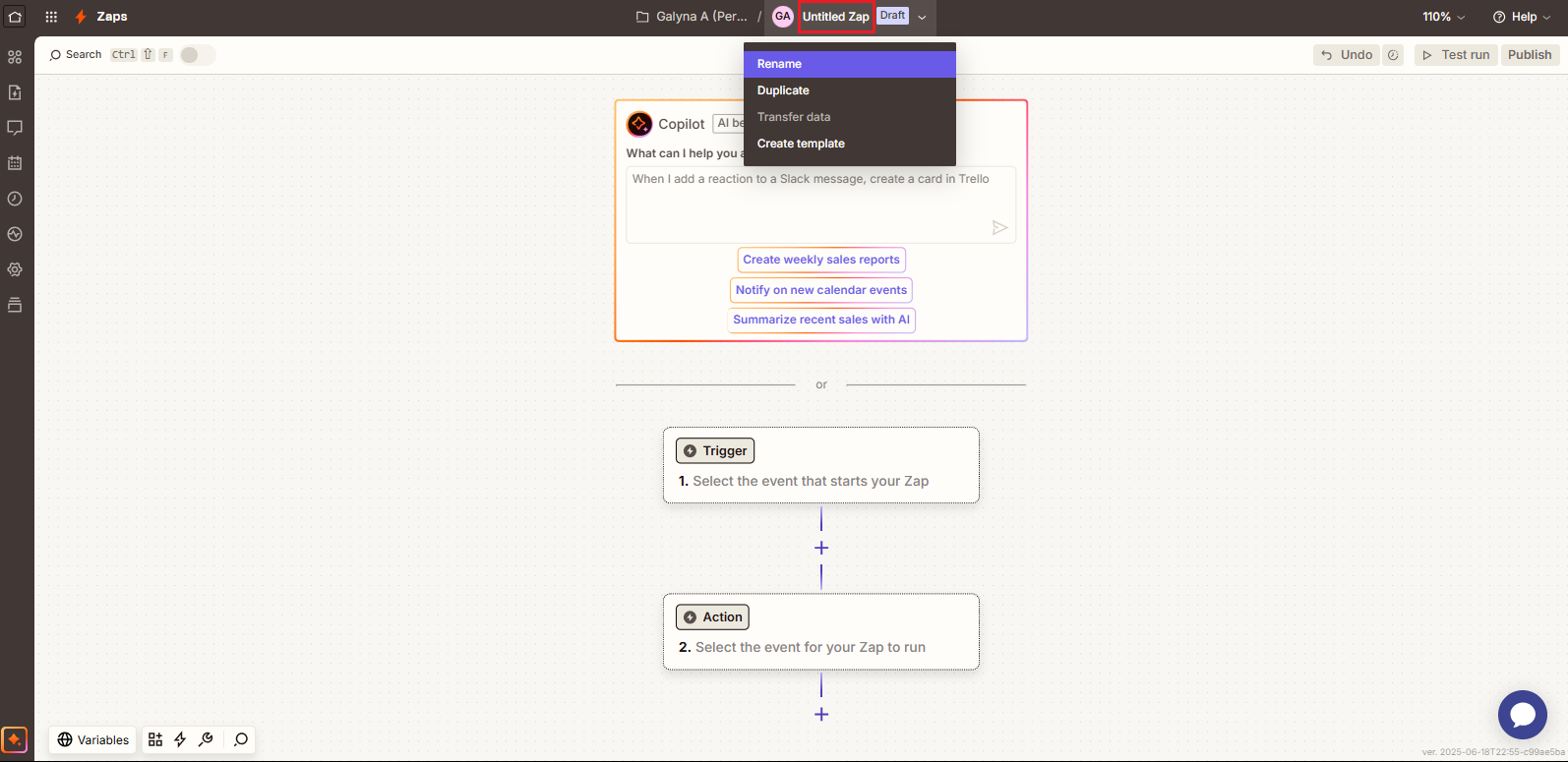
The Zapier editor opens with your draft Zap. To modify its name, click Untitled Zap in the editor header and select Rename; enter the name and confirm the action.
Step 3: Set up the trigger
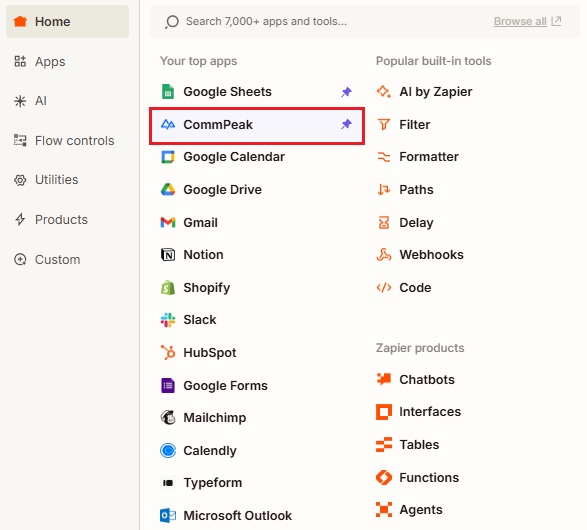
- In the editor, click the Trigger box and, in the new window, click to select CommPeak to start configuring the event that starts your Zap.
- Go to the side panel on the right and click on the Trigger Event field to select an action. For our workflow, we select the New Incoming SMS event.
NOTECurrently, we support two types of events:
- an incoming SMS
and
- a click on Short URL.
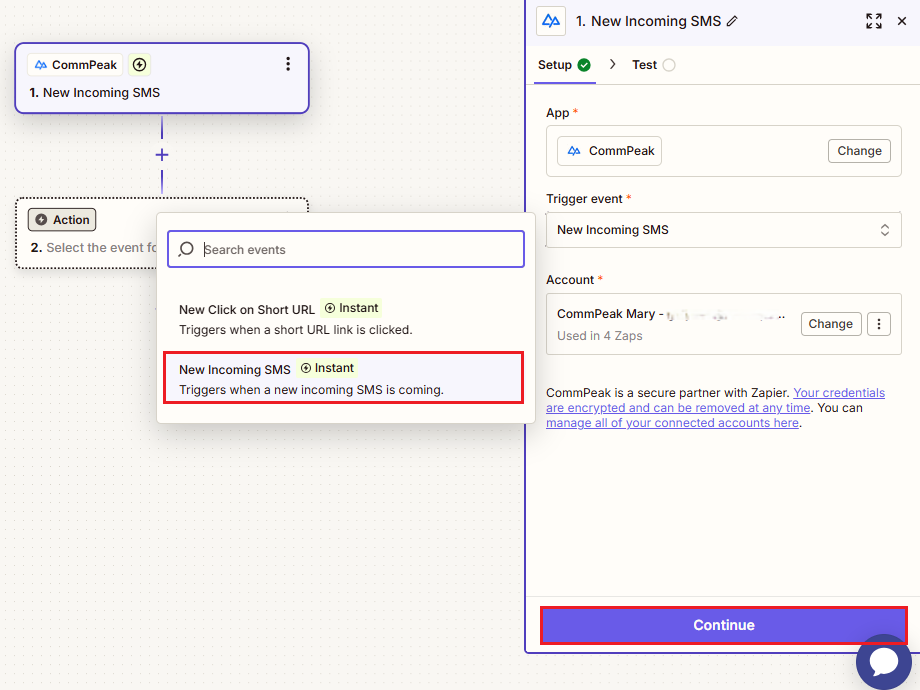
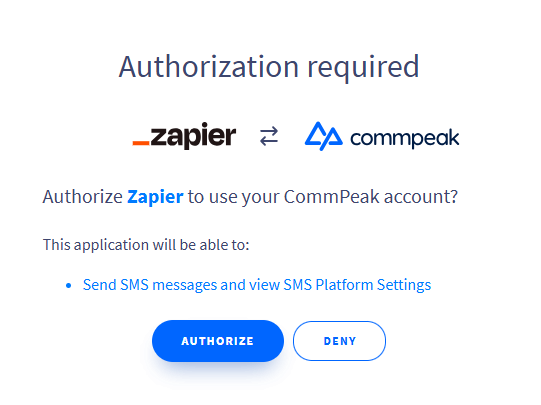
- If this is your first Zap, the Account field will not be auto-filled from your chosen template. So, click Sign in, then click to authorize Zapier to use your CommPeak account and click Continue.
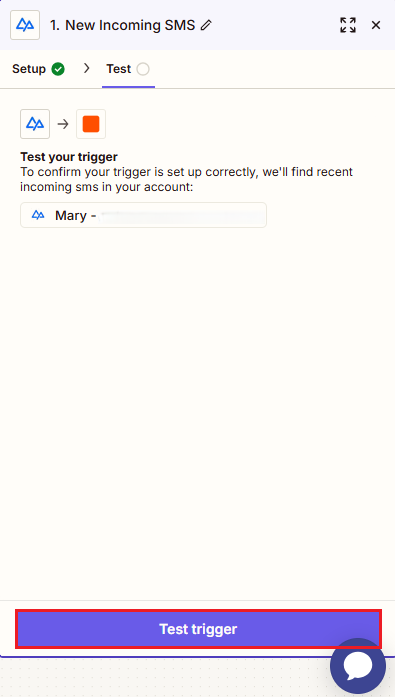
- In the Test tab, click Test trigger.
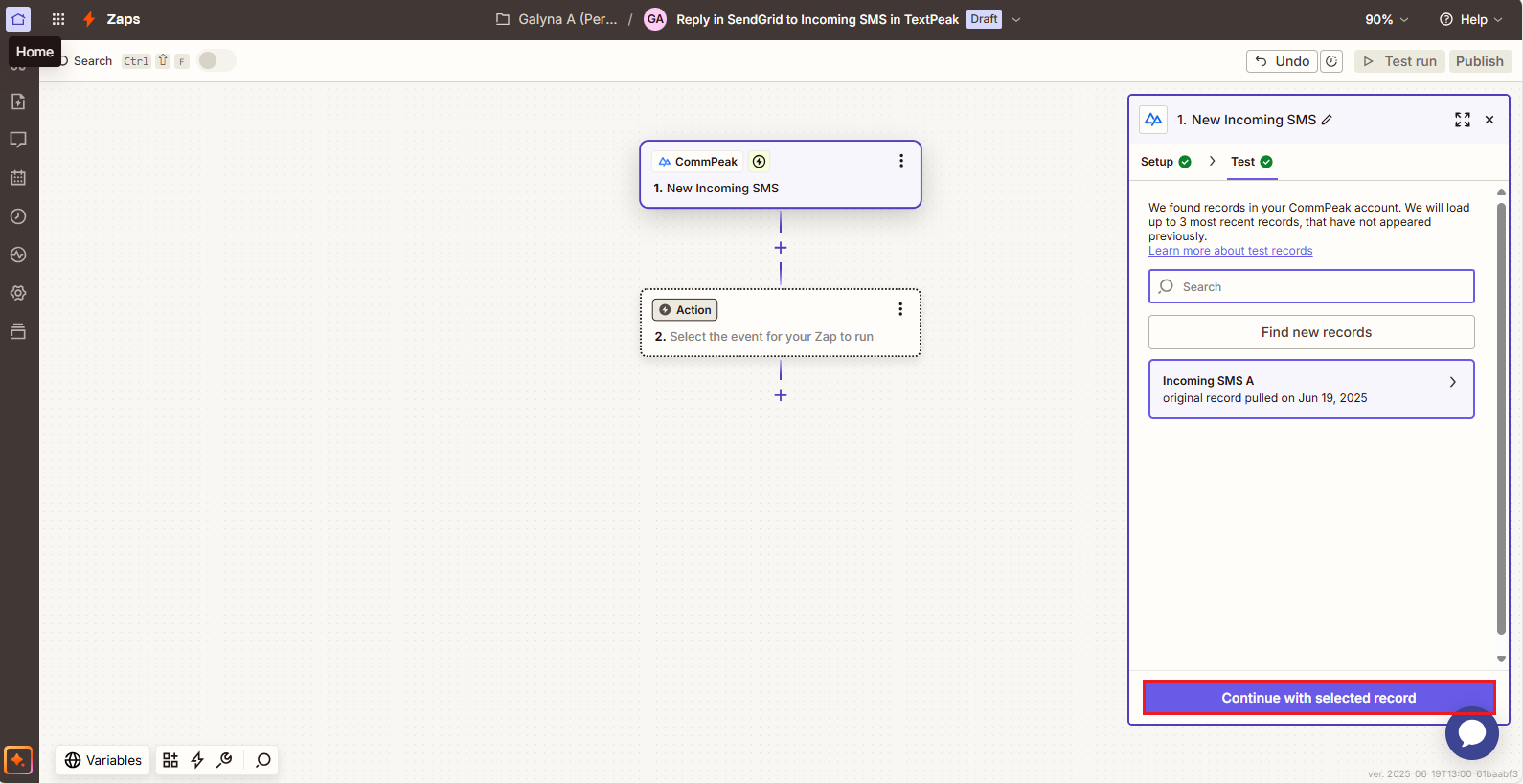
- Select an incoming message record to perform the test and continue with it.
Step 4: Set up an action
- Now, in the Action box, we will set up the action for your Zap to run. First, click to select or search for the SendGrid app.
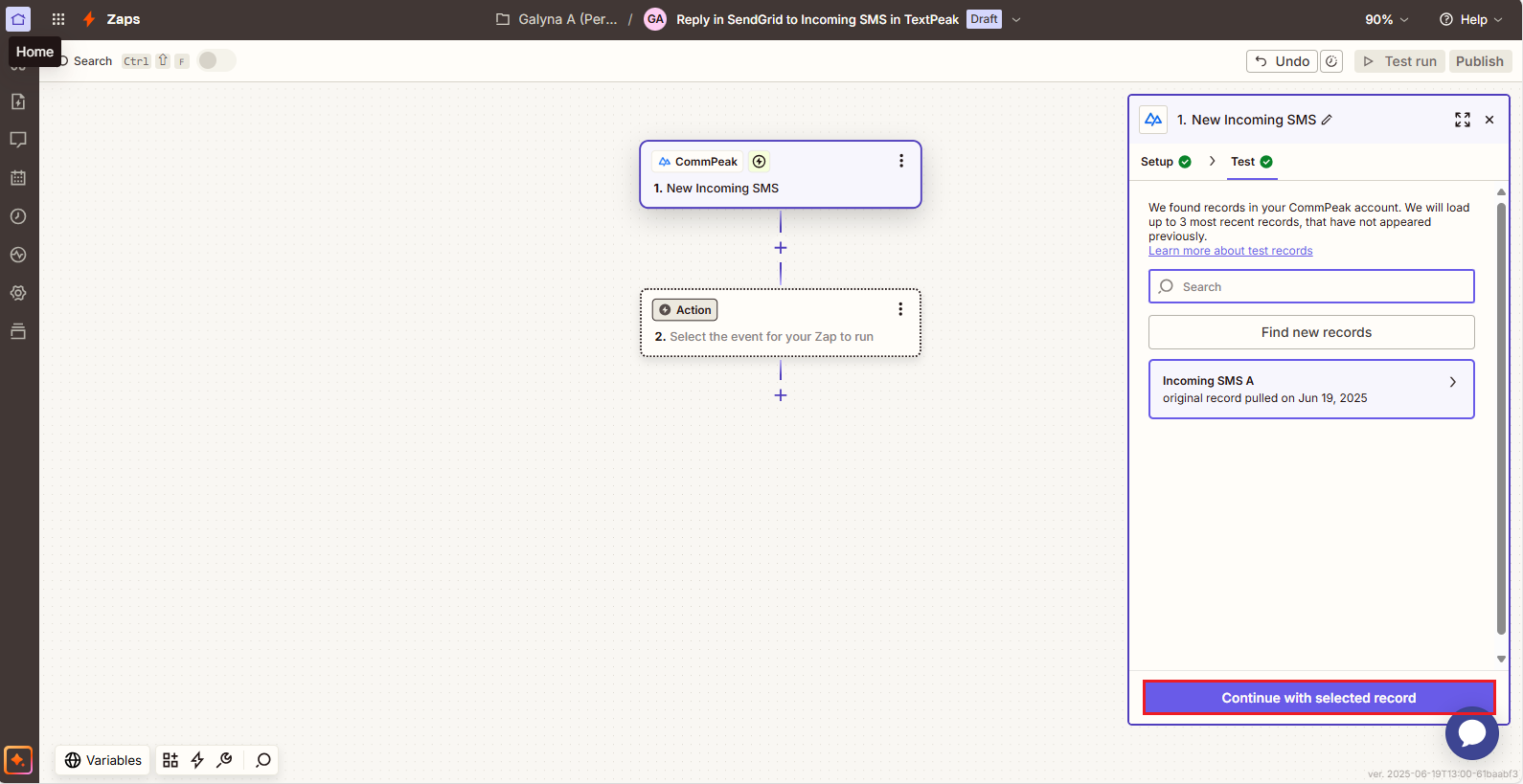
- Choose the Send Email event.
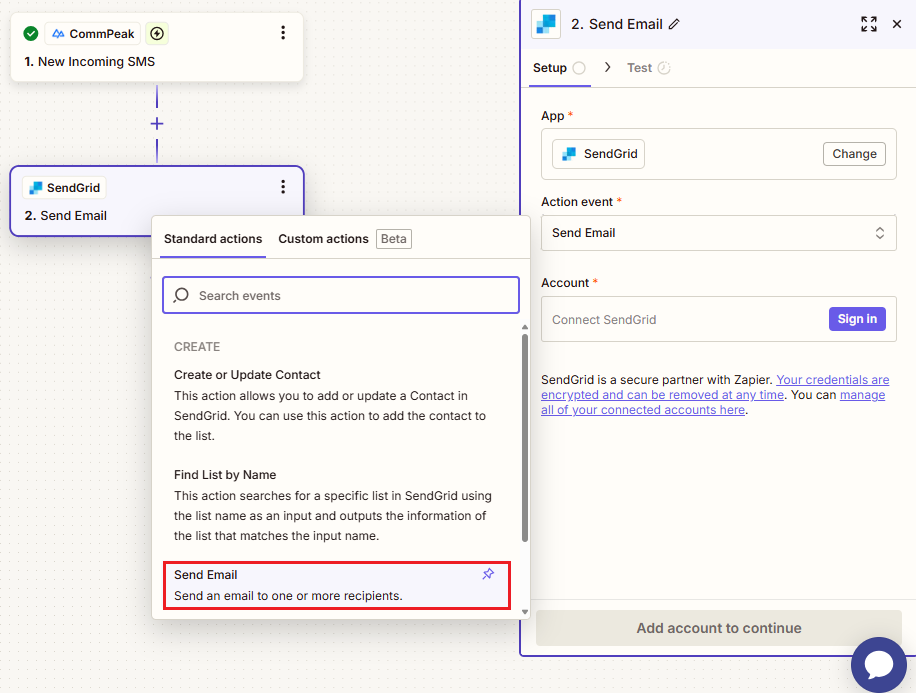
- For the Account field, click Sign in.
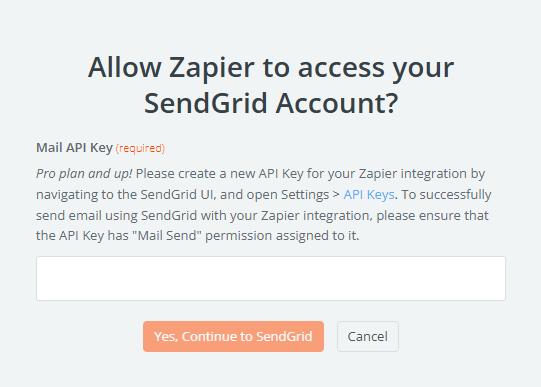
- In a pop-up window, enter your SendGrid API Key and agree to continue to connecting your SendGrid account.
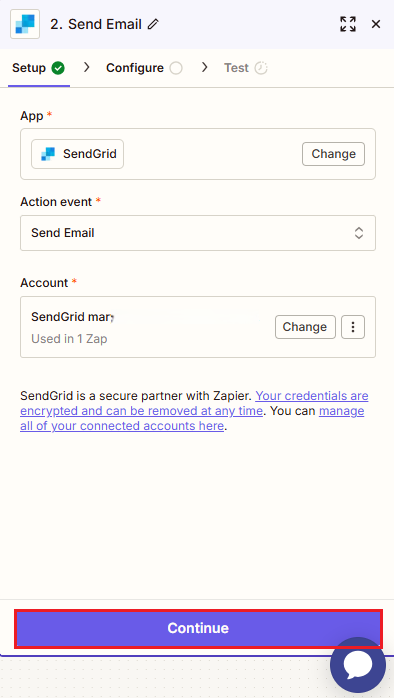
- Click Continue.
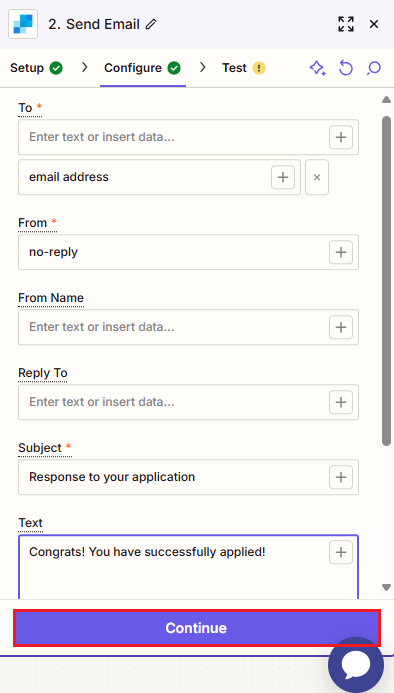
- Complete the required fields on the Configure tab, then click Continue.
- The next step is testing your trigger. Test the step, or skip it for now.
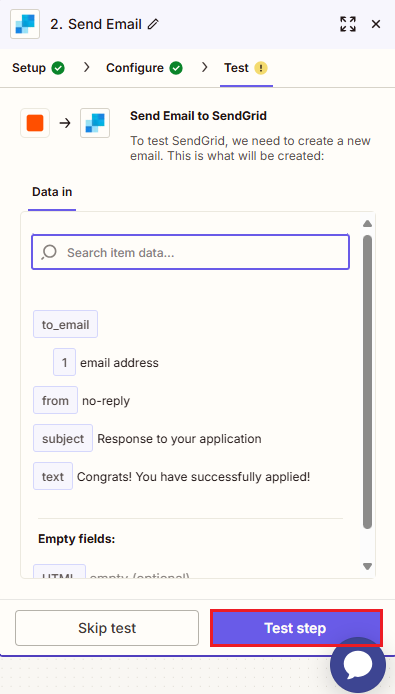
IMPORTANTMake sure you provide the verified senders' email addresses when testing your SendGrid action.
Step 5: Publish zap
Click to publish your Zap.
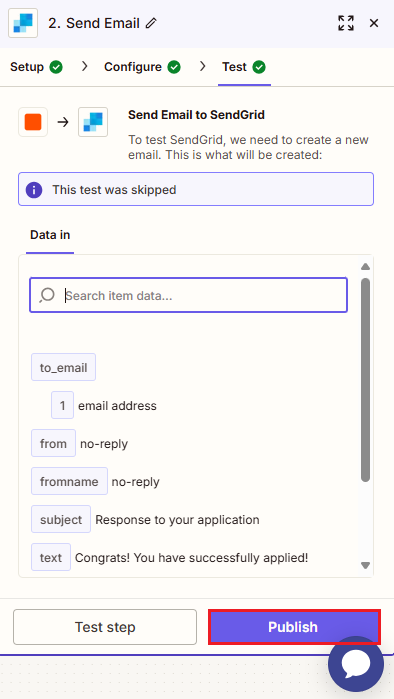
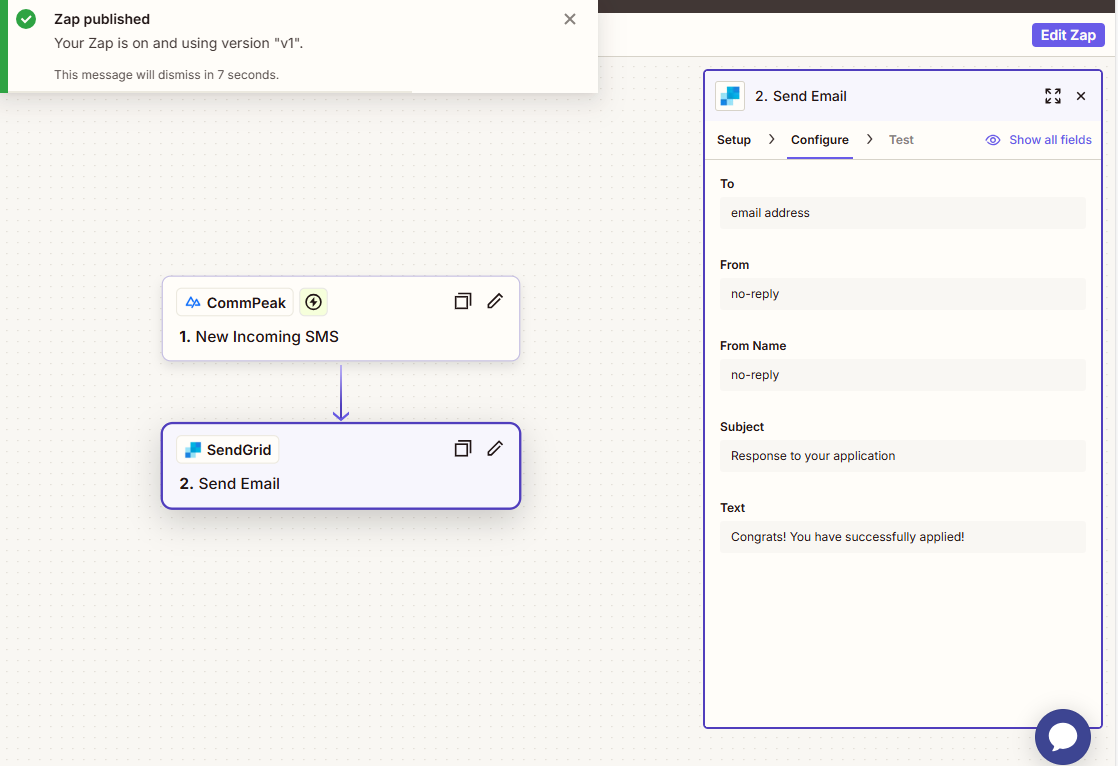
In a moment, you will be notified that the system published it.
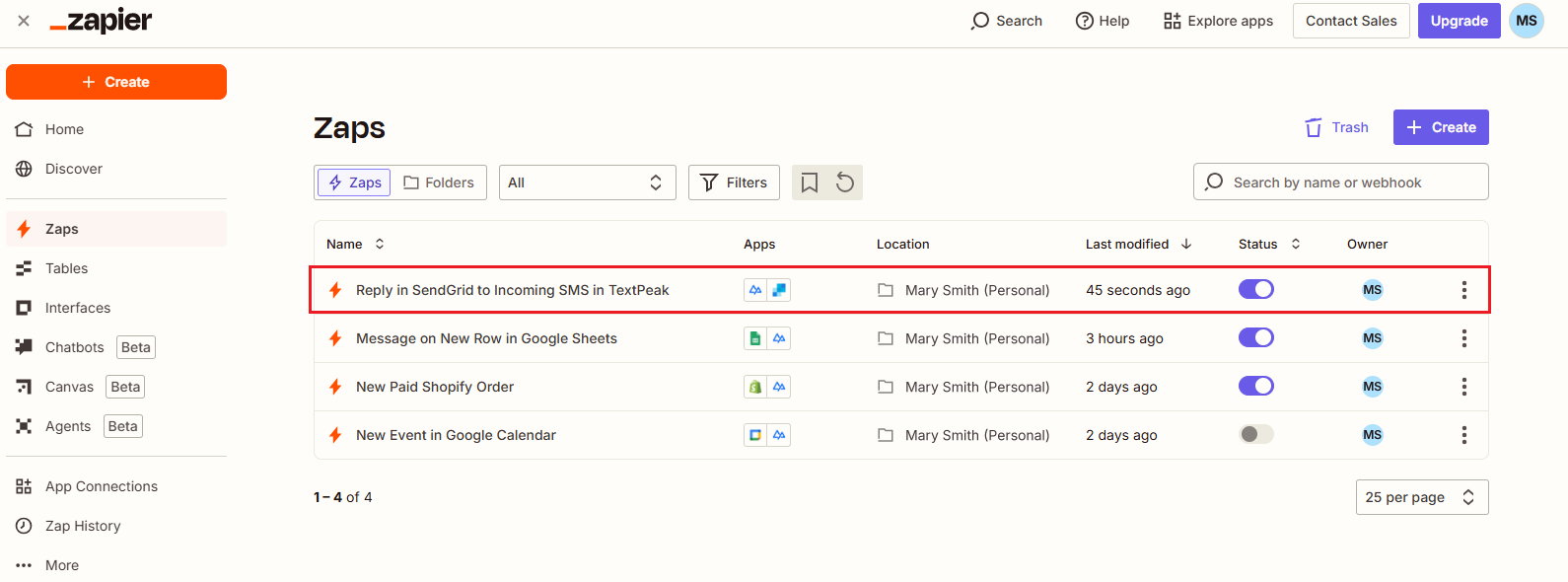
To view your new Zap added to the list, go to your Zapier homepage.
Updated 26 days ago