

Dynamic Caller ID Rules
Сreate dynamic caller ID rules to change your caller ID during outbound calls based on specific conditions, such as country or prefix, and activate them in your SIP accounts.
Dynamic caller ID overview
The Dynamic Caller ID feature allows you to change your caller ID during outbound calls based on previously set rules.
For example, you are calling to the US from the UK and want to appear as calling from the US. If you have set up an automated rule for this, your Caller ID will change to the US phone number you have specified in the rule.
Video tutorial
All dynamic rules you have created are displayed in the VoIP Services section, on the Dynamic Caller IDs tab.
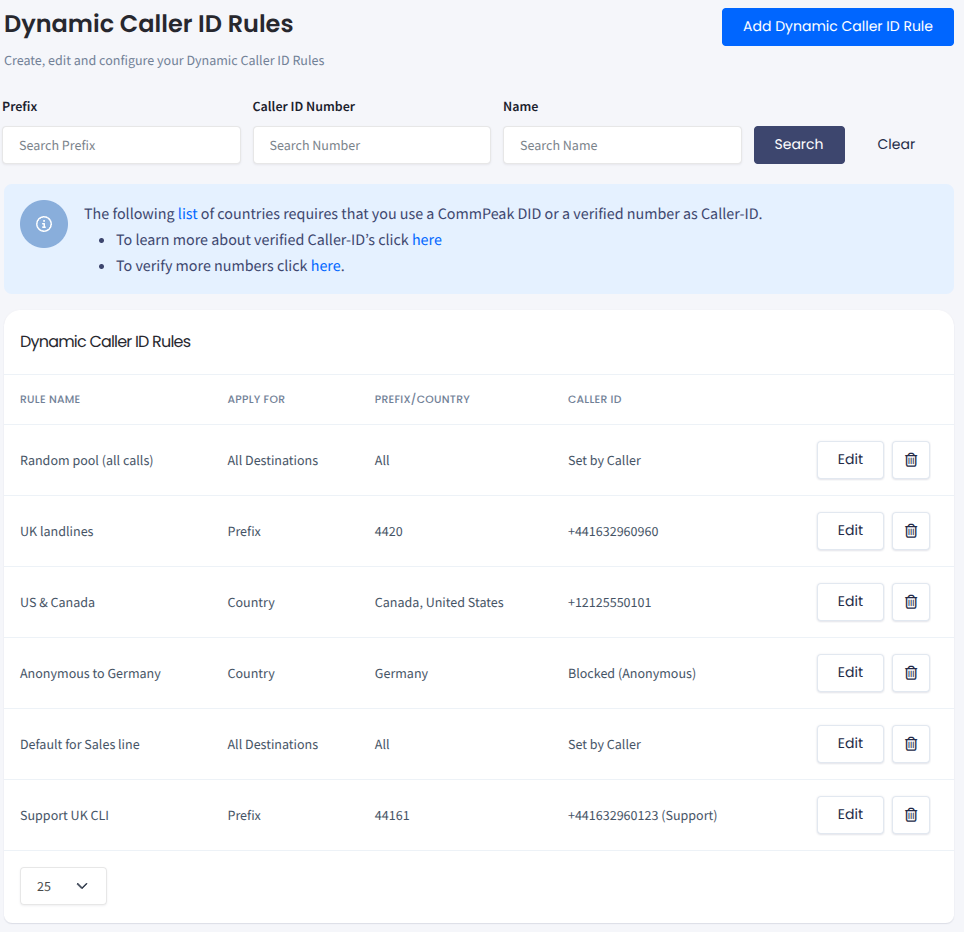
Dynamic Caller IDs page in CommPeak Portal
To add a dynamic Caller ID rule:
-
Click the Add Dynamic Caller ID Rule button in the top right.
-
In the Create new Caller ID Rule window that appears, fill in the fields described in the table. Apply Rule for and Caller ID Type are drop-down lists, and the country selector is searchable.
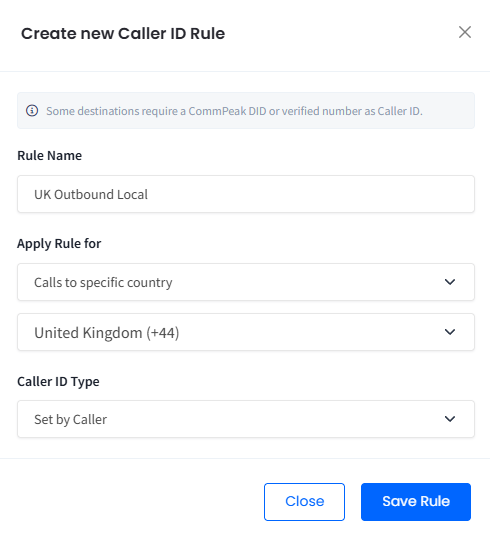
Creating a dynamic rule
-
Click Save Rule.
| Field | Instructions |
|---|---|
| Rule Name | Enter the name of the rule. |
| Apply Rule for - All Calls | Select this option to apply the rule to all calls. |
| Apply Rule for - Calls to specific country | Select a country from the drop-down list. |
| Apply Rule for - Calls to specific prefix | Enter a calling prefix, for example, 44203 for London - UK. |
| Caller ID Type - Set by Caller | The call recipient will see the name or number you have configured as a Caller ID in your SIP Client or PBX. |
| Caller ID Type - Specific Caller ID | Use a specific number as your Caller ID:
|
To delete a dynamic Caller ID rule:
IMPORTANTBefore deleting a dynamic Caller ID rule, confirm it is not enabled in the SIP account settings of any SIP accounts.
-
Expand VoIP Services in the left pane.
-
Go to the Dynamic Caller ID tab.
-
Click the delete icon for the rule you wish to delete.
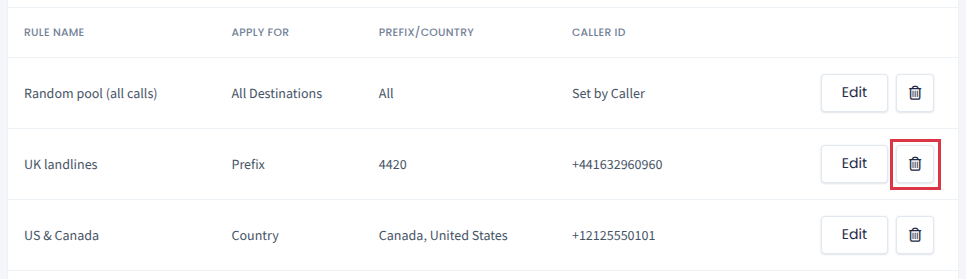
Removing a Caller ID rule
Dynamic rules will apply to outgoing calls after you enable them in SIP accounts.
NOTEMake sure to verify your added dynamic Caller ID since the unverified Dynamic Caller IDs (indicated with an exclamation mark) are not available as selectable options in the SIP Accounts settings.
To activate dynamic Caller ID rules:
-
Expand VoIP Services in the left pane.
-
Go to the SIP Accounts (Trunks) tab.
-
Click Edit for the SIP account you wish to modify.
-
On the Edit SIP Account page that opens, find the Caller ID panel.
-
Use the search box or the All Rules / Selected tabs to locate the rule, then select its checkbox (or use Select All to enable every rule). The Selected: X of Y counter shows how many rules are active. Use the Create New link to add a rule, or Manage Rules to edit existing ones.
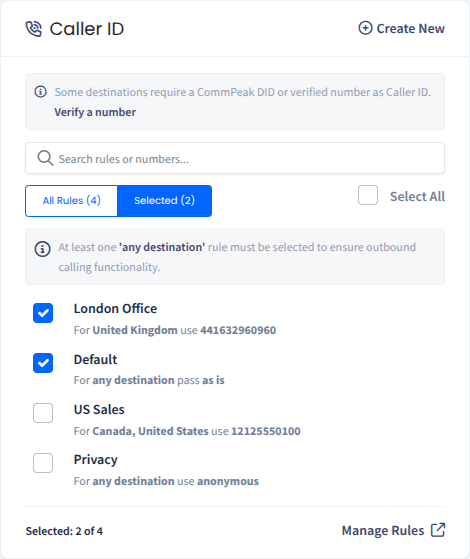
Activating a dynamic Caller ID rule
EXAMPLE 1You want to create a dynamic Caller ID rule for multiple verified phone numbers being selected randomly.
You need to create multiple rules on the Dynamic Caller IDs page for the same Prefix/Country or Any Destination for different Caller ID numbers.
Activate the rules for the relevant SIP account on the Caller ID tab.
In this example, we will create it for phone numbers 441632960393 and 441632960395.
Rule 1: In Apply Rule for select All Calls, in Caller ID Type select Specific Caller ID and 441632960393
Rule 2: In Apply Rule for select All Calls, in Caller ID Type select Specific Caller ID and 441632960395This will create dynamic Caller ID rules to pick one of the specific numbers (441632960393 and 4416329603935) when calling from that SIP account to all destinations.
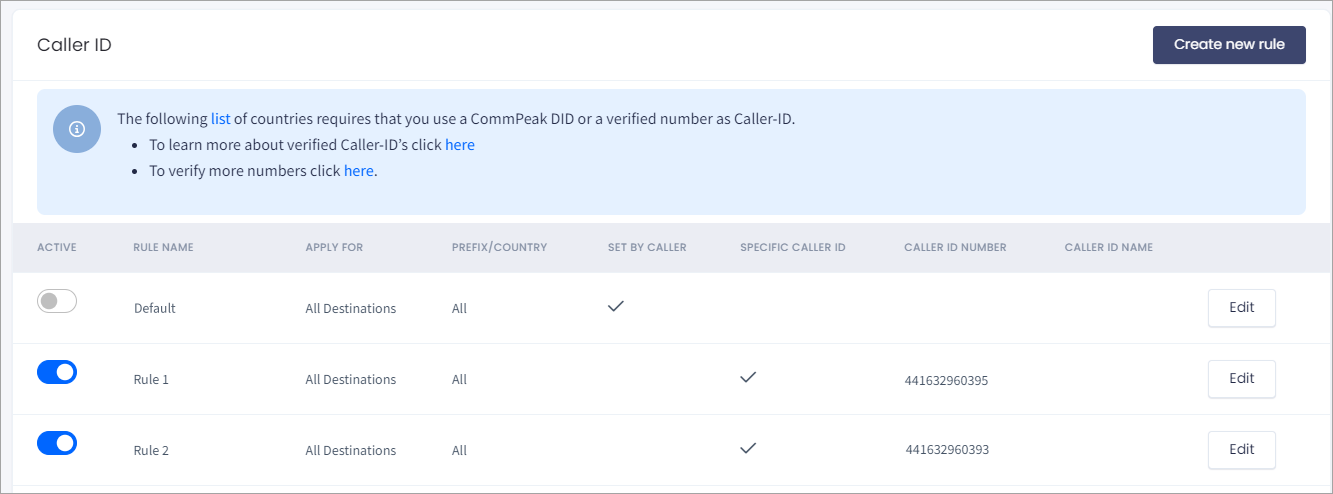
Example of Caller IDs setup
EXAMPLE 2You want to set a German DID number for outgoing calls to Germany.
In Call to specific country, you should select the country prefix for Germany (+49).
Under Caller ID Type, select Specific Caller ID and verify a German DID number you will use as your Caller ID for outgoing calls to Germany (e.g., +493012345678).
Updated 4 days ago