This page provides information on how to set up and manage your DIDs.
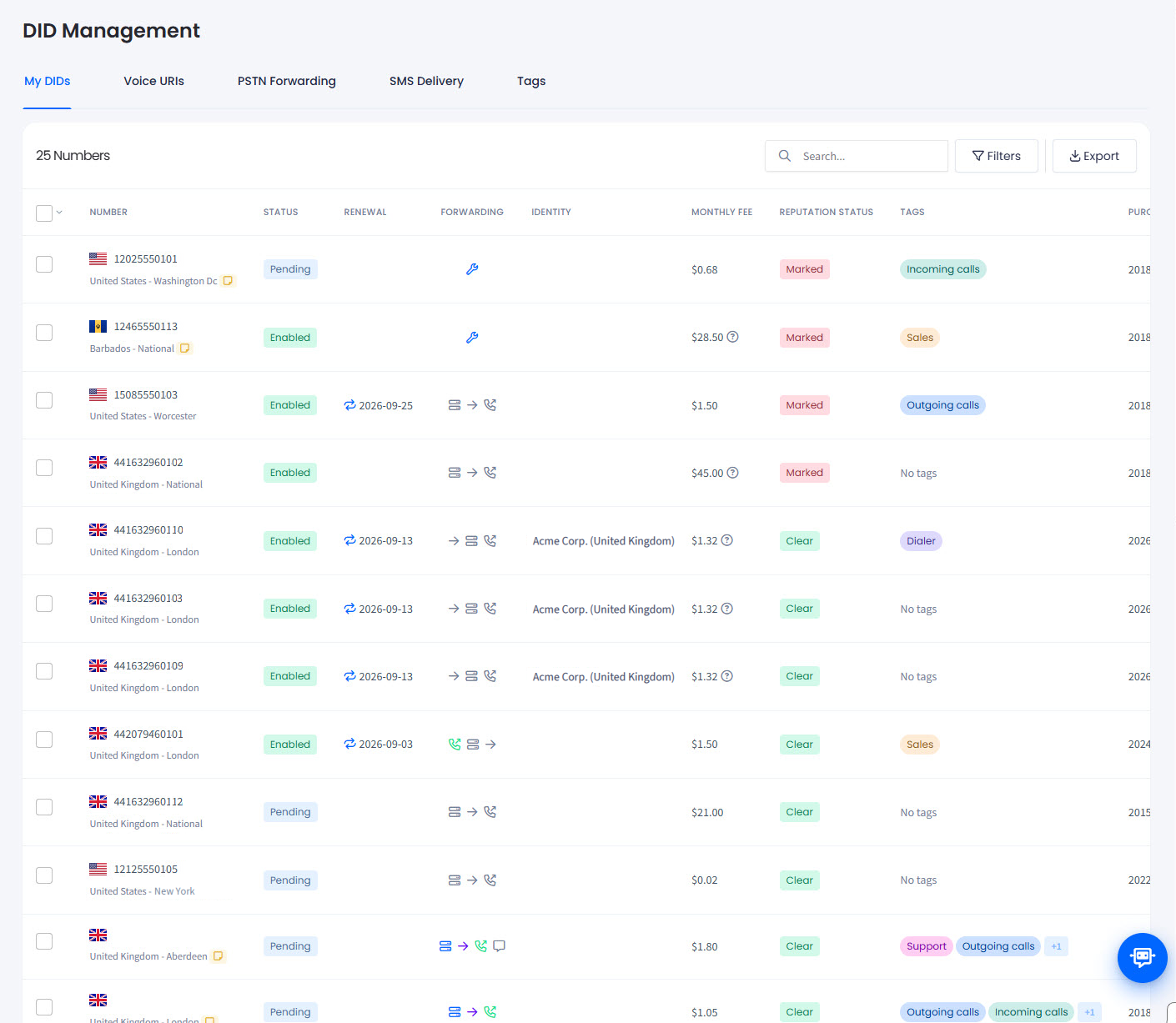
Use your CommPeak Portal to see the detailed table view of your entire DIDs inventory with the visual indicators and columns used to manage your numbers.
Video tutorial
DID Management table
In the table on the DIDs > Management page, you can:
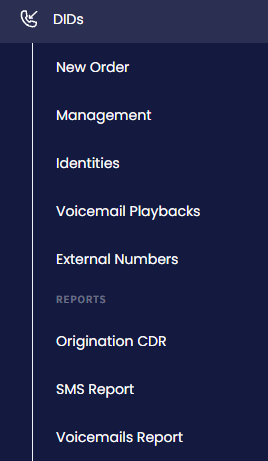
On the main menu on the left, navigate to DIDs and select Management.
DIDs > Management tab
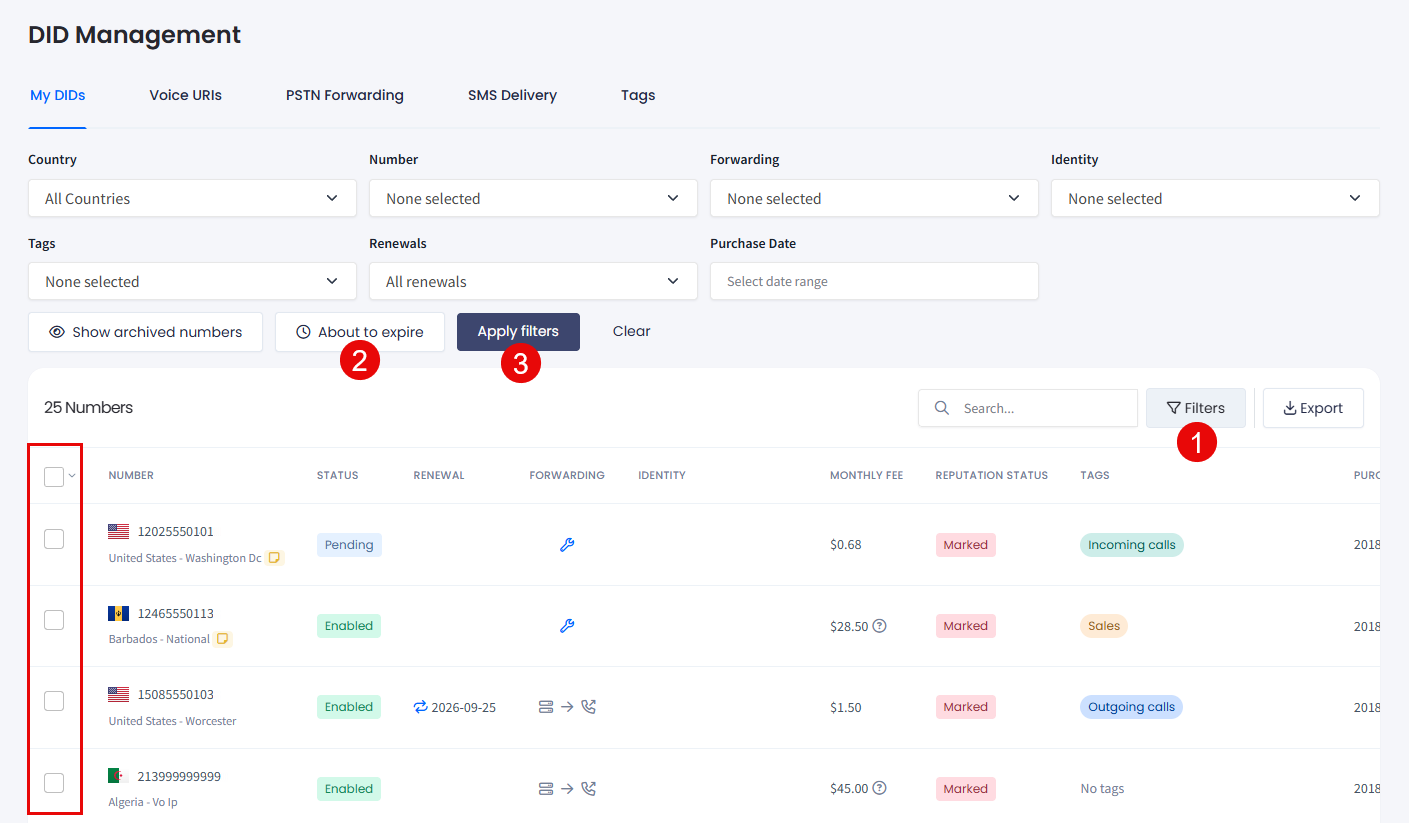
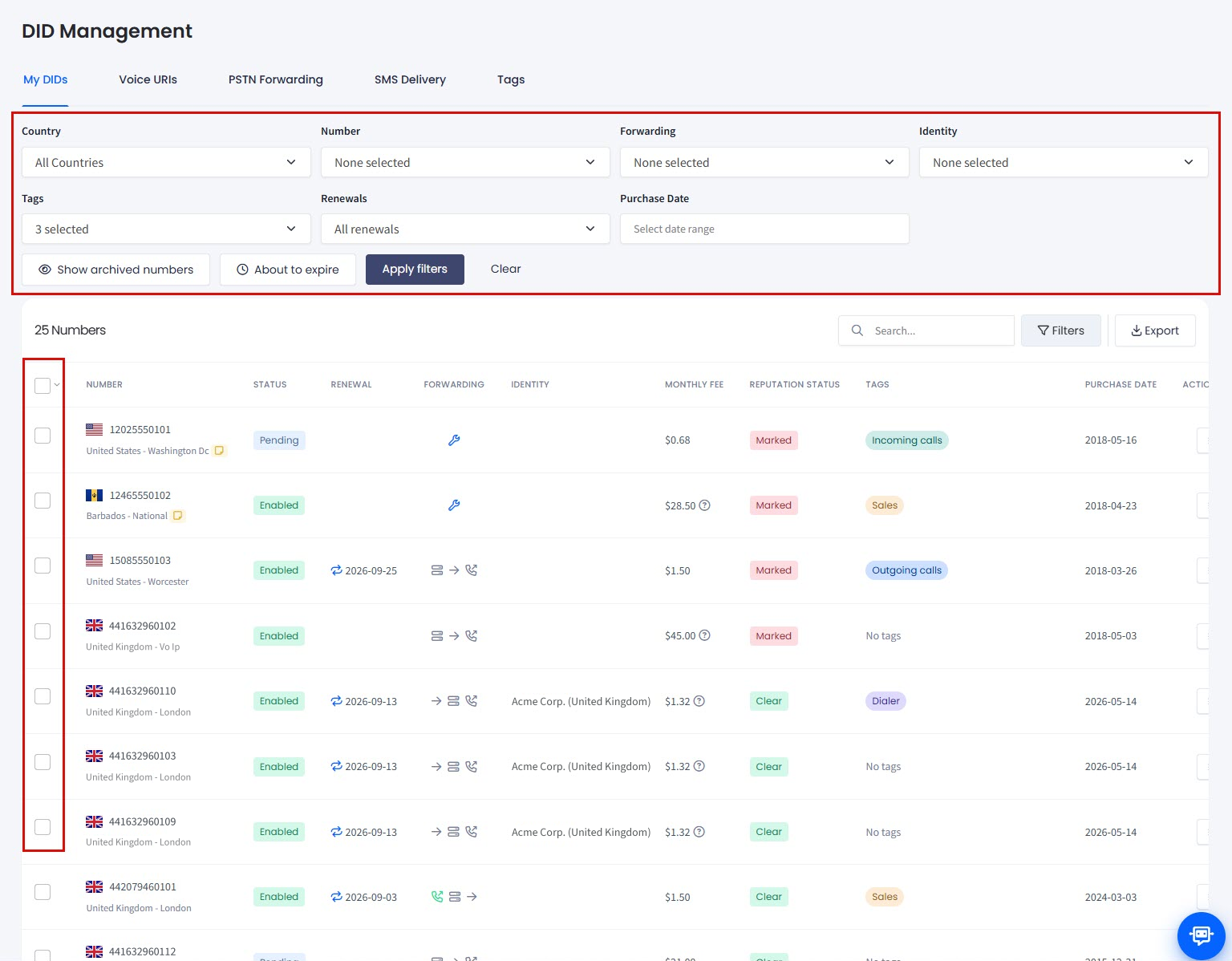
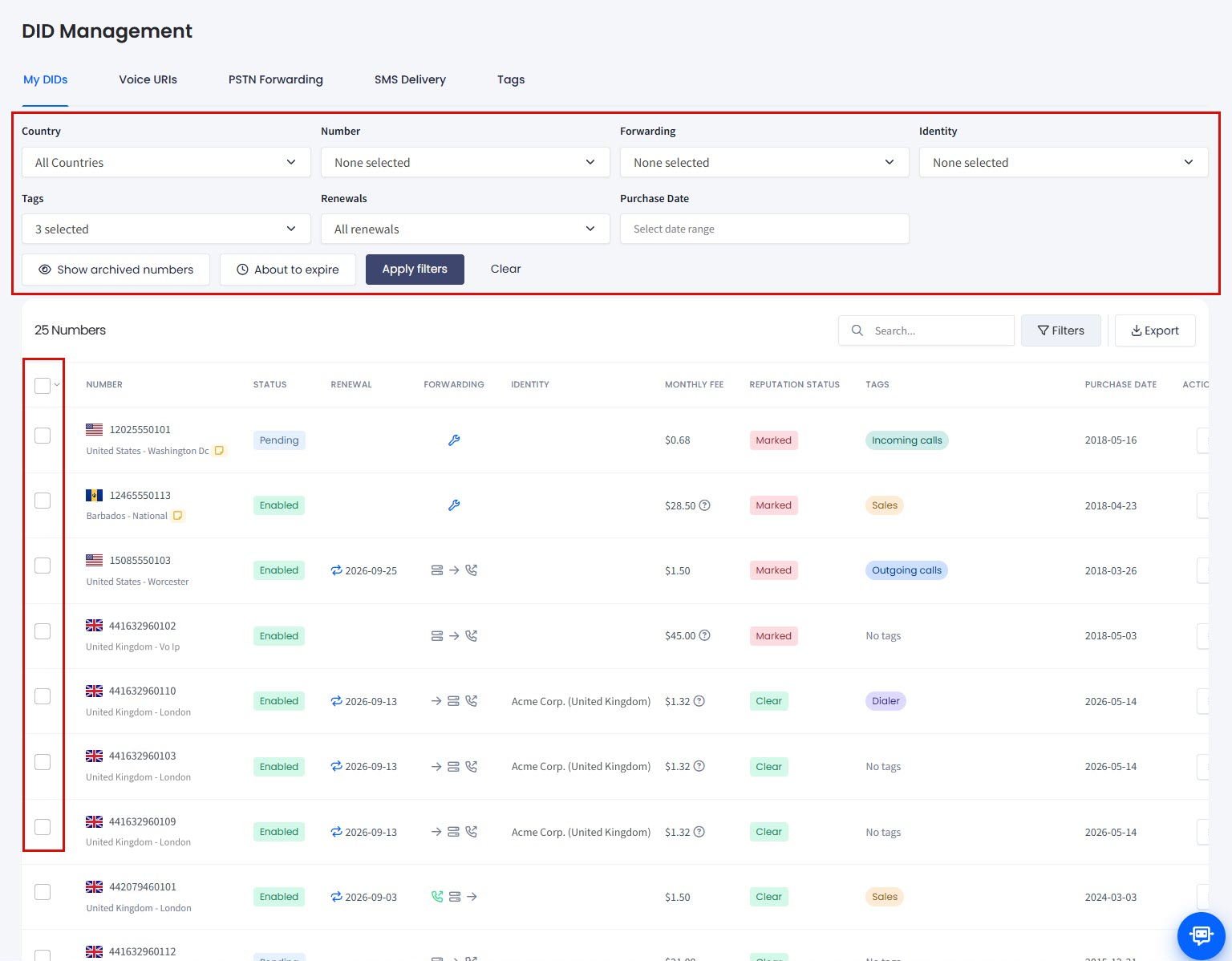
In the My DIDs table, use the checkbox(es) on the left or click the Filters button and select the needed number(s) by applying search filters at the top right of the DID Management page.
Filtering DID numbers
📘
NOTE
To build the set of numbers you want to change, you can filter the table by multiple DID numbers at once. See Filtering by multiple numbers at once.
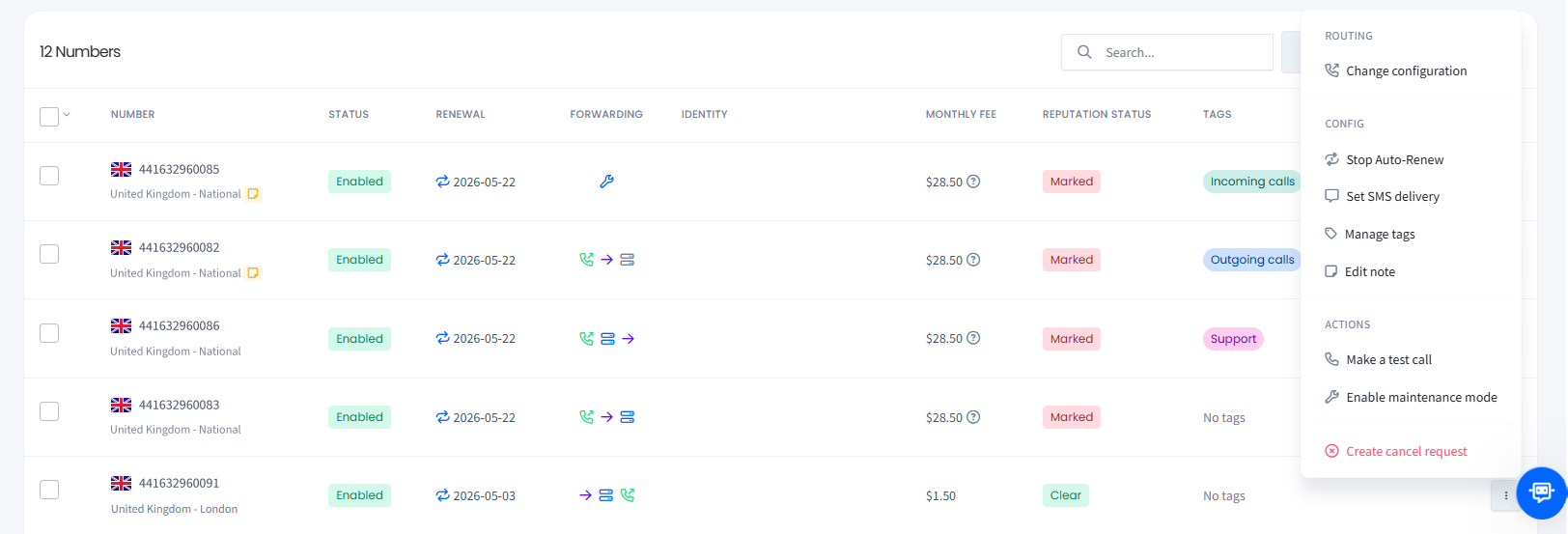
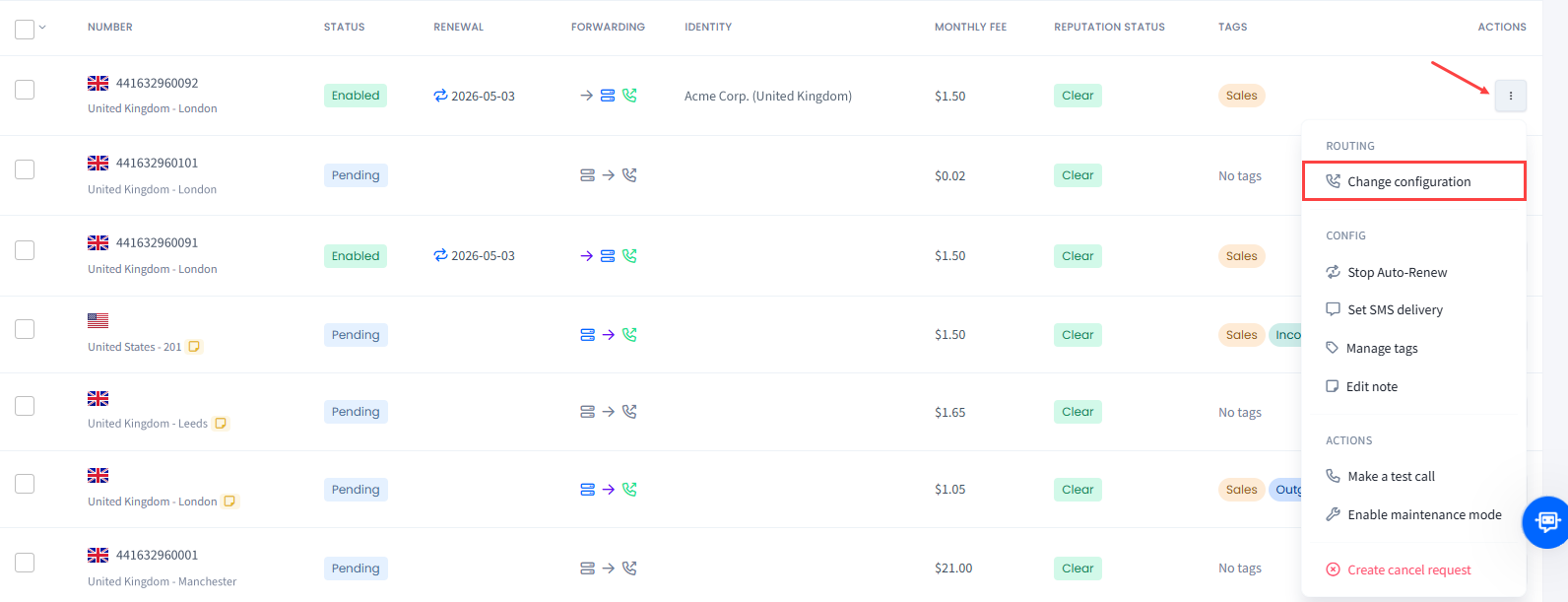
Click the three-dot action icon for the needed number and select an action from the list.
Action options button
Refer to the following table for column descriptions:
You can enable or stop auto-renewal of the selected DIDs added to your account.
To enable Auto-Renew:
Open the My DIDs tab.
In the My DIDs table, use the checkbox on the left or select the needed number by applying search filters at the top right of the DID Management page.
Filtering or selecting DID numbers
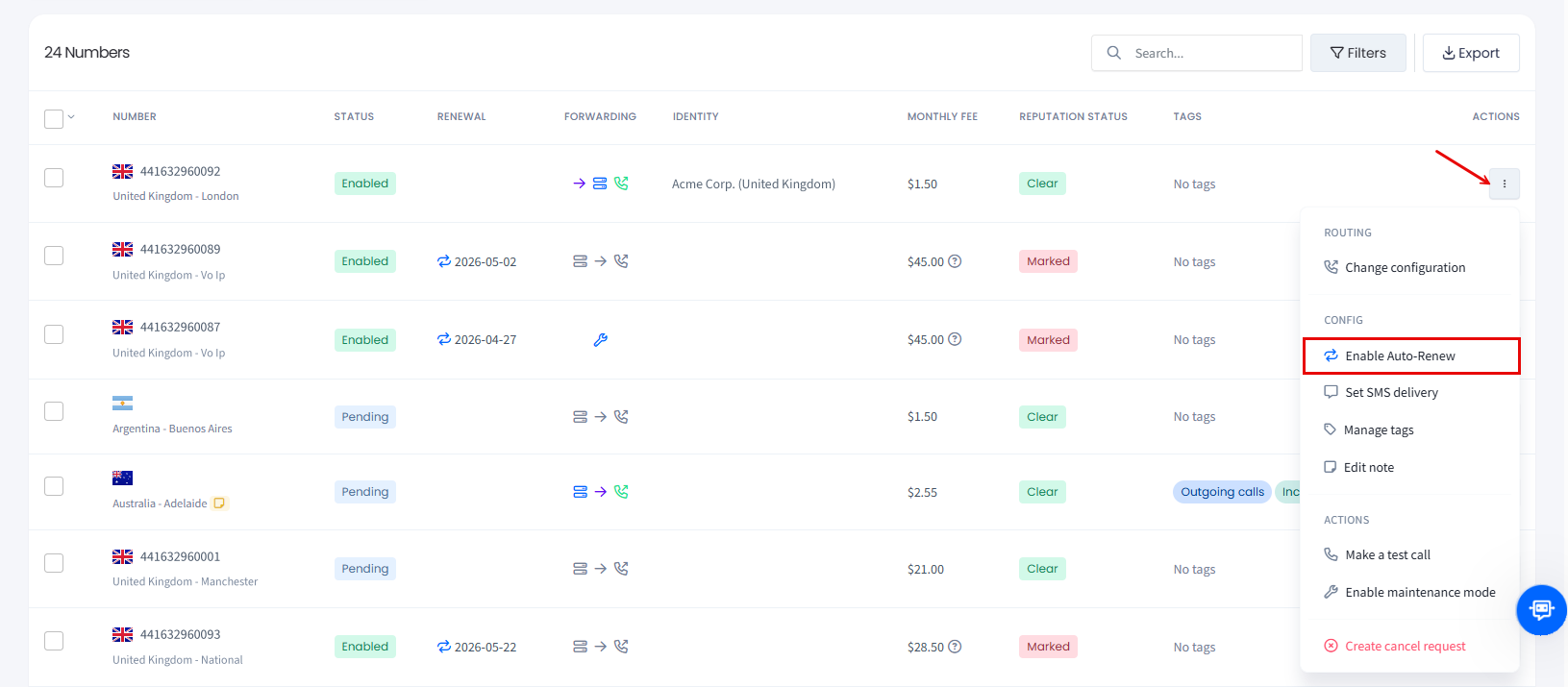
Click the three-dot action icon for the needed number and select the Enable Auto-Renew action from the drop-down list.
Selecting Enable Auto-Renew option
👍
NOTE
You can also apply this action across multiple DIDs. For more details, check the Managing Multiple DIDs article.
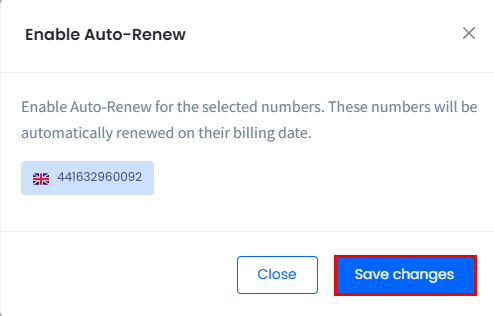
In the Enable Auto-Renew window, review the number(s) selected and click Save changes to confirm.
Enable Auto-Renew window
You will be notified that auto renewal was successfully enabled for the number.
Auto renewal enabled successfully message
To check if the change has been added to the correct number, check the Renewal column for the corresponding DID number record (this should indicate the upcoming renewal date). Hover over the icon (the blue repeat arrows) to see the note on the upcoming renewal date.
Auto renewal applied to the DID number
To stop Auto-Renew:
Open the My DIDs tab.
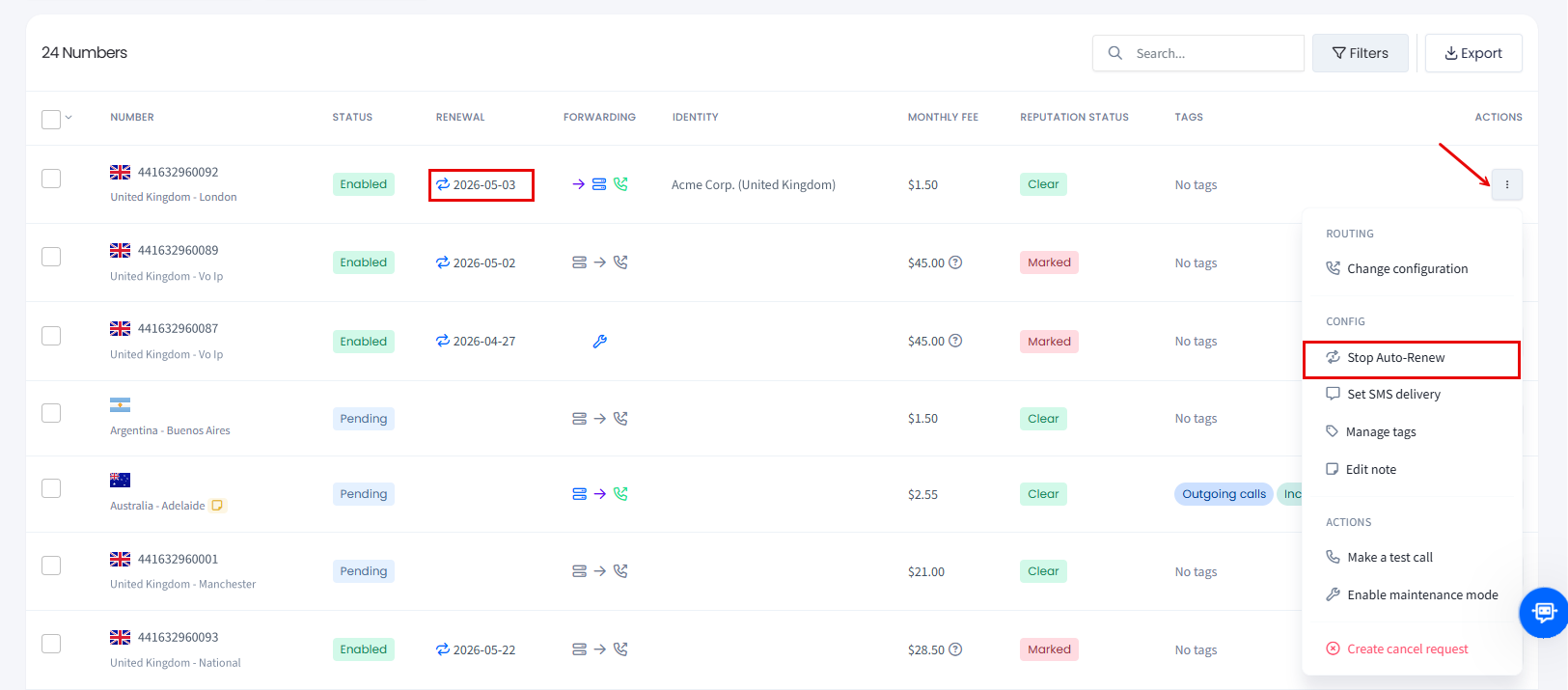
In the DIDs Management table, click the three-dot action icon for the needed number and select the Stop Auto-Renew action from the drop-down list.
Selecting Stop Auto-Renew option
👍
NOTE
You can also apply this action across multiple DIDs. For more details, check the Managing Multiple DIDs article.
In the Stop Auto-Renew window, review the number(s) selected and click Save changes to confirm.
You will be notified that auto renewal was successfully disabled for the number.
Auto renewal disabled successfully message
To check if the change has been added to the correct number, check the Renewal column for the corresponding DID number record (the Auto-Renew entry should be cleared).
Auto-renew entry cleared
👍
TIP
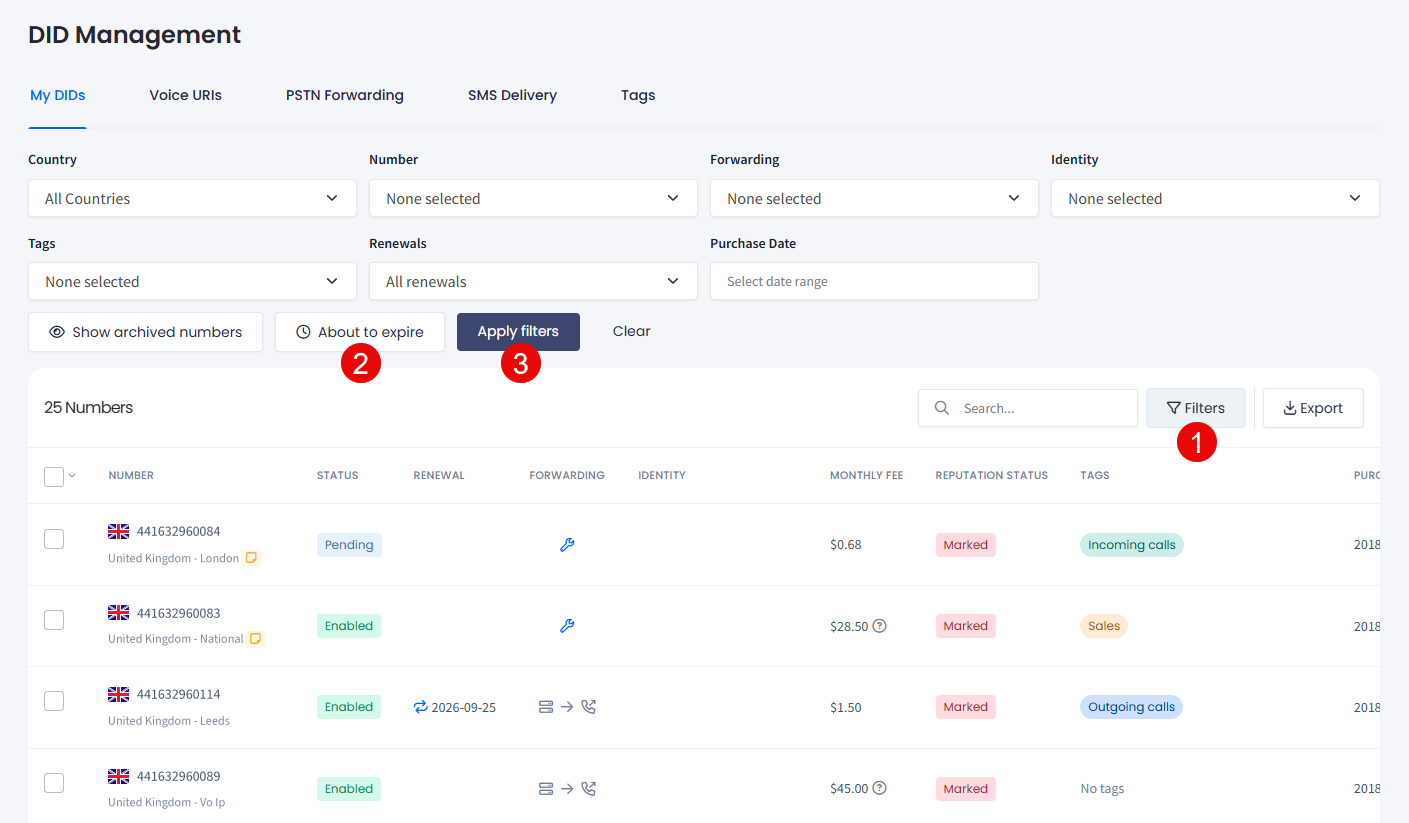
To find numbers that expire soon, click Filters, then click the About to expire button and confirm applying the filter.
Filtering by About to expire DIDs
Making test calls
You can make a test call to the DID from any number to verify a DID's routing.
To do it:
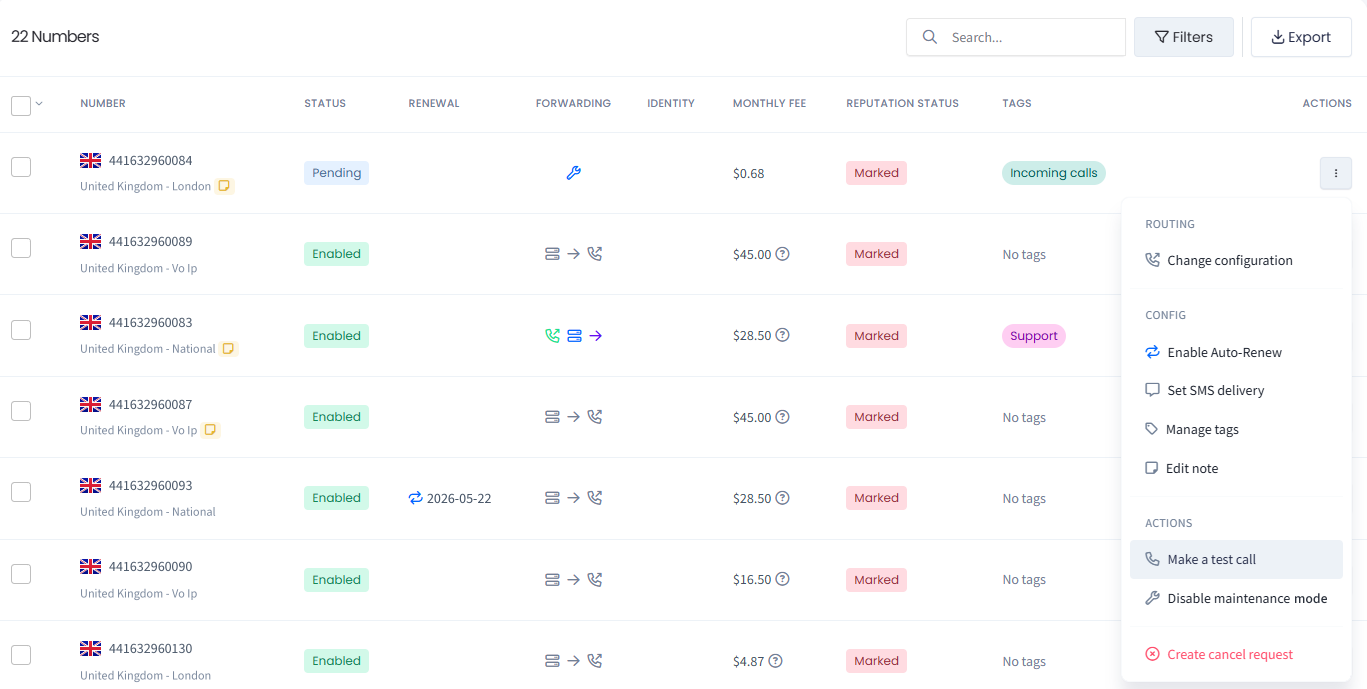
Open the three-dot menu and select Make a test call.
Make a test call action selected
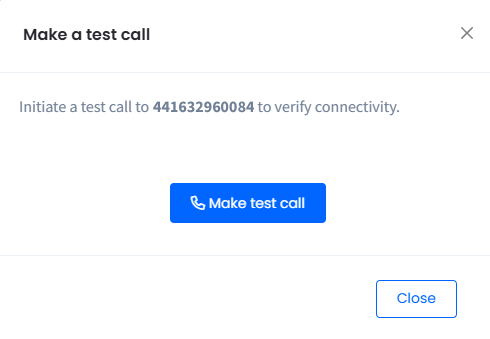
In a new window, click to place the call.
Making test call
CommPeak simulates an incoming call to confirm connectivity (with no external phone required) to verify the call reaches your third-party platform.
Check the call record in DIDs > Origination CDR to confirm CommPeak forwarded it correctly.
Searching, filtering, and exporting
Use the checkboxes on the left or select numbers by applying various search filters at the top right of the DID Management page.
Here, you can:
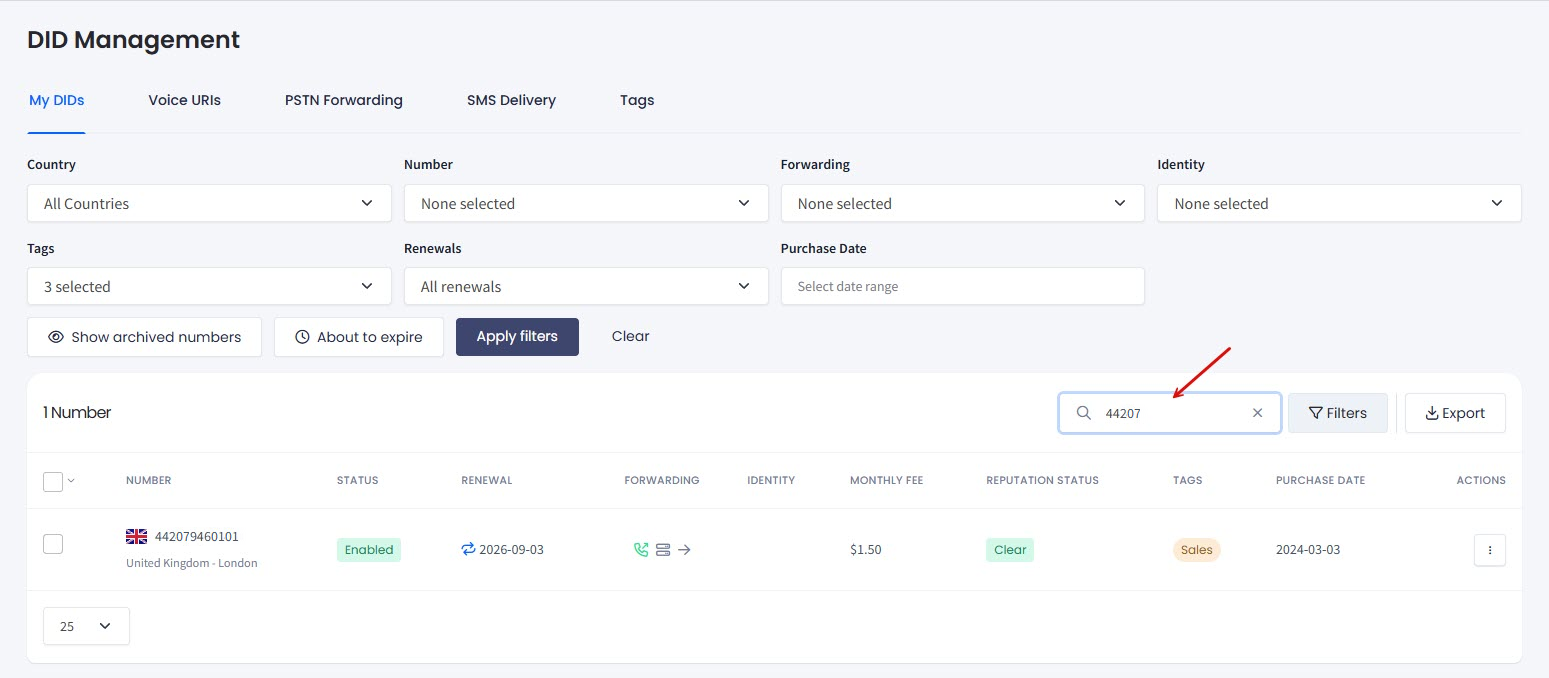
Use the Search option to search for the needed number record.
Search option
Apply filters or select the needed record(s) from the list of DIDs under your account.
Filtering and Selecting options
To access the filtering options:
Click the Filter button.
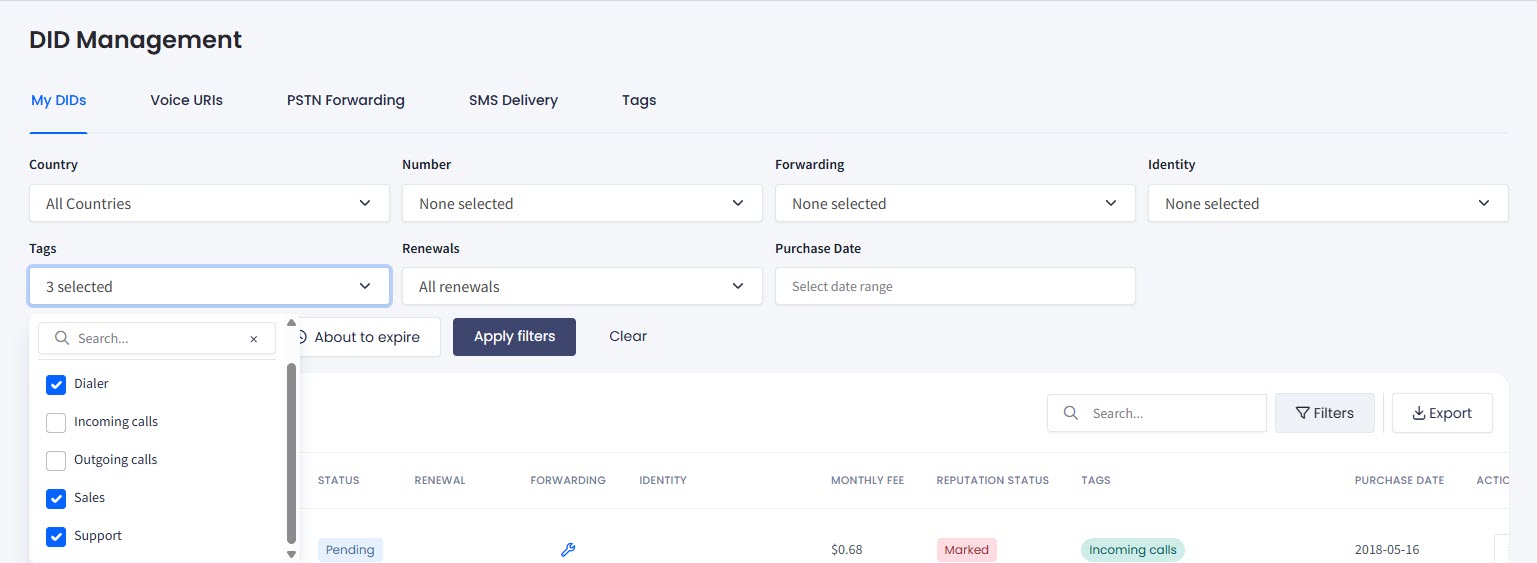
Apply filters by number(s), country, forwarding option, identity, tag, purchase or renewal date to find the numbers you need, or click to show (hide) archived numbers or those about to expire.
Filtering DIDs
To clear filtering results, click Clear.
📘
NOTE
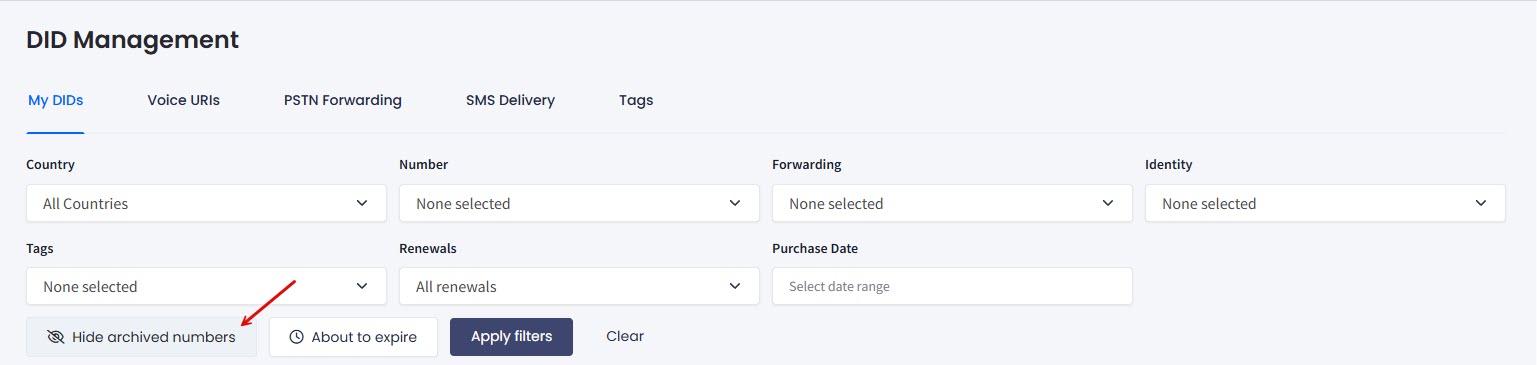
Archived numbers are hidden by default. Click the Show archived numbers button to view them; to hide them back, click Hide archived numbers:
Show/Hide archived numbers button
To download your inventory as a .csv file for reporting or external audits, click the Export button at the top right of the table. Export always includes every number under your account, whatever filters you have applied.
Export button
Filtering by one or more numbers
The Number filter narrows the table to the DIDs you choose. Use it when you manage a large inventory and the numbers you need do not share a country, tag, or forwarding profile. You can then review those numbers side by side or apply one action to all of them.
To filter the table by specific numbers:
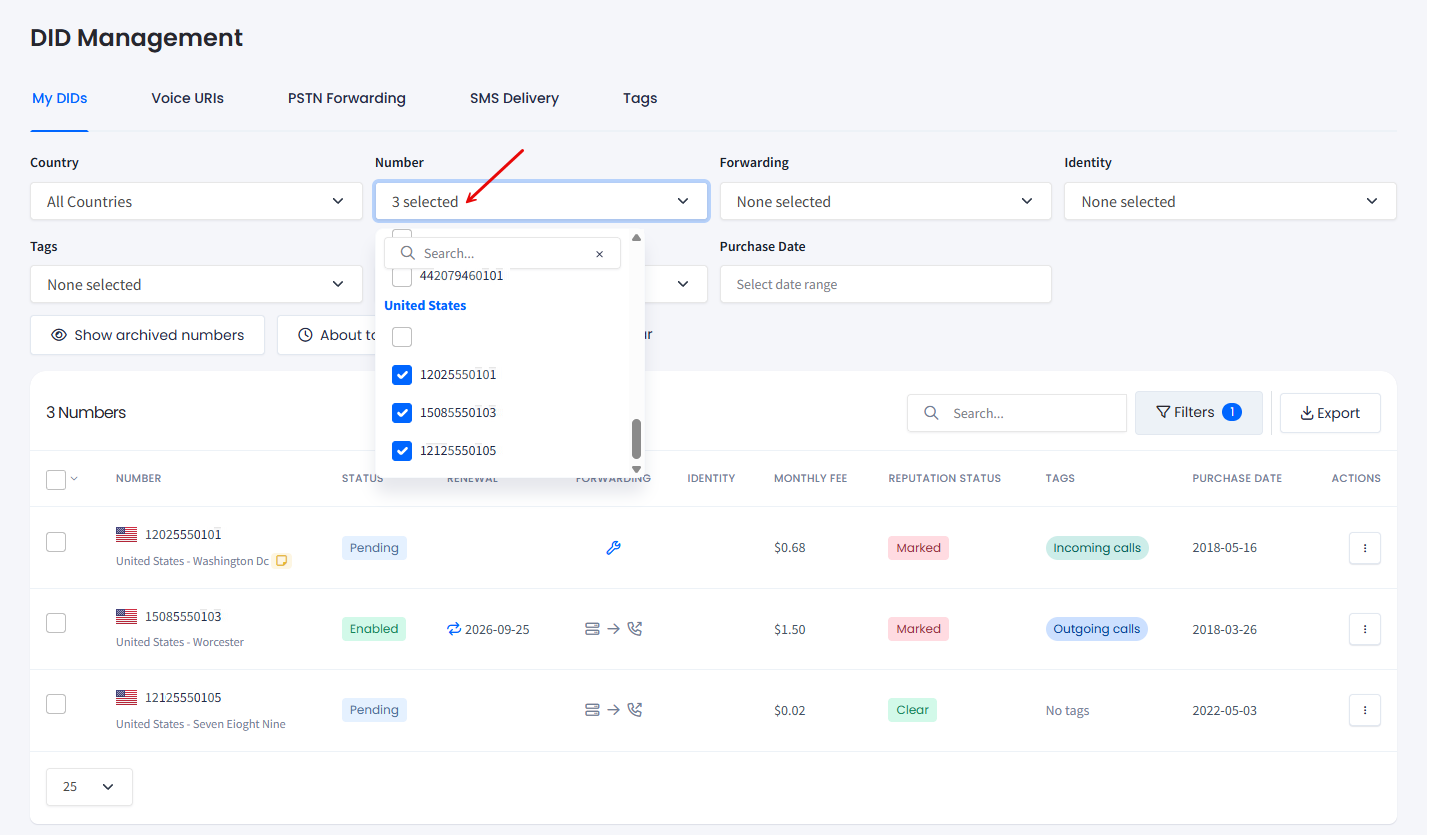
Click the Filter button, then open the Number drop-down. The drop-down lists every DID under your CommPeak Account, grouped by country.
Start typing in the search box to narrow the list to the matching numbers.
Select the checkbox next to each number you need, or click Select all to include every number in the list.
The table displays only the numbers you selected, and the Number button shows how many you selected, for example 3 selected.
Table filtered by the numbers selected in the Number filter
To stop filtering by number, clear the selected checkboxes or click Clear. When nothing is selected, the Number field shows None selected and no number filtering applies.
👍
TIP
Filter the table to the numbers you need, then select them with the checkboxes on the left. You can apply one action to all of them at once; for example, change the call configuration or enable auto renewal. For the full list of available actions, see Managing Multiple DIDs.