

Viewing SMS Messages Sent to DID Numbers
View incoming SMS messages sent to DID numbers, share them, and grant access permissions to others based on IP address.
You can access incoming SMS messages to your DID numbers from the CommPeak Portal.
To view and share SMS messages coming to your DID number:
-
Expand DIDs in the main menu and click the Management tab.
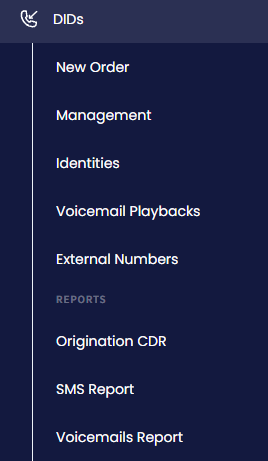
DIDs menu tabs
-
Open the My DIDs tab.
-
In the My DIDs table, click the three-dot action icon for the needed number and select the Incoming SMS action from the drop-down list.
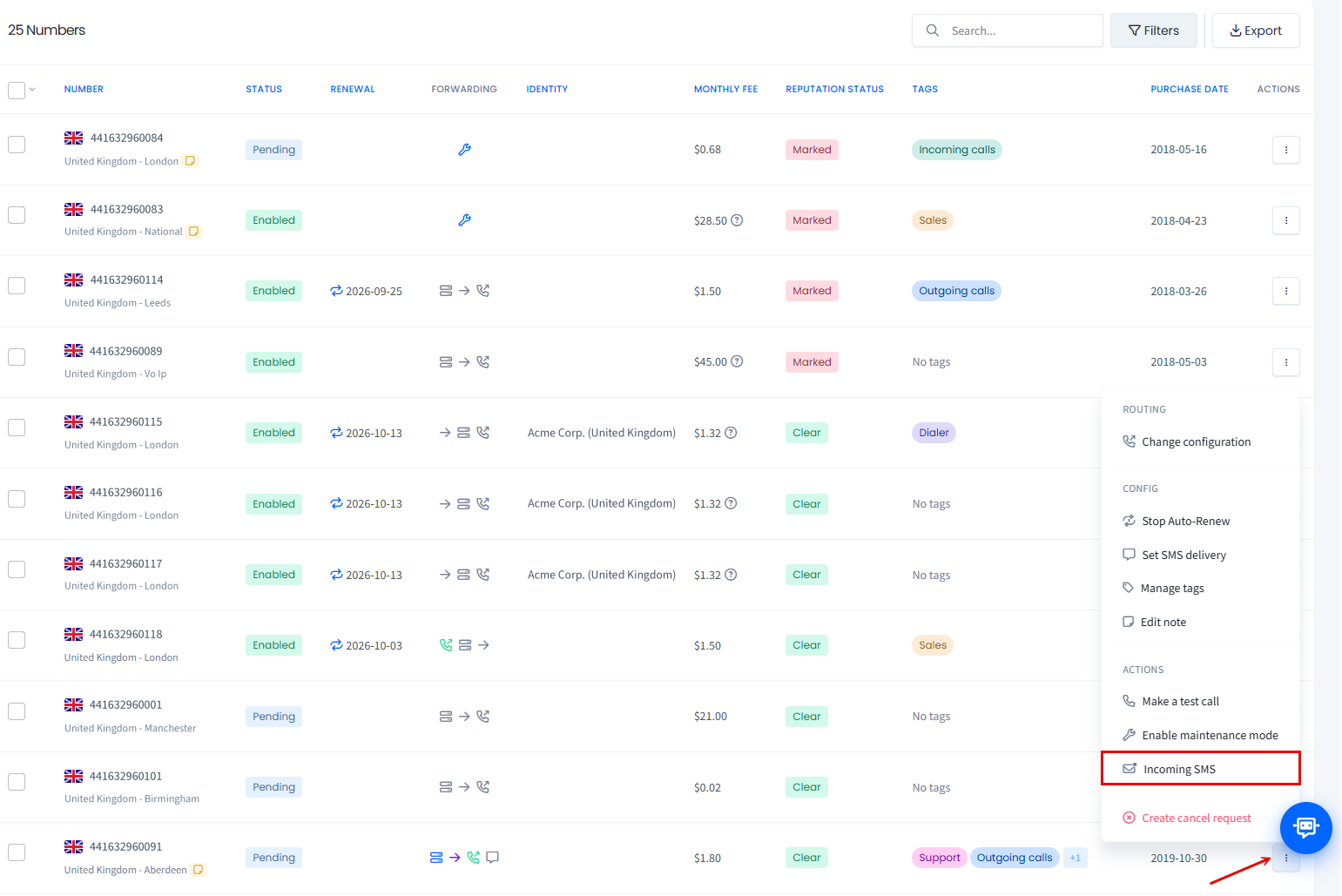
Incoming SMS action
-
In the window that appears, you will see the link to the page containing all the incoming SMS messages to this DID number. You can copy it or click the button on the right to open it in a new tab.
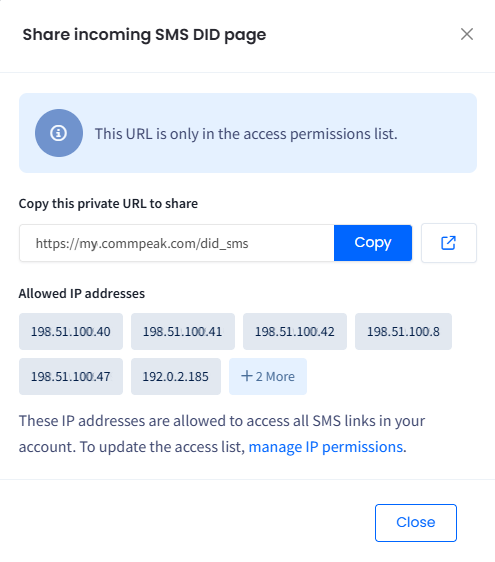
Share incoming SMS DID page dialog

The page under the link can be accessed even by users having no CommPeak account, provided the user's IP is included in the list of allowed IPs.
To add a new IP address to the access list:
-
Click the manage IP permissions link in the Share incoming SMS DID page dialog above.
-
In the window displayed, enter the required IP.
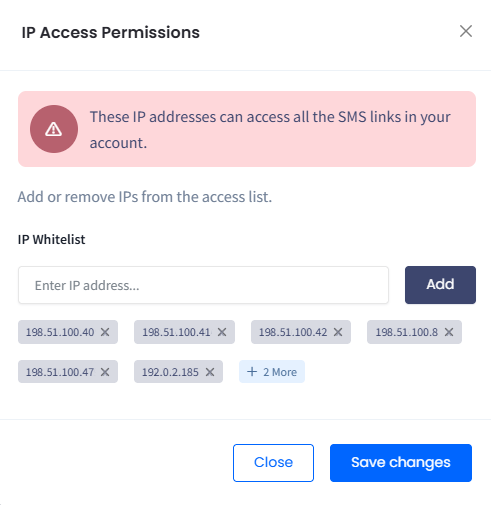
IP Access Permissions page dialog
- Click Save changes.
Updated 11 days ago