

Managing Identities
Learn how to manage identities in the CommPeak Portal.
Viewing identities
To view your identity:
-
Log in to your CommPeak Portal account.
-
Go to the DIDs section in the main menu and select Identities.
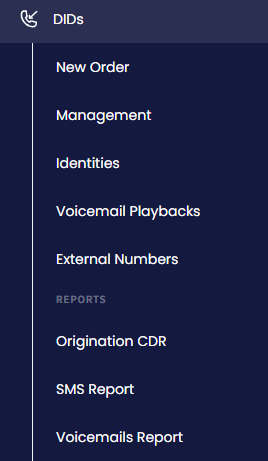
DIDs > Identities tab
-
The Identities & Extended Verification page will open with the table under the Identities tab listing all your identities.
-
Review takes up to 48 hours. Submissions are reviewed manually, so some take longer.
The table displays information about the identities you’ve submitted or started to add in the following columns: Type (business or personal), Name, Country, Phone Number, Email, Linked DIDs, Process Steps, Identity Status, and Actions.
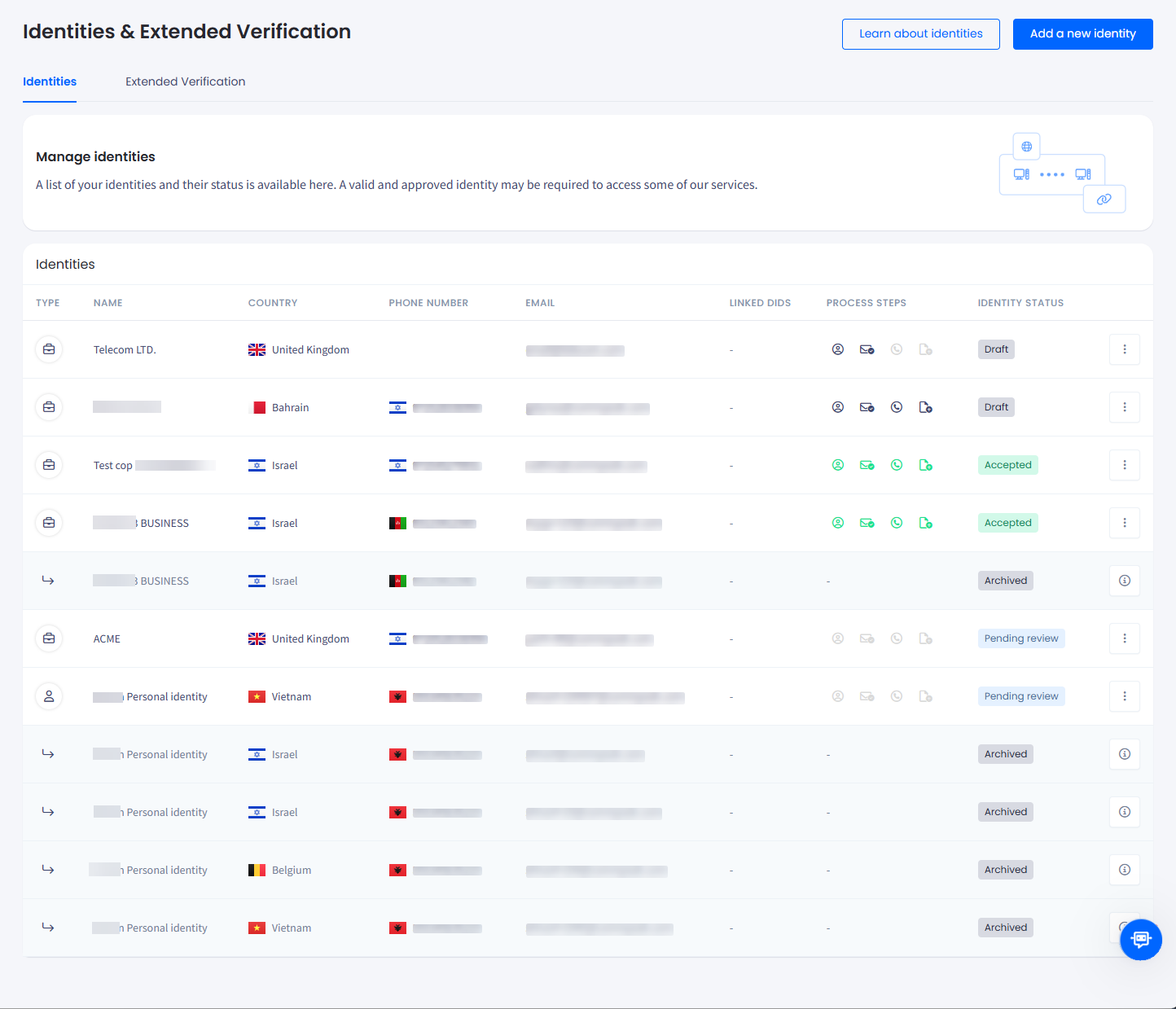
Manage Identities page
Submission statuses
The following identity submission statuses are available:
- Draft - you started the submission process but haven’t completed all the steps. Click the edit icon to renew the process
- Pending Review - the identity has been submitted and is under review by the CommPeak Compliance team, which takes up to 48 hours.
- Accepted - the CommPeak Compliance team approved your identity, and you are ready to order DID numbers and associate them with this identity. You can edit your accepted identities if your details change (e.g., you have a new authorized representative or a different address).
- Update Required - the CommPeak Compliance team returned the submitted identity and necessitates your modifications.
Click Update Required to access the page for implementing the necessary adjustments and resubmit the identity for review.

Identity with the Draft status
IMPORTANTIf the identity status is Update Required, examine the buttons in the Process Steps column to understand which step requires changes. If any button is in red, it indicates there is an issue in the related step.
- Archived - an accepted identity is moved to the Archived status when you start editing it. This creates a new identity that will be listed above the archived one as a parent item, and the archived one will be displayed below as a child item. ❗️Only the "i" icon and the linked DID will be enabled for the archived identity.
- Declined - the CommPeak Compliance team rejected your identity, and you cannot resubmit it again.
Linked DIDs
To see the number of DIDs linked to this identity, check the Linked DIDs column. Click the link with the DID number to open the DID Inventory page with the inventory list of all your virtual numbers.
Identities actions
Click the three-dot button on the right to get access to the following actions:
- View the identity details
- Modify the identity
- Delete your identity (unless its status is Pending Review).
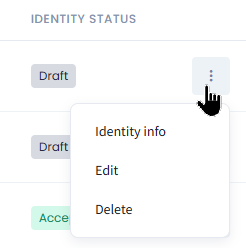
Identity actions
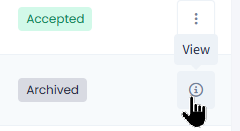
Viewing identity details
To open the identity details info page:
- Click Identity info.
- If needed, click the corresponding buttons at the top to edit or delete the identity.
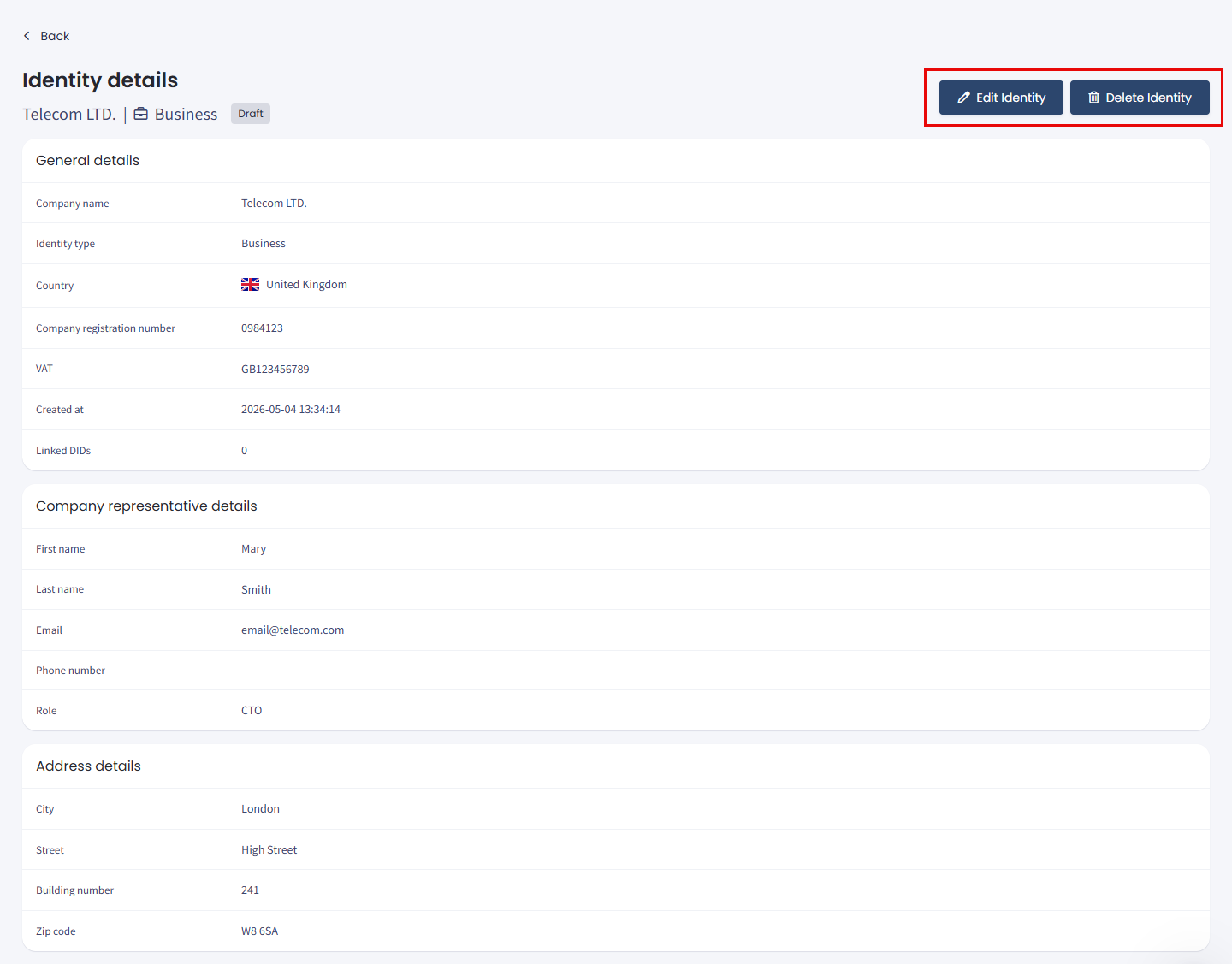
Identity details page: drafted identity
- If your identity is pending review, these buttons are not available and you cannot edit or delete it.
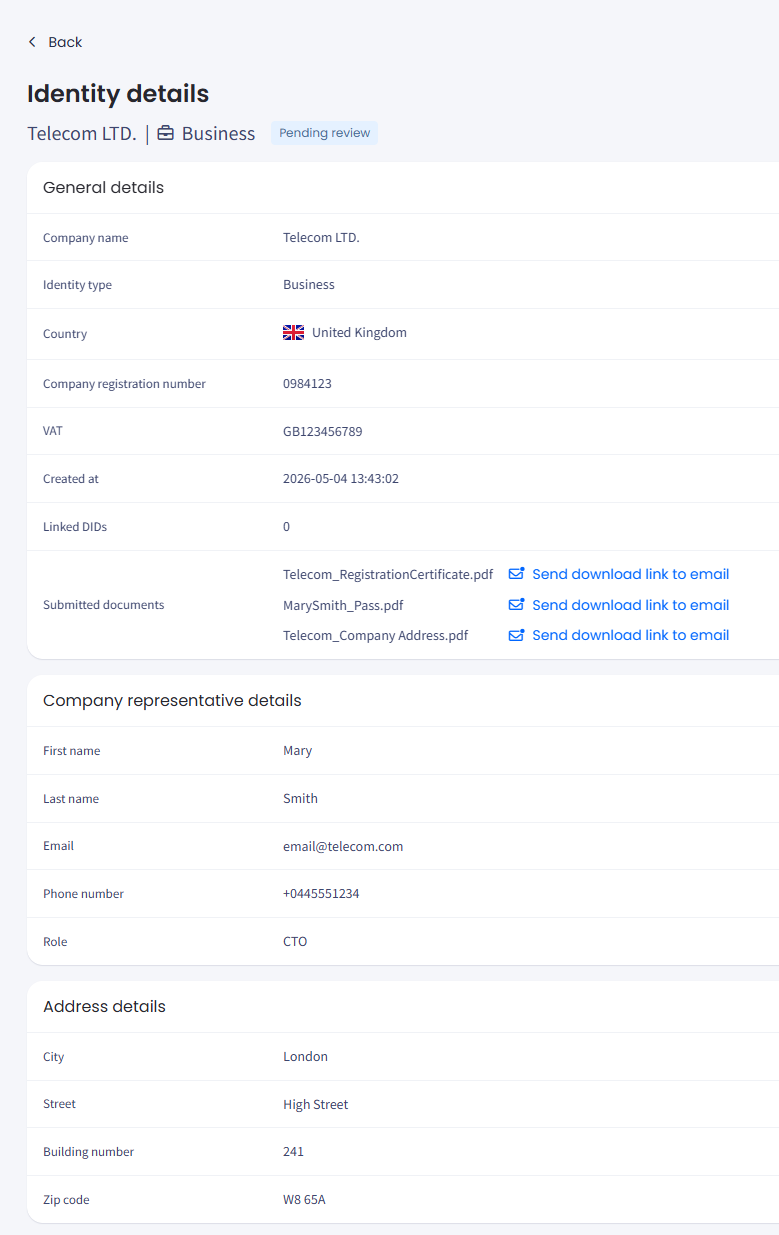
Identity details: pending review identity
- If you wish to download the provided documents, click the links in the Submitted documents section.
- A message with a download link will be sent to the verified identity email. ❗️The link is available for 48 hours.
Editing accepted identities
To make any changes to your accepted identity:
- Click Edit.
- Make changes on any step.
- Finally, click Submit identity for review to resubmit it.
- You will get a confirmation in a pop-up window. The status of the identity become Pending Review again. The previous version of the identity will be set to Archived .
- You will be able to use your identity after it is reviewed and the status of your identity changes to Accepted.
NOTEYou can click the edit button if you need to upload additional documents or replace the current ones.
Navigate to the corresponding step to re-upload documents or attach any additional required documentation.
Extended verification
The compliance team may request additional verification beyond the client's uploaded identity documents. In such cases, they will require the client to undergo a KYC (Know Your Customer) process for additional verification. KYC s a standard procedure to verify the identity of clients and assess potential risks of illegal intentions.
You can go to the Extended Verification (KYC) tab to see which identities require the KYC process.
To initiate the extended verification (KYC) process:
- Log in to your CommPeak Portal account.
- Go to the DIDs section in the main menu and select Identities.
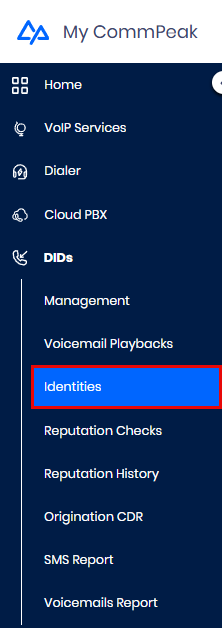
DIDs > Identities tab
- Switch to the Extended Verification tab and click Initiate process for the needed identity.
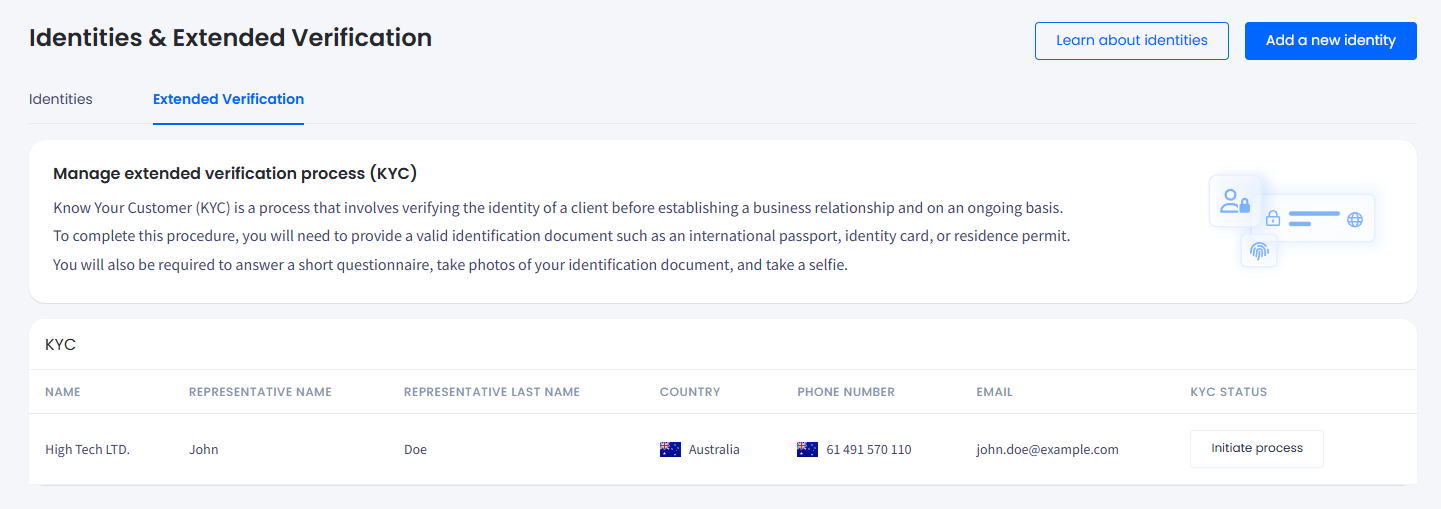
Extended Verification (KYC) tab
- Refer to the KYC Instructions article to learn how to complete the entire KYC flow.
Updated 5 days ago