

Creating Transactional Channels (PBX)
This guide walks you through the steps to create transactional messaging channels within your Cloud PBX system. Learn how to configure routes for automated, one-way messages -ideal for sending alerts, confirmations, and other transactional notifications through supported messaging platforms.
The Messaging channels feature allows you to manage and create streams directly from the PBX.
Creating a transactional channel
NOTEHandling the Transactional Channel message events can be done through the IVR configuration flow
To create a Transactional channel:
- Go to Settings > Messaging Channels
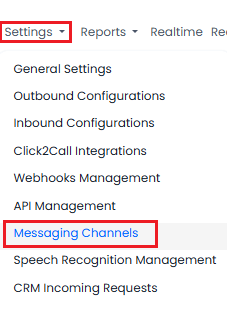
Settings > Messaging Channels tab
- Click Add New Channel
- From the Type drop-down list, select SMS
- Provide a dedicated channel name to present the business logic messages you send through this channel
- For the Channel Type field, select Transactional
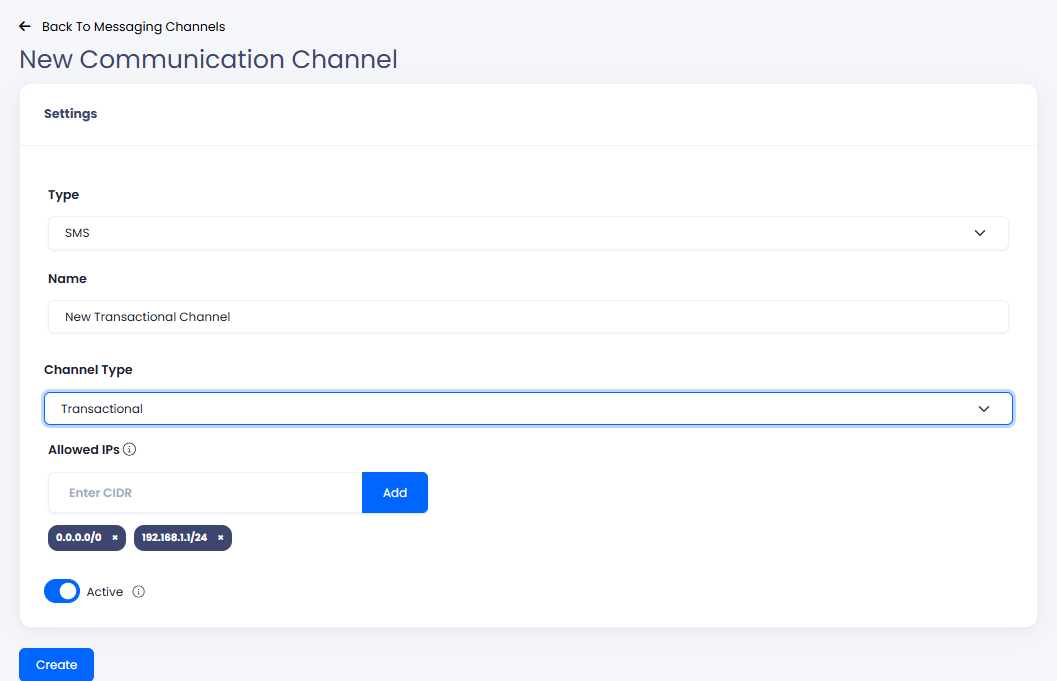
Creating new Transactional Channel
- Click Create.
A new channel is created and added to the Messaging Channels table with the following information on all existing channels:
| Column | Description |
|---|---|
| Channel Type | A messaging channel type:
|
| Name | A messaging channel name |
| Active | Modify the channel status by enabling (Active) or disabling (Not Active). |
| Actions |
|

New Transactional Channel
NOTEIf you have issues configuring your channel, please submit a request, and our support team will be happy to help you configure your first business channel.
Adding new transactional event
In the New Event for SMS Channel wizard, fill in the necessary information to complete each step.
Step 1: Channel settings
Start by entering stream details:
- Default Sender ID - select your allowed sender from the drop-down list or use search
- Active - modify the channel status by enabling (Active) or disabling (Not Active) it
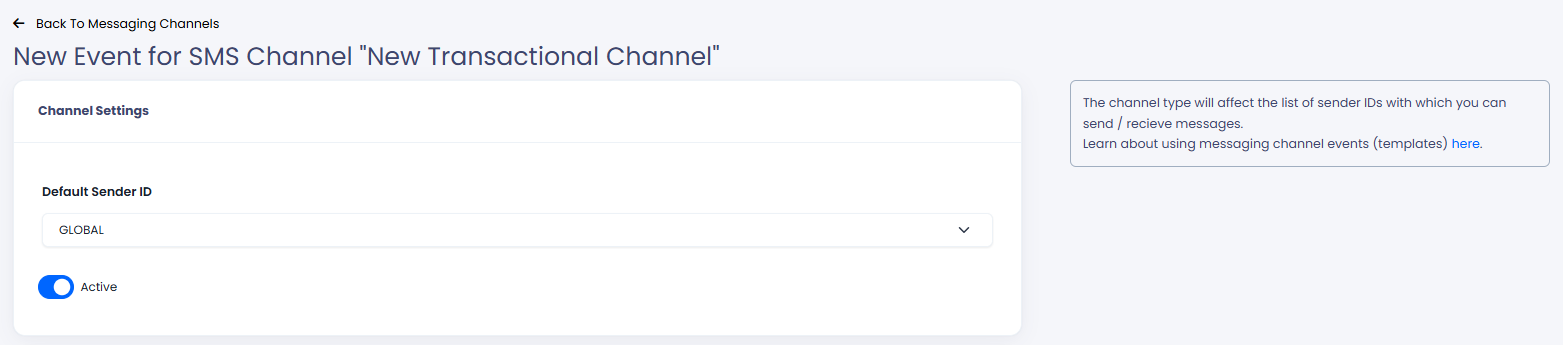
Channel Settings section
NOTEIf you have issues with selecting the correct Sender ID, please please submit a request. Our support team will be happy to help you configure your first channel event.
Step 2: Message content
Enter event data to create a customized SMS by using the relevant and a real-time message preview on the right:
- Event name - create a meaningful name to present the action/reason for the message.
- Body - the message content that you send to your audience. You can set your SMS text to make the content more personal for the receiver.
Understanding SMS character limits
The character limit for your message is defined by how the text is encoded. Generally, your content will be processed using one of the following two standards:
- Standard Text (GSM-7): When using standard English letters, numbers, and basic symbols, you have a limit of 160 characters. If this limit is exceeded, the message is split into segments of 153 characters each.
- Special Character Text (Unicode (UCS-2/UTF-16)): If you add even one "special" character - like an emoji, a unique symbol, or non-Latin scripts (for example Arabic or Ukrainian), the limit for a single message drops to 70 characters. If this limit is exceeded, the message is split into segments of 67 characters each.
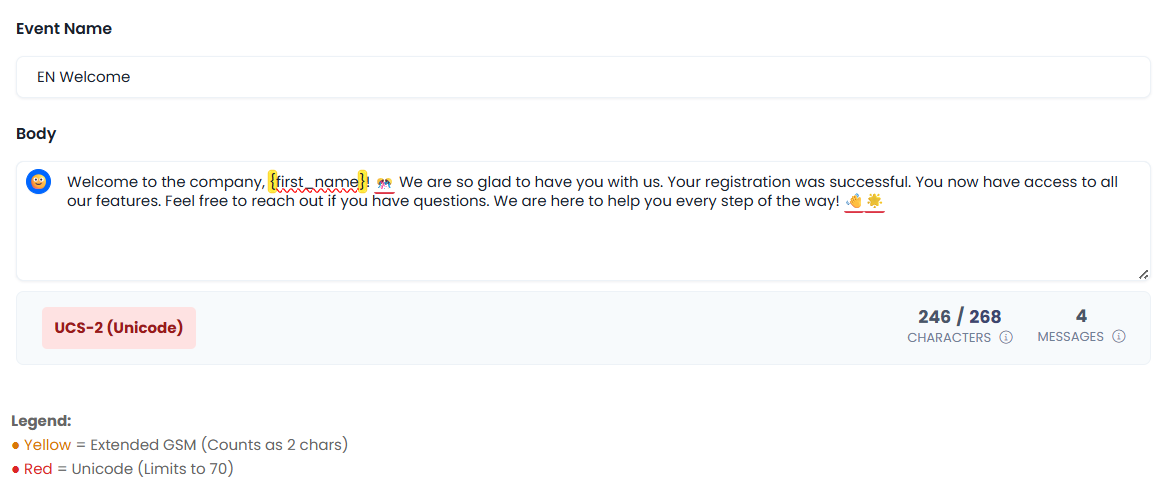
Event Message body example using Unicode standard (Special characters included)
Below the message box, the interface displays the encoding type currently in use: either GSM-7-bit or UCS-2 (Unicode). This section also tracks your total character count and the number of segments/SMS your message will be divided into.
To help you monitor your character limits, the text in the Body message box will highlight specific characters:
Yellow Highlight: Indicates Extended GSM characters (these count as 2 characters each).
Red Highlight: Indicates Unicode characters (these trigger the 70-character limit).
Message example preview
The following example demonstrates character limits based on Standard Text (GSM-7) encoding:
In this example, the message is split into two parts because it exceeds the 160-character limit. Once exceeded, the system divides the message into segments of 153 characters each.
The next example demonstrates character limits based on Special Character Text (Unicode) encoding:
In this case, the message is split into four parts due to the inclusion of special characters (emojis), which reduces the single-message limit to 70 characters. Exceeding this threshold forces the message into segments of 67 characters each.
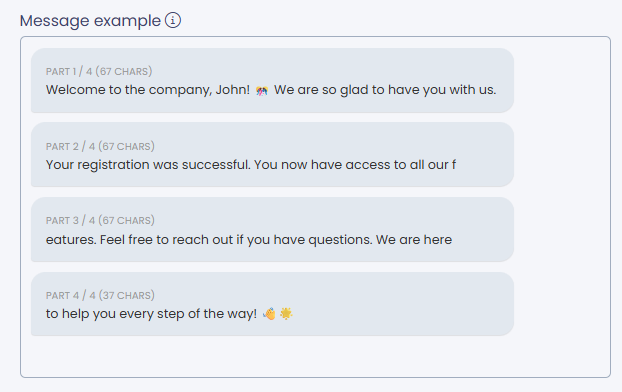
Message Preview using Unicode standard including special characters
The following example features the text that utilizes the Unicode standard rather than Latin-based encoding. Since Cyrillic characters are unique and fall outside the GSM-7 set, the message is restricted to the 70-character limit, resulting in a four-part split of 67 characters per segment.
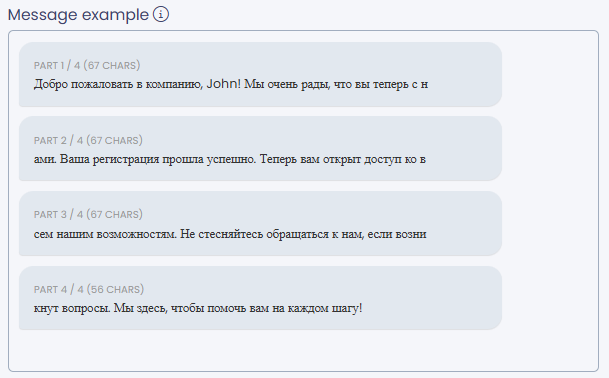
Message Preview using Unicode standard including Cyrillic characters
- Click Save. The new event will appear on the list of existing events in your messaging channel.
To view the list, click the + button next to Channel Type.
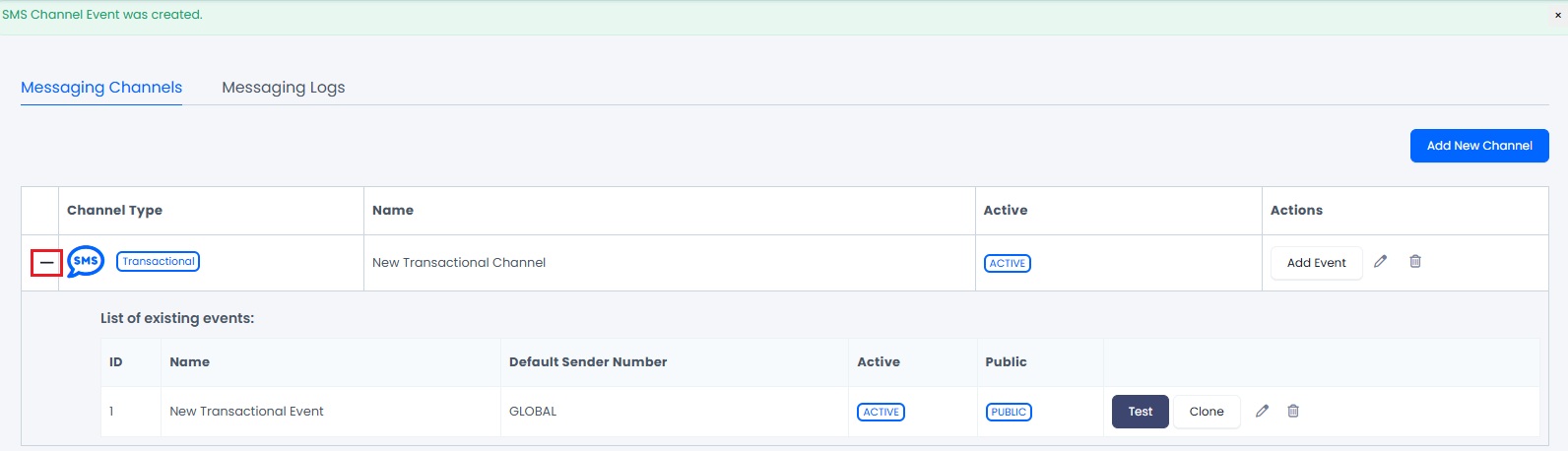
Messaging channel with the list of existing events
Updated 6 days ago