

Active Call Functions
Detailed instructions for managing active calls in both full and mini modes of the CommPeak's built-in Softphone version, including features like call transfer, muting, holding, conferencing, and volume control
When you are on an active call, several functions are available.
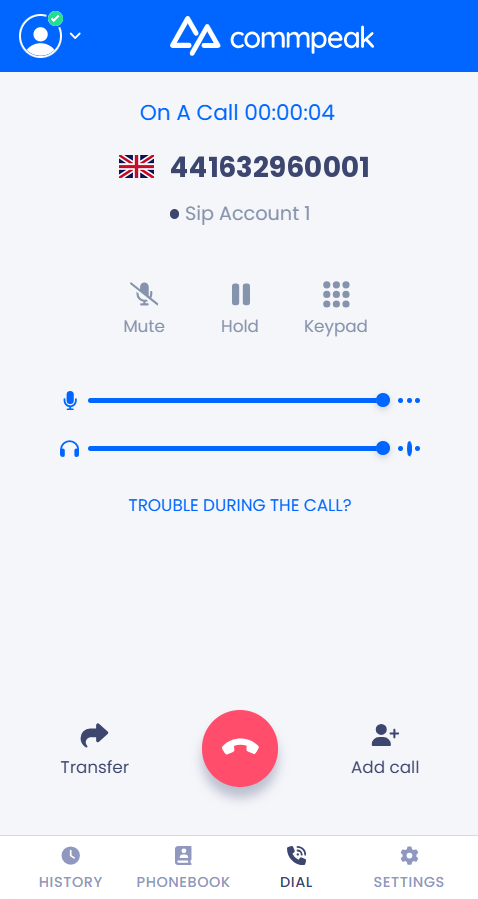
Built-in Softphone active call options
Transfer calls
Using the call transfer feature, you can redirect your call to another agent.
To transfer a call:
-
Click Transfer.
-
In the window that opens, enter the number of the agent to whom you want to transfer the call in the input field.
-
Choose any of the two options:
- Cold Transfer: the call goes straight through to the other agent.
- Warm Transfer: you speak with the other agent first while your caller waits on hold.
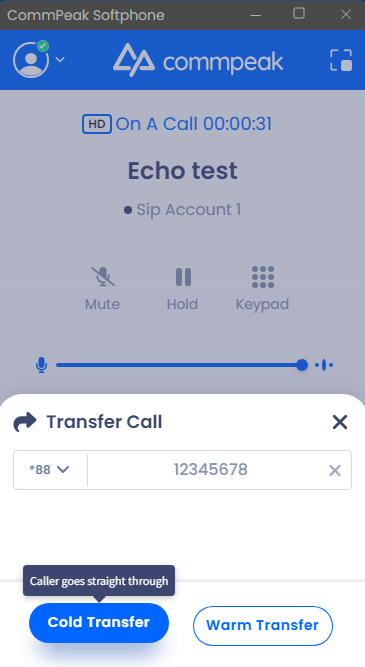
Transfer call options
Hover over either option to see a short description of what happens to your caller ("Caller goes straight through" / "Speak privately first, caller waits on hold").
Mute calls
Click the Mute button to mute your microphone during an active call. Click Unmute to unmute your microphone and resume speaking.
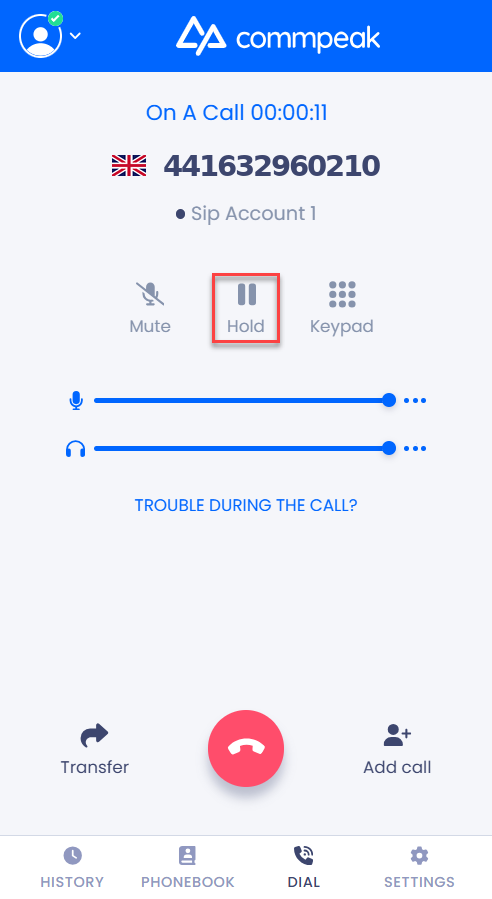
Mute call option
Hold calls
Click the hold button to place your active call on hold. Click Unhold to reconnect to the call.
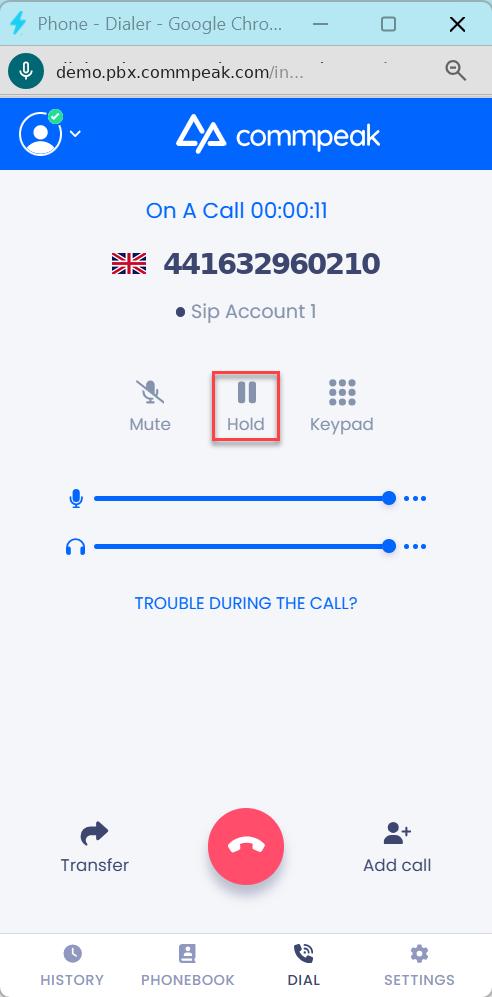
Hold call option
Keypad
Click the Keypad button to open the dial pad during an active call. This allows you to enter numbers or navigate phone menu systems.
Your ongoing call(s) will be displayed in the green header above the keypad.
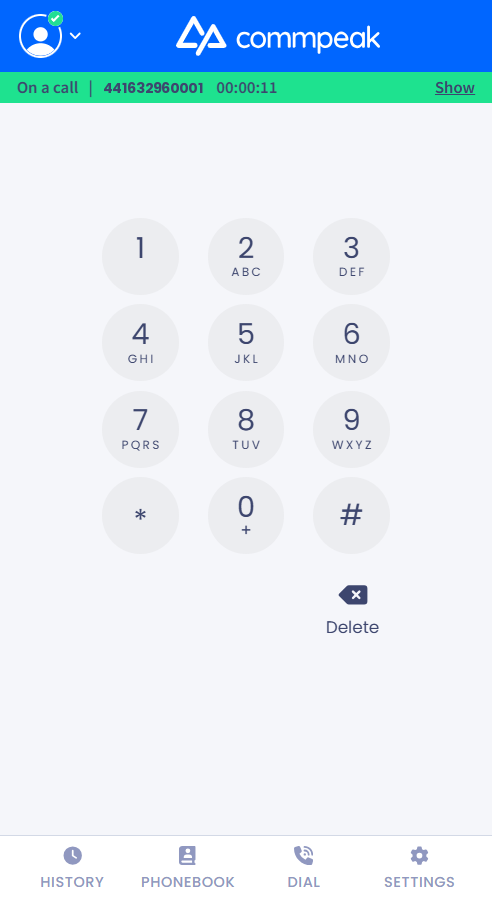
Keypad during a call
Add call
-
Click Add Call.
-
In the window that opens, enter the number to call.
-
Click the dial button.
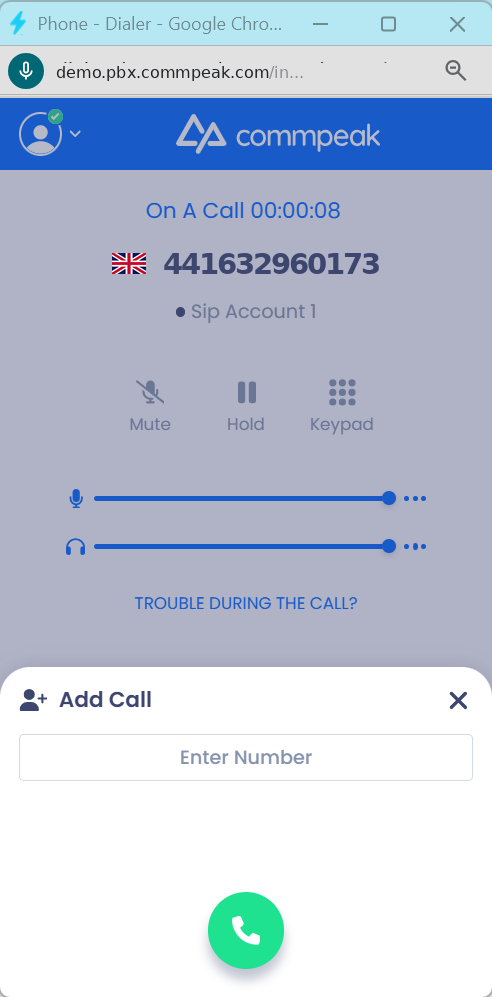
Add Call option
Multiple lines
When you have multiple active calls, you can switch between them by clicking on the call you want to make active. The active call will be highlighted, and you can manage each call independently.
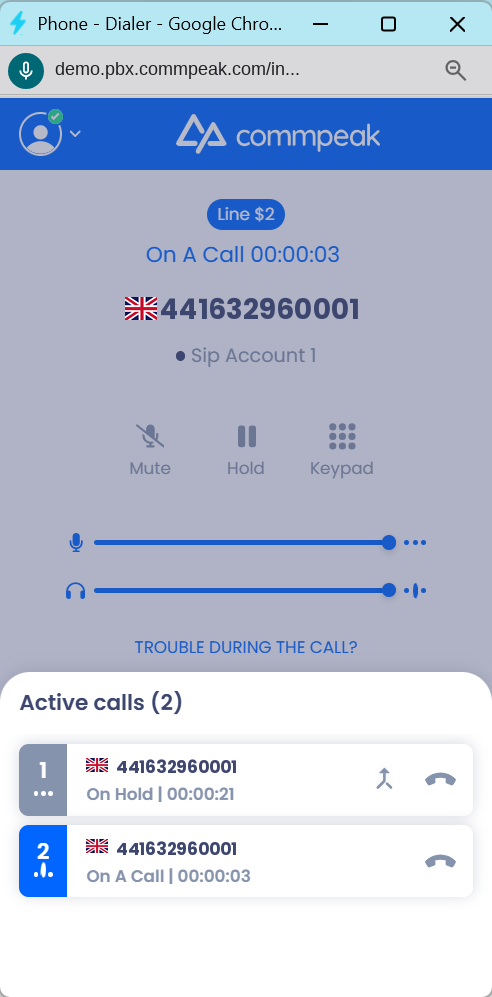
List of active calls
Conference call
You can merge multiple calls into a conference call by clicking the Conference button when you have multiple active calls.
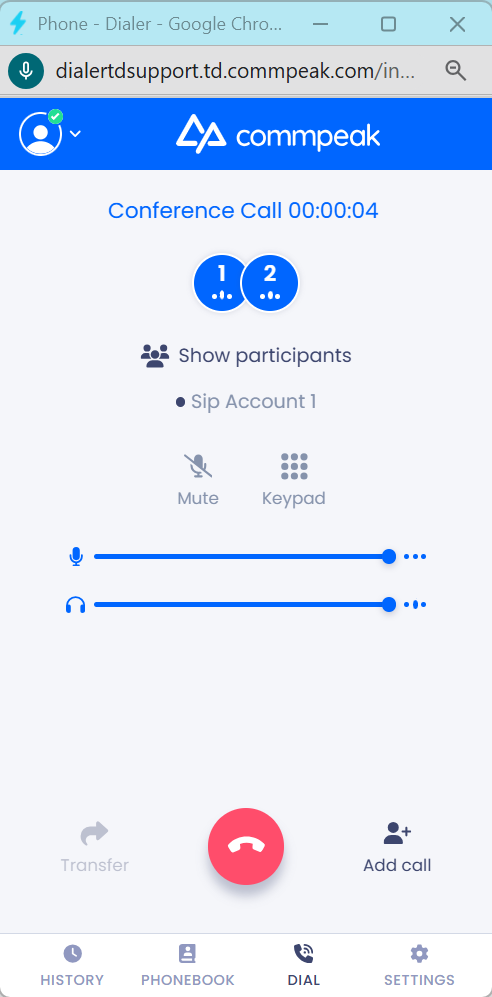
Conference Call option
Volume controls
Use the volume sliders to adjust your microphone and speaker levels during an active call. The top slider controls microphone volume, and the bottom slider controls speaker volume.
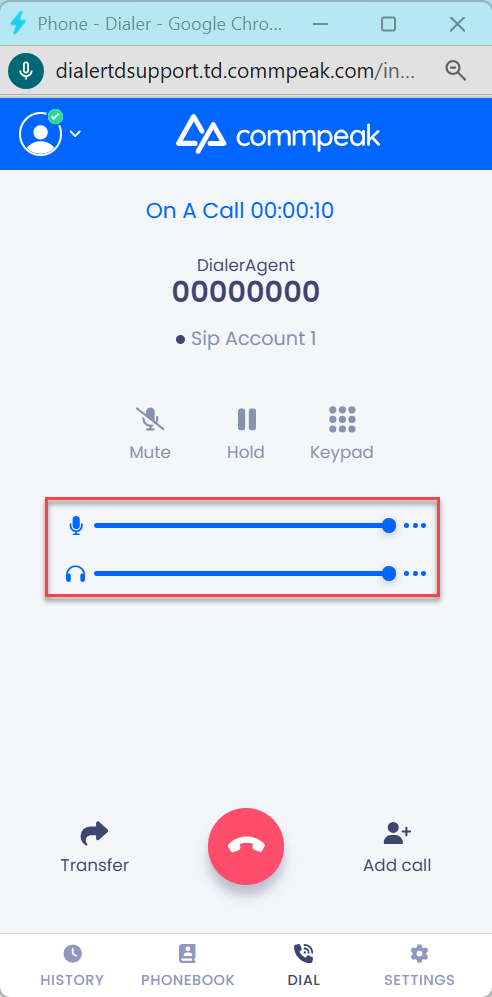
Call volume sliders
Updated 4 days ago