The CommPeak Speed Test helps you assess the speed and quality of your connection, ensuring your VoIP communication is stable.
You can run a free browser-based diagnostic to measure your connection's readiness for stable, low-latency calls on the CommPeak network.
The CommPeak Speed Test checks the round-trip time to CommPeak's server regions, the raw quality of your internet connection, and the performance you can expect from a real-time Voice over IP (VoIP) session and then gives you a single quality score for each.
If you're troubleshooting call quality issues, this is usually the first place to look.
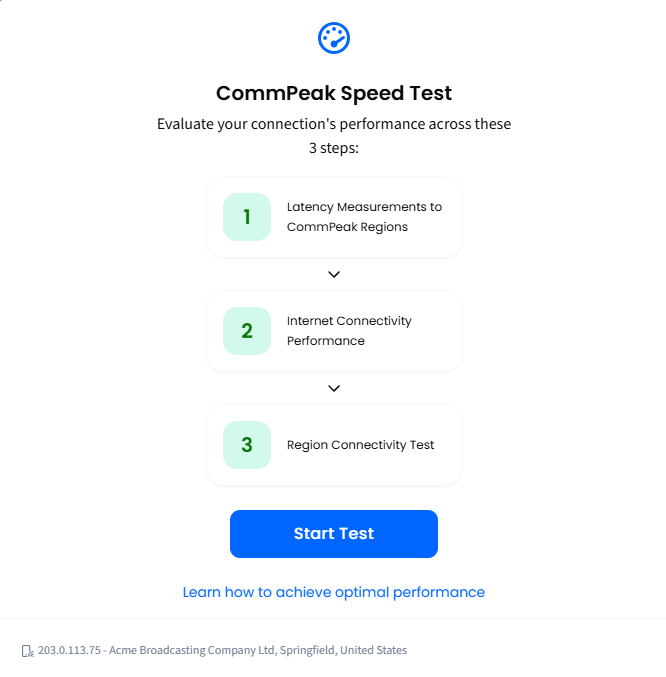
In the intro window, review the three checks the page will run, and click Start Test.
CommPeak Speed Test starting page
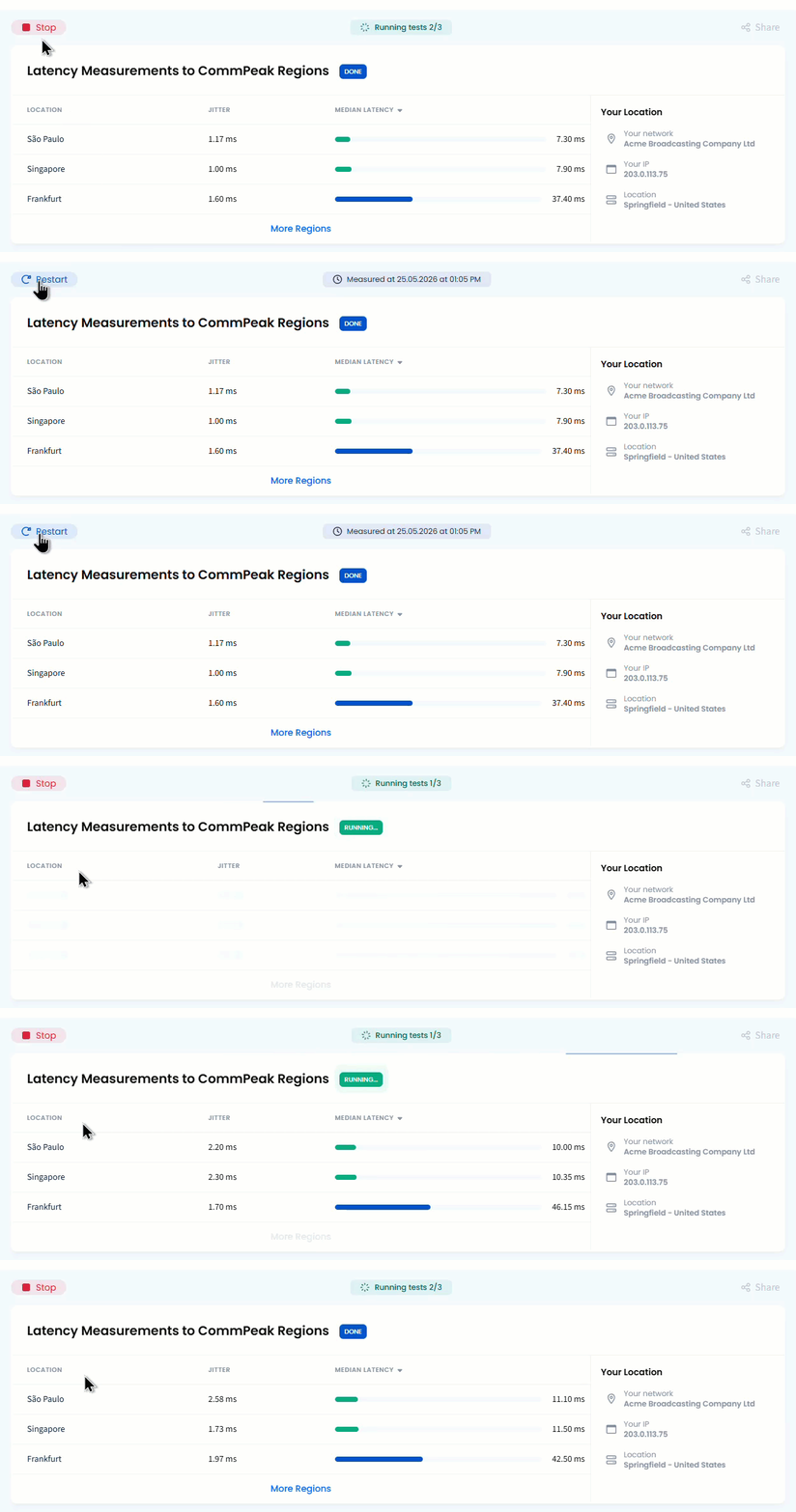
The page works through the three blocks in order. Each one shows Pending → Running → Done as it progresses, and the top bar tracks overall progress (Running tests 1/3, 2/3, 3/3).
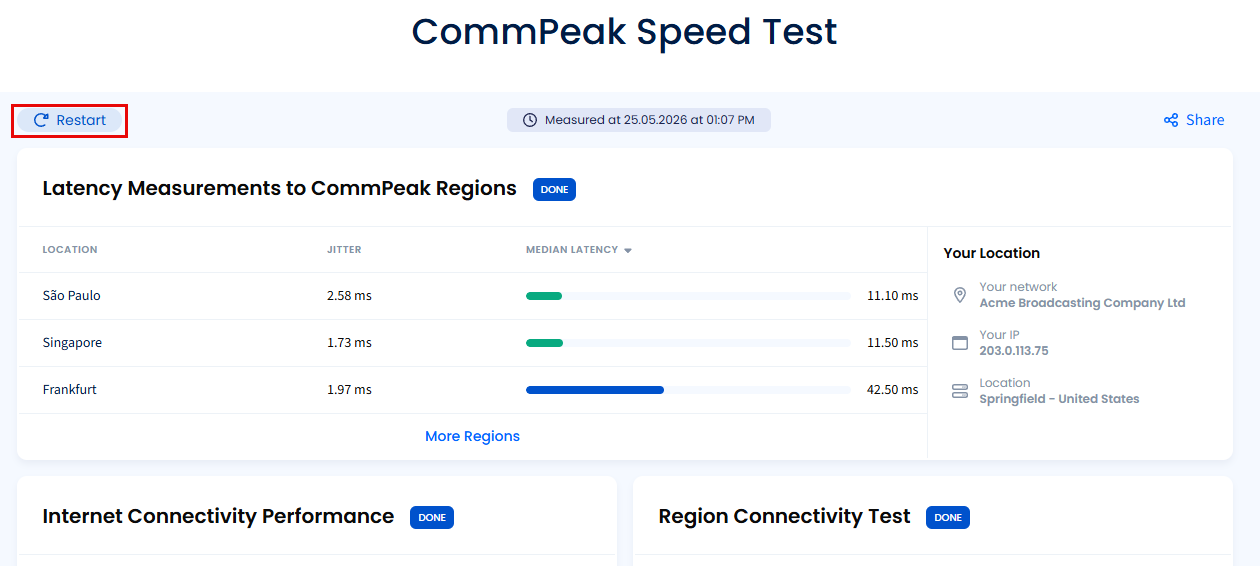
To pause (or cancel) testing, click Stop. To resume it, click Restart.
CommPeak Speed Test top bar: Stop / Restart buttons
👍
TIP
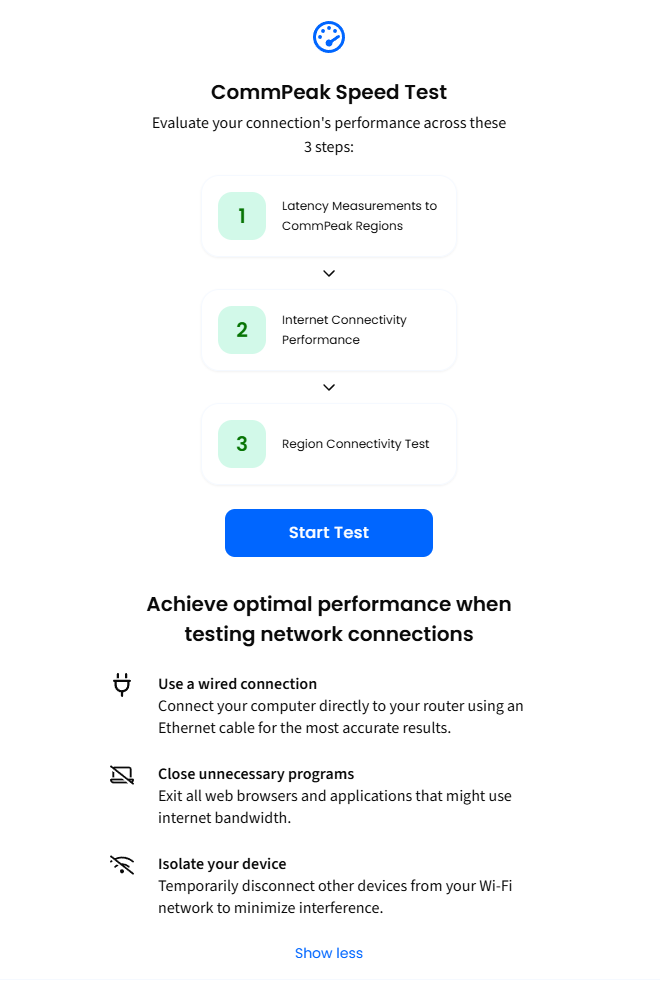
For the most accurate results, connect your router with an Ethernet cable, close other apps that use the internet (video calls, streaming, large downloads), and pause other devices on the same Wi-Fi network. The Learn how to achieve optimal performance link on the intro window shows the same checklist.
Learn how to achieve optimal performance info
Understanding test blocks
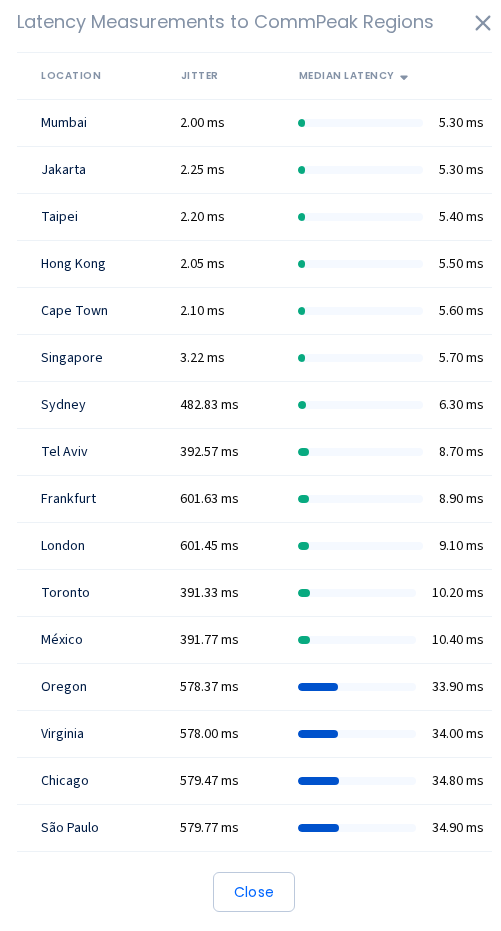
Latency measurements to CommPeak regions
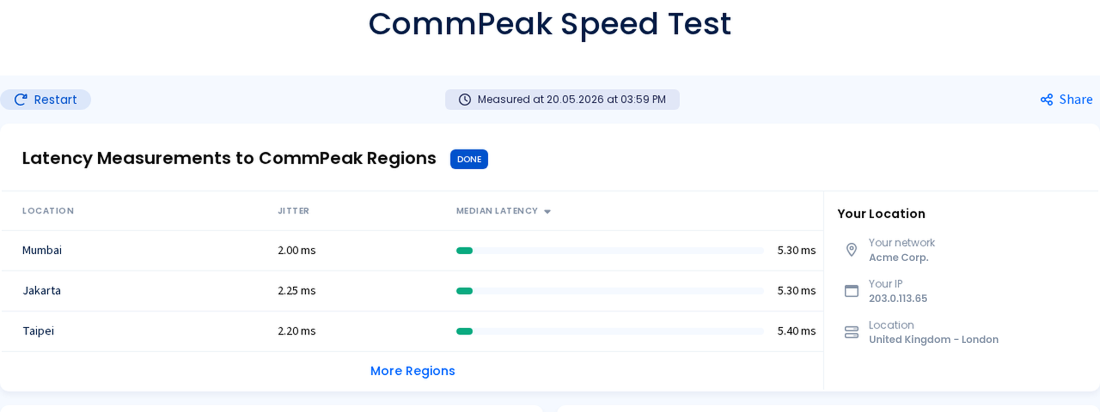
This block measures how far you are, in milliseconds, from each of CommPeak's server regions around the world. The table shows the three closest regions by default.
Latency Measurements: closest three regions shown by default
Refer to the following table for column descriptions:
Column
Description
Location
The geographic region being pinged.
Jitter
How much the round-trip time varies between pings, in ms. Lower is better.
Median Latency
The typical round-trip time, in ms. The colored bar makes it easy to scan.
How to read the colors:
Green (≤ 30 ms): excellent. You're geographically close to that region.
Blue (31–100 ms): fine for voice. Most users fall in this range to their nearest region.
Red (> 100 ms): long route. Calls routed through this region may sound delayed.
Click More Regions to expand the full list, sorted by ascending median latency data.
More Regions: full region list sorted by latency
📘
NOTE
The region with the lowest Latency to you is the one your calls should be routed through.
If your nearest region is red, your Internet Service Provider (ISP) may be taking an indirect path. In this case, we recommend that you contact your network team or ISP.
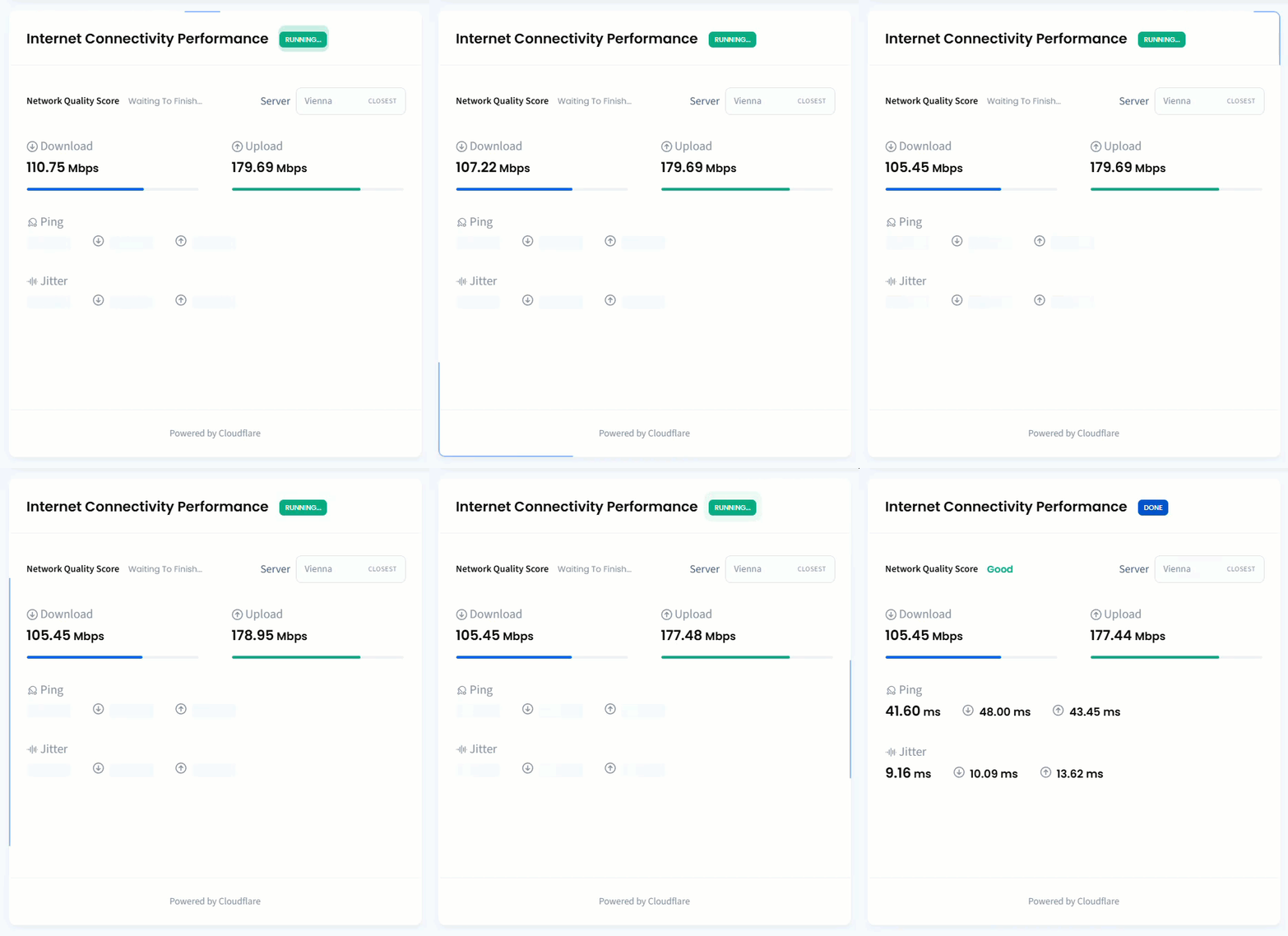
Internet connectivity performance
This block measures your raw internet connection quality against the server closest to you and is independent of CommPeak. It runs against a global third-party network (Cloudflare) so you can see whether the bottleneck is your internet itself or something specific to the route between you and CommPeak.
Internet Connectivity Performance: raw internet connection quality
You'll see the following metrics:
Column
Description
Network Quality Score
A single label from Bad, Poor, Average, Good, Great. This is the headline number.
Download / Upload:
Speed in Mbps. VoIP doesn't need a lot of bandwidth (about 100 Kbps per call), but very low numbers usually point to a wider connection problem.
Ping
Round-trip time in ms, measured during both the download and upload phases.
Jitter
How steady the ping is. Above 20 ms it's highlighted in red; calls will sound choppy.
📘
NOTE
If this block is Bad or Poor, the problem is your underlying internet connection — fix that before tuning CommPeak-specific settings. If it's Good or Great but you still have call quality issues, the next block will tell you where.
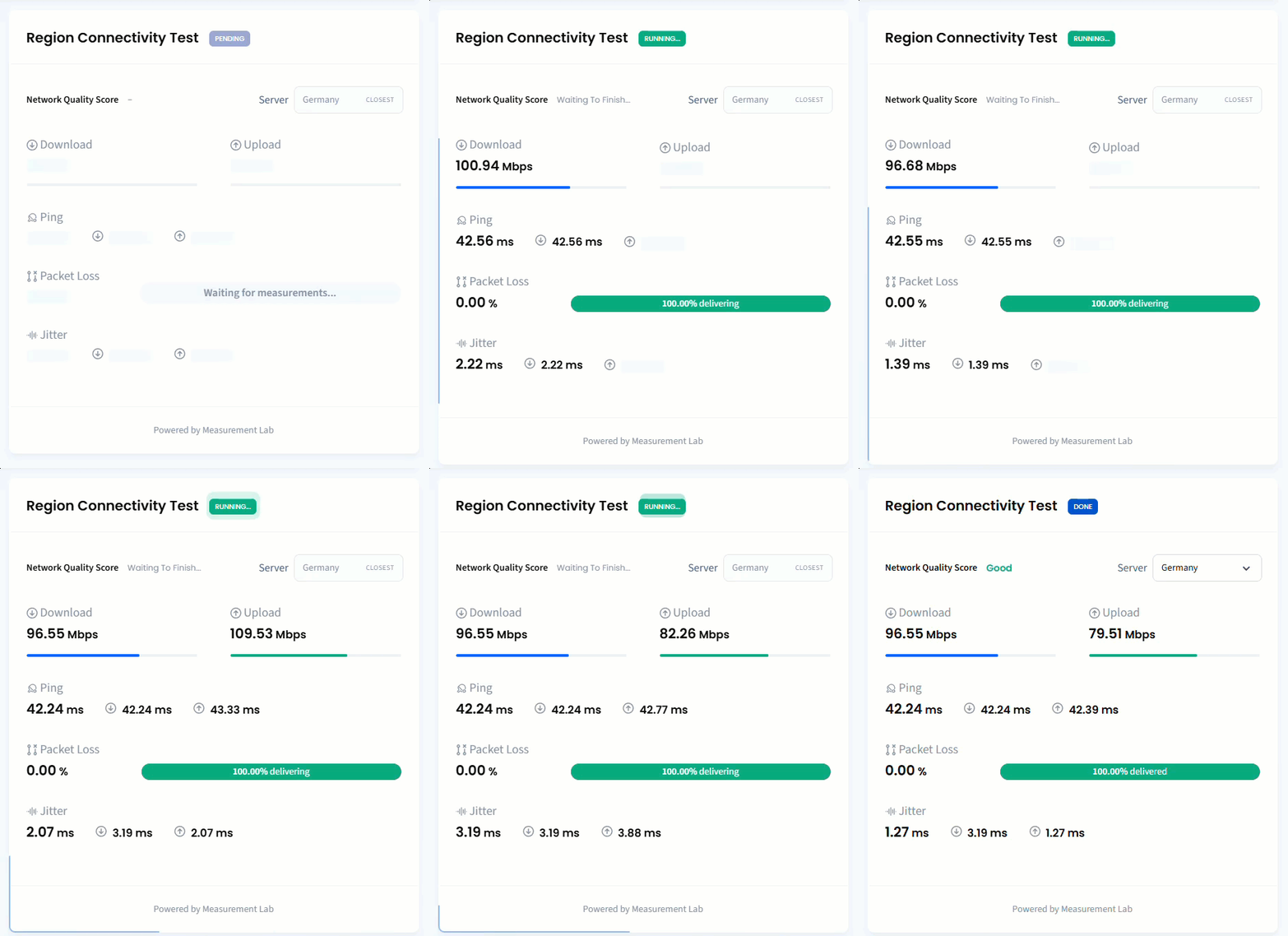
Region connectivity test
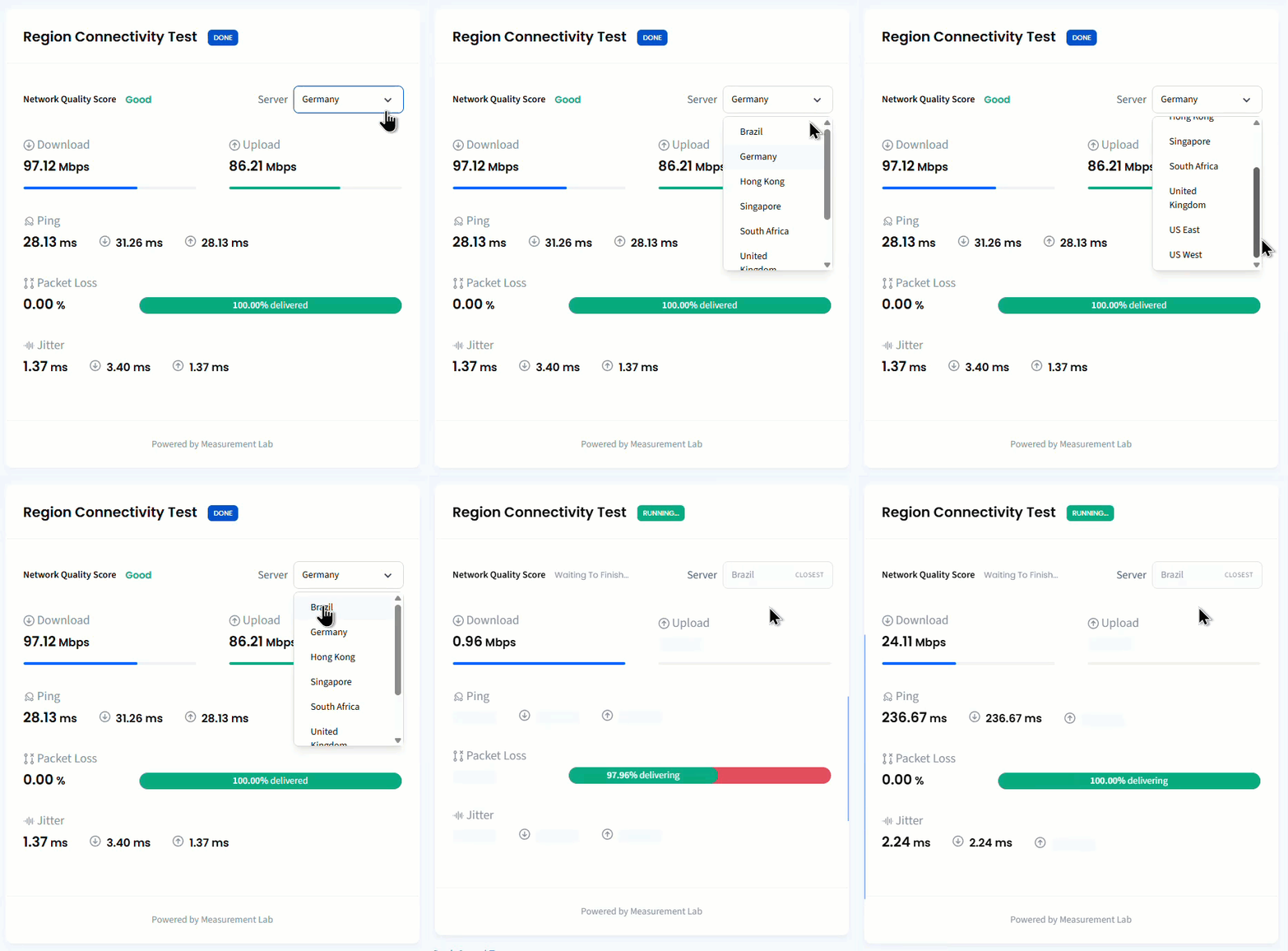
This block measures the performance of a realistic voice session against a specific server region. By default, the page picks the region closest to you. To see what your users in another part of the world would experience, switch to any other region from the Server dropdown.
Region Connectivity Test: voice-session performance against a selected region
Packet Loss: the percentage of voice packets that didn't arrive. This is the single most important VoIP metric. Anything above 2% is audible as gaps, robotic audio, or dropped words.
The Network Quality Score here uses three levels: Bad, Average, Good.
To re-run this block against a different region, pick one from the Server dropdown at the top right of the card.
To re-run the test again after it finishes, click Restart.
CommPeak Speed Test top bar: testing completed
❗️
IMPORTANT
If you sit behind a strict firewall or Network Address Translation (NAT), the packet-loss test may not be able to establish a connection and will display an ICE Connection Timeout message.
ICE Connectivity Timeout message
This usually means your firewall is blocking the UDP traffic real-time voice depends on. Ask your network team to allow the ports listed in CommPeak's network requirements.
📘
NOTE
Run this block against your nearest region first. If that one is Good but a far-away region is Bad, that's expected: it tells you which markets can comfortably support agents.
If even the nearest region is Bad, compare with the previous block: if Internet Connectivity Performance was fine and this one isn't, the issue is somewhere on the path between you and that region.
Reading results together
Use the following decision tree to interpret the three blocks as a whole:
Latency is mostly red: You're geographically far from any server region, or your ISP is routing the long way around. Pick the lowest-latency region in your routing config.
Internet Connectivity is Bad/Poor: Fix your internet first. Nothing CommPeak can change will help until this is healthy.
Internet Connectivity is Good/Great but Region Connectivity is Bad: The route between you and that specific region has a problem. Try a different region from the dropdown; if a nearer one is healthy, route your calls through it.
Packet Loss above ~2%: The most common cause of "the audio sounded bad" complaints. Wired connections, closing other apps, and checking for Wi-Fi interference usually help.
Jitter above 20 ms → Voice will sound choppy. Often caused by competing traffic on the same connection.
Sharing your results
Once all three blocks finish, click Share at the top right of the page. The page generates a unique URL you can send to CommPeak support or your network team: they'll see exactly the same results you did.
Share the result pop-up window
❗️
IMPORTANT
Shared links are kept for 7 days, then deleted. After that, the link returns a 404.
Quick reference: VoIP health thresholds
Metric
Healthy
Borderline
Problem
Latency to nearest region
≤ 30 ms
30–100 ms
> 100 ms
Jitter
< 10 ms
10–20 ms
> 20 ms
Packet loss
< 1%
1–2%
> 2%
Download / Upload
≥ 2 Mbps each
N/A
Below 2 Mbps
If all four metrics fall in the Healthy column, your connection is in good shape for CommPeak calling.