A comprehensive agent's guide on how to view and manage Inbox conversations integrated with SMS, WhatsApp, and Telegram platforms.
From the Inbox main menu, multiple inbox agents and/or managers can access the Inbox dashboard to concurrently view and manage the same team conversation, provided they have the corresponding Inbox role permissions.
❗️
IMPORTANT
To access and manage the conversations from the spaces and teams assigned to your account, you must hold the corresponding Inbox role.
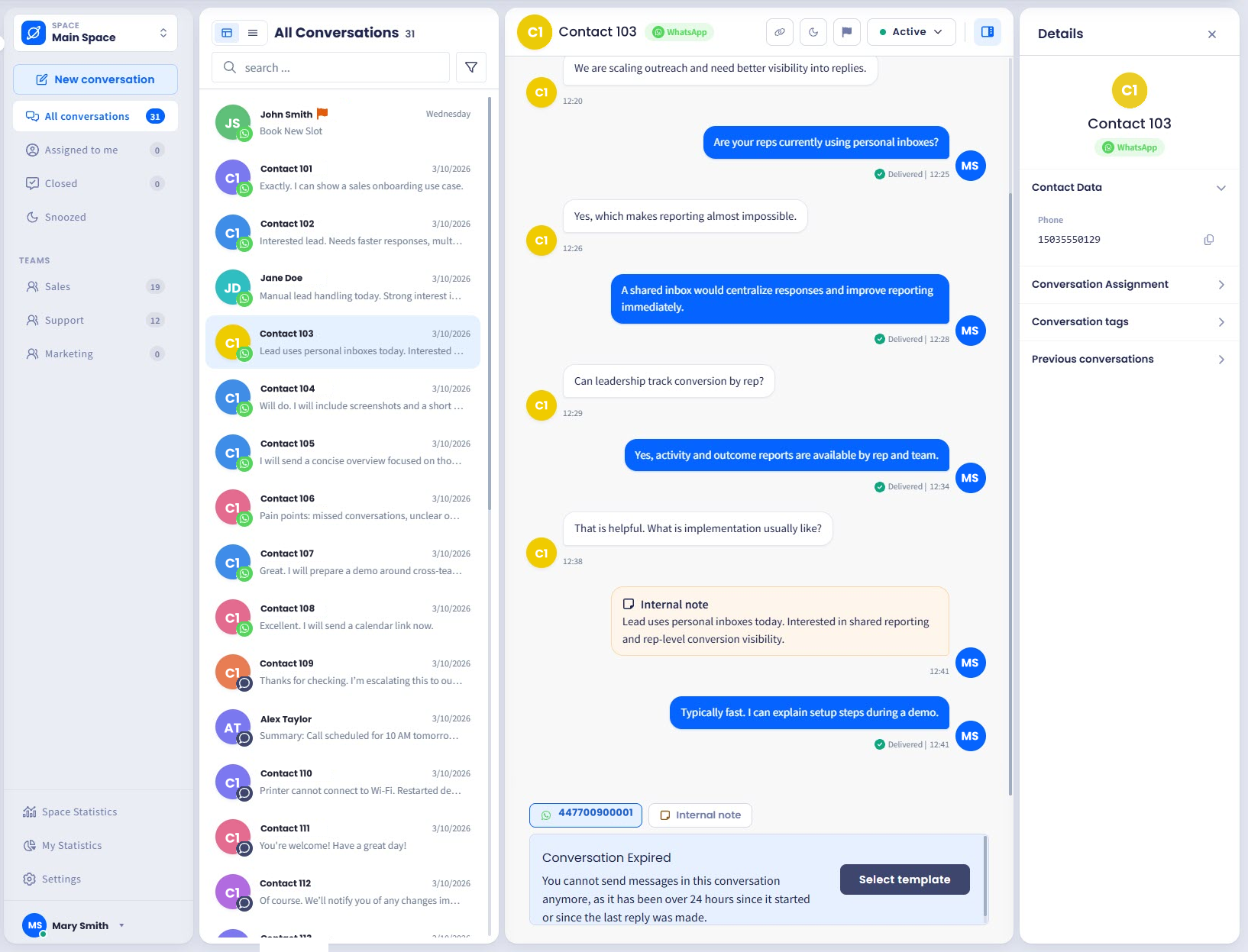
A click on the conversation will open the timeline box containing the history of all its messages and events.
Every Inbox conversation has a platform icon (SMS, WhatsApp, or Telegram) shown next to its name, both on the Conversations list and in the conversation timeline. From this view, you can start a new conversation or view the details of any existing conversation.
Also, you can switch between Chat layout and Table layout using the two icons at the top of the Conversations list, to the left of the folder name.
Layout selector
Click on the existing conversation to see its details and available controls. Below, the message box with the editor is shown where you can write messages to customers or leave internal notes for other agents (provided the agent has the corresponding permission, Add internal notes for conversation).
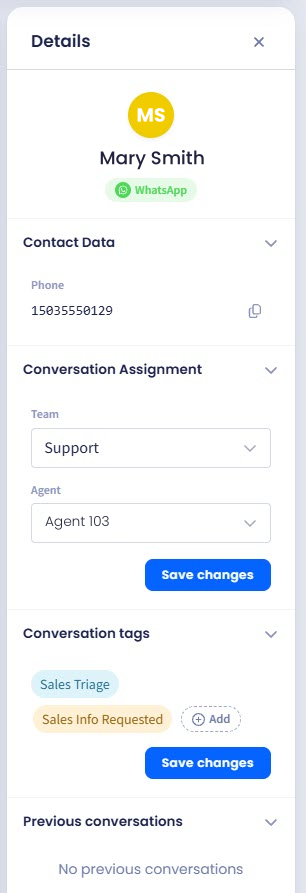
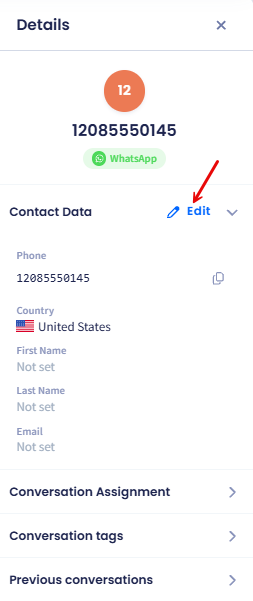
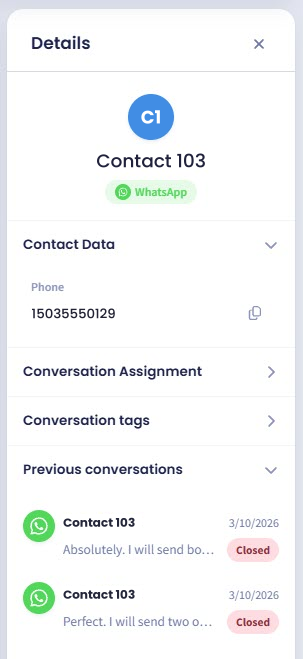
The sidebar Details section on the right contains editable contact data and information about the conversation assignments, tags, and previous conversations with this contact, if any.
Sidebar Details section
👍
TIP
CommPeak Dialer customers can also manage calls (both VoIP and WhatsApp Business) directly within the Dialer Inbox.
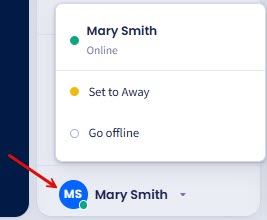
If your manager has turned on agent presence, your status appears in the top bar and controls whether new conversations reach you.
Open your profile menu
Click your profile icon.
Select your status
Select Set to Online, Set to Away, or Go Offline.
Choose a reason
If you select Go Offline, choose a reason.
Setting status picker
While you are Offline, automatic assignment skips you, and - depending on your team's settings - TextPeak can hand the conversations already assigned to you to somebody else. For the full behavior, see the Agent Presence page.
Creating new conversations
To create a new conversation:
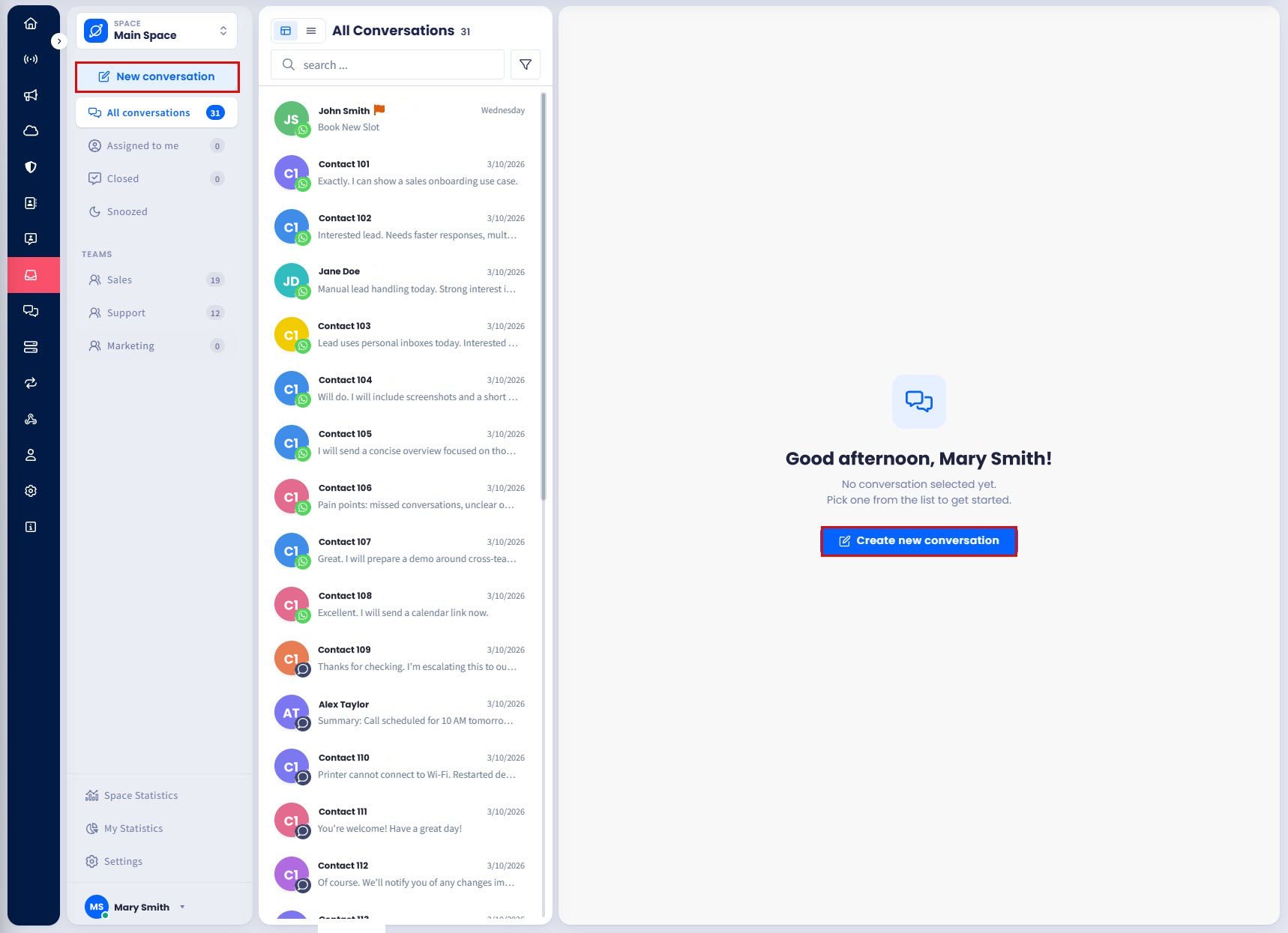
Click the New Conversation button under your account name or Create new conversation in the middle of the page.
Creating new conversation
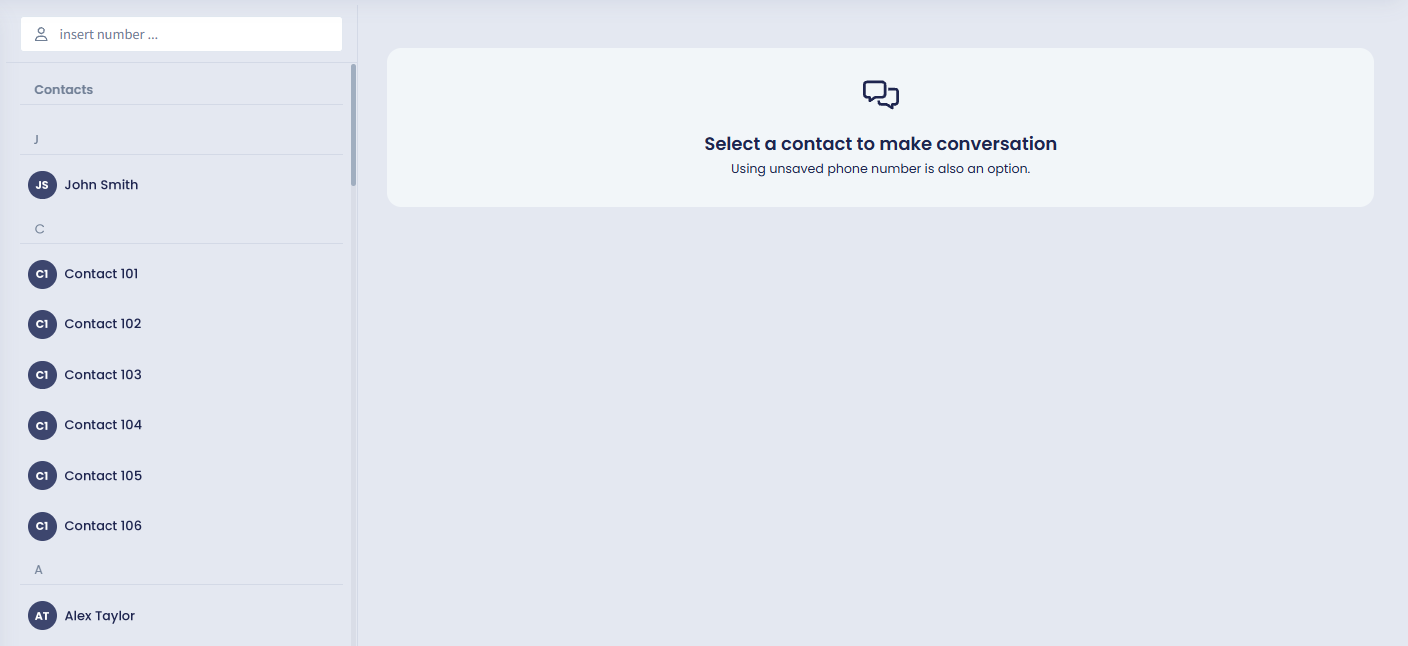
Select a TextPeak contact to create a new conversation.
Selecting contact
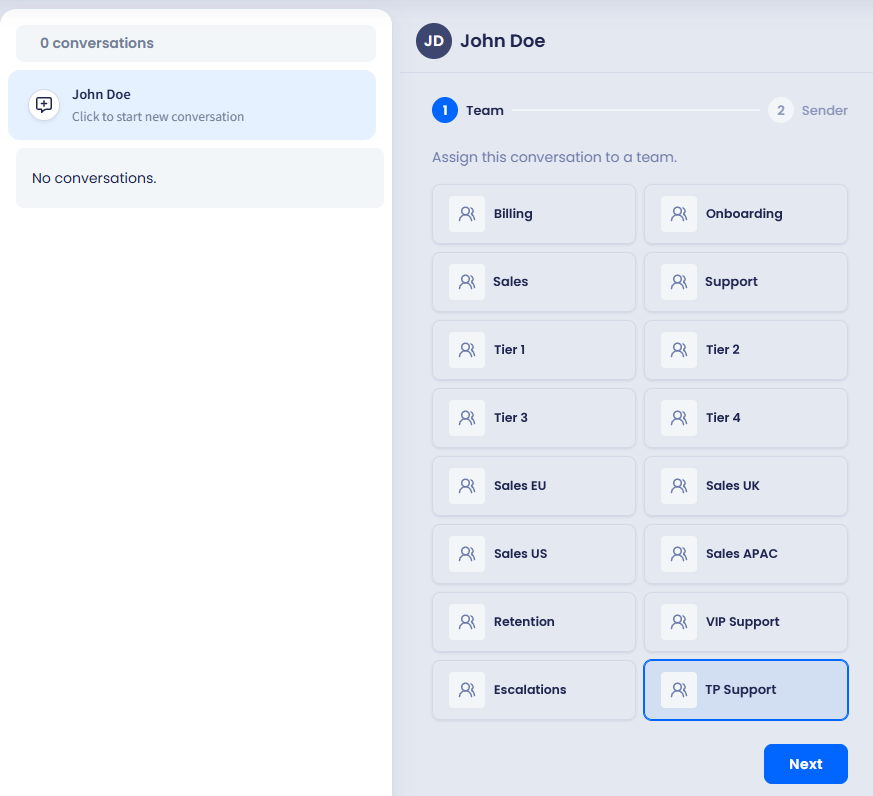
Then, click to select the assigned team.
Click Next.
Selecting team
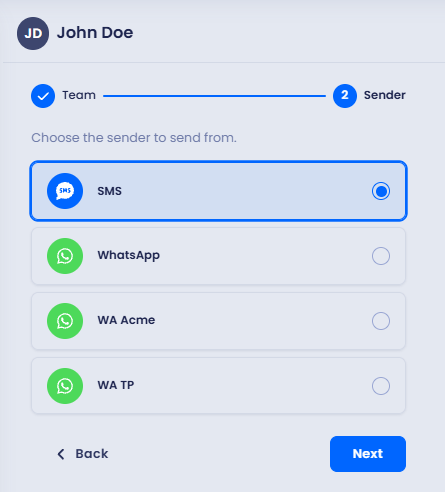
In a new window, a sender, then click Next.
Selecting sender
If this is not a new contact, you will see the list of previous conversations with it; if needed, you can select the needed conversation to continue with it instead of initiating a new conversation.
📘
NOTE
Inbox agents have no access to the Settings page and can manage conversations only where they can view the name of the sender profile, not the senders it contains.
Therefore, when starting a new conversation, an agent can select the sender profile only and the system automatically selects one of its senders based on the country and the daily limit.
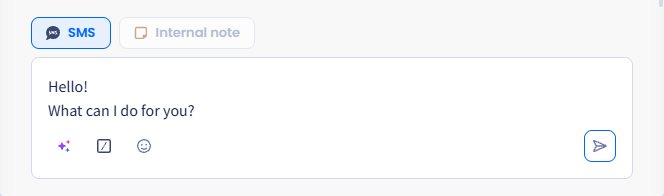
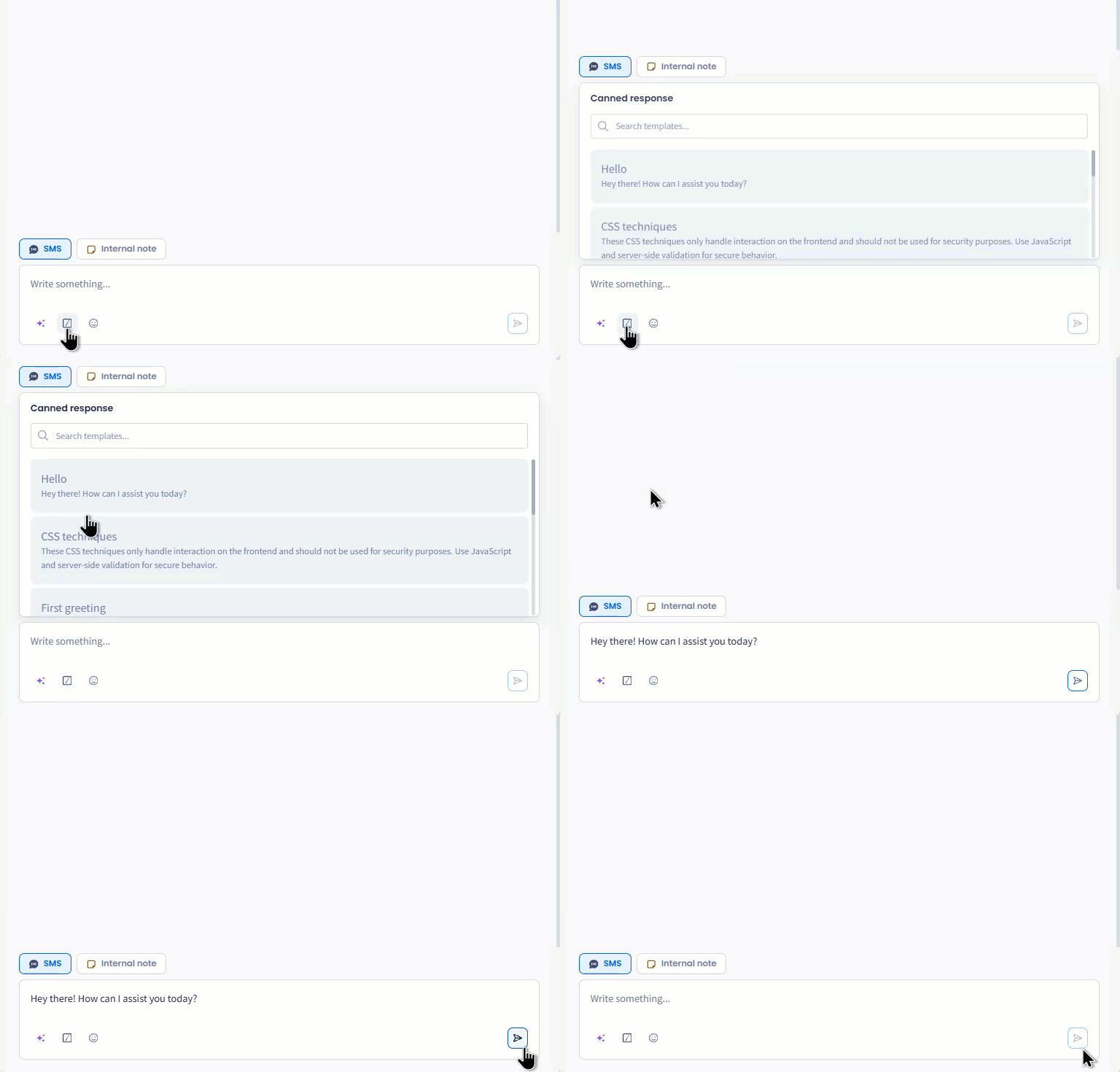
Provide the message text, optionally, use the AI Assistants, Canned Response, and/or emoji options and click Send Message.
New conversation dialog box: message text editor
The message is sent, and the conversation is added to the Conversations list.
Click the New Conversation button under your account name.
Then, select a TextPeak contact to create a new conversation. Then, click to select the assigned team and the sender from the drop-down menus, then click Next.
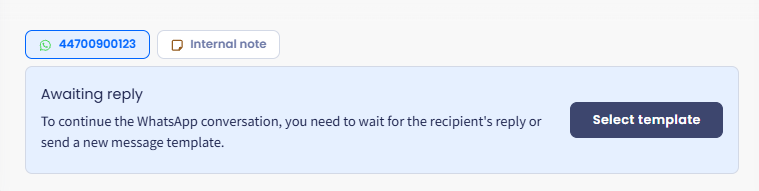
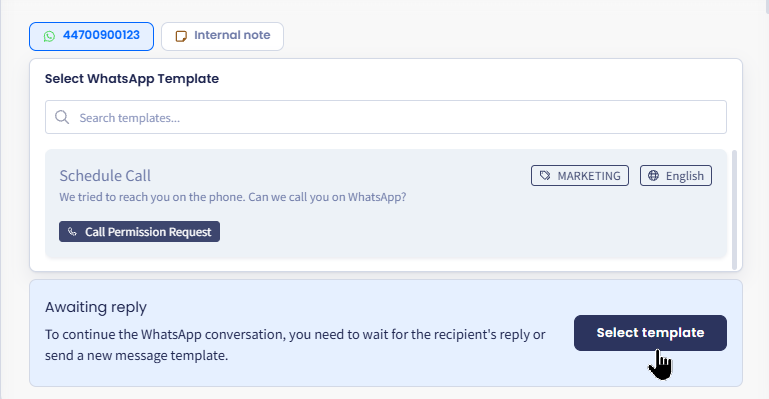
To start your conversation, click Select template.
Select template button
📘
NOTE
You can check the Managing WhatsApp Templates article for details about how to create and manage the templates created with WhatsApp.
Next, select the template to be used for your conversation.
Selecting WhatsApp Templates
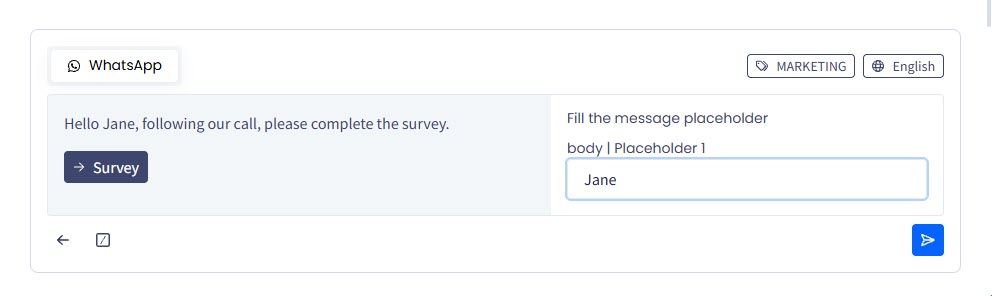
For complex templates, you may need to provide the message body/placeholders to be used in the message, for example, the recipient's first and last names.
Filling the message placeholders
Click the button below to send the message.
✔️ Congratulations! Your message is sent.
Conversation timeline
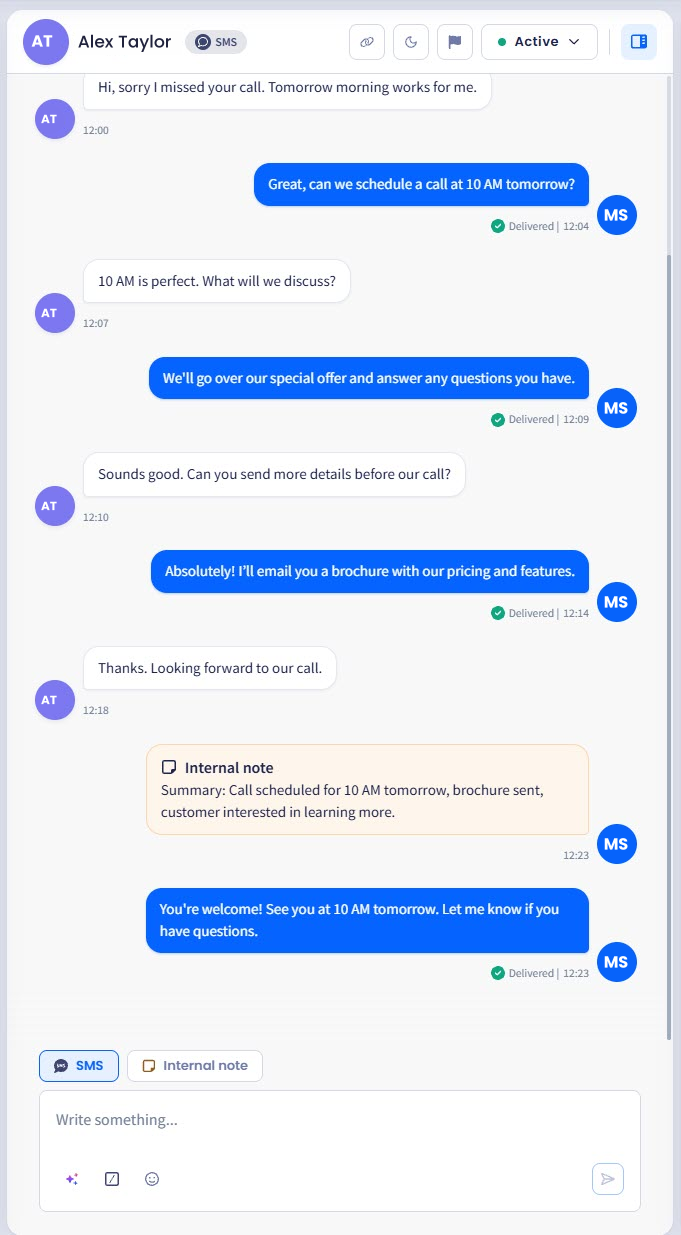
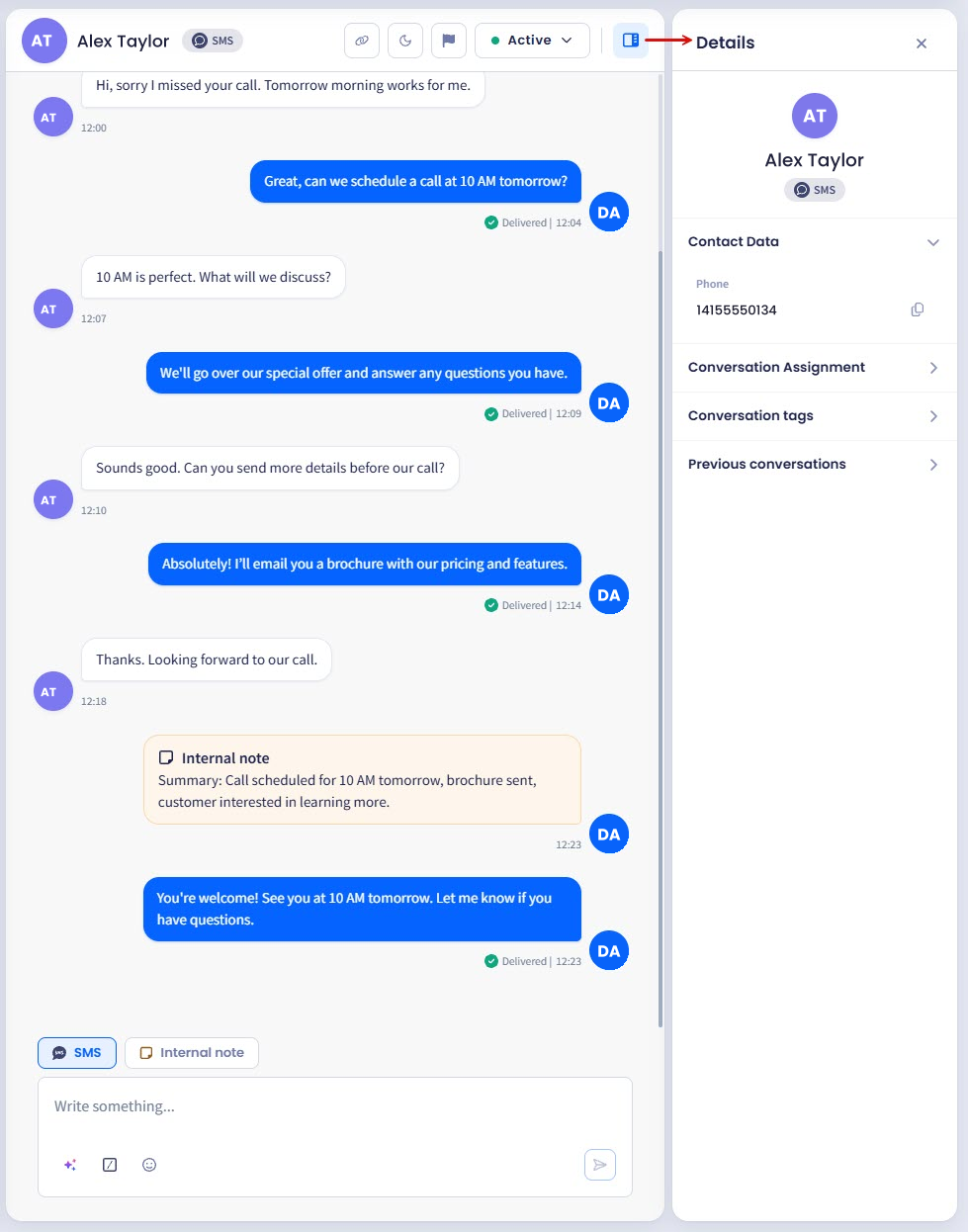
In the conversation timeline box, agents can review the history of this conversation in chronological order, including:
all messages shown with the time stamp and their status (Sent, Read, Delivered, etc.)
badges with information about any past event, for example, changing status or adding tags
internal notes shown with the time stamp
avatars of the agents involved in the conversation.
Inbox conversation timeline box and message editor
📘
TIP
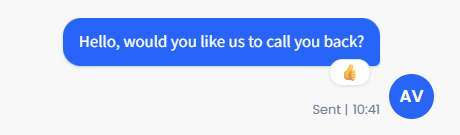
Starting from v1.06, you can see the reactions your contacts add to WhatsApp messages, right in the conversation timeline.
Conversation reaction
Managing messages
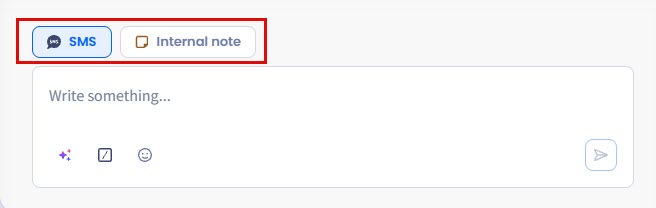
Below the conversation timeline is the message box, where inbox agents can write messages to customers under the Sender Profile tab or switch to the Internal note tab to leave notes for other agents or managers.
Switching between the Sender Profile and Internal note tabs
📘
NOTE
Internal notes can only be accessed by the agents assigned with the corresponding Inbox role permissions.
While writing your message, you can also select to do the following (left to right):
attach a file (only for WhatsApp Business and Telegram messages) - provided your manager enabled this functionality for your account
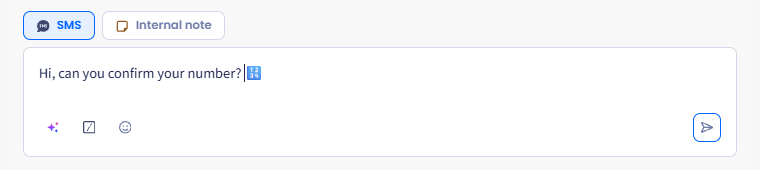
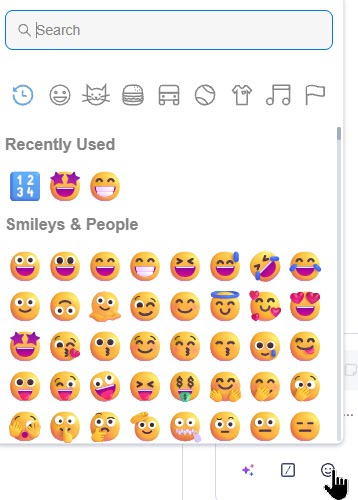
insert an emoji.
Adding emojis
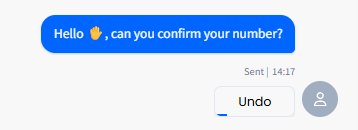
When you finish, click the send icon. If your manager has turned on Undo send, an undo control appears for a few seconds so you can pull the message back before it goes out. The length of that window is the Seconds to undo value, set per space - if you never see the control, undo is turned off for your space. See the General Settings page.
Message sending Undo button
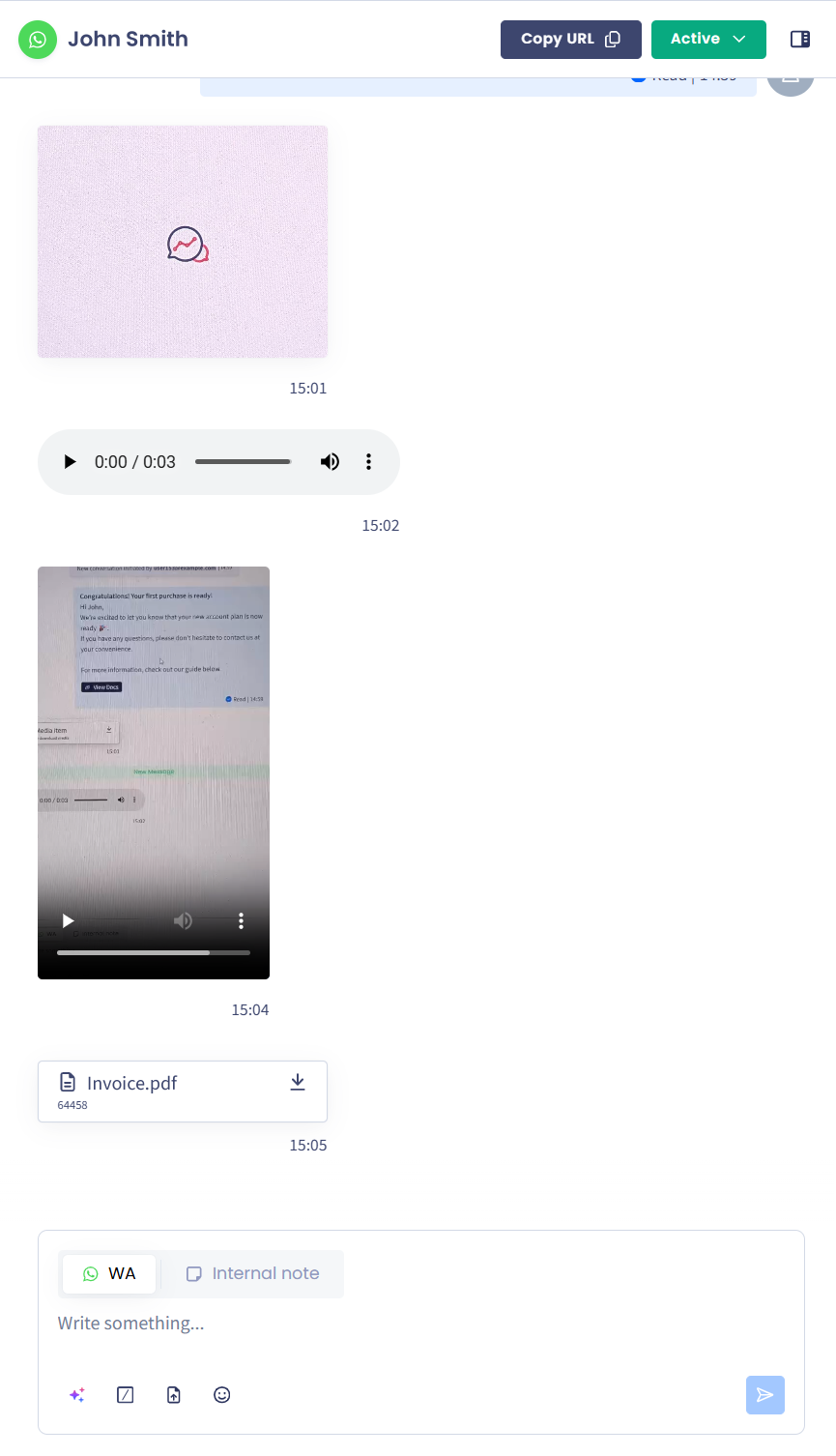
For WhatsApp Business conversations, you can get voice/audio messages with video messages showing a preview upon download:
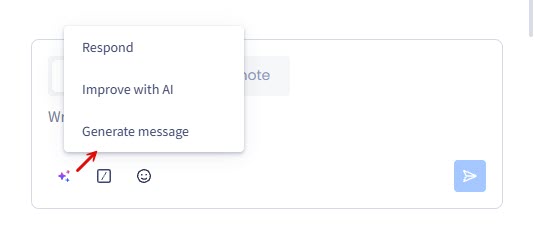
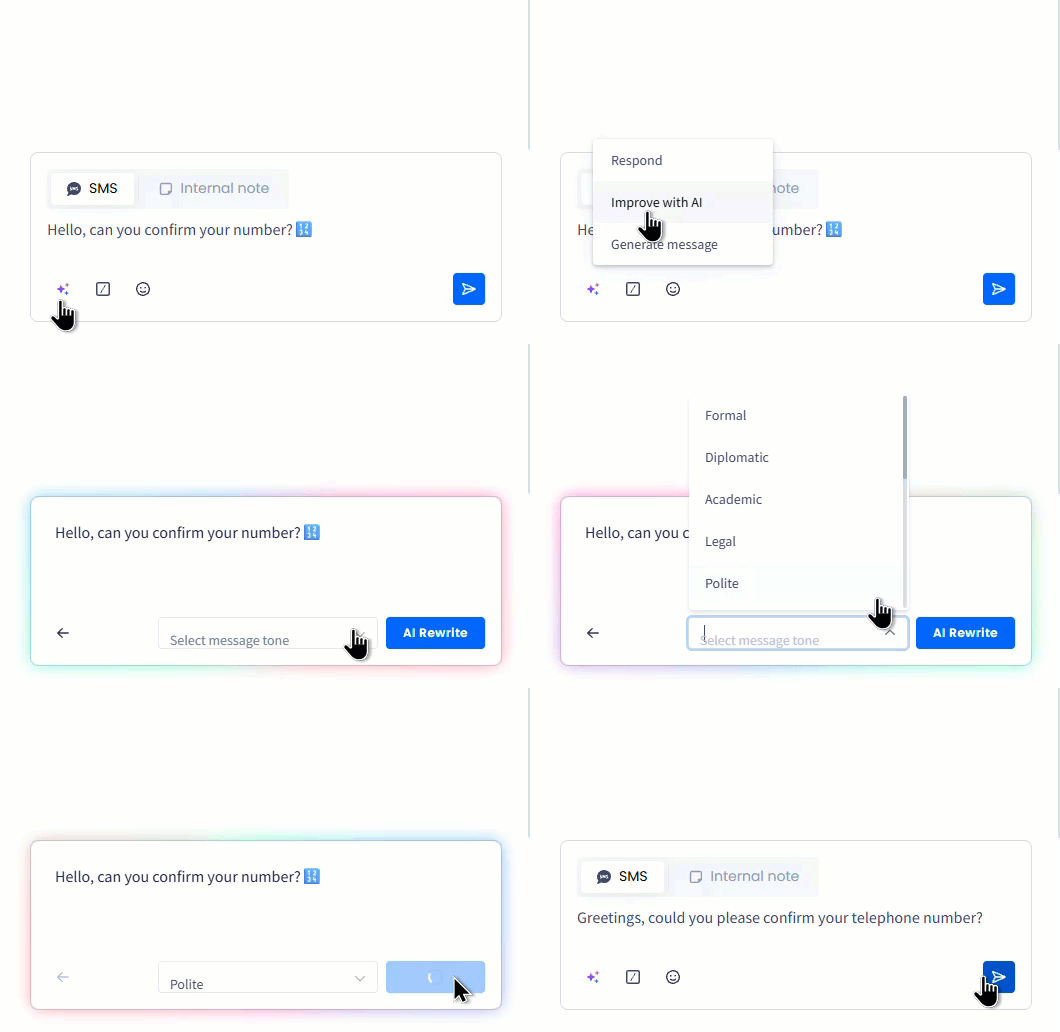
To use the AI assistant options, in the message box, click the AI Assistant button and select the preferred option, then proceed with composing your message:
Selecting AI assistant options
Respond
Use it to create a response to the message that is based on the message history.
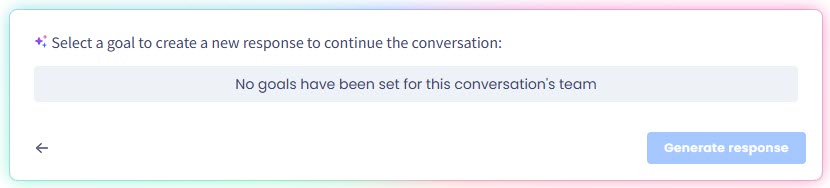
Before you can generate responses, your Inbox manager must create conversation goals for your team.
Generating response dialog
Improve with AI
Select it to open the box where you can enter the message you want to rewrite, then select the message tone, and click AI Rewrite.
Rewriting message with AI
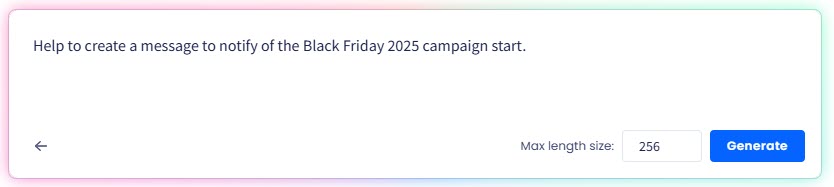
Generate message
Use this option to enter prompts to generate engaging and grammatically correct messages. Here, you can also limit the message length.
Generating message with AI
Details
The Details panel opens on the right when you select a conversation and click the button at the top right of the conversation timeline.
Details button
Each section expands and collapses independently:
Contact Data: the contact's Phone, Country, First Name, Last Name, Email, and City. Click Edit to change them. Country is derived from the phone number and is not editable on its own.
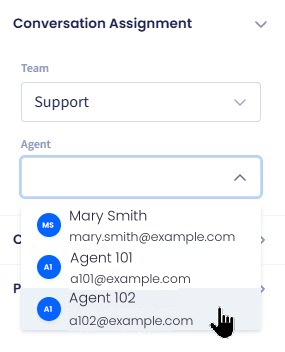
Conversation Assignment: the team and Agent handling the conversation, each a drop-down.
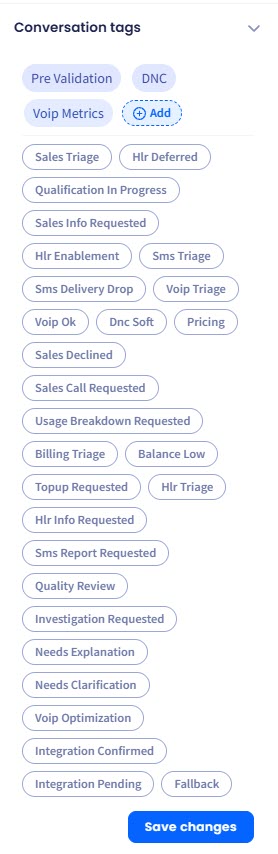
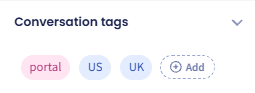
Conversation tags: the tags applied to the conversation, with Add to apply another. Click Save changes to confirm.
Previous conversations: this contact's earlier conversations, each with its date and status. For more details, see the Previous Conversations page.
Details section
Managing contacts
To edit an existing inbox contact:
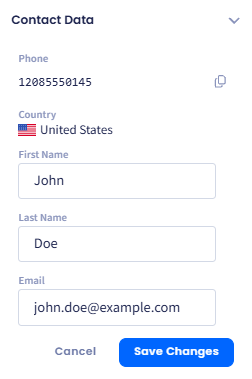
Expand the Contact Data section and click Edit.
Editing contact data
In the dialog window, update the contact data.
Updating contact data
Click Save Changes.
Managing conversation assignments
Conversations reach an agent in one of two ways: somebody assigns them by hand, or TextPeak assigns them automatically using the method set for the team.
To assign a conversation by hand:
In the Details sidebar, expand the Conversation Assignment section and click Edit.
Open the drop-down menus and select the teams and agents you want to assign to this conversation.
Editing conversation assignment
Click Save changes.
Manual assignment is always available, whatever method the team uses, provided you hold the permission for it.
If the team runs Round robin or Balanced assignment, new conversations reach an agent without anyone doing this. Which agent, and what happens when that agent goes offline or snoozes the conversation, depends on the team's settings - see the Assignment page.
📘
NOTE
Automatic assignment skips an agent who is Offline. See the Agent Presence page.
Managing conversation tags
To add or edit conversation tags:
Expand the Conversation tags section and click +Add.
Select the tags you want to add.
Adding conversation tags
Click Save Changes.
Conversation tags added
The tags are saved and can be used in conversations.
Viewing previous conversations
To view previous conversation with this contact:
Expand the Previous conversations section.
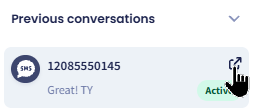
Here, you can see the conversation type label, contact number, date of latest contact, the most recent message text, and the conversation status.
Previous conversation
To open this conversation in a new window, click the redirect button.
Opening the conversation
Sorting conversations
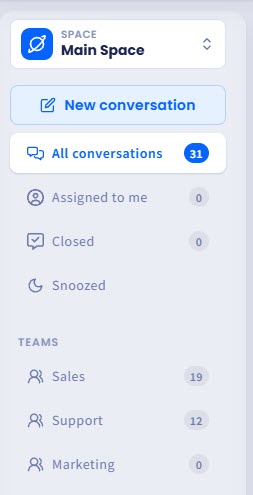
To sort conversations, select one of the following options:
All conversations: review all conversations available to them
Assigned to me: review the conversations that are assigned to them only
Closed: review the conversations closed by them
Snoozed: review the conversations snoozed for a set period.
Snoozed appears only if agent presence and snoozing are available in your space. For what snoozing does and how a conversation wakes, see the Snoozed Conversations page.
Conversation sorting options
If several teams are created under your account, you can review conversations assigned to the specific team by selecting the needed team under Teams.
📘
NOTE
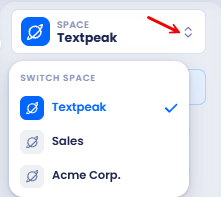
If an agent belons to multiple spaces, they can switch between them by clicking the arrow buttons and selecting the needed space from the drop-down list.
Switching between spaces
You will see the list of the sorted conversations in the Conversations menu on the right. Every conversation is shown with the platform icon (SMS, WhatsApp, or Telegram), contact name/number, last message, and a three-dot menu button to update the conversation status.
Saving your filters as a view
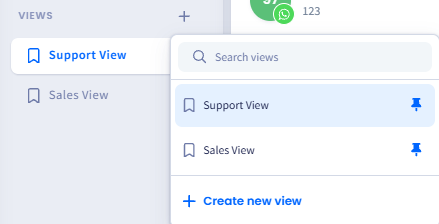
If you rebuild the same filters every day, save them as a view instead. Pinned views appear under VIEWS in the Inbox sidebar and update in real time as conversations change.
Pinned views
To create one, click + next to VIEWS. For the full flow, see the Custom Views page.
Conversation statuses
Every new conversation started from TextPeak API, CommPeak Dialer, or TextPeak SMS Campaign is automatically generated with the Unanswered status. Once the contact answers the message, its status updates to Active, and the conversation is ready to be processed by the agent.
A conversation can also be Snoozed. Snoozing takes a conversation out of your view for a set period without closing it, and it returns automatically when the period ends or when anything happens on the conversation. For details, see the Snoozed Conversations page.
A conversation moves to Closed when an agent closes it, or automatically after a period of inactivity if your manager has set that up. See Closing inactive conversations automatically.
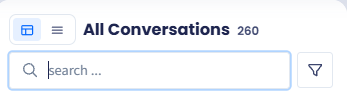
You can search conversations by contact name or message text.
Search field and Filter button
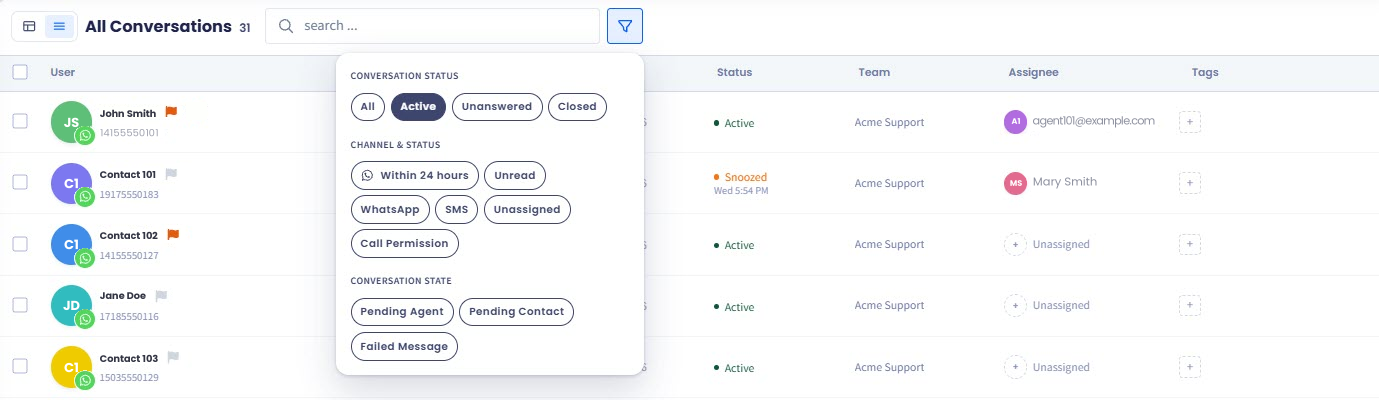
You can also filter to show specific conversations by clicking the button next to the Search field. Filters are grouped by Conversation Status, Channel & Status and Conversation state. You can combine them; for example, WhatsApp + Within 24 hours to find conversations where you can still send a free-text reply.
Filters panel: channel and status options
Refer to the following table for filter descriptions:
Filter
Description
Conversation Status: All
Review all conversations available.
Conversation Status: Active
Review the conversations that are currently active.
Conversation Status: Unanswered
Review the unanswered conversations.
Conversation Status: Closed
Review the closed conversations.
Channel & Status: SMS
Show only conversations on the SMS channel.
Channel & Status: WhatsApp
Show only WhatsApp Business conversations.
Channel & Status: Unread
Conversations with messages you haven't read yet.
Channel & Status: Within 24 hours
WhatsApp Business conversations where the contact has sent a message in the last 24 hours, so you can still send a free-text reply.
The 24-hour window resets every time the contact sends a new message.
Channel & Status: Unassigned
Conversations that are not yet assigned to any agent.
Channel & Status: Call permission
WhatsApp contacts within their callable window - meaning you can place a WhatsApp Business call without sending a template first.
Conversation state: Pending agent
Conversations waiting on a response from your side.
Conversation state: Pending contact
Conversations waiting on a response from the contact.
Conversation state: Failed message
Conversations whose most recent outbound message failed to deliver.
A list of conversations will be returned, each with the platform label (SMS, WhatsApp, or Telegram), contact name or number, date, and the label showing the number of unread messages.
Note, that the 24-hour window for free-text messages is renewed every time the contact sends a new message.
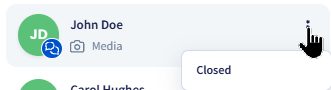
To update the conversation status from the Conversations list, hover over a conversation, click the three-dot menu button on the right, and select the new status to assign it to the conversation.
Assigning a new status to conversation
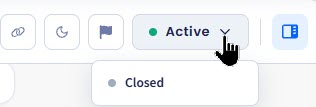
You can also update the status from the conversation thread box by clicking the arrow button and selecting the new status to assign to the conversation.
Updating conversation status
📘
NOTE
You cannot change the active or closed conversation's status back to Unanswered.
Conversation priority
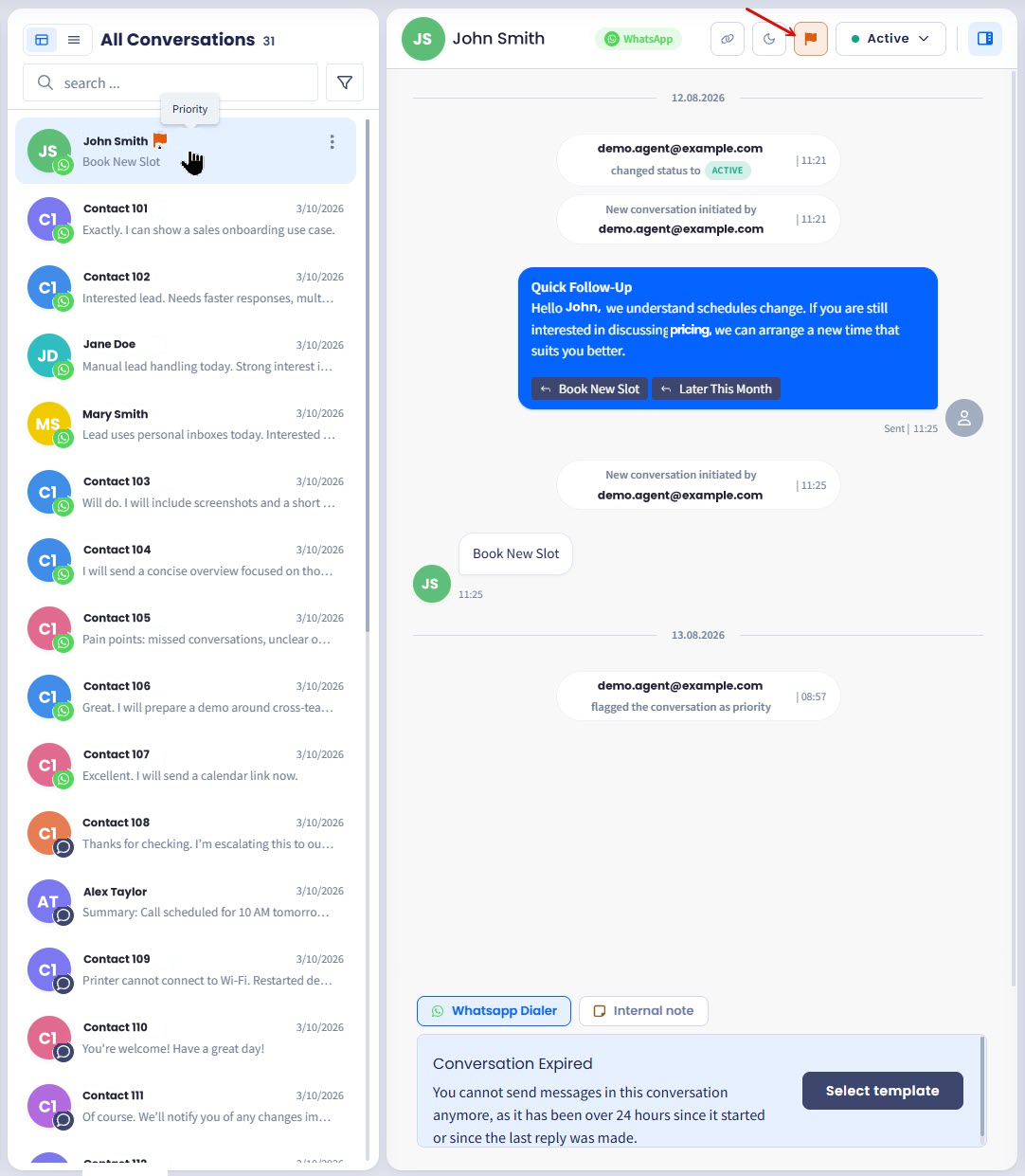
Flag a conversation as a priority to mark it as needing attention before the rest. The flag is visible to every agent who can see the conversation, so it also works as a signal to your colleagues.
To flag a conversation as a priority:
Open the conversation.
Click the priority button above the conversation thread.
Click the button again to remove the flag.
Setting conversation to priority
Priority does two things:
It adds a visual indicator to the conversation, wherever the conversation appears.
It moves the conversation to the front of the queue for automatic assignment. TextPeak hands out the highest-priority conversation first, then the one that has waited longest for an answer. See the Assignment page.
Priority works on every channel: SMS, WhatsApp, Telegram, and Webchat.
📘
NOTE
You can also mark a conversation as priority from the Table layout.
TextPeak has no filter for priority conversations. To find them, look for the indicator in the conversation list.
Sharing conversation links
To copy and share a conversation link to quickly reference specific chats with your team members, click the link button next to the conversation status badge and share it.