For AI agents: visit https://docs.commpeak.com/llms.txt for an index of all pages formatted in Markdown and endpoints in OpenAPI. Append .md to any documentation page URL to get its markdown version.
This article explains how to use the Listen, Whisper, and Barge functions in CommPeak Dialer, allowing managers to monitor and interact with agent conversations.
Managers can use the Listen,Whisper, and Barge options in CommPeak Dialer to listen to agent conversations and talk to the agent or both parties.
Perform the following steps to start whispering from the Realtime Stats:
On the Realtime Stats page, navigate to the agent on a call to whom you wish to whisper:
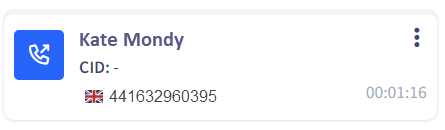
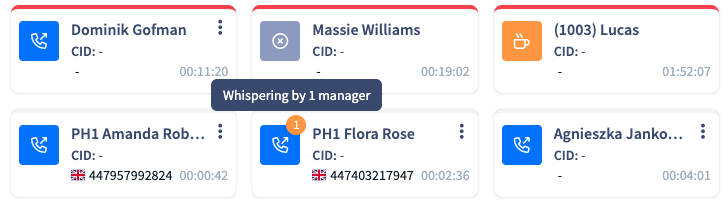
If you are in the grid view, locate the agent box with the outgoing call icon in the agents' grid.
Agent box with the outgoing call icon
If you are in the table view, locate the row with an agent on a call in the agents' table.
Row with an agent on a call in the agents' table
👍
TIP
To switch between grid and table views, click the buttons in the top-right of the Realtime Stats page.
Buttons for switching between the grid and table views
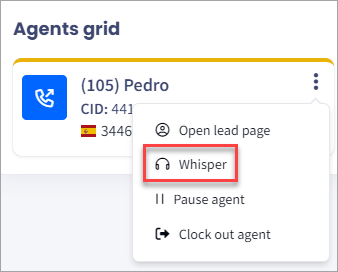
Click the three-dot menu for additional actions, then select Whisper.
Additional actions pop-up with Whisper highlighted
📘
NOTE
In the agent row, just click the headphone icon in the end of the row.
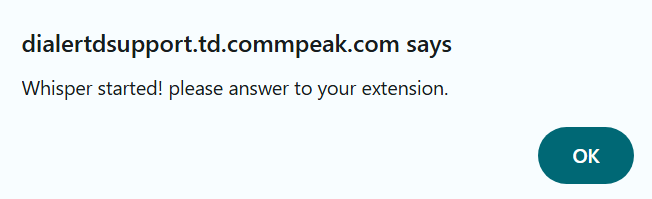
You will get a notification in a pop-up window. Click OK.
Pop-up notification that whisper has started
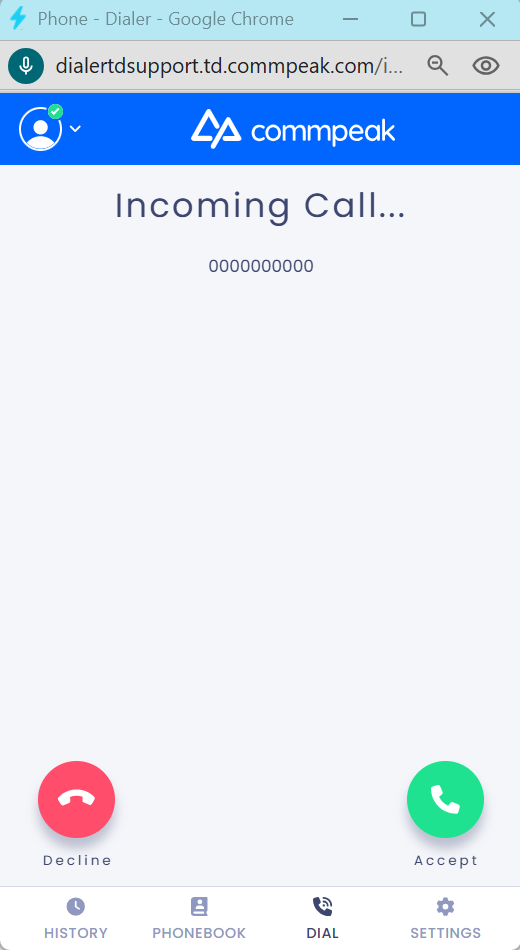
Accept an incoming call in your phone client.
Incoming call in a phone client
👍
TIP
You can also activate the auto-answer feature to ensure that your whisper calls answered automatically.
You will be connected in the Listen mode.
To switch to other modes, click on the keypad icon.
Keypad icon
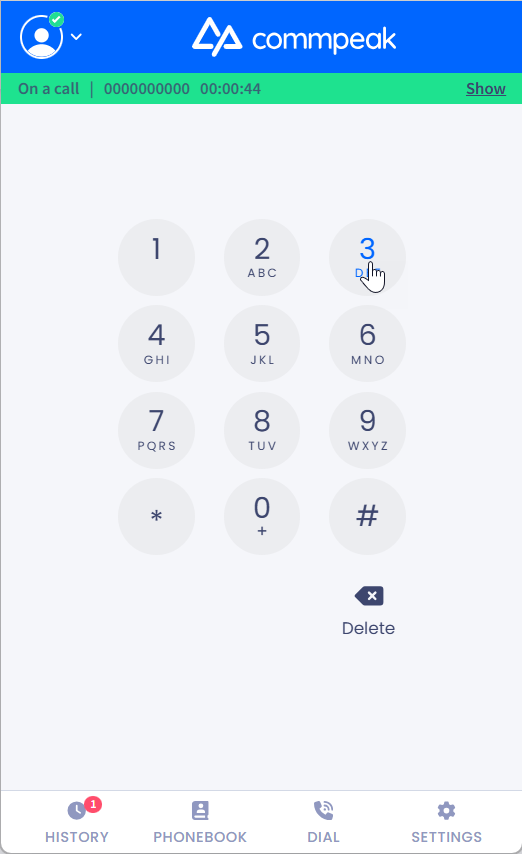
You will see the keyboard on the screen, and then you can press the following numbers:
Keypad on the screen
1 to switch to the Whisper mode and talk to the customer
2 to remain in the Whisper mode and talk to the agent
3 to switch to the Barge mode and talk to both the agent and the customer
0 to release and listen to the conversation.
You will hear a voice notification that the chosen mode is activated.
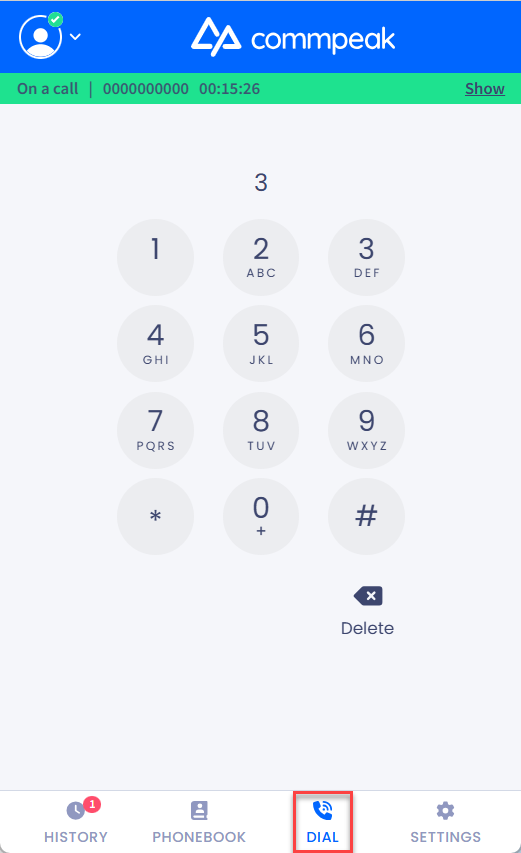
When you're done, click Dial.
Keypad on the screen with the Dial icon highlighted
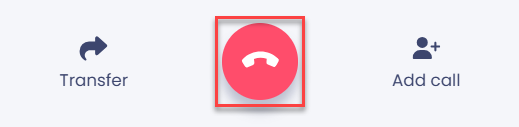
Then click the red button to disconnect from the call.
End call button
❗️
Whisper Feature Guidelines
Concurrency Limit: A maximum of two managers can whisper to the same extension simultaneously.
A third attempt will trigger an automated message: "Sorry, you have reached the limit of concurrent whispering managers for the requested extension."
Regional Restriction: Whisper is supported only when both the manager and agent are within the same call center region.
Audio Performance: When multiple managers are whispering, minor latency or choppy audio may occur. To limit this impact, sessions are capped at 2 concurrent managers.
Quality Dependency: The manager’s audio experience depends on the agent and lead call quality. Any connection issues on their side will affect the manager as well.
Access Methods: While managers without web access can use *15 for Cloud PBX instances, it is highly recommended to whisper via the Realtime Page directly for the best experience.
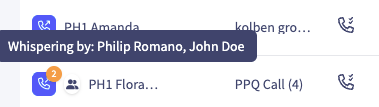
Real-time monitoring visibility
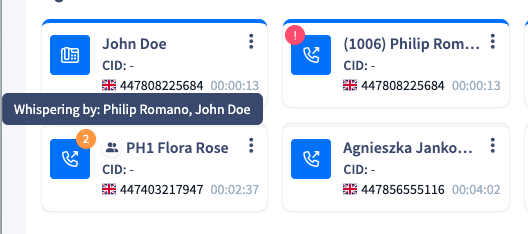
The Real-time Page provides live visibility into active sessions by displaying the names of managers currently whispering to an agent.
Please note that the names shown depend on the user's permissions (e.g., Desk or Skill-based); you will only see managers' whispering activity within your authorized scope.