

Realtime System Status
The page provides updates on the operational status of services and allows users to subscribe to notifications about maintenance and incidents through various channels.
The CommPeak Status Page has four tabs (Overview, Incidents, Scheduled Events, and Subscribe) and shows the current state of CommPeak services, the incidents that affected them, and the maintenance scheduled for them.
Check it before you contact support about a service that is not responding, and subscribe to get email updates about the services you use.
Checking the status of CommPeak services
The Overview tab opens by default. The banner at the top shows the overall state of all services and their uptime. Click Refresh to load the latest status.
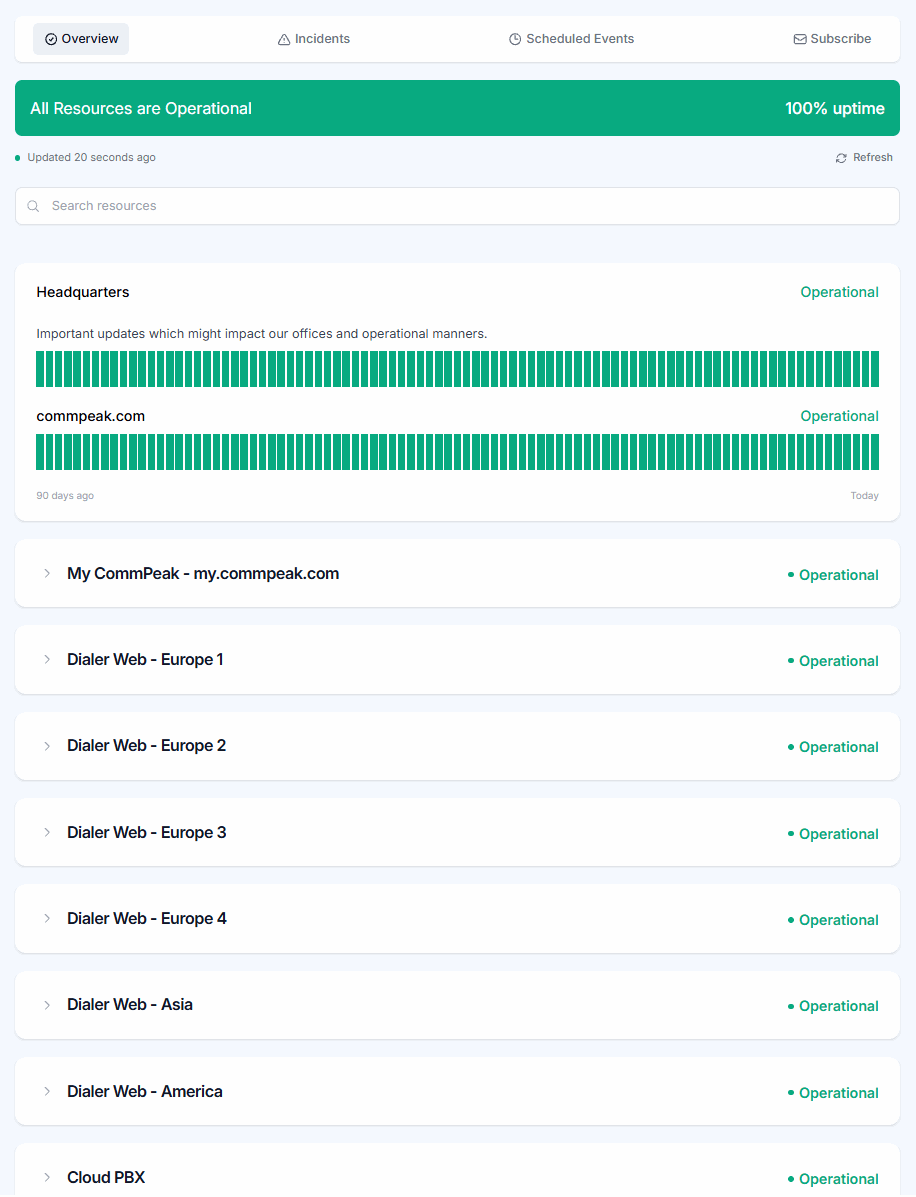
Overview tab: overall status and uptime
Below the banner, services are grouped into resources:
- Headquarters: the commpeak.com website and updates that might affect CommPeak offices
- My CommPeak - my.commpeak.com: the CommPeak Portal, the CommPeak API, and the Documentation and Developer Hub
- Dialer Web: each CommPeak Dialer region (Europe 1–4, Asia, and America), with its web application, VoIP (SIP / RTP), and third-party data connector
- Cloud PBX: the Cloud PBX service and its PBX Stats component
- Voice (SIP): each SIP server, such as
eu1.sip.commpeak.comoruseast.sip.commpeak.com, plus known voice routing issues - SMS Gateway
Third-party services: tools CommPeak relies on, such as Slack, Gmail, Cloudflare DNS, analytics, and Intercom.
Each resource shows its current status, for example Operational, and a bar with its uptime for the last 90 days. Hover over a day in the bar to see the uptime for that date.
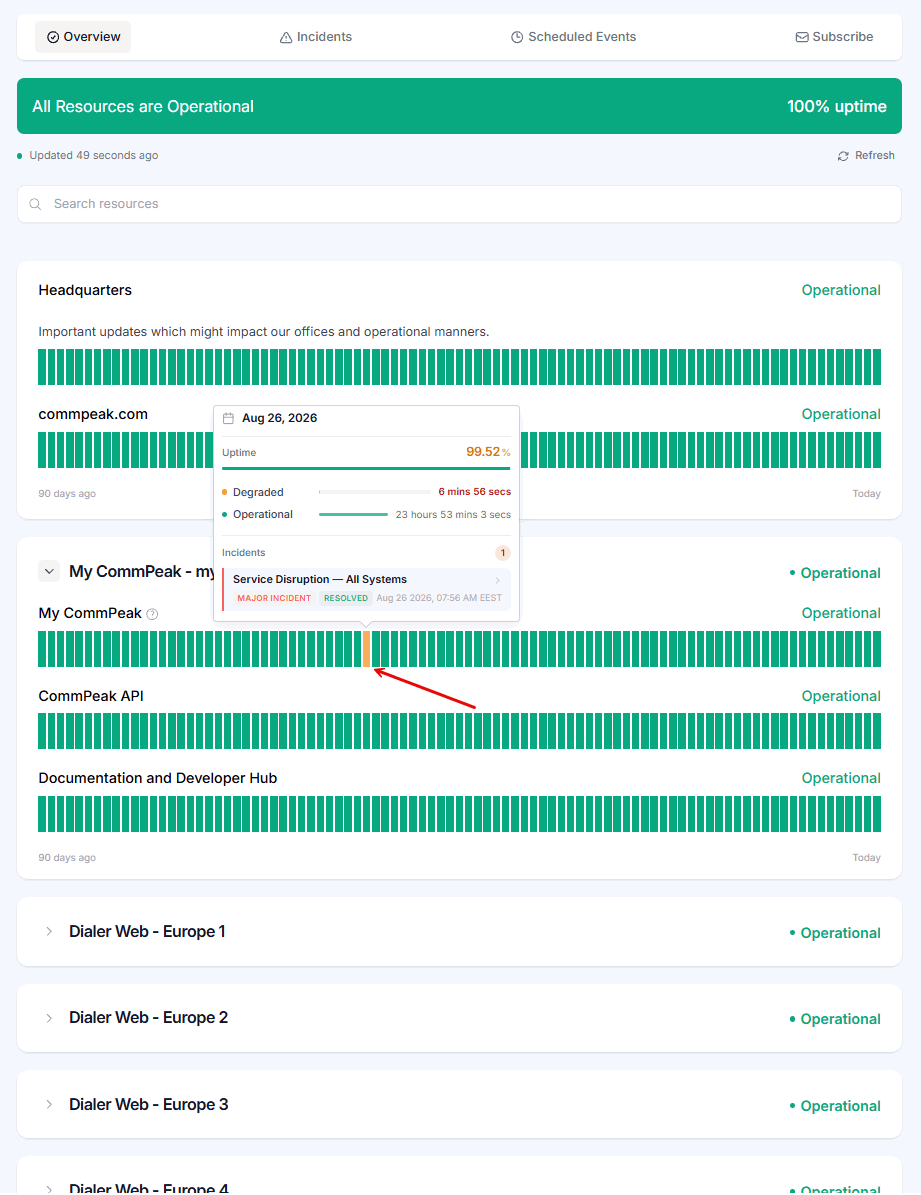
My CommPeak group expanded, with the 90-day uptime bars
Click a resource group to expand it and see the status of each component.
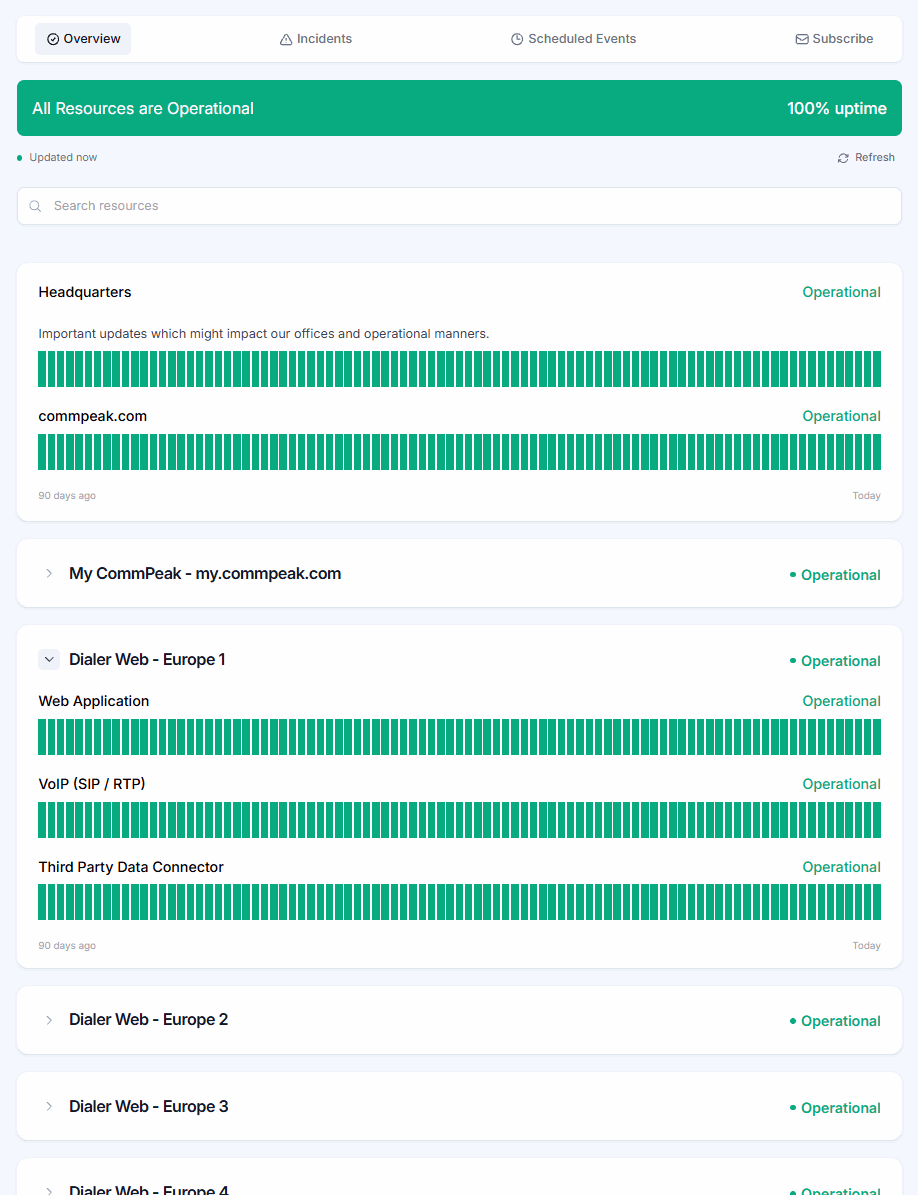
Resource group expanded, with the 90-day uptime bar
Viewing incidents
Click the Incidents tab to see current and resolved incidents, newest first. Each incident shows:
-
The date, the severity (for example, Low Severity Incident or Major Incident), and the current state, such as Resolved
-
A description of the issue and its impact
-
The time the incident was declared
-
The affected resources
-
Every update the CommPeak team posted while working on it.
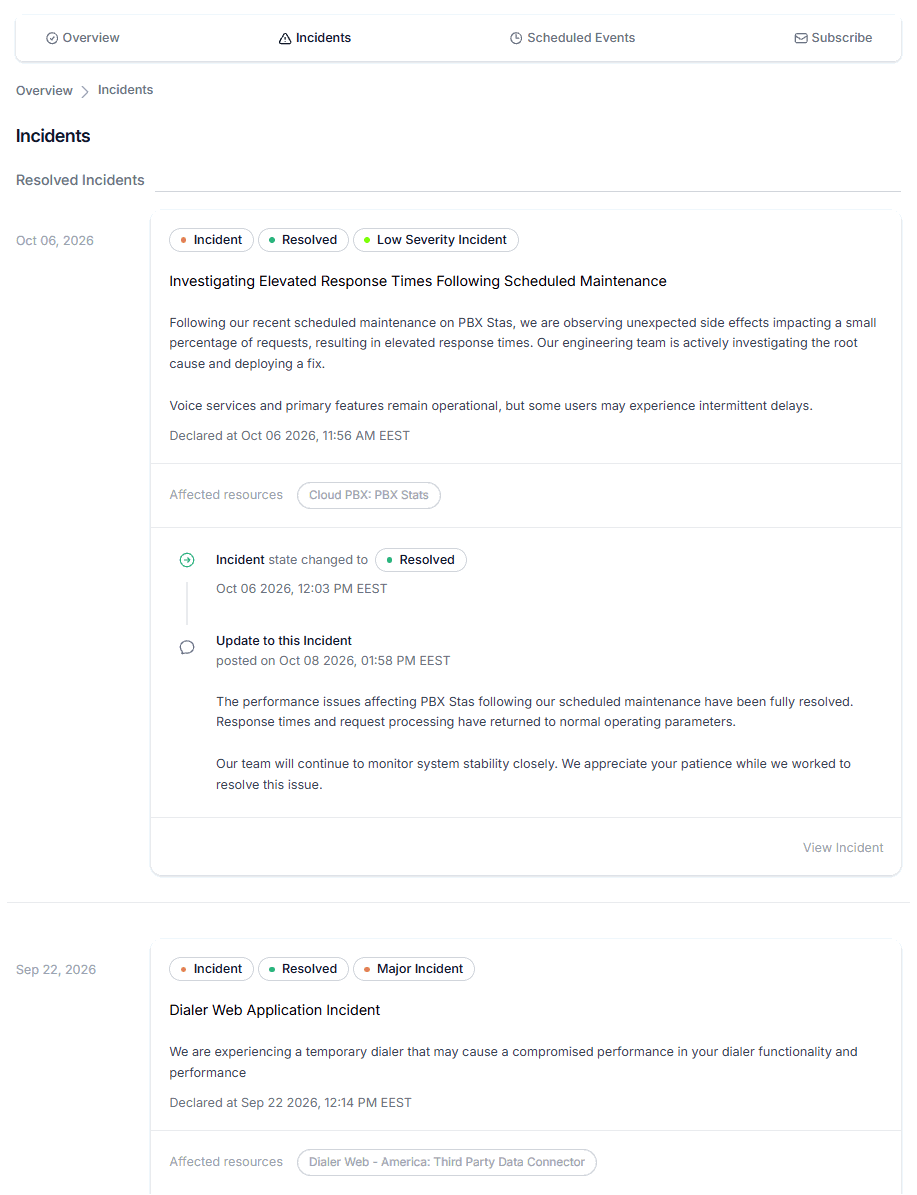
Incidents tab
Click View Incident to open the full timeline of a single incident.
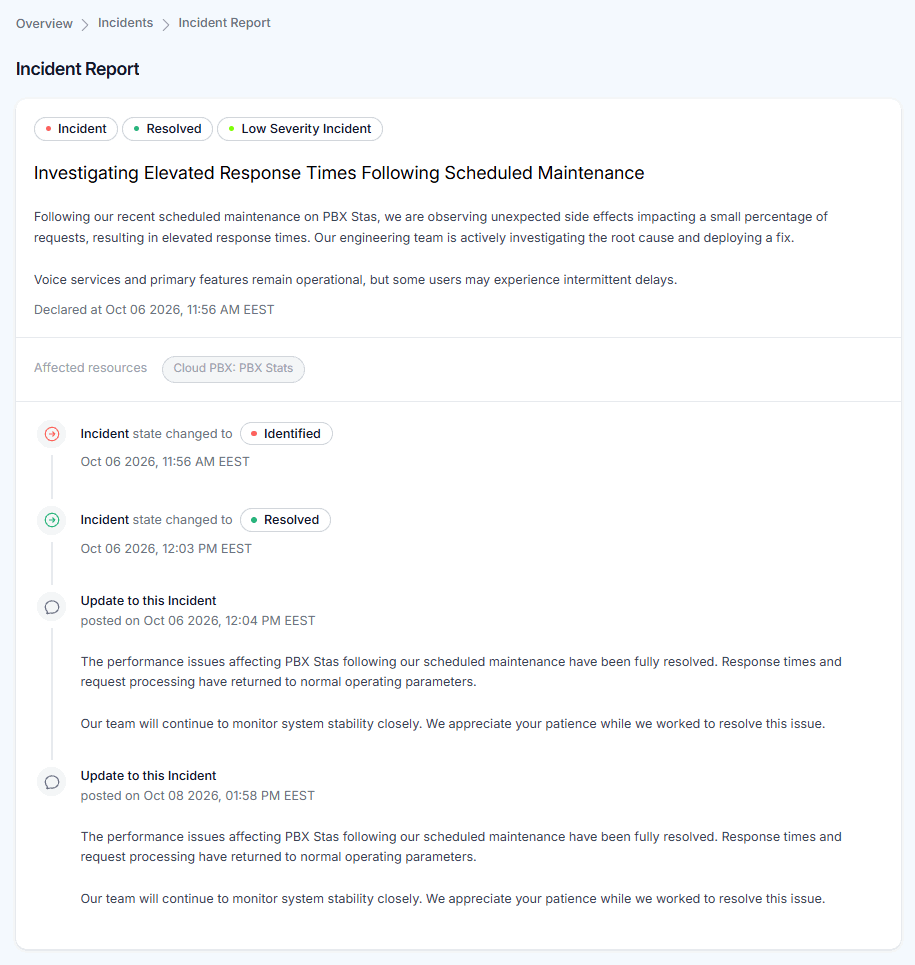
Incident Report page
Viewing scheduled maintenance
Click the Scheduled Events tab to see upcoming and completed maintenance. Each event shows the server or service involved, the scheduled time, the affected resources, and any updates posted when the work finished.
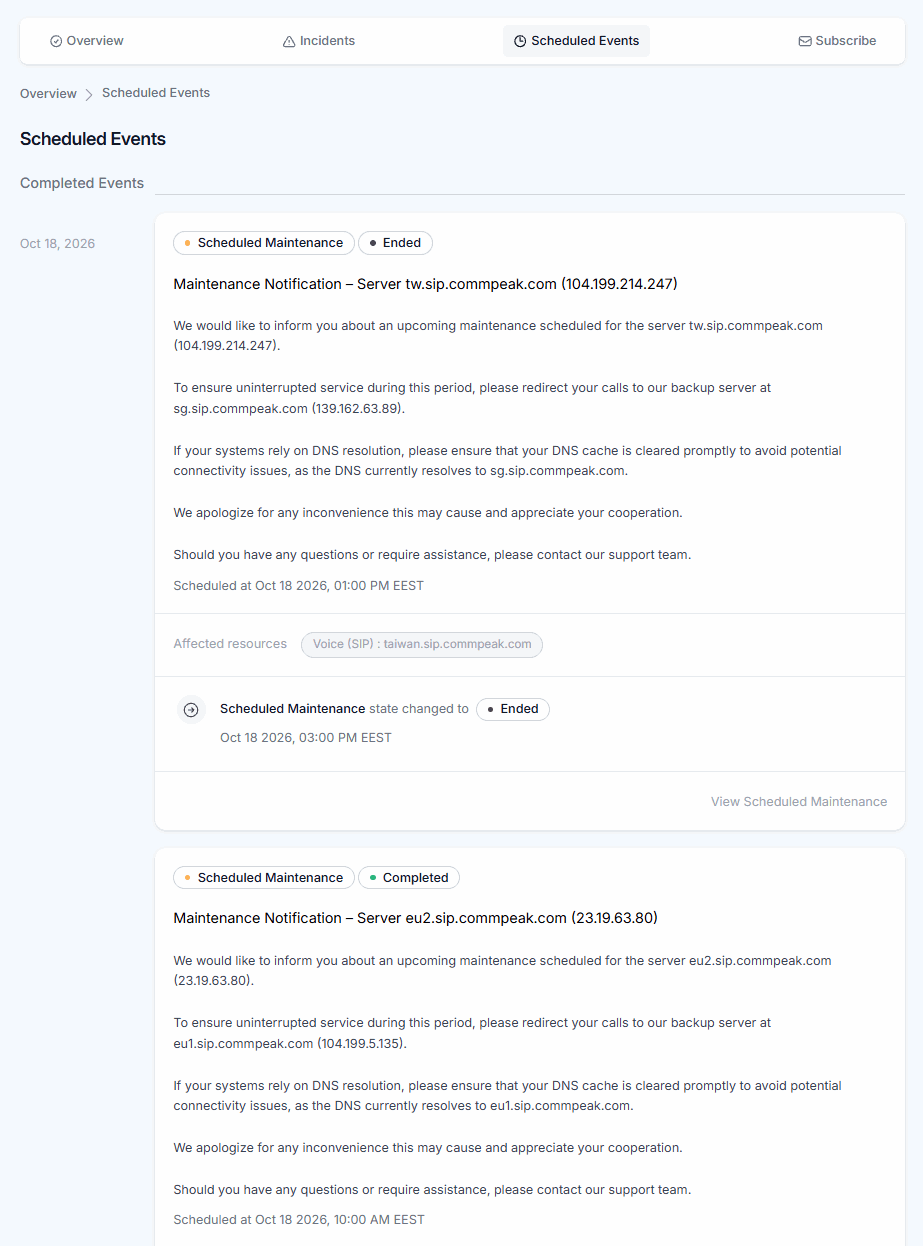
Scheduled Events tab
TIPMaintenance notices for SIP servers name a backup server. Redirect your calls to that server for the duration of the maintenance, and clear your DNS cache if your systems rely on DNS resolution, so your calls are not interrupted.
Subscribing to status updates
Status updates are sent by email. You can subscribe to all services or only to the ones you use.
To subscribe to updates:
Open Subscribe
Click the Subscribe tab.
Enter your email
On the New Subscription tab, enter your email address in the Your Email field.
Choose the services
To get updates about specific services only, clear the Subscribe to All Resources checkbox and select the resources you want, for example a single Dialer region or SIP server.
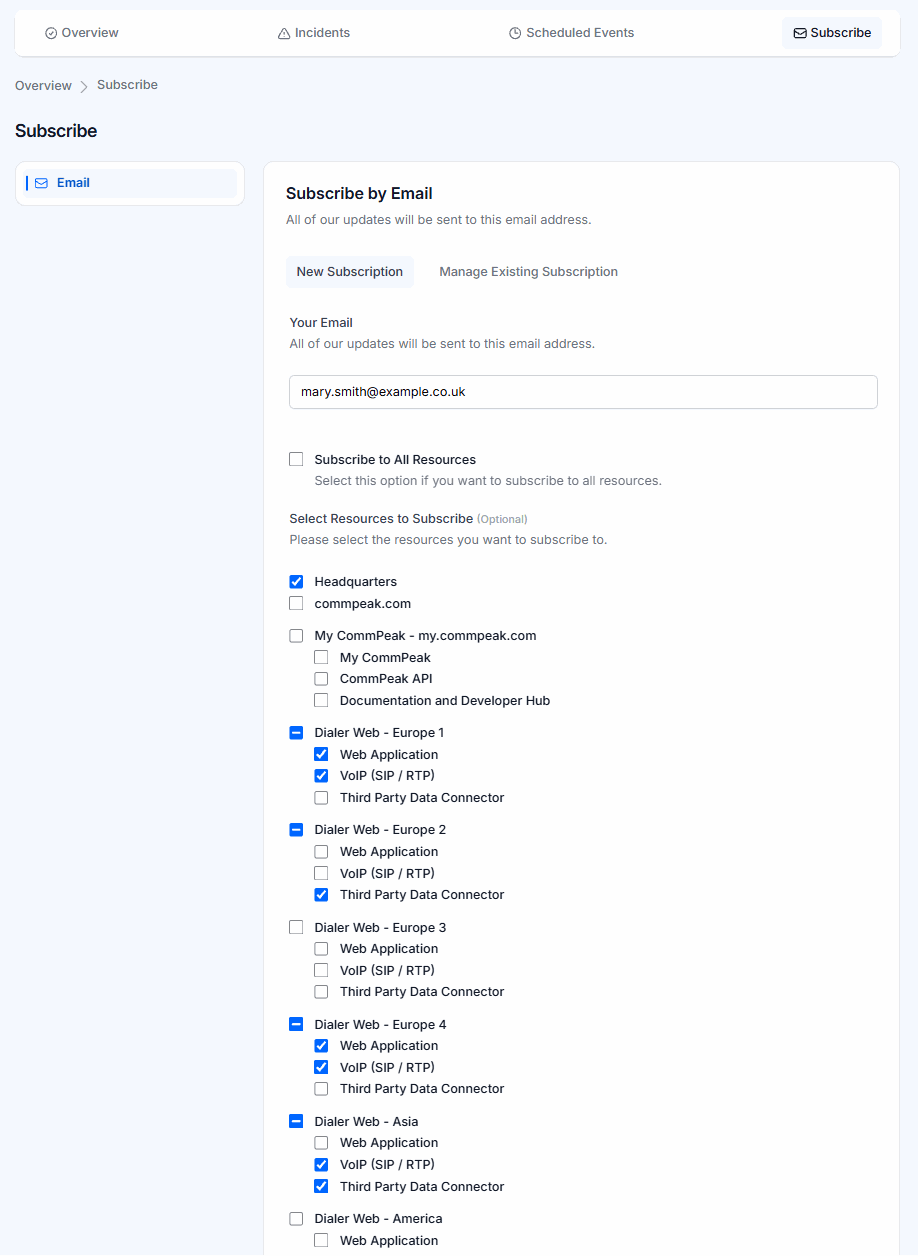
Subscribe by Email form
Choose the update types
To get only certain types of updates, clear the Subscribe to All Event Types checkbox and select one or more of these: Incident, Announcement, and Scheduled Event.
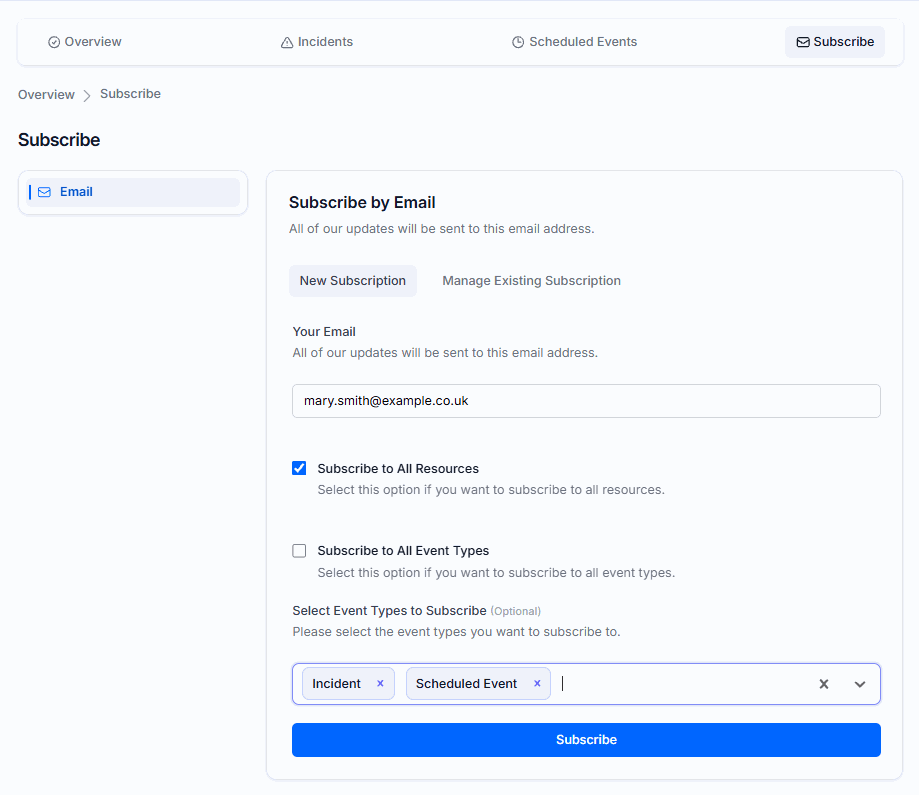
Selecting subscription event types
Subscribe
Click Subscribe.
Managing your subscription
To change the services you follow or to cancel your subscription:
Manage your subscription
Click the Subscribe tab, then click Manage Existing Subscription.
Enter your email
Enter the email address you subscribed with.
Send the management link
Click Send Management Link.
Update your subscription
Open the email and follow the link to update your subscription.
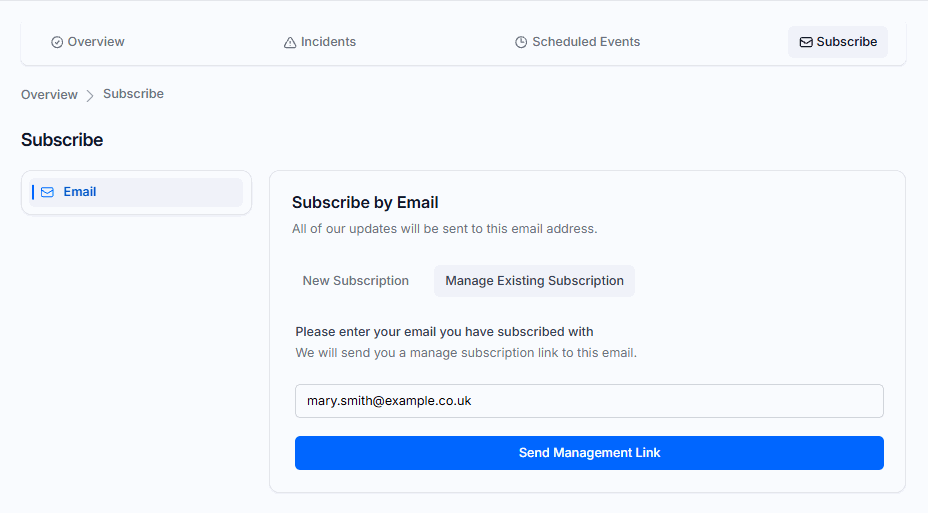
Manage Existing Subscription tab
If you need help, contact the CommPeak support team.
The Realtime System Status page provides information on the current state of CommPeak services. Check the list of our available services to see if they are operational.
A green check mark next to each service means it works fine.

Realtime System Status page
To receive notifications about maintenance work or incidents in CommPeak systems, follow these steps:
Subscribe to updates
Click SUBSCRIBE TO UPDATES.

Realtime System Status: All Systems Operational
Choose the channel
To choose a convenient way to receive notifications, click the email, text message, Slack or the Webhook tab.
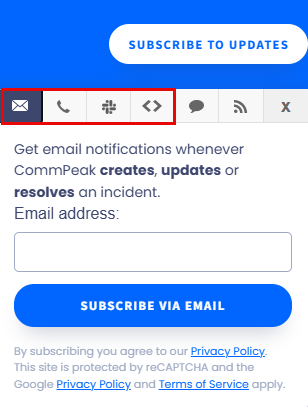
Choosing the channel of notification
Enter your contact details
Enter your email, phone number, or URL.
Subscribe
Click SUBSCRIBE.
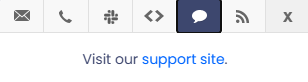
CommPeak support option
To get the Atom Feed or RSS Feed, click the respective link.
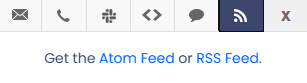
Atom Feed or RSS Feed option
Below is the list of our available services. You can check what maintenance is scheduled and plan your work accordingly to avoid interruptions.

Scheduled maintenance notifications
If you need help, contact the CommPeak support team.
Updated 7 days ago