

Generating SMS Delivery Reports
View and generate reports on your outbound SMS messages with EDRs, including search filters, dashboard metrics, and export options to CSV files.
EDRs store data of your outbound SMS messages.
To generate an EDR report:
-
Expand Messaging in the main menu on the left and then click SMS EDRs.
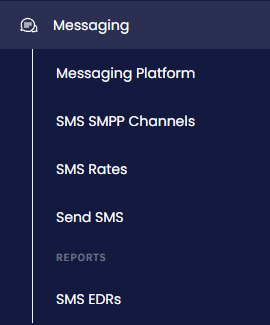
Messaging > SMS EDRs menu tab
-
Set search filters to select a date range, DNIS, country, network, message delivery status, or SMS channel.
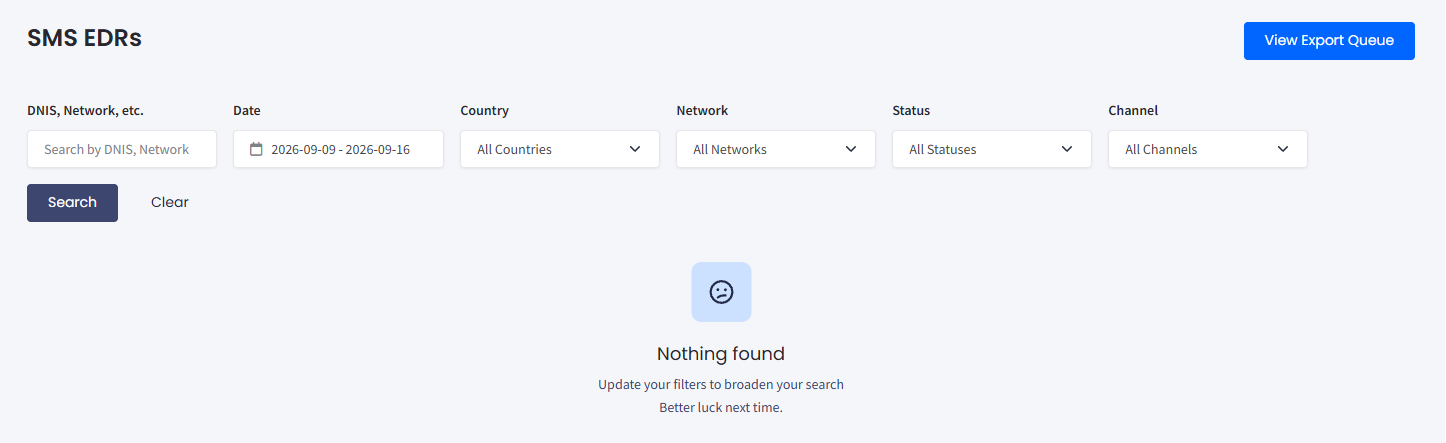
EDRs search filters
-
Click Search.
-
The page will display a dashboard indicating the number of sent or failed messages, and status and country graphs.
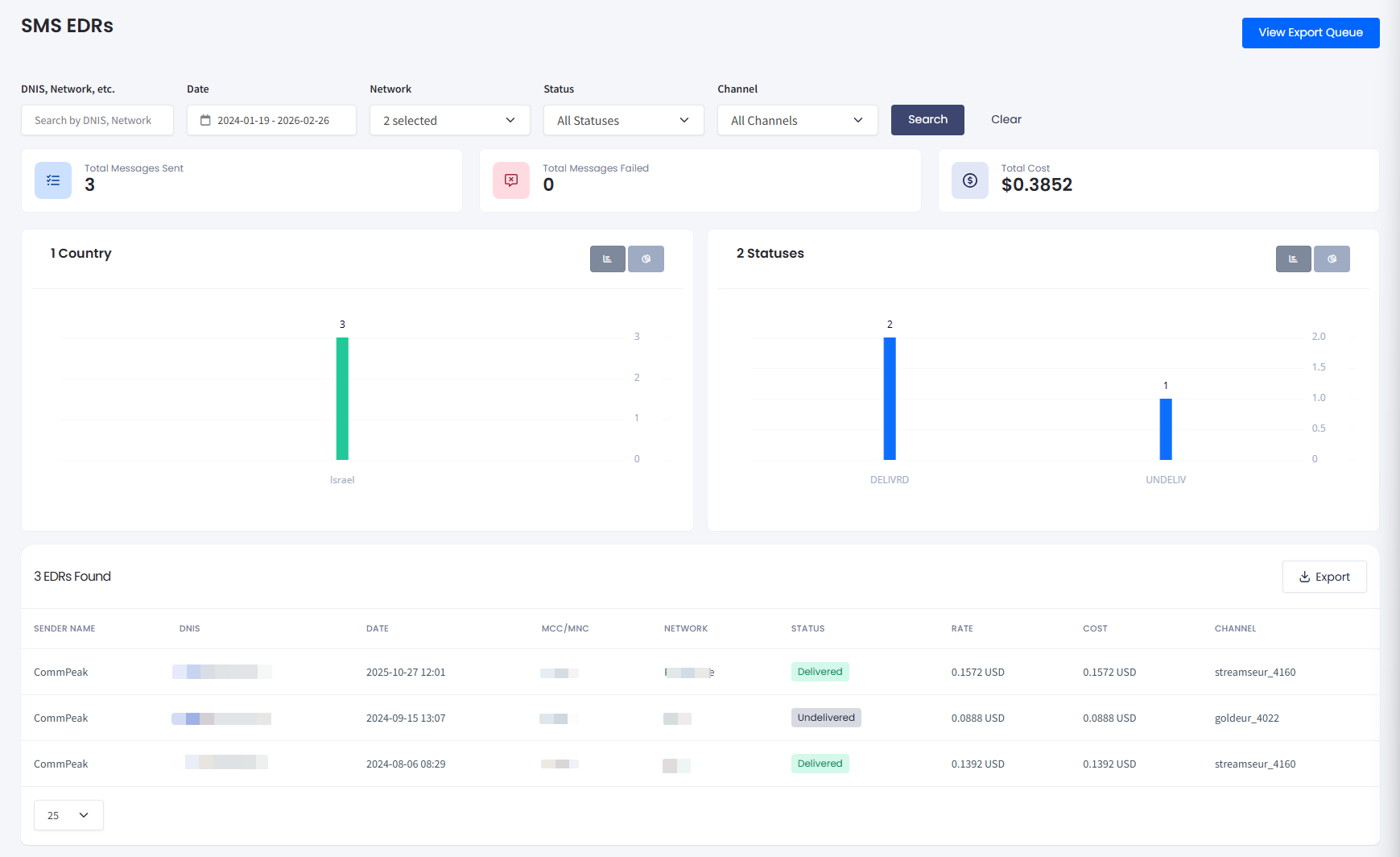
SMS EDRs page with filtered records
-
You can select how you want to preview the filtered records: as the bar or pie chart.
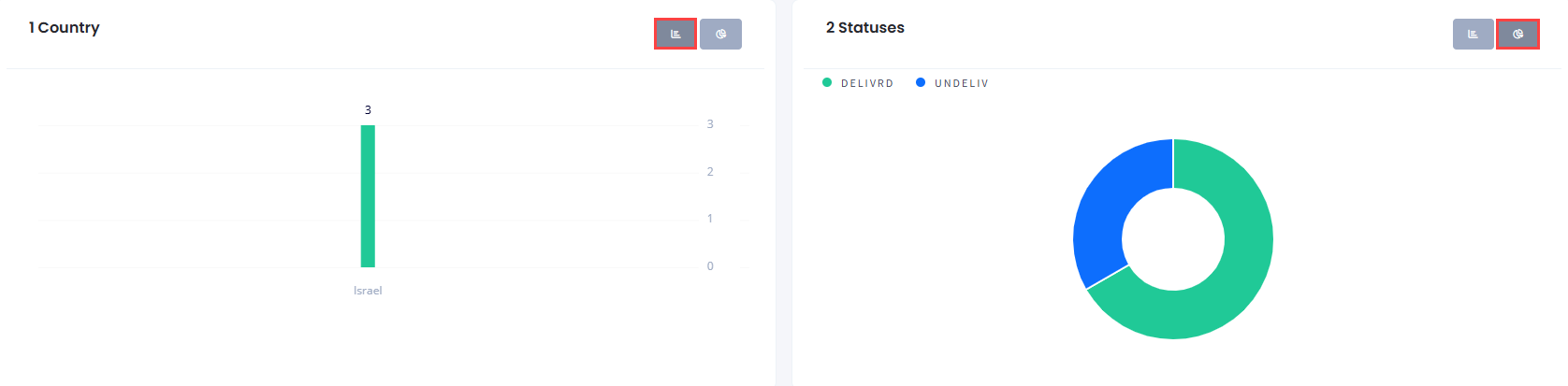
Viewing filtered records
- The table provides data on the EDRs filtered. Check below for column explanations.
| Field | Description |
|---|---|
| Sender name | Sender ID (name or number) |
| DNIS | Destination number |
| Date | Date and time in UTC when the SMS was sent |
| MCC | Mobile country code |
| MNC | Mobile network code |
| Network | Mobile network name |
| Status | SMS status (DEWLIVRD, SENT, UNDELIV) |
| Rate | The rate per message in your chosen currency (EUR or USD) |
| Cost | Total paid |
| Channel | The SMS channel used to send the message. |
- Click Export below the graphs to create a task and download a report as a .csv file. It will take some time for the system to generate a report, depending on the EDR amount.
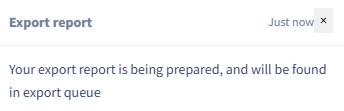
Export record popup
- Click View Export Queue in the top-right corner to access generated reports.
View Export Queue button
- When the report is ready, you can download it by clicking the download button.
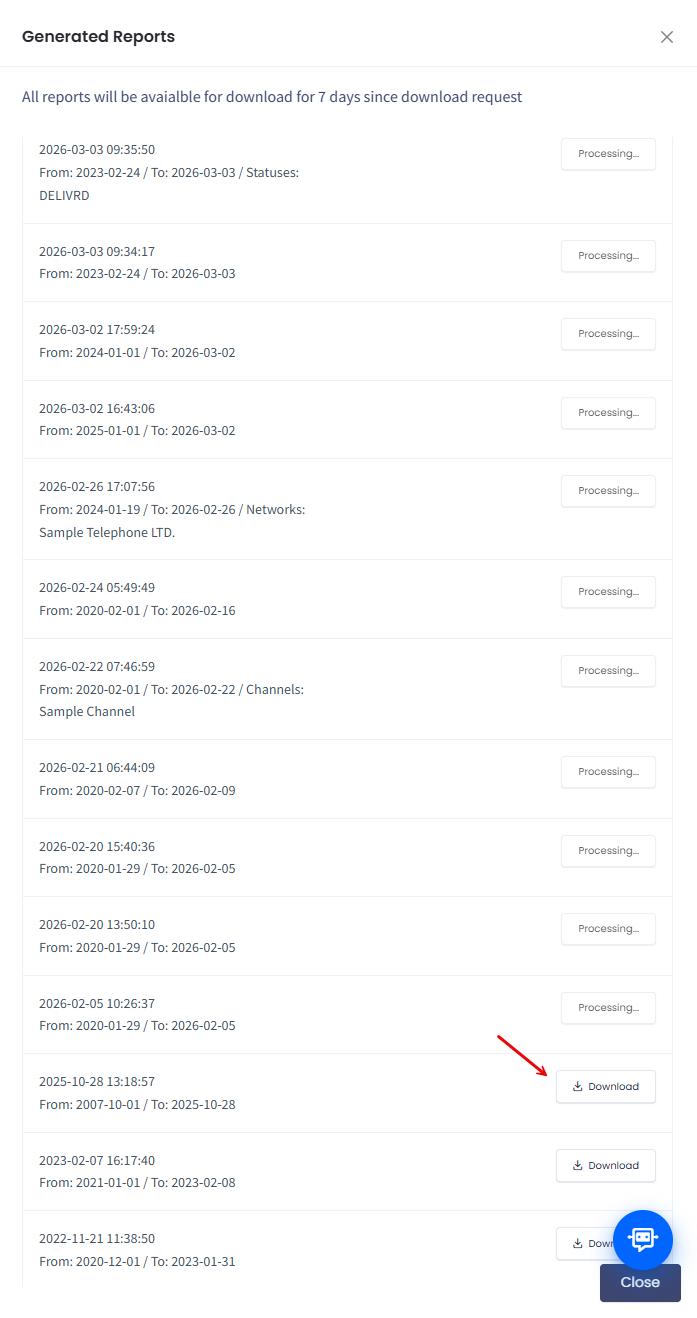
Generated reports download button
Updated 5 days ago