

Configuring Announcements
Check step-by-step instructions on how to upload audio files, configure announcement settings, and assign the announcement to various call flow elements.
You can enable a voice welcome message for incoming calls instead of connecting them to an extension right away.
Perform the following steps to add audio files with a welcome message or music recordings and configure an announcement.
Step 1: Access the Classic PBX web interface
Get your server credentials
Obtain your Classic PBX server's domain and admin credentials from CommPeak support team.
Log in to the server
Open a web browser, navigate to the domain, and log in to the server.
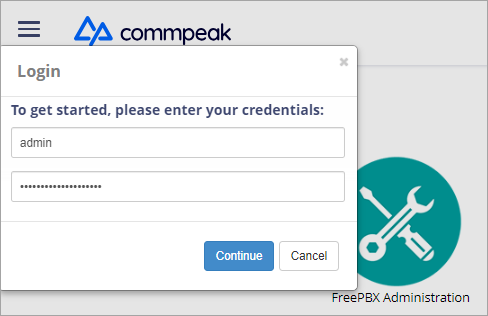
Accessing Classic PBX Web Interface
Step 2: Upload an announcement file
Open System Recordings
In the main menu of your Classic PBX, go to ADMIN and select System Recordings.
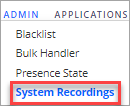
ADMIN > System Recordings option
Add a recording
Click Add Recording in the top-left corner.
Fill in the recording details
Fill in the necessary information: enter the recording name and description.
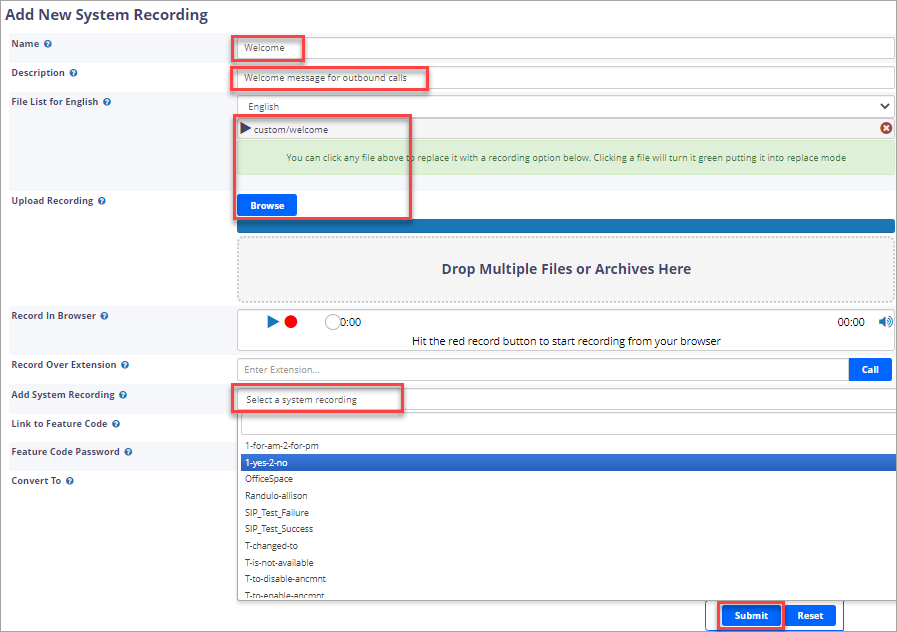
Add New System Recording page
Select an audio file
Select an audio file. You can upload your own file by clicking Browse and then choosing a file from your PC. Supported file formats include WAV, MP3, and OGG. Or use built-in PBX phrases, which you can select from the Add System Recording drop-down box.
Submit the recording
Click Submit. A newly added file will appear in the list. You can select it when creating an announcement.

Audio file added
Step 3: Configure announcement settings
Open Announcements
In your PBX control panel, go to APPLICATIONS and select Announcements.
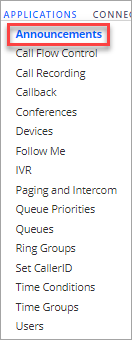
APPLICATIONS > Announcements tab
Add an announcement
Click Add in the top-left corner.
+ Add button
Fill in the announcement details
Fill in the necessary information:
Enter the recording name, description and then select a previously added audio file. You can select a user (an extension) or direct a call to a destination queue.
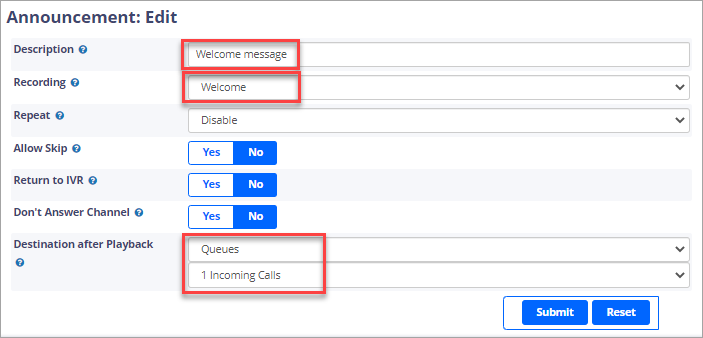
Announcement: Edit page
Submit the announcement
Click Submit.
Apply the configuration
Click APPLY CONFIG in the top right to apply the settings immediately.

APPLY CONFIG button
Step 4: Assign the announcement
After saving the announcement, you can assign it to various parts of your Classic PBX configuration, such as IVRs, time conditions, or other call flow elements.
Step 5: Test the announcement
Place a test call
Place a test call to the designated phone number or DID that triggers the announcement.
Check the announcement
Verify that the announcement is played as expected during the call.
Updated 7 days ago