

Auto Replies
Learn how to set up Inbox auto replies: out-of-office replies based on working hours, SMS keyword replies, and WhatsApp replies triggered by templates, free text, or incoming media.
An auto reply answers a contact without an agent. You choose what triggers it: your working hours, an SMS keyword, or a WhatsApp interaction; and what it sends back. This article walks you through each type.
NOTEOnly Inbox admins and Inbox managers can create auto replies. Each one has a STATUS toggle, so you can switch a reply off without deleting it.
To access the Auto Replies tab options:
-
In your browser, log in to TextPeak with manager access privileges.
-
In the main TextPeak menu, select the Inbox tab.
-
Click Settings at the bottom of the Inbox sidebar.
-
In the Automation group, click Auto Replies.
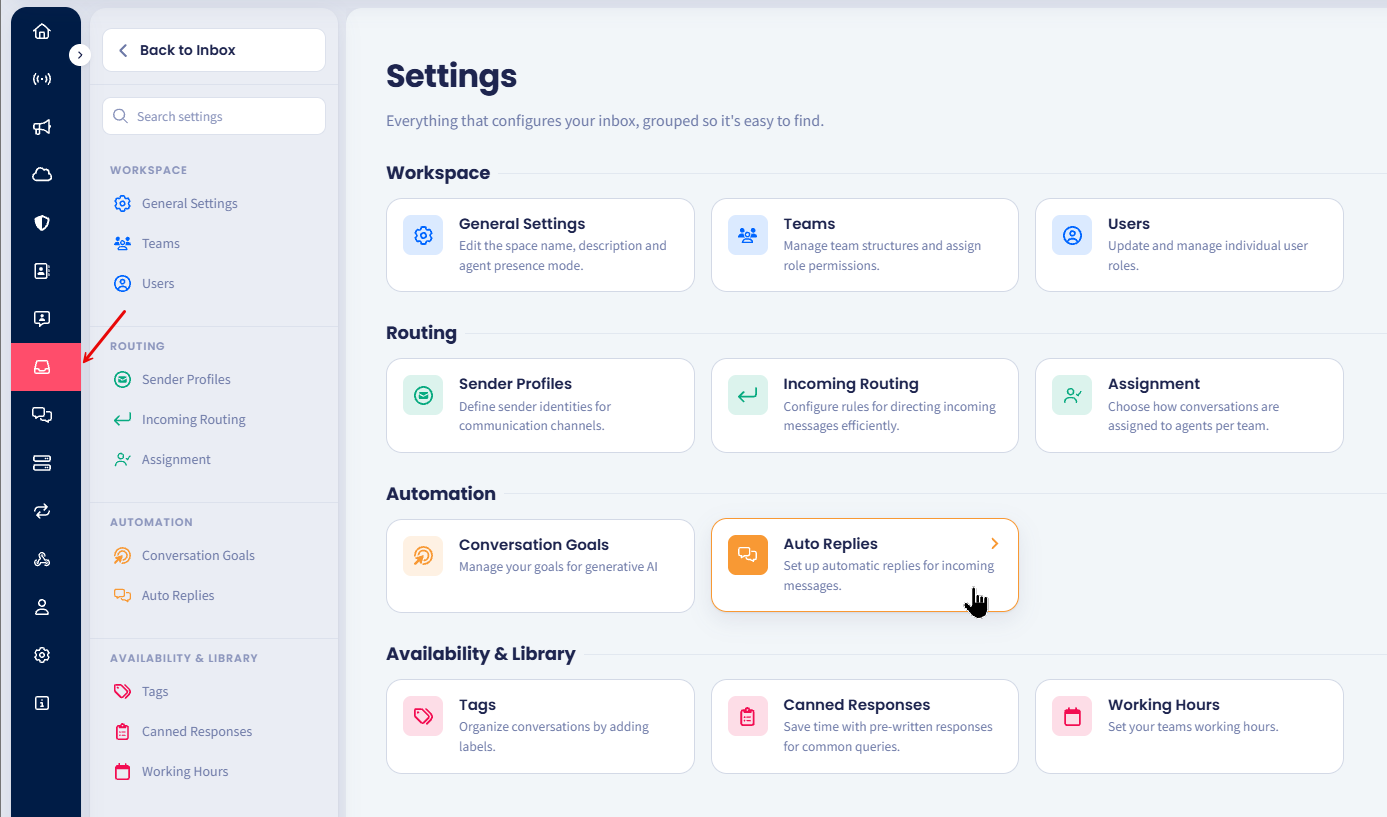
Inbox Auto Replies tab
Each existing auto reply appears as a card showing its TYPE and STATUS.
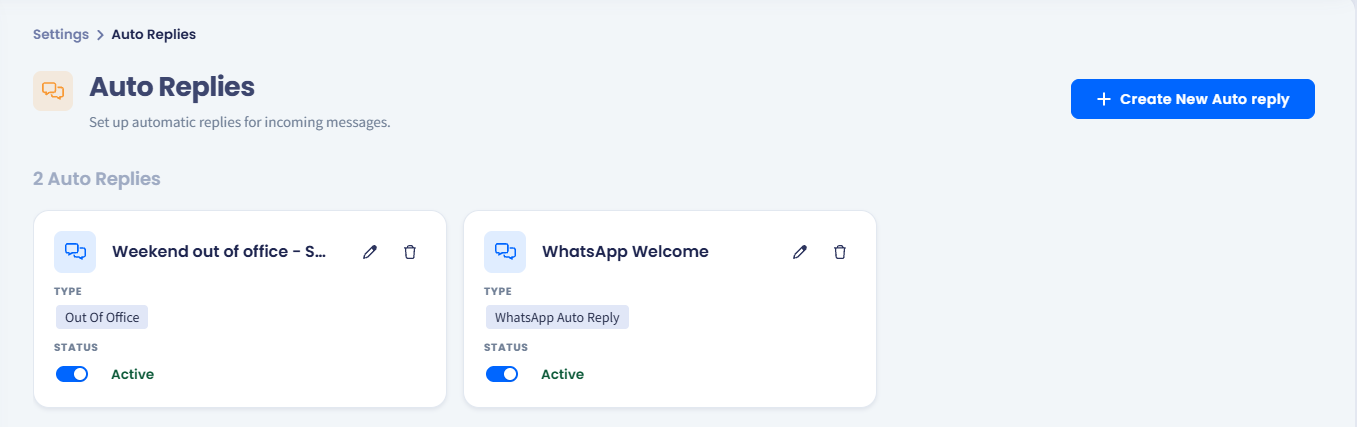
The Auto Replies page, with each reply's TYPE and STATUS.
Choosing a trigger type
-
Click Create New Auto reply.
-
Select the trigger type:
Type When it fires Out of Office Automatically, based on your defined working hours. WhatsApp On a WhatsApp template interaction, free text, or incoming media. SMS Keywords On specific template replies and interactions over SMS. -
Click Next.
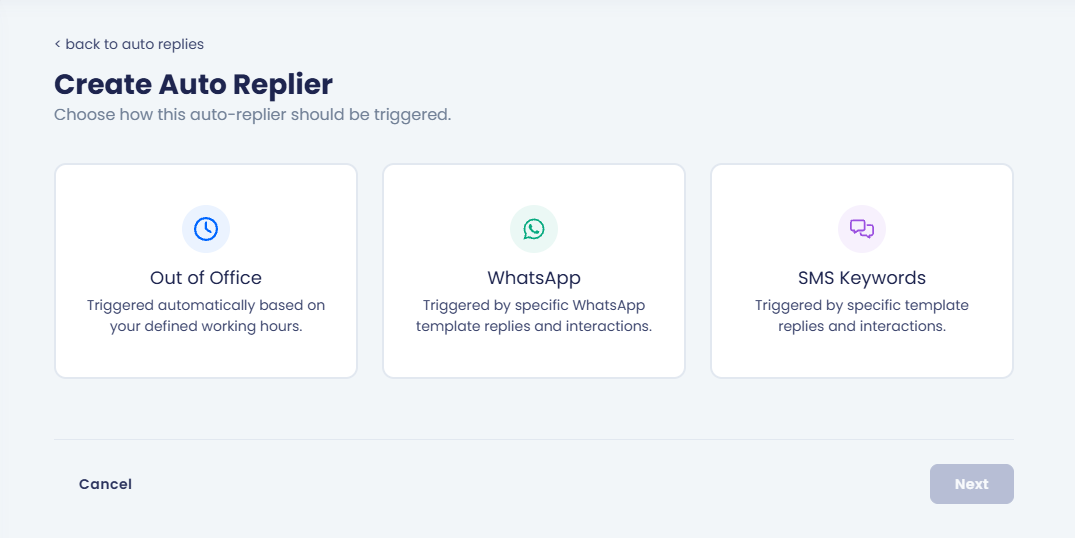
Choosing a trigger type in Create Auto Replier.
For working hours, see the Working Hours page.
Replying to a WhatsApp template interaction
Use the Template tab when the trigger is an interaction with one of your approved WhatsApp templates — for example, a contact tapping a quick-reply button.
-
In WhatsApp Rule Configuration, open the Template tab.
-
In Rule Name, enter a name for the rule.
-
Under Activation Triggers, select the WhatsApp stream in the Stream drop-down.
-
Use Search templates to find and select the templates that activate the rule or scroll to select from the list
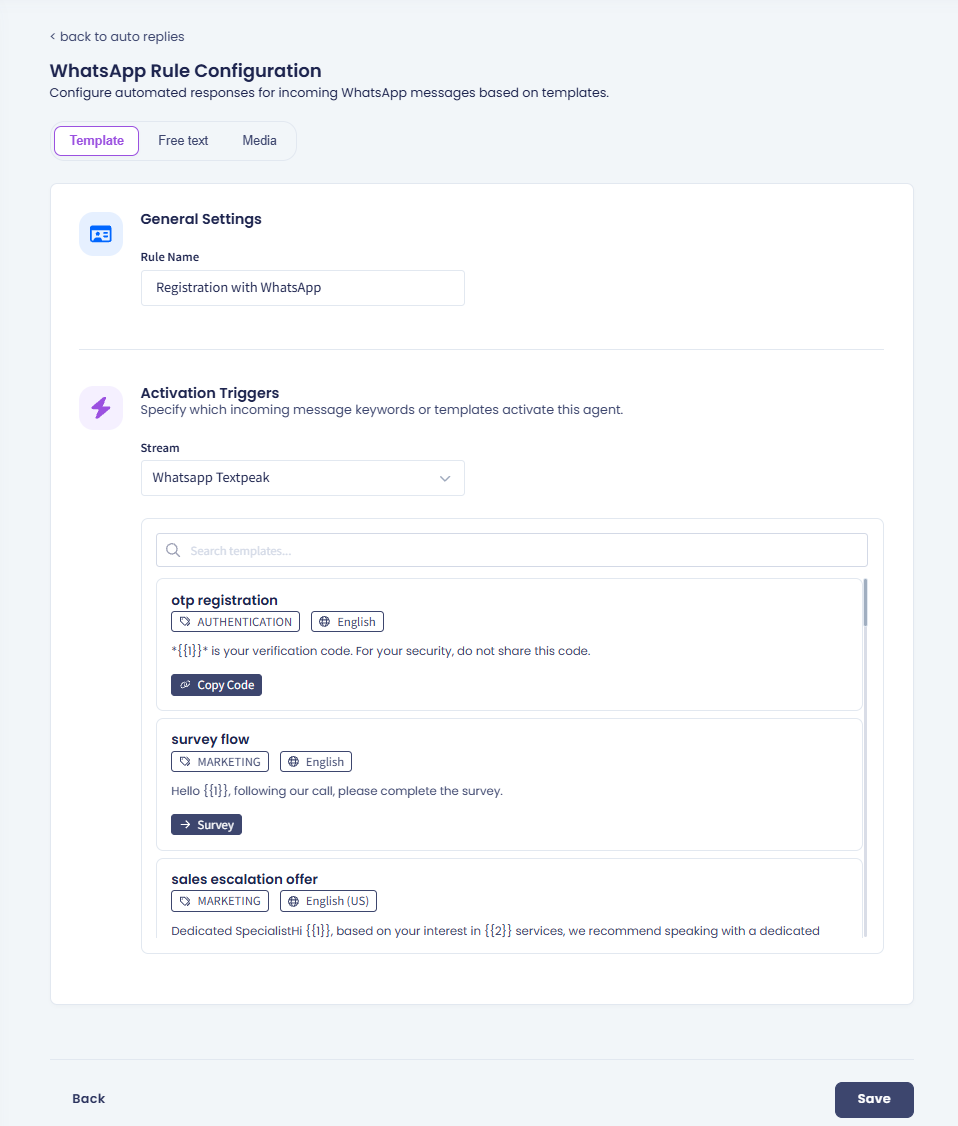
Template tab: selecting WhatsApp template
-
Under Response Mapping, click add response and define what to send for each reply you expect.
-
Assign the team and add the needed tags.
-
Optionally, toggle the Close Chat selector for any of the response template if you want to stop chatting after sending that response.
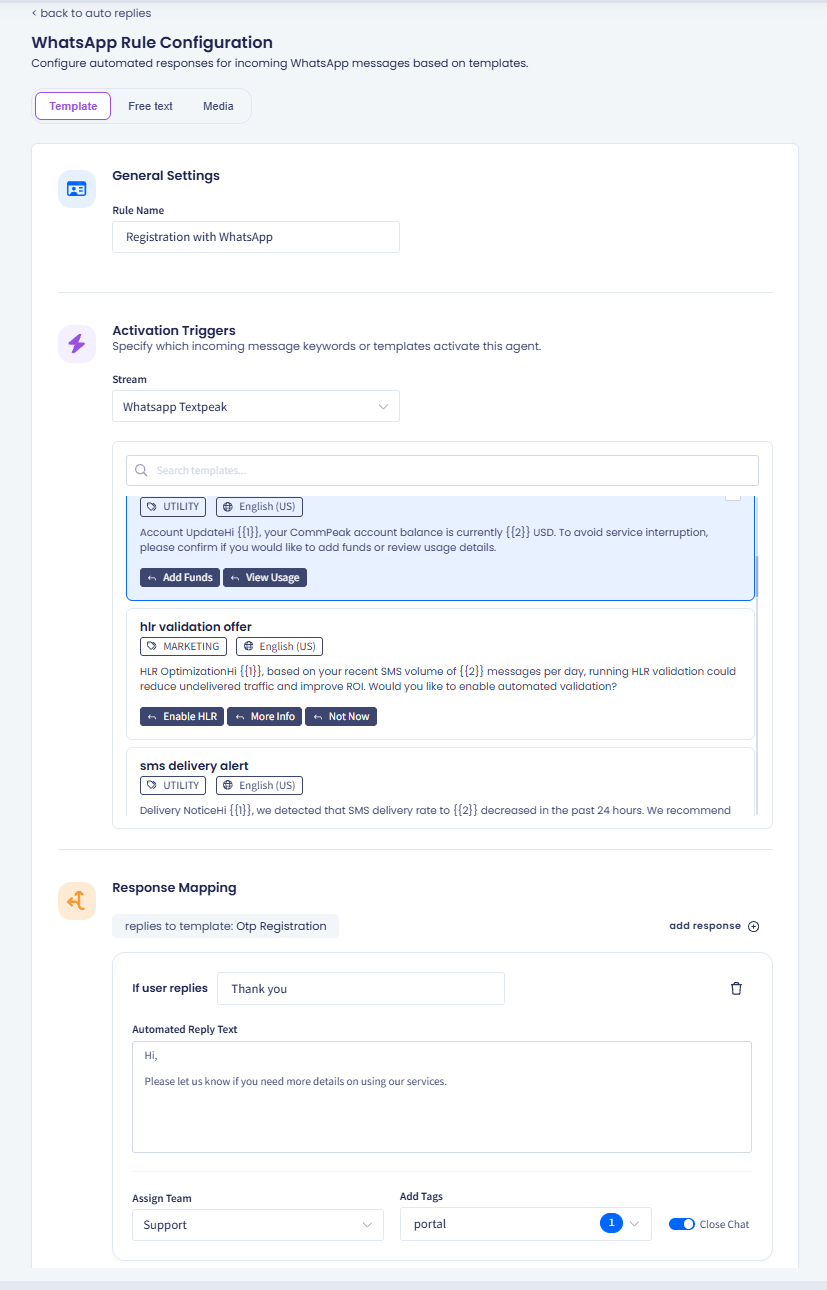
Template tab
-
If needed, enable the Fallback Response toggle, and define what to send if the user's reply does not match any of the expected buttons above.
-
Assign the team and add the needed tags.
-
Optionally, toggle the Close Chat selector for any of the fallback or response template if you want to stop chatting after sending that response.
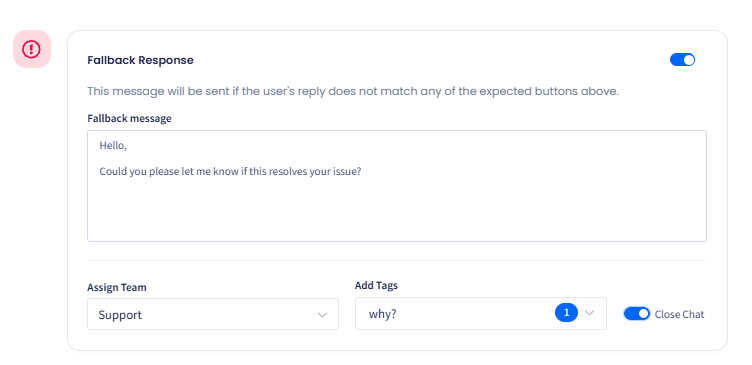
-
Click Save.
Replying to WhatsApp free text
Use the Free text tab when the trigger is an ordinary message rather than a template interaction. This is the mode to reach contacts who reply in their own words instead of tapping a button.
- Open the Free text tab.
- In Rule Name, enter a name for the rule.
- Select the WhatsApp stream in the Stream drop-down.
- In Template, write the message to send.
- To personalize the message, insert a placeholder: First Name, Last Name, Phone, or Country.
- Under Response Mapping, click add response and define what to send for each reply you expect.
- Assign the team and add the needed tags.
- Optionally, toggle the Close Chat selector for any of the response template if you want to stop chatting after sending that response.
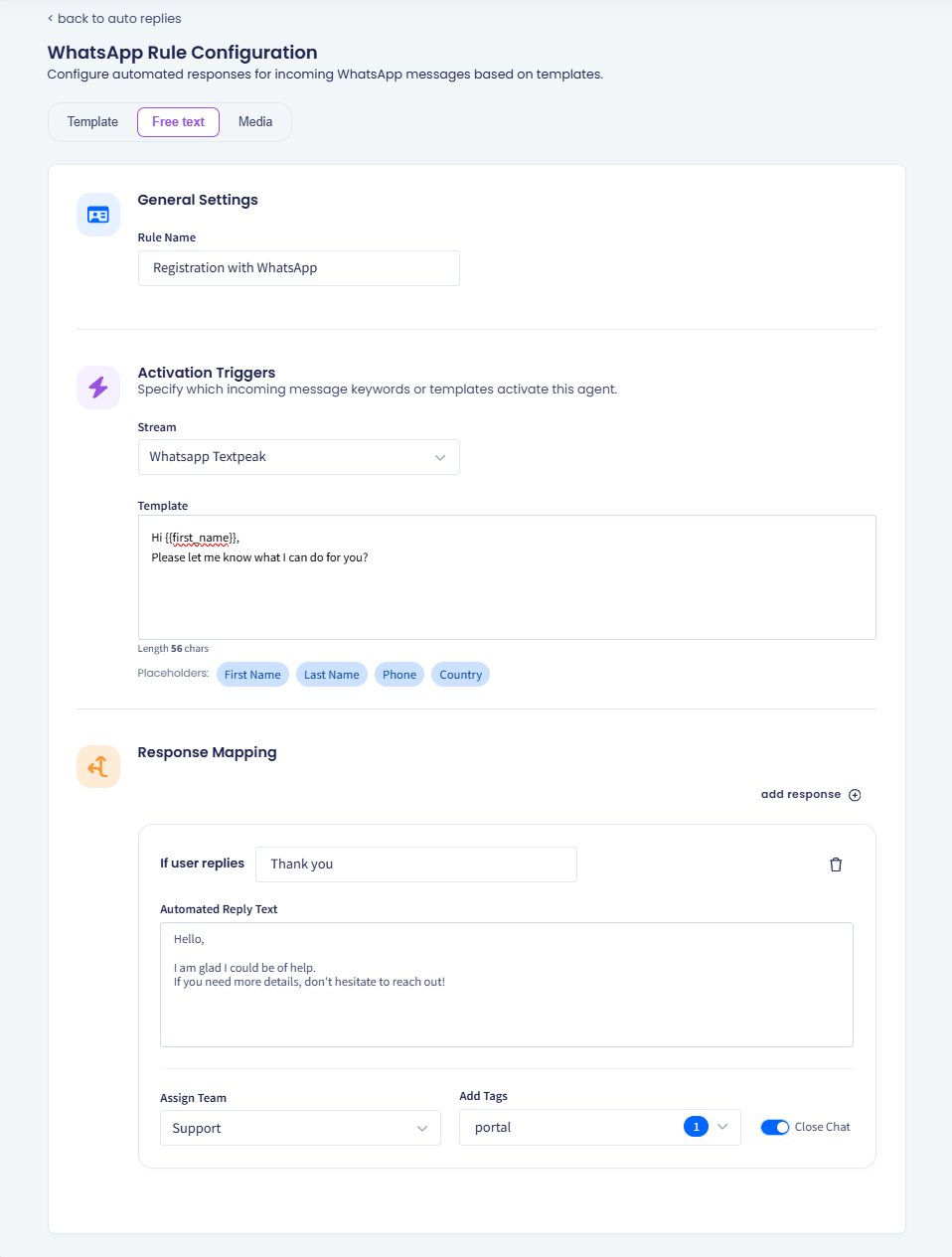
Free text tab, with placeholders and Response Mapping.
Replying to incoming media
Use the Media tab to answer a contact who sends a file. You pick the media types to respond to and write a reply for each.
- Open the Media tab.
- In Rule Name, enter a name for the rule.
- Under Activation Triggers, pick the WhatsApp stream this rule listens on.
- Under Media types, turn on each type you want to answer, then write its reply:
- Image
- Video
- Document.
- Assign the team and add the needed tags.
- Optionally, toggle the Close Chat selector for any of the response template if you want to stop chatting after sending that response.
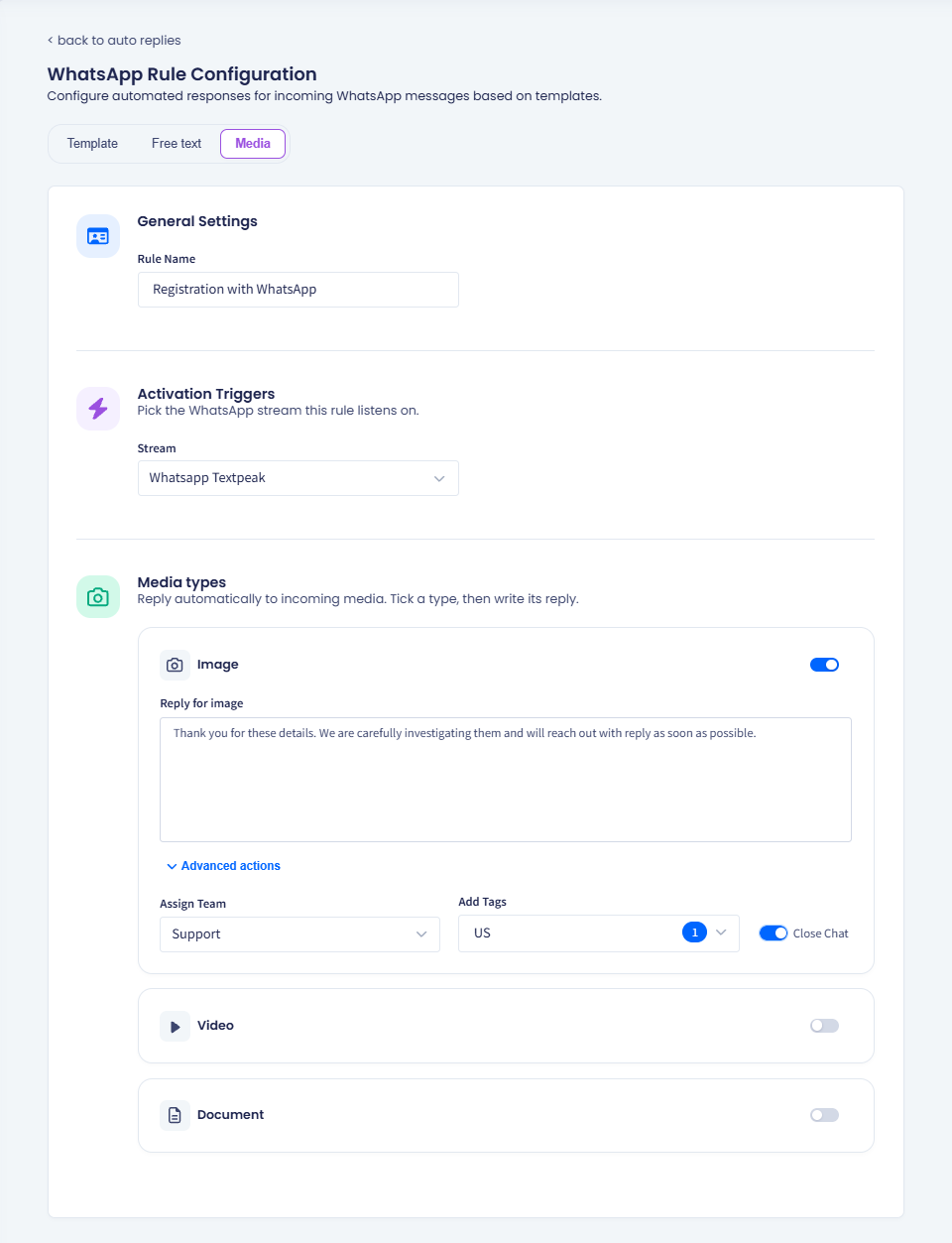
The Media tab, with a reply set per media type.
- Click Save.
TIPA media auto reply is useful when your team cannot act on files, for example, telling a contact who sends a photo of a document where to upload it instead. If your space blocks incoming media outright, the reply explains to the contact why nothing happened. See the General Settings page.
Turning an auto reply off
Switch the STATUS toggle on the card. The rule stops firing and keeps its configuration, so you can switch it back on later without rebuilding it.
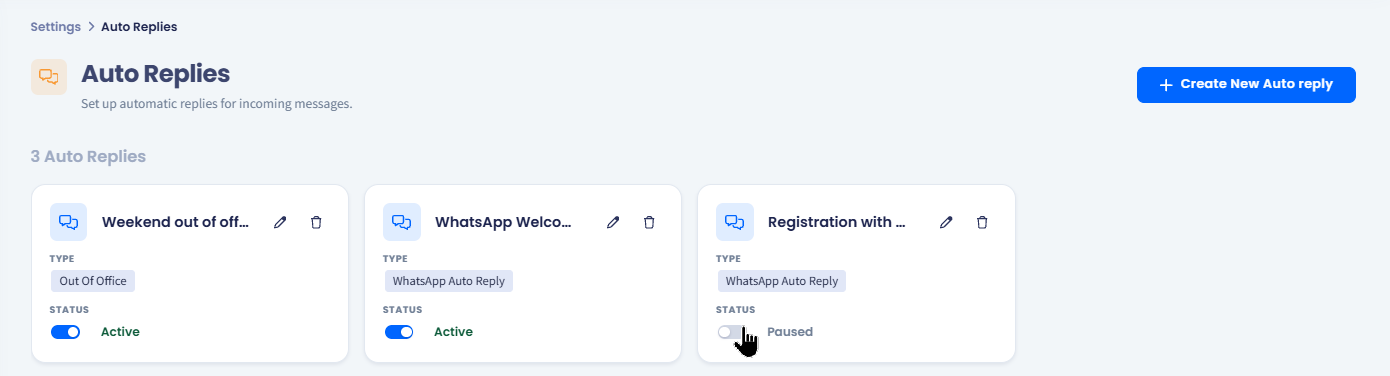
Pausing auto-replies
To change a rule, click the pencil icon on its card. To remove it, click the bin icon and confirm.
For the rest of the manager options, see the Manager's Guide: Inbox Settings page.
Updated 10 days ago