

Remote S3 Bucket
Keep older call recordings in your own S3-compatible storage and let CommPeak Dialer play them from there when they are no longer in CommPeak storage.
CommPeak Dialer stores every new call recording in CommPeak storage for the retention period you chose. With Remote S3 Storage, you connect a bucket that you own as a second, read-only location. When someone opens a recording that is no longer in CommPeak storage, the Dialer looks for it in your bucket and plays it from there. Playback, download, public recording links, and Speech-to-Text keep working for those recordings.
This article explains which storage you can use, how to prepare the bucket and the credentials, how to copy the recordings into it, and how to connect and test it.
In this article:
- How it works
- Preparing your bucket
- Copying recordings into your bucket
- Connecting the bucket to your account
- Testing the connection
NOTECommPeak only reads from your bucket. We never uploads, changes, or deletes anything there. New recordings are always saved to CommPeak storage, and your retention period, and billing settings are not affected. See Call Recording: Billing, Storage, and Compliance.
- Only the S3 API is supported.
- Storage that is reachable only through another protocol (FTP, SFTP, WebDAV, a file share, Google Drive, Dropbox, and similar) cannot be connected.
- Your S3 endpoint must use HTTPS.
How it works
- A user opens, downloads, or transcribes a recording.
- We looks for the file in CommPeak storage first. If it is there, nothing else happens.
- If the file is not in CommPeak storage and Remote S3 Storage is enabled, we looks for the same file in your bucket, downloads it, and serves it.
- If the file is in neither place, the recording is shown as unavailable.
Preparing your bucket
To prepare your bucket:
- Create a bucket (or choose an existing one) in your storage provider. Keep the bucket private.
- Create credentials that your account will use. They need read-only access to the bucket:
- permission to read files (in S3 terms, s3:GetObject) - required;
- permission to list the bucket (s3:ListBucket) - recommended, used by the connection test.
No write or delete permission is needed, and we recommend not granting any. See Setting the required permissions below for ready-to-use examples.
- Copy the access key and the secret key. Most providers show the secret only once.
Setting the required permissions
The Dialer / Claud PBX needs two permissions on your bucket, both read-only:
| Permission | S3 name | Needed for |
|---|---|---|
| Read files | s3:GetObject | Playing, downloading, and transcribing recordings. Required. |
| List files | s3:ListBucket | The connection test: it lists the first files under your path prefix and reads one of them to prove the setup. Recommended. Playback works without it. |
Nothing else is needed: no write, delete, ACL, or "list all buckets" permission.
Amazon S3
Attach one of the following policies to the IAM user whose access key you enter in your account. Replace my-bucket with your bucket name.
Recommended: read and list. Lets the Dialer / Claud PBX play recordings and lets the connection test show your files and prove the read permission.
{
  "Version": "2012-10-17",
  "Statement": [
    {
      "Sid": "ReadRecordings",
      "Effect": "Allow",
      "Action": "s3:GetObject",
      "Resource": "arn:aws:s3:::my-bucket/*"
    },
    {
      "Sid": "ListBucket",
      "Effect": "Allow",
      "Action": "s3:ListBucket",
      "Resource": "arn:aws:s3:::my-bucket"
    }
  ]
}
Minimal: read only. Enough for playback. The connection test then reports that listing is not permitted and skips the file check.
{
  "Version": "2012-10-17",
  "Statement": [
    {
      "Sid": "ReadRecordings",
      "Effect": "Allow",
      "Action": "s3:GetObject",
      "Resource": "arn:aws:s3:::my-bucket/*"
    }
  ]
}
Optional: limit both permissions to one folder. If your recordings sit under a folder such as archive/, narrow the policy to it and enter archive/ as the Path prefix in the Dialer / Claud PBX. For listing, the folder is a condition on the request, not part of the bucket resource.
{
  "Version": "2012-10-17",
  "Statement": [
    {
      "Sid": "ReadRecordingsInFolder",
      "Effect": "Allow",
      "Action": "s3:GetObject",
      "Resource": "arn:aws:s3:::my-bucket/archive/*"
    },
    {
      "Sid": "ListFolderOnly",
      "Effect": "Allow",
      "Action": "s3:ListBucket",
      "Resource": "arn:aws:s3:::my-bucket",
      "Condition": {
        "StringLike": {
          "s3:prefix": ["archive/*", "archive"]
        }
      }
    }
  ]
}
Points that often make a policy fail silently:
- s3:GetObject applies to the objects, so its resource ends with /*. s3:ListBucket applies to the bucket itself, so its resource has no /*. Swapping them is the most common mistake.
- s3:GetObject already covers reading file details such as size and date. There is no separate permission for that.
- The Dialer / Claud PBX does not need s3:ListAllMyBuckets. Every request names your bucket.
- If your bucket uses SSE-KMS encryption, the IAM user also needs kms:Decrypt on that key. The default SSE-S3 encryption needs nothing extra.
- If your bucket has versioning enabled, nothing extra is needed. The Dialer / Claud PBX reads the current version of each file.
Other providers
| Provider | How to grant the same permissions |
|---|---|
| Backblaze B2 | Create an Application Key with Read Only access, limited to your bucket. If you also set a file name prefix on the key, enter that folder as the Path prefix in the Dialer / Claud PBX. |
| Wasabi, IDrive e2 | Use the same policy documents as for Amazon S3 (the arn:aws:s3::: syntax is accepted). |
| Cloudflare R2 | Create an API token with the Object Read only permission for the bucket. |
| DigitalOcean Spaces | Create a Spaces access key with Read access to the bucket. |
| MinIO, Ceph | Create a user and attach the Amazon S3 policy above (both accept the same document), or map a read-only role to the bucket in the server configuration. |
Whatever the provider, the connection test in the Dialer / Claud PBX tells you if a permission is missing.
Copying recordings into your bucket
The Dialer / Claud PBX finds a recording by its date and file name, so the files in your bucket must keep the same folder structure and file names they have in CommPeak storage.
In CommPeak storage, recordings are organized by year, month, day, and hour (UTC), inside a recordings folder:
recordings/2025/11/11/02/<file name>.flacIn your bucket, the same recording must be at:
<path prefix>2025/11/11/02/<file name>.flac- Path prefix is everything in front of the year folder. It can be empty (year folders at the bucket root) or any folder path you like, for example dialer-recordings/ or useast/company-name/. You enter the same prefix in the Dialer settings.
- Keep the file names exactly as exported, including the .gpg ending on encrypted recordings. Do not rename, convert, or re-encode the files.
- The recordings folder itself is not part of the layout in your bucket. Copy what is inside it.
Example. If your path prefix is archive/, these files are found by the Dialer / Claud PBX:
| File in CommPeak storage | File in your bucket |
|---|---|
| recordings/2025/11/11/02/3f2a…c9d1.flac | archive/2025/11/11/02/3f2a…c9d1.flac |
| recordings/2025/06/07/13/3f2a…c9d1_ivr.flac (IVR part) | archive/2025/06/07/13/3f2a…c9d1_ivr.flac |
To copy the recordings:
-
Download them from CommPeak storage with a Recording Access Account and an S3 client or the AWS CLI, as described in the Recording Access Accounts guide. For example, the following command downloads the whole recordings folder to a local folder and keeps the year, month, day, and hour structure:
aws s3 sync s3://<commpeak bucket>/recordings/ /home/local_directory/ --endpoint-url https://recordings.commpeak.com --profile "<your profile>" --page-size 100 -
Upload the local folder to your bucket with your provider's tool or the AWS CLI, under your path prefix. For example, with a path prefix of archive/:
aws s3 sync /home/local_directory/ s3://<your bucket>/archive/ --endpoint-url <your endpoint URL> --profile "<your other profile>"
After the upload, a recording that was at recordings/2025/11/11/02/
IMPORTANTCopy the recordings before their retention period ends. Once CommPeak deletes a recording at the end of its retention period, it cannot be recovered, and your bucket only serves the files you copied into it.
Connecting the bucket to your account
Users whose role includes the Recordings Storage permission can manage this section. If you don't see it, ask your administrator or contact our support team.
To connect your bucket:
- Go to Settings > General Settings and open the Recordings Storage Settings section.
- Under Remote S3 Storage, fill in the fields described below.
- Click Test connection and make sure all three checks pass (see Testing the connection).
- Turn on Enable remote bucket and click Save at the bottom of the page.
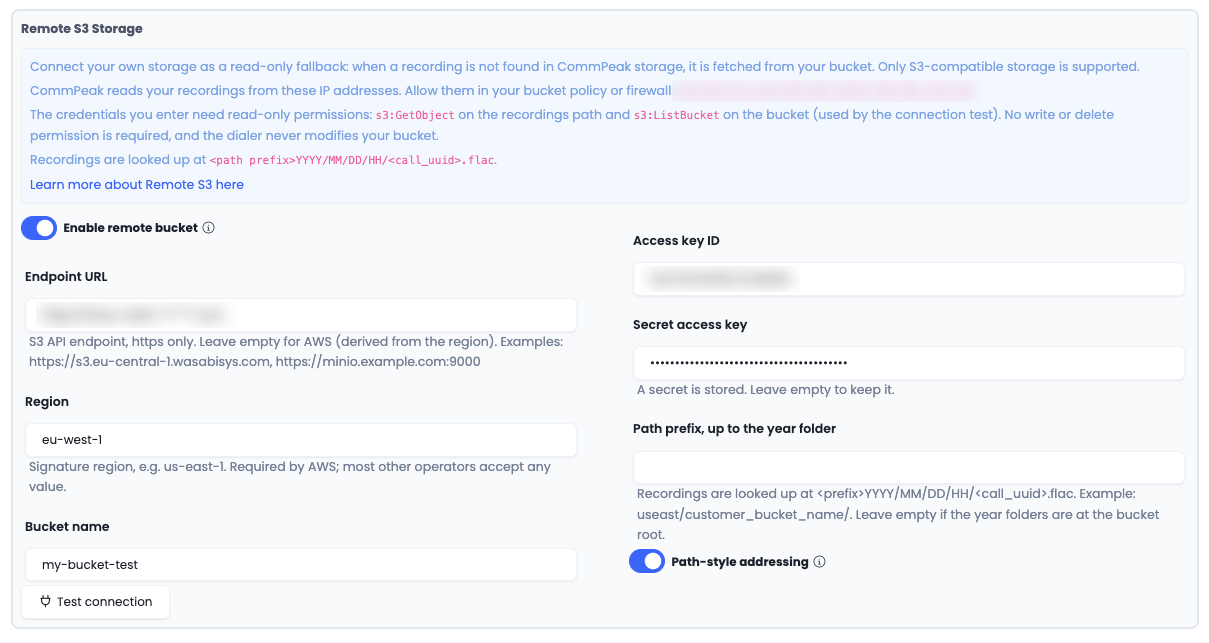
| Parameter | Description |
|---|---|
| Enable remote bucket | When on, the Dialer / Claud PBX looks in your bucket for recordings missing from CommPeak storage. When off, your details are kept but the bucket is never used. |
| Endpoint URL | The S3 address of your storage, starting with https://. Leave it empty for Amazon S3 (the address is derived from the region). Examples: https://s3.us-west-001.backblazeb2.com, https://s3.eu-central-1.wasabisys.com, https://minio.example.com:9000. |
| Region | The region of your bucket as your provider names it, for example us-east-1 (Amazon S3) or us-west-001 (Backblaze B2). Leave it empty if your provider has no regions. |
| Bucket | The bucket name. |
| Access key | The access key ID (on Backblaze B2, the keyID). |
| Secret access key | The secret that belongs to the access key. It is stored encrypted and never shown again. Leave the field empty to keep the saved secret when you change other settings; to change the endpoint, bucket, or region, enter the secret again. |
| Path prefix | Everything in front of the year folder in your bucket, for example archive/. Leave it empty if the year folders are at the bucket root. See Copying recordings into your bucket. |
| Path-style addressing | Leave it on for most providers (Backblaze B2, MinIO, Ceph, and other self-hosted storage). Amazon S3 accepts both settings. |
Testing the connection
Test connection feature, runs three checks in a row and shows the result of each one. You can run it before saving, so a wrong secret or prefix never gets stored.
| Check | What it verifies |
|---|---|
| The Dialer / Claud PBX can reach your endpoint and bucket from every CommPeak IP address. One line is shown per IP, so you can see if only one address is blocked by your allow-list or firewall. |
| The access key and secret are valid, listing the bucket is allowed, and files exist under the path prefix. The first five files found are shown so you can confirm the folder structure. |
| The first file from the list can be read, which proves the read permission. |
If a check does not pass, the message tells you what to fix:
| Message | What to do |
|---|---|
| endpoint must start with https:// | Enter the endpoint with https://. Plain http:// endpoints are not supported. |
| endpoint must point to a public address | The endpoint is a private or reserved network address. Enter the public address or host name of your storage. |
| endpoint is not a public address (internal or reserved networks…) | The endpoint host name resolves to a private or reserved network address. Enter a host name that points to your storage on the public internet. |
| the endpoint host name could not be resolved | The host name in the endpoint URL does not exist. Check it for typos and compare it with the endpoint your provider shows for your bucket. |
| cannot reach … : the connection timed out | Nothing answered on that address and port. Check the endpoint URL (including the port), and make sure the CommPeak IP address shown on that line is allowed by your bucket policy, IP allow-list, or firewall. |
| cannot reach … : the connection was refused | The address answered but nothing is listening on that port. Check the port in the endpoint URL. |
| cannot reach … : the TLS handshake failed | The endpoint did not present a valid HTTPS certificate, or it does not support HTTPS on that port. Use the HTTPS endpoint your provider publishes. |
| cannot reach … : the connection was dropped / the connection failed | The connection was interrupted. Try again; if it persists, check the endpoint URL and your firewall or allow-list for the CommPeak IP address shown on that line. |
| bucket "…" does not exist on … | Check the bucket name. |
| bucket is in another region | The endpoint or the region does not match the bucket. For providers with regional endpoints, use the endpoint of the region where the bucket was created, and enter that region. |
| reached … but access was denied (IP allow-list or credentials) | The endpoint answered but refused the request. Check that the CommPeak IP addresses are allowed and that the key is valid; the next step gives the exact reason. |
| access key or secret is wrong | Enter the access key and the secret again. Most providers show the secret only once when the key is created. |
| listing is not permitted for this key - that can be fine | Your key can't list the bucket, which is normal for a read-only key. Nothing to fix for playback. If you want the test to show your files and prove the read permission, grant list permission on the bucket (see Setting the required permissions), or, on providers that limit keys to a folder, enter that folder as the Path prefix. |
| no files found under … - check the path prefix | The path prefix doesn't match where the year folders are. Check the folder structure in your bucket and adjust the prefix; leave it empty if the year folders are at the bucket root. |
| listing works but s3:GetObject is not granted on … | Your credentials can list files but can't read them. Grant read permission on the files (see Setting the required permissions). |
| no file to fetch (nothing was listed) | Step 3 has nothing to read because step 2 listed no files. Fix step 2 first. |
| Other error codes, for example InternalError (HTTP 500) | Your storage provider returned an error. Try again later; if it persists, check the provider's status page or contact our support team with the code shown. |
NOTEIf your bucket becomes unreachable later, recordings that exist only there are shown as unavailable until the bucket is reachable again. Recordings in CommPeak storage are not affected.
Knowledge base resources
Explore these related guides for more information:
- Recording Access Accounts
- Setting Up Call Recording
- Call Recording: Billing, Storage, and Compliance
- General Settings
Getting help
Submit a support ticket or contact your account manager for more information.
Updated 10 days ago