

Data Points
Learn what report data points are, where you set them up, and how campaign rules use them to remember things about a lead across calls.
A report data point (or data point) is a named counter you can attach to a lead. Campaign rules can add to it, subtract from it, or clear it, and other rules- or your reports - can read its running total back. Data points give rules a memory: a way to remember how many times something has happened to a lead, beyond just its current status.
NOTEThis page builds on Campaign Rules. If you have not read how rule conditions and actions work, start there first.
What a data point is (and isn't)
Think of a data point as a labelled tally kept per lead. For example, a data point called "Brochure Sent" could count how many times an agent has emailed a brochure to a lead, so a rule can stop after the second one.
A data point has only two properties: a Name and a Description. There is no "type", no aggregation setting, and no default value - it is simply a named counter, and its value is always worked out from the changes rules have made to it.
Under the hood, every change is stored as a small event:
- an increase records +1,
- a decrease records −1,
- the data point's total is the sum of those events (increases minus decreases).
NOTEBecause the total is a running sum, "the data point is 3" means three more increases than decreases, not "three events." A clear wipes all of a lead's events for that data point back to zero.
Where you set up data points
Data points are created once per account and then reused across campaigns.
- In the main menu, open Settings > Advanced Lead Settings >Data Points Management.
- The page lists your existing data points (ID, Name, Description). Click Create New Data Point.
- Fill in:
- Name: required, and must be unique (for example, Voicemails Left).
- Description: required; explain what the data point is for so colleagues understand it later.
- Click to save. The data point is now available to pick inside campaign rules and reports.
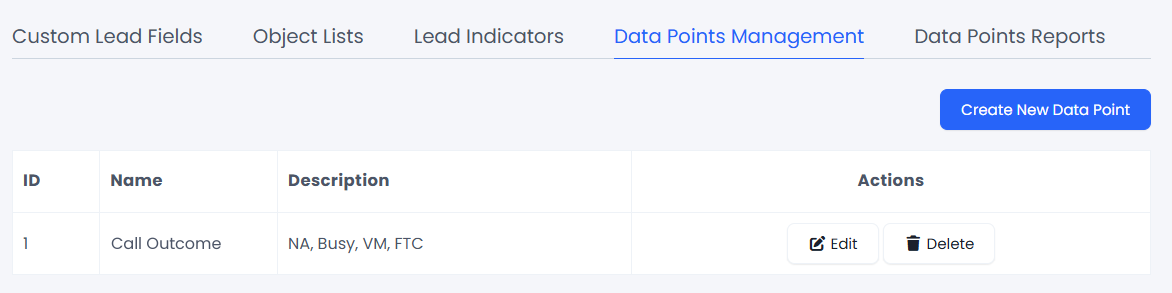
Data Points Management tab
IMPORTANTYou cannot delete a data point while a campaign rule still uses it. Remove or change the rules that reference it first, then delete the data point.
Using data points in rules
Data points connect to rules in two places: an action that changes the value, and a condition that reads it.
The action | change a data point
Add this as a rule action (the THEN side):
| Option | What it does |
|---|---|
| Increase report data point | Records +1 for the lead |
| Decrease report data point | Records −1 for the lead |
| Clear report data point | Deletes all of the lead's events for it (back to zero) |
The condition | test a data point
Add this as a rule condition (the IF side):
Datapoint "
" was (more than / less than / equal / not equal) N times
You can optionally scope it to a recent window - "for the last N hours" or "for the last N days" - so only recent changes count. Without a window, the whole history is summed.
There is also a per-agent variant, "Datapoint … was … times for user", which sums only the changes tied to the lead's assigned agent.
WARNINGThe standard data point condition works in both real-time and scheduled (cron) rules. The per-agent variant works only in real-time rules - it cannot be used in a scheduled rule.
Worked example | capping voicemails
Horizon does not want to leave endless voicemails for the same lead. A data point called "Voicemails Left" lets the rules count them and change tactics after the third.
First, an admin creates the data point in Data points setup (Name: Voicemails Left).
Then two rules use it together:
| Rule | Condition (reads) | Action (writes) |
|---|---|---|
| Count the voicemail | New status is Voicemail | Increase Voicemails Left |
| Stop after three | New status is Voicemail and Voicemails Left is more than 2 | Freeze the lead for 30 days |
So David - who keeps going to voicemail - has his Voicemails Left total climb 1 → 2 → 3. On the third, the second rule fires and parks him for a month instead of leaving yet another message. If David later answers and has a real conversation, a third rule can clear Voicemails Left so the count starts fresh next time.
NOTEData point values have no expiry - they persist for the life of the lead until a rule clears them, the data point is deleted, or a condition uses a "last N hours/days" window to ignore older events.
Related guides
Getting help
Submit a support ticket or contact your account manager to set up data points or the rules that use them.
Updated 11 days ago