

Creating New Speech Transcripts
Convert voice recordings to text through, specifying language and channels to transcribe, and then view and search the resulting transcripts.
Speech to Text allows you to transcribe your voice recordings to text and store them in the CommPeak Portal. Then, you can listen to the saved recordings, view the call transcripts, and use them to find keywords in the agent's or customer's speech.
To convert your voice recordings to text:
Open Speech-to-Text
Expand Speech-to-Text in the main menu and select Convert Speech.
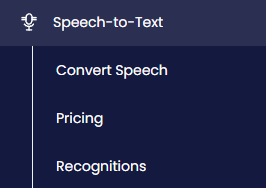
Speech-to-Text menu tabs
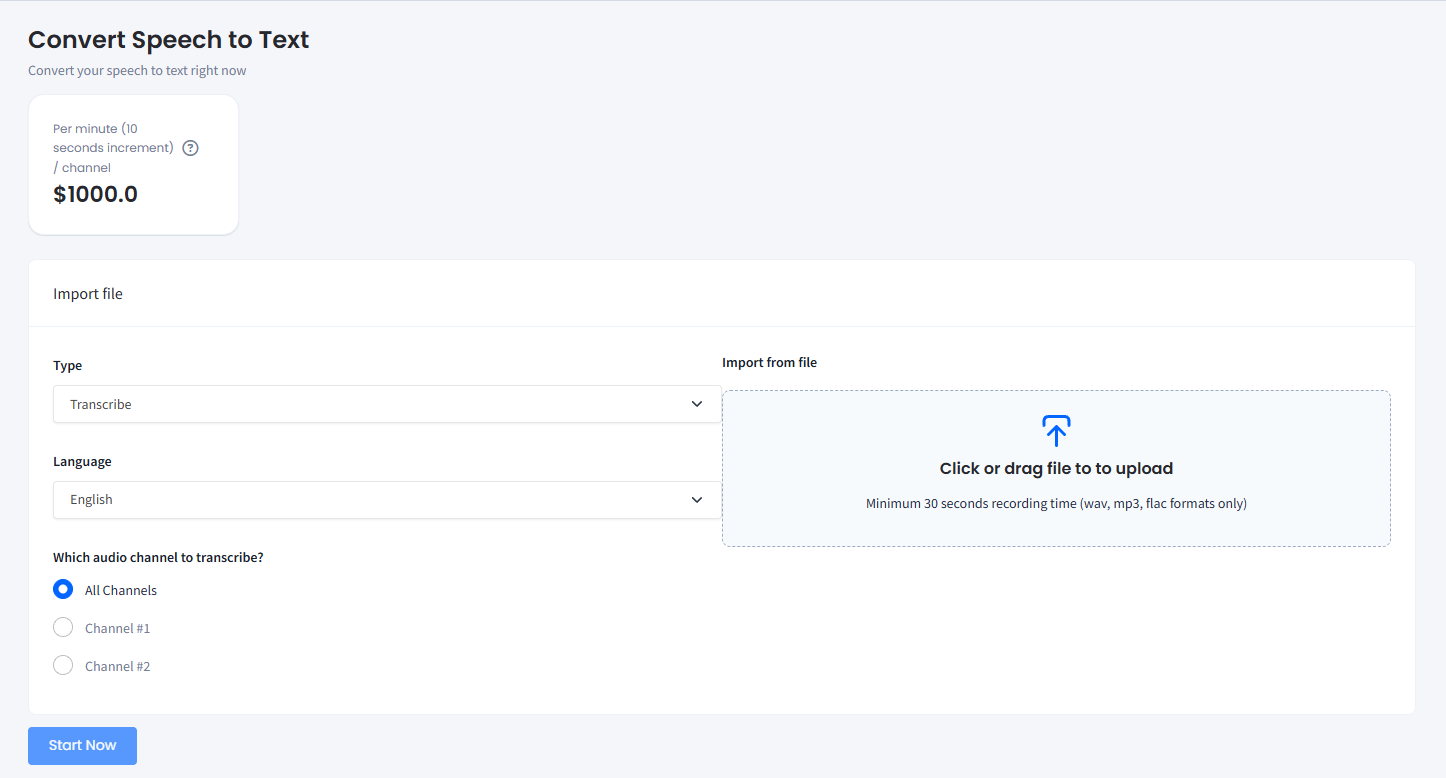
Set the type and language
Specify the type and language of the recording.
Select the channels
Select the channel(s) to transcribe.
Check the progress
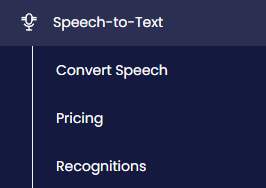
You can check the progress on the Speech-to-Text > Recognitions tab:
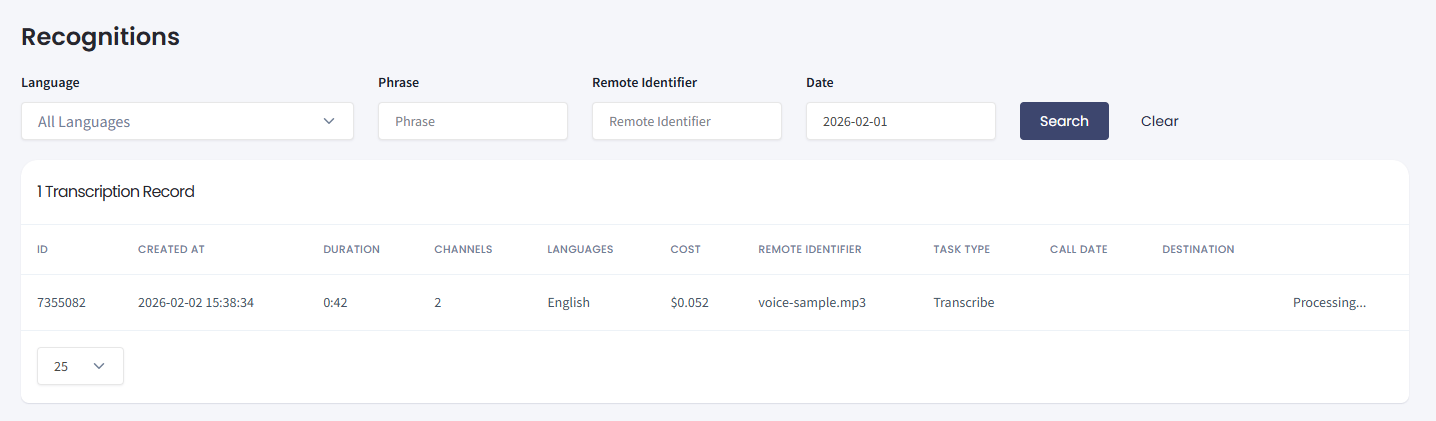
Speech-to-Text > Recognitions tab
Updated 5 days ago
Did this page help you?