For AI agents: visit https://docs.commpeak.com/llms.txt for an index of all pages formatted in Markdown and endpoints in OpenAPI. Append .md to any documentation page URL to get its markdown version.
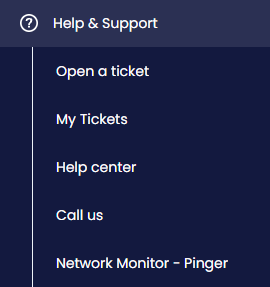
Reach CommPeak support from the portal: open a ticket, chat with Speaky, call the support team, request remote assistance, or use global and local contact channels.
This article describes every way to reach the CommPeak support team: the Help and Support menu in the CommPeak Portal, Speaky, phone and chat channels, and remote assistance.
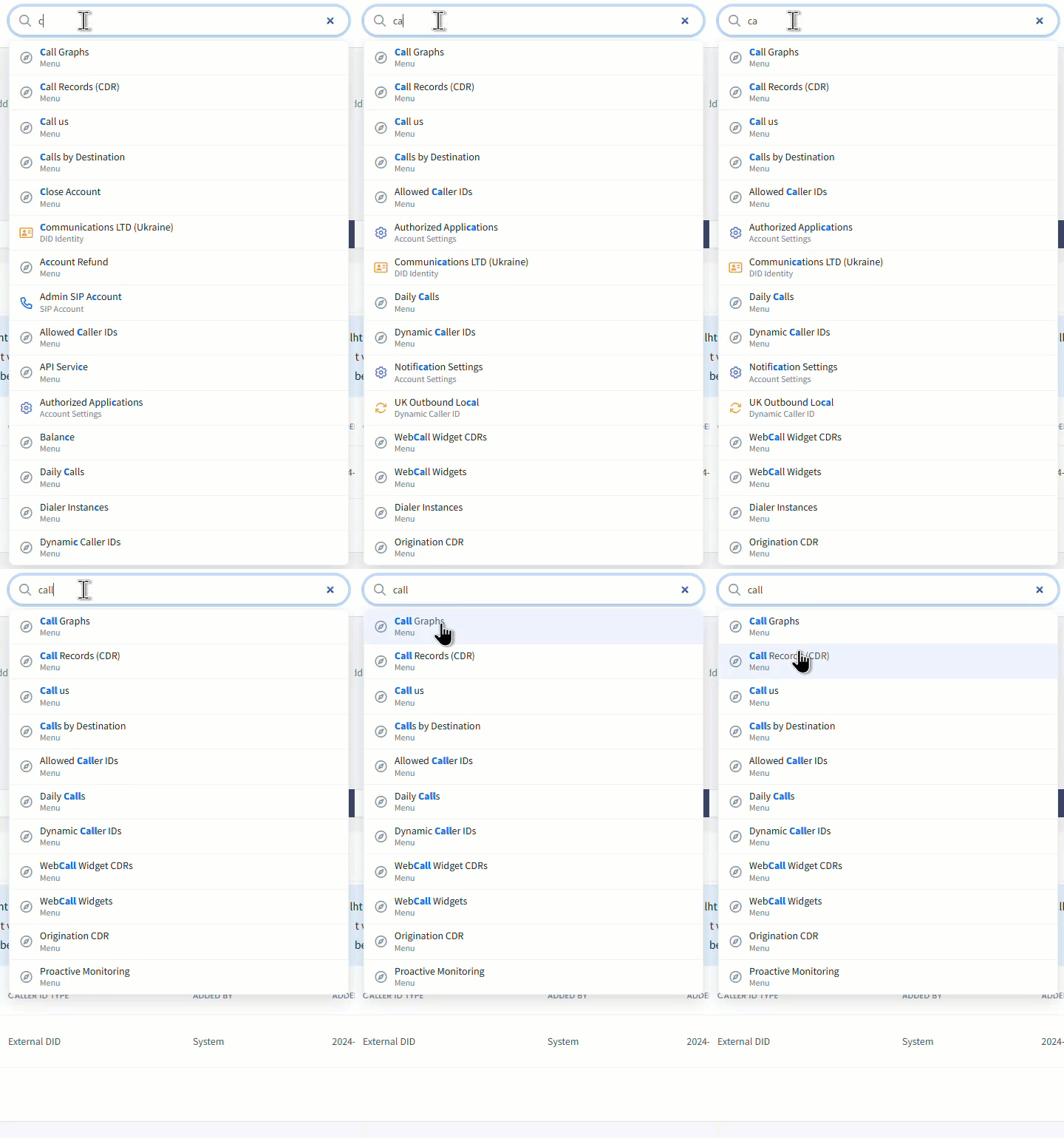
Looking for a specific page or record instead? Use the search box in the top navigation to find portal pages and areas, including their content, as well as DID numbers, SIP account names, users, and CDRs.
Search box in Portal
Speaky, your AI assistant
Speaky is the fastest way to get answers about your account: balance, invoices, SIP accounts, reports, voice and SMS rates, Caller ID configuration, and DID setup. Speaky's answers are based on your account data and the Documentation and Developer Hub, and you can switch to a support agent from any response.
📘
NOTE
Speaky is available on every CommPeak Portal page and on all Documentation and Developer Hub pages.
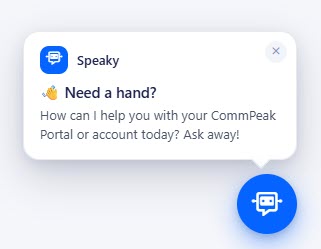
Speaky button
To start a conversation:
Click the Speaky button in the bottom right corner of any page in your CommPeak Portal account.
Speaky button
In the dialog box, select one of the suggested questions, or type your message and click the send button to start a new conversation.
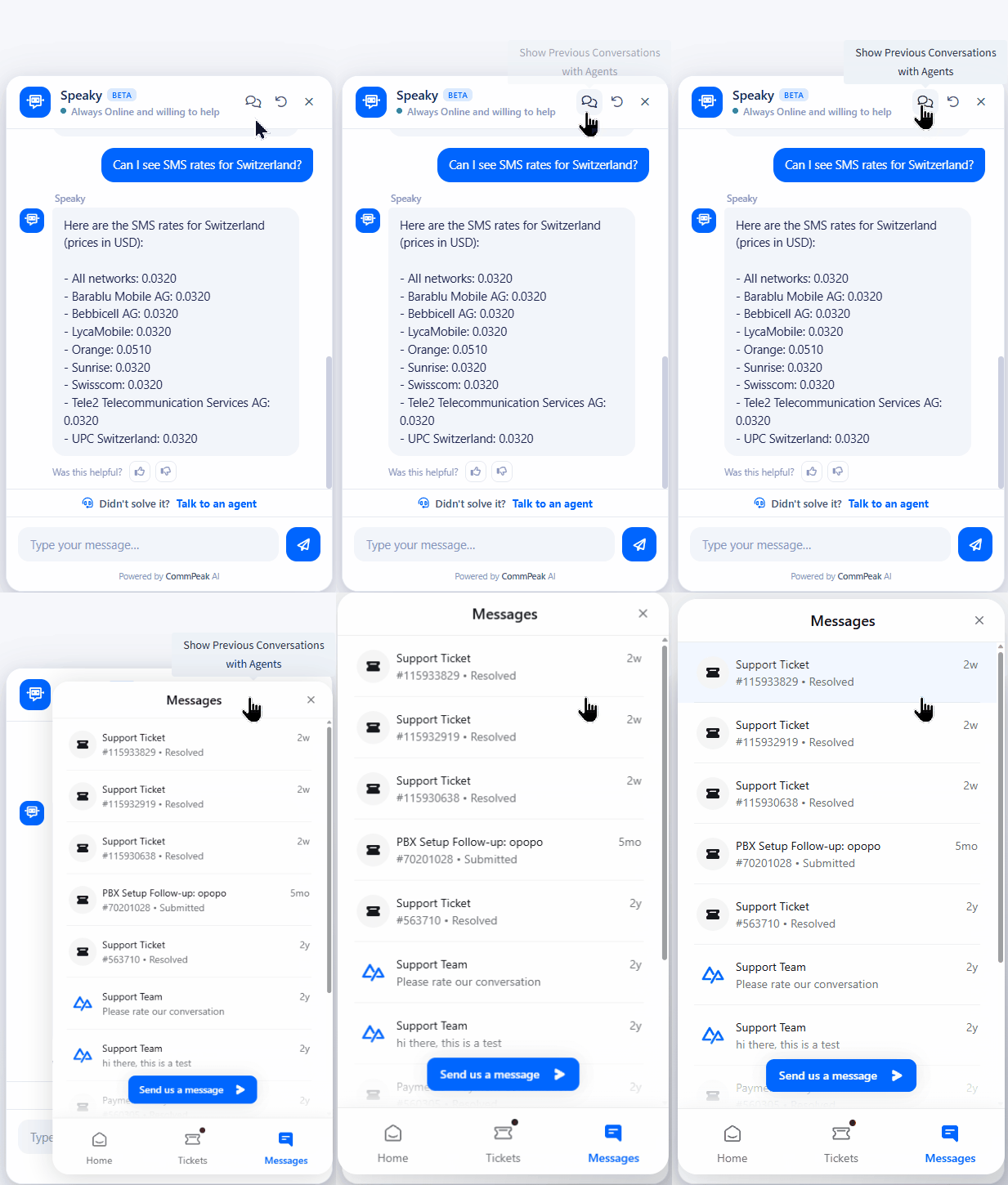
If the answer doesn't solve your issue, click Talk to an agent, and then click the arrow button below to start a conversation with the support team.
Once your message reaches a CommPeak support representative, a corresponding ticket is opened and processed as soon as possible.
📘
NOTE
If a support representative is unavailable, or if you leave the CommPeak Portal before a reply arrives, CommPeak sends a copy of your conversation to the email address used to log in to your account.
You can review the tickets you opened by:
selecting the ticket right on the widget Messages page. To open it, click Show Previous Conversations with Agents in the header
Show Previous Conversations with Agents option
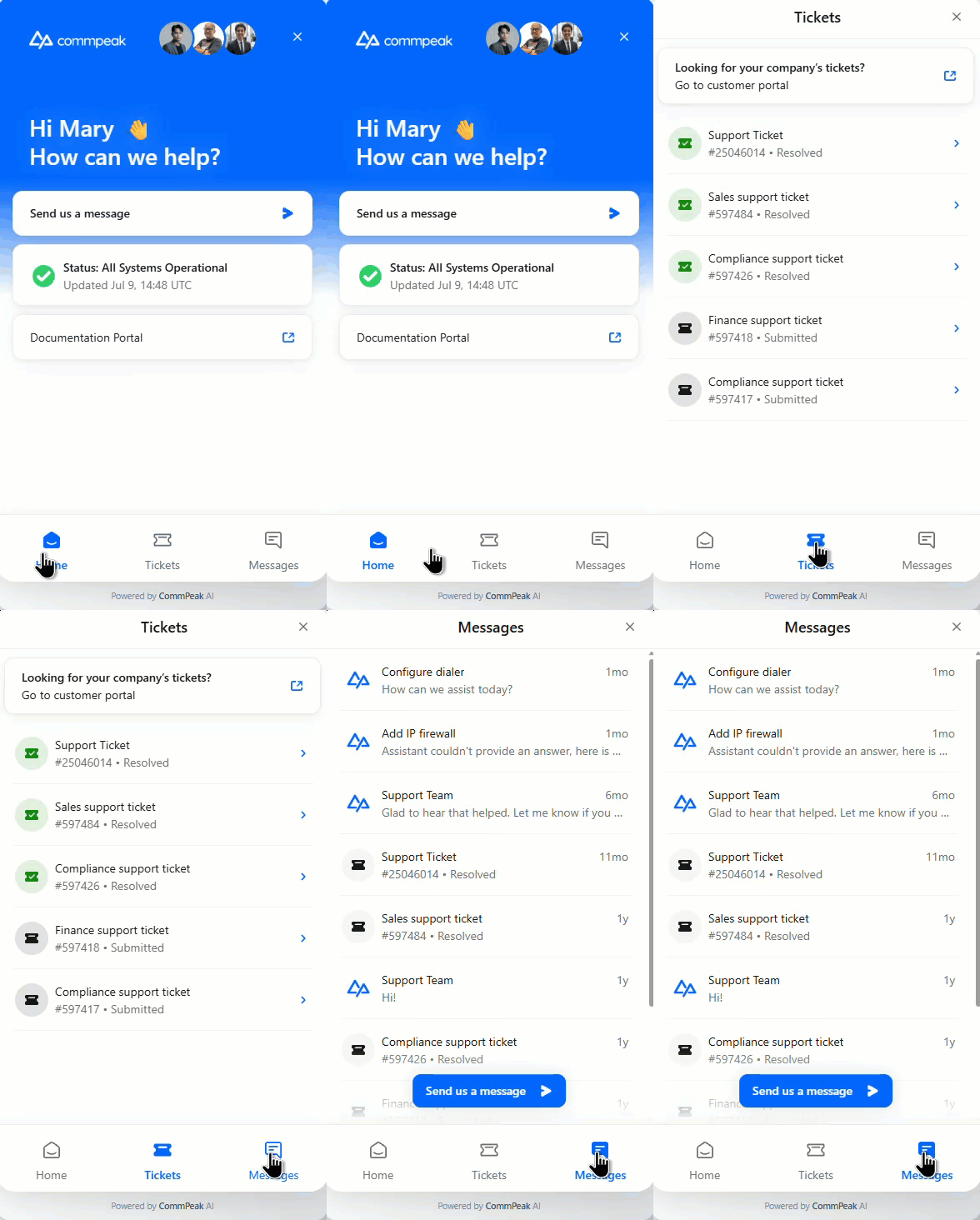
clicking the Tickets icon in the widget footer (it becomes available as soon as the first ticket is submitted)
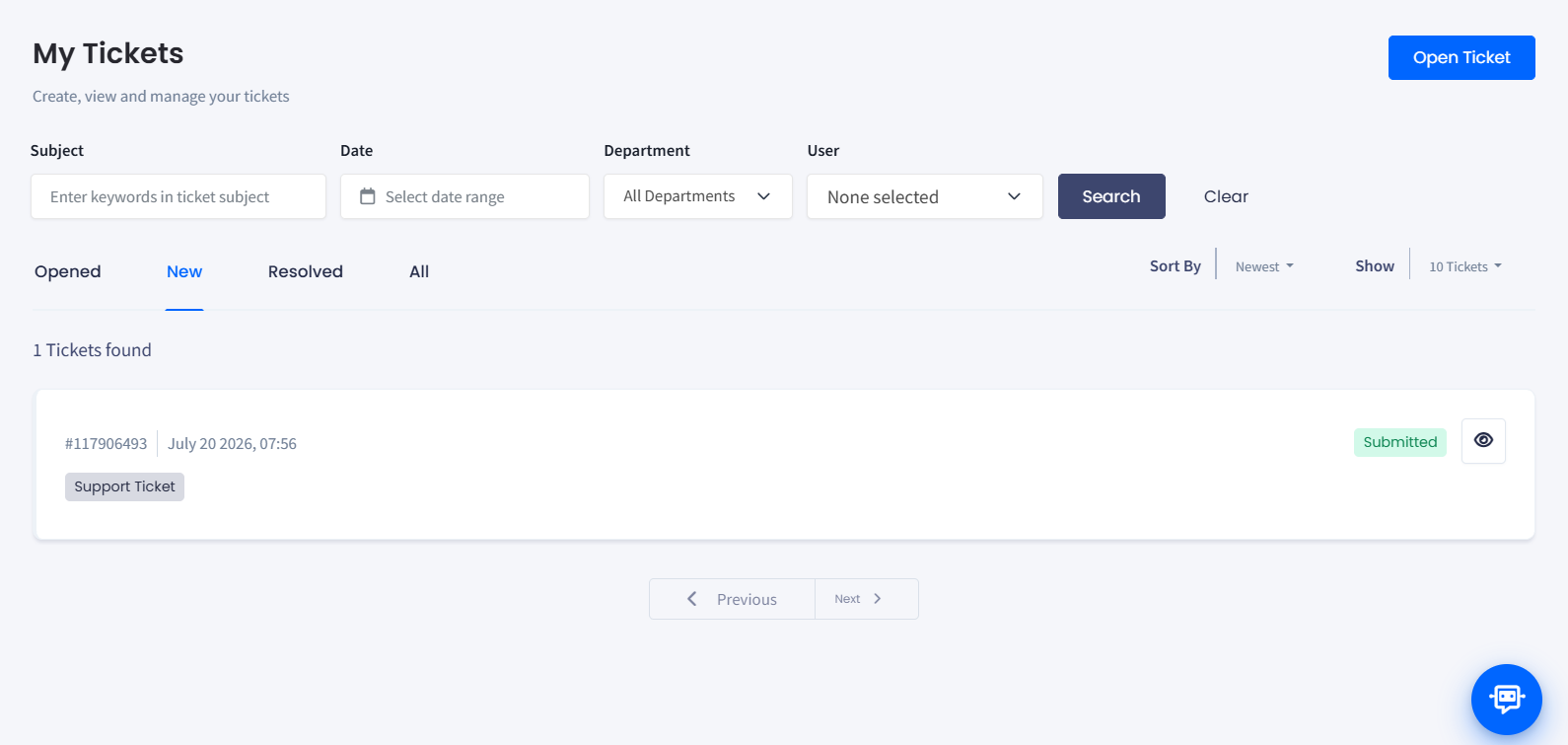
Tickets: to review the support tickets opened under your account
Messages: to see the list of your most recent messages (if any).
Support widget Home page
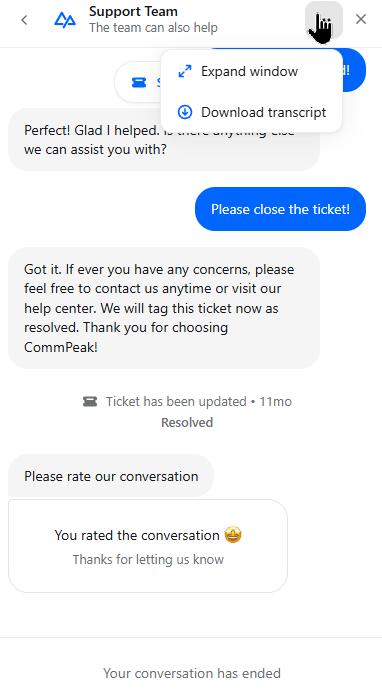
To download your ticket conversations in TXT format, click the three dot button located in the top right corner of the ticket details window and select Download transcript.
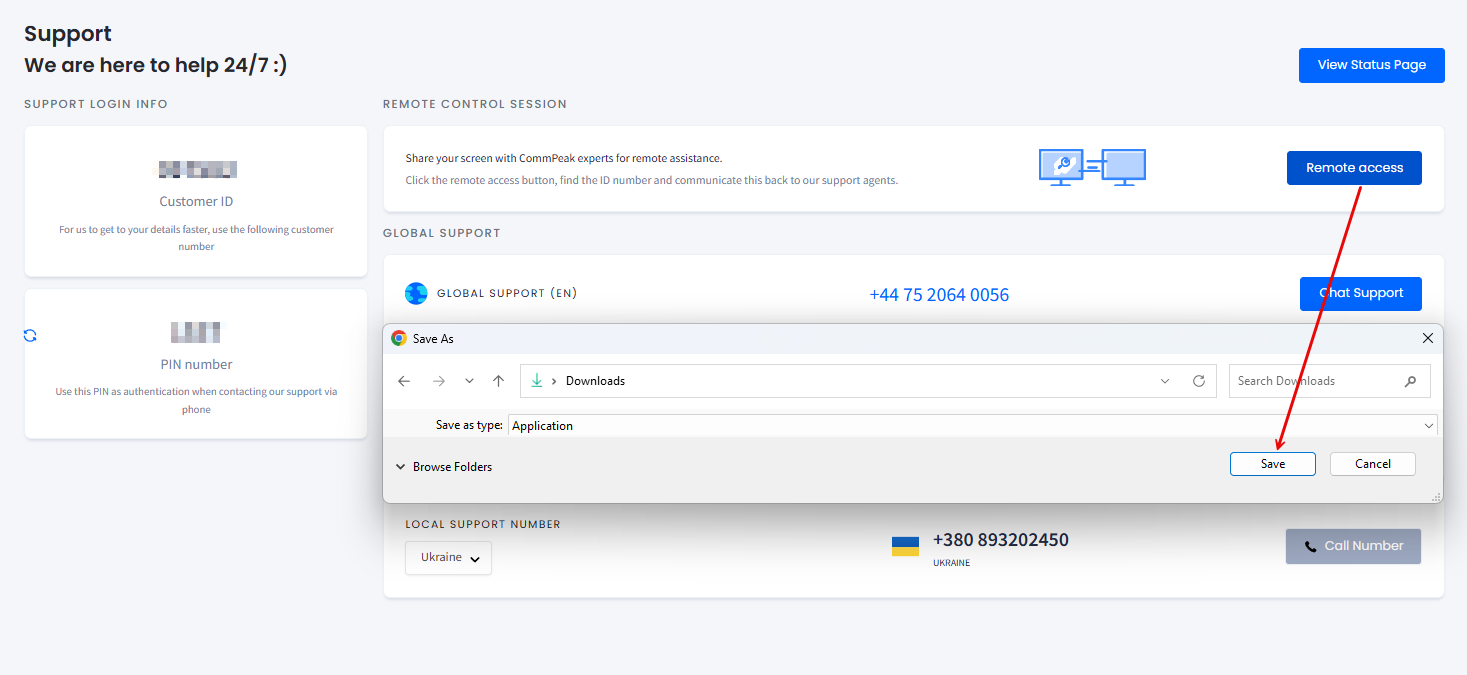
CommPeak provides remote assistance via screen sharing.
Remote control session section
Click the Remote access button, then download and run the CPRemoteSupport application. Allow a CommPeak support specialist to enter your PC using the application.
Downloading CPRemoteSupport app
❗️
IMPORTANT
It is safe to download and run the CPRemoteSupport application. Only authorized CommPeak members can log in to your PC.