For AI agents: visit https://docs.commpeak.com/llms.txt for an index of all pages formatted in Markdown and endpoints in OpenAPI. Append .md to any documentation page URL to get its markdown version.
Request an official proforma invoice for budget approvals, prepayments, or internal finance processes, and track each request from your Portal account.
The Proforma Invoices section lets you request an official proforma invoice for budget approvals, prepayments, or internal finance processes.
🚧
NOTE
The Proforma Invoice page is available to admins and main account users only, for example the user assigned with Financeuser role.
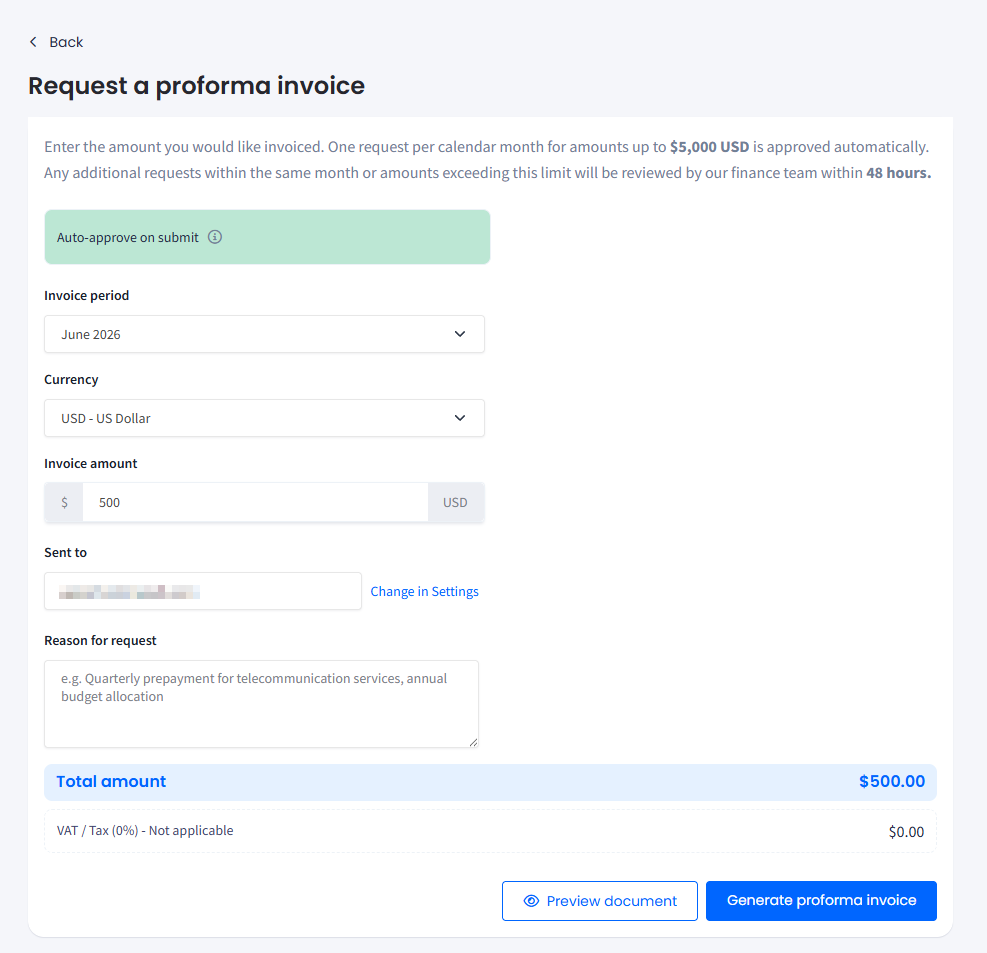
Invoice period: select the billing month the invoice should cover. You can select the current month or either of the next two calendar months (up to 3 months ahead in total).
Currency: choose your preferred currency (USD - US Dollar, EUR - Euro).
Invoice amount: enter the amount you need invoiced. The Total amount and applicable Value Added Tax (VAT)/Tax are displayed at the bottom of the form.
Sent to: the billing email address where the invoice will be sent. This defaults to the email on your account settings page. To change it, click the Change in Settings link.
Reason for request: briefly describe the purpose (for example, Quarterly prepayment for telecommunication services).
Request a proforma invoice form
Check the approval status banner:
Auto-approve on submit: your request meets the auto-approval criteria and will be approved immediately on submission.
If no banner appears, the finance team will review your request within 48 hours.
🚧
WHEN FINANCE REVIEW IS REQUIRED
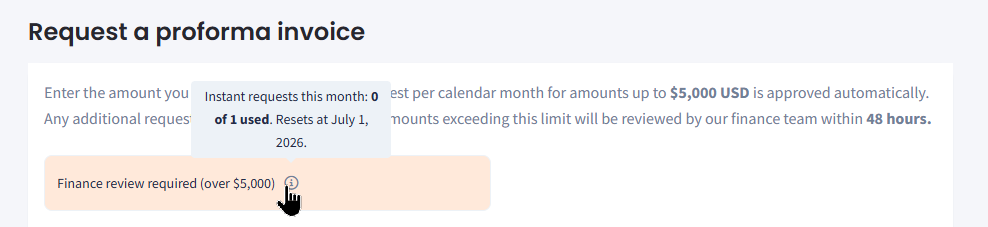
Your first request of the calendar month is auto-approved if the amount is $5,000 USD or less. A finance review is required in either of these cases:
The amount exceeds $5,000 USD - even if it's your first request of the month.
You submit more than one request in the same calendar month - regardless of the amount.
Finance review required banner
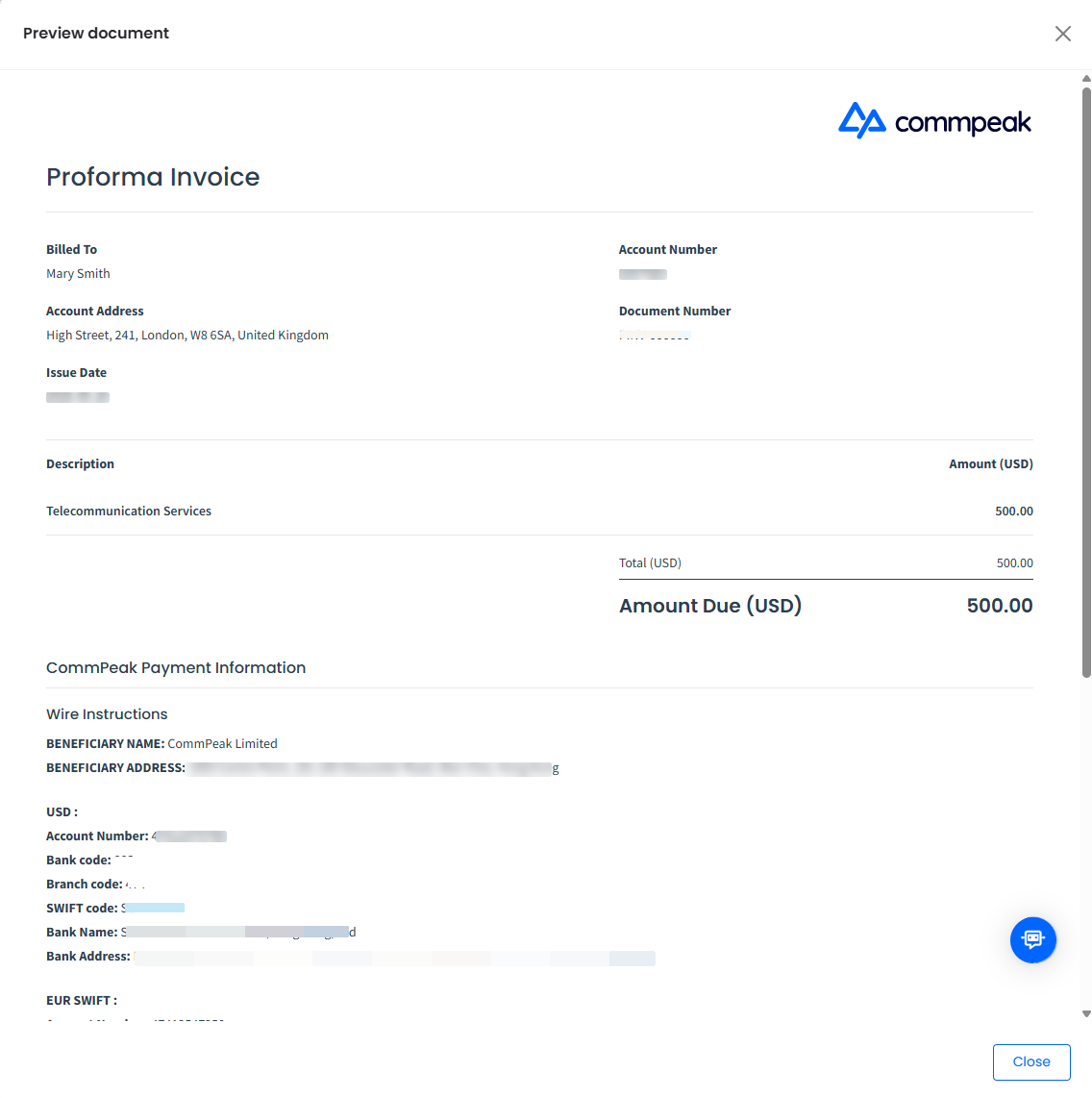
Click Preview document to review the invoice before submitting.
Preview document
👍
TIP
Always use the Preview document option before submitting. This helps catch errors before the request is processed.
Click Generate proforma invoice to submit your request.
The finance team completes reviews within 48 hours. You'll receive a notification once they approve your invoice.
Your requests
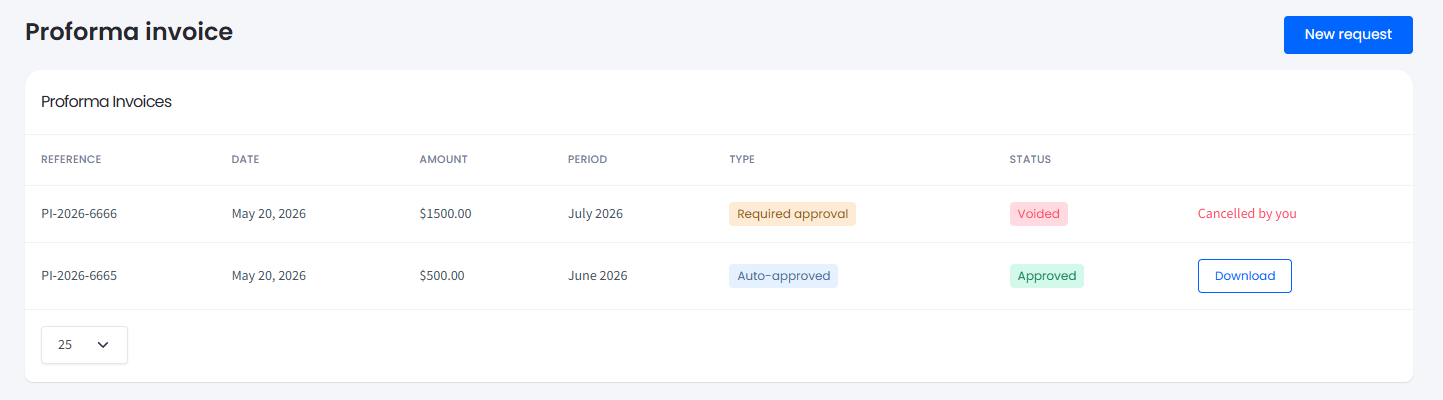
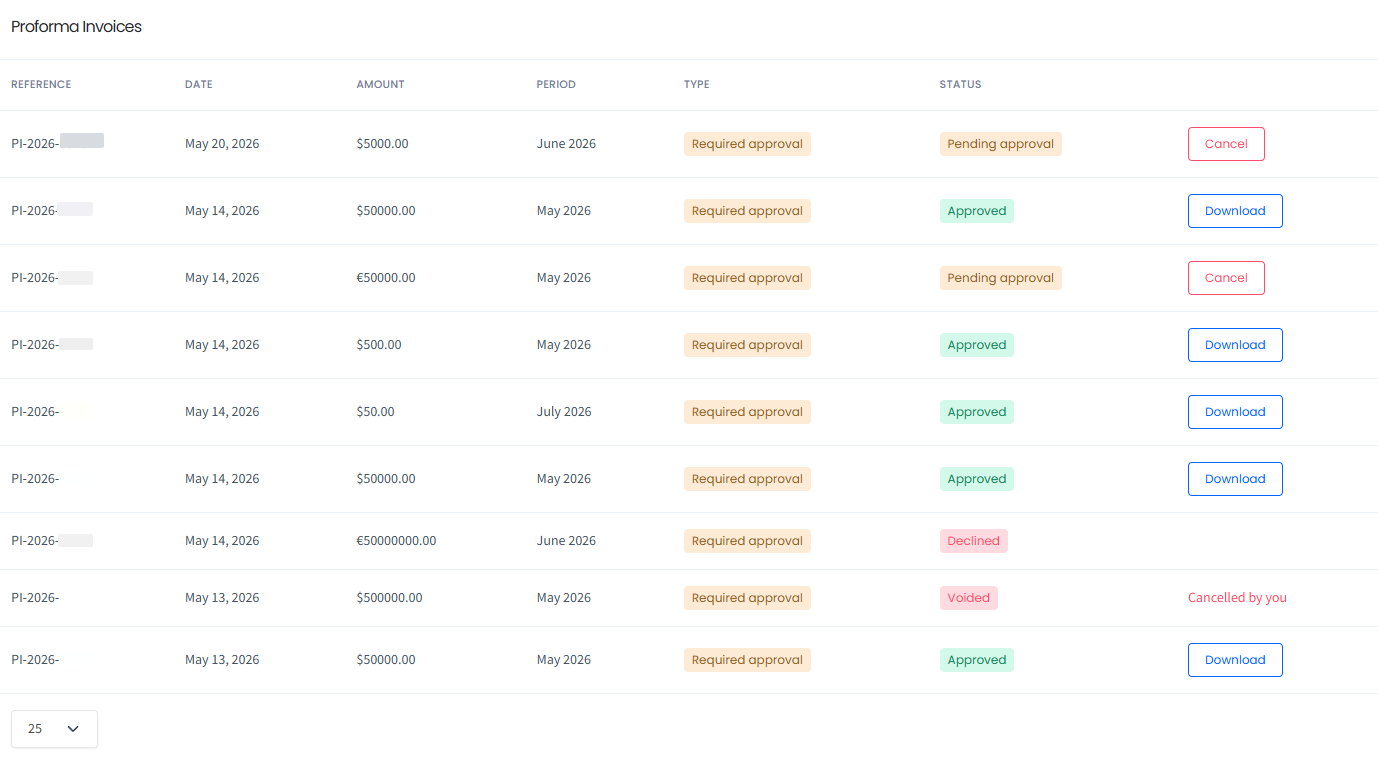
All submitted requests appear in the Proforma Invoices list. You will also receive a confirmation email with the requested proforma invoice.
Proforma Invoices list: request status examples
Refer to the following table for column descriptions:
Column
Description
Reference
A unique ID assigned to each request (e.g., PI-2026-6465).
Date
The date the request was submitted.
Amount
The invoiced amount.
Period
The billing month the invoice covers.
Type
How the request was processed:
d automatically on submission. iewed and approved by the finance team.
Status
The current state of your request:
eady to download. view by the finance team. You can cancel the request while it's in this state. not approved. li>
Click Download next to an approved request to save the invoice.
📘
NOTES
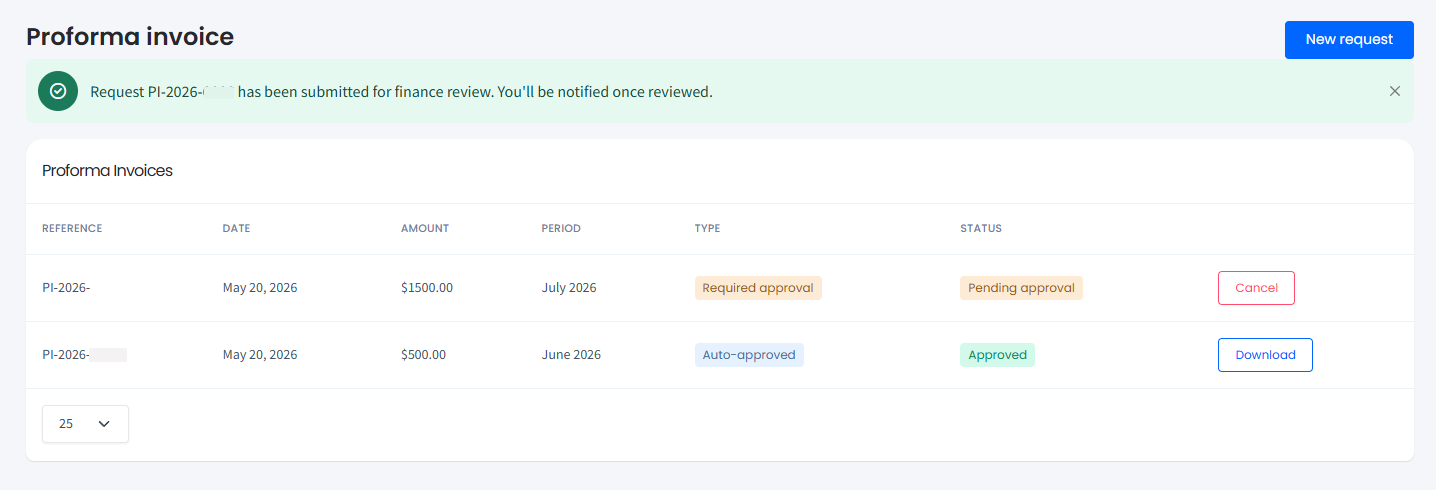
After you submit a request, a confirmation message appears at the top of the page.
Proforma Invoices list with confirmation message
After approval, a second notification confirms the invoice is ready for downloading in your request history.
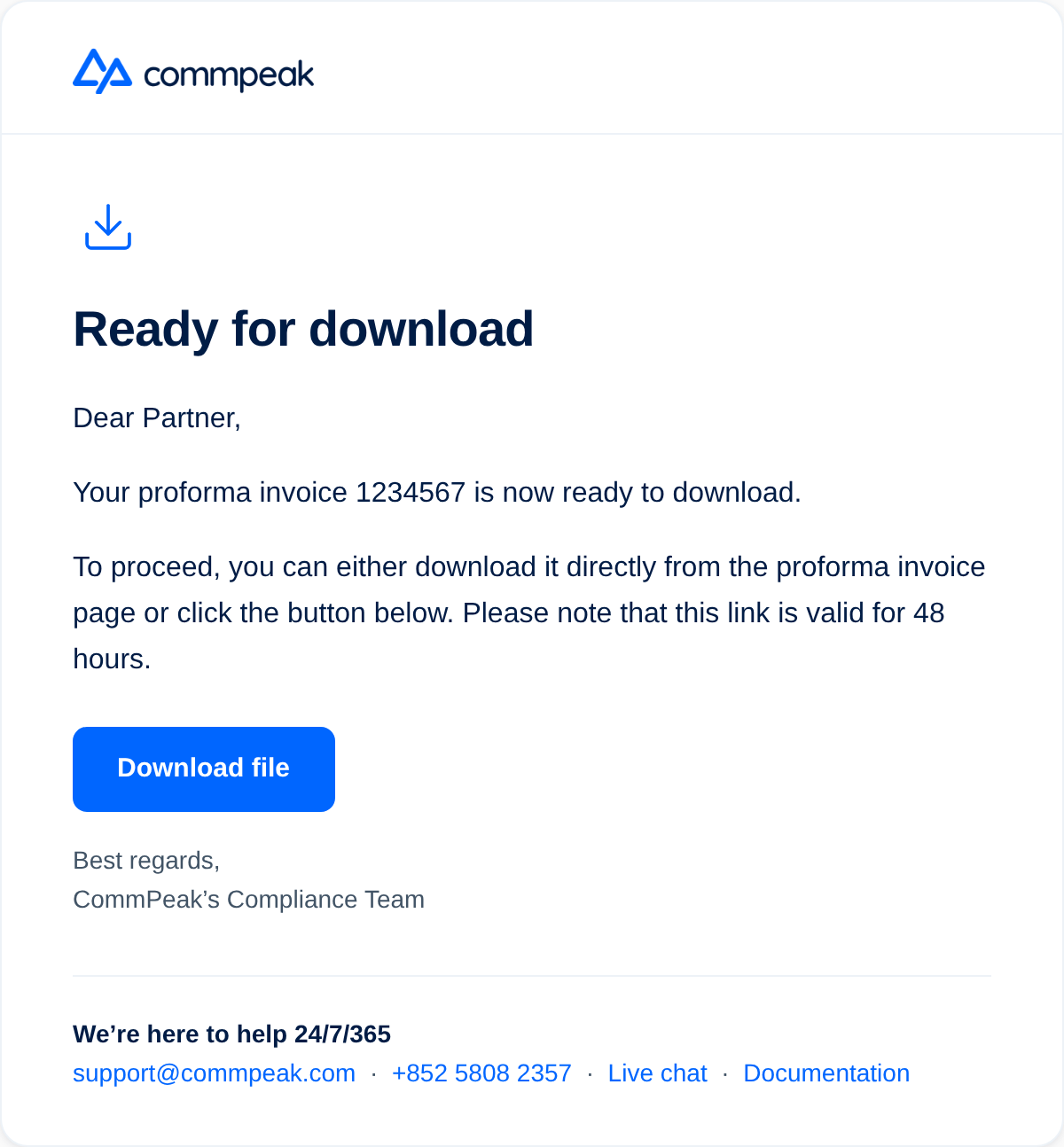
Alternatively, check your inbox for an email with the requested proforma invoice attached and click Download file to save it
Your File Is Ready For Download email
Canceling a proforma invoice request
You can cancel a request only while its status is Pending approval. After a request has been auto-approved or approved by the finance team, you can no longer cancel it.
Request type
Can be cancelled?
How
Auto-approved
❌ No
The system approves the request immediately on submission. No cancellation is possible.
Pending approval
✅ Yes
Click Cancel next to the request in the list while the status is Pending approval. The status changes to Voided.
📘
NOTE
If you need to amend an auto-approved invoice or a request that has already been approved, contact CommPeak Support.