

Getting Ready to Make Calls
Learn where in CommPeak Portal to find username, domain and password for your first SIP account.
As soon as you complete the signup to the CommPeak Portal, you will know that one SIP account is already available to you. You will also see your username and domain.
You can start with creating a permanent password for your first SIP account.
Setting SIP account password
To reset the SIP account password:
Open VoIP Services
Select VoIP Services in the left pane.
Open SIP Accounts
Go to the SIP Accounts (Trunks) tab.
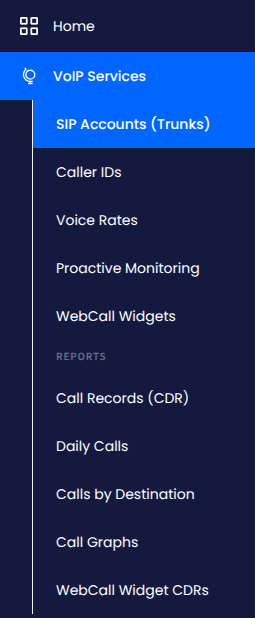
VoIP Services menu tabs
Find the account you need and click its Reset Password (key) icon.
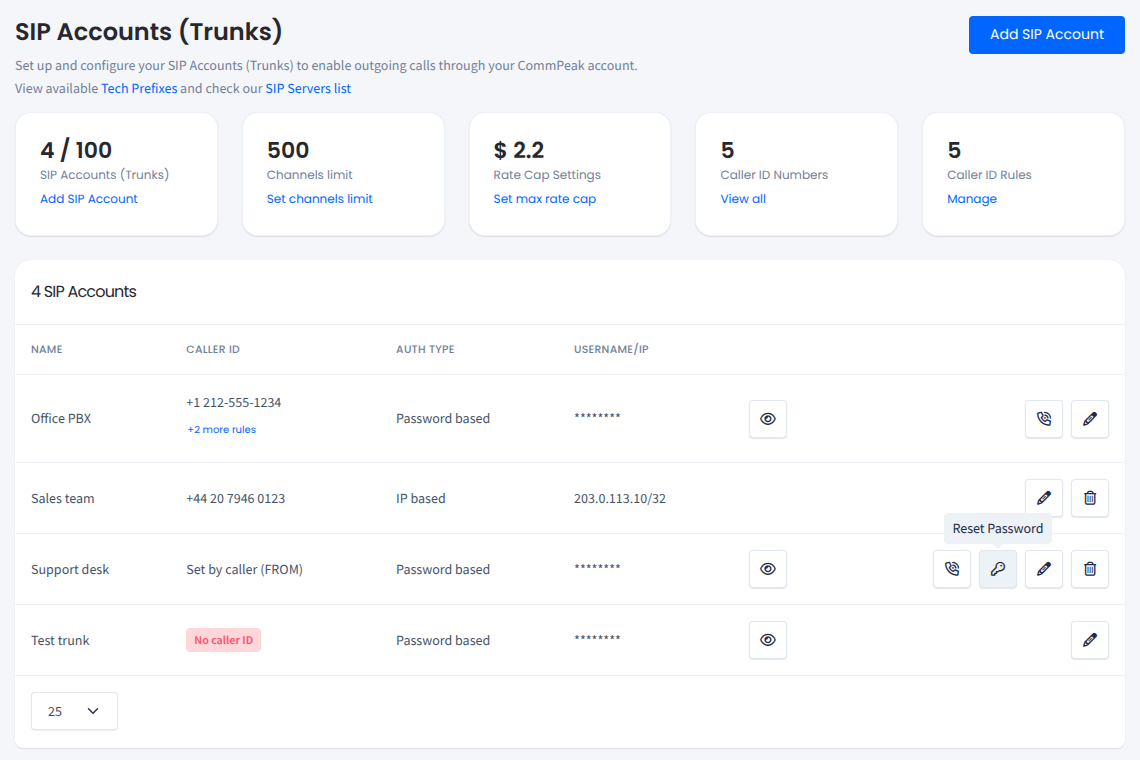
SIP account data with Reset Password button
Send the email
In the Edit credentials window, review the email and click Send email.
Check your email
After you confirm editing your credentials, the system will send you a SIP account credentials change confirmation email.
Open Edit Credentials
Click the Edit Credentials button in the email message.
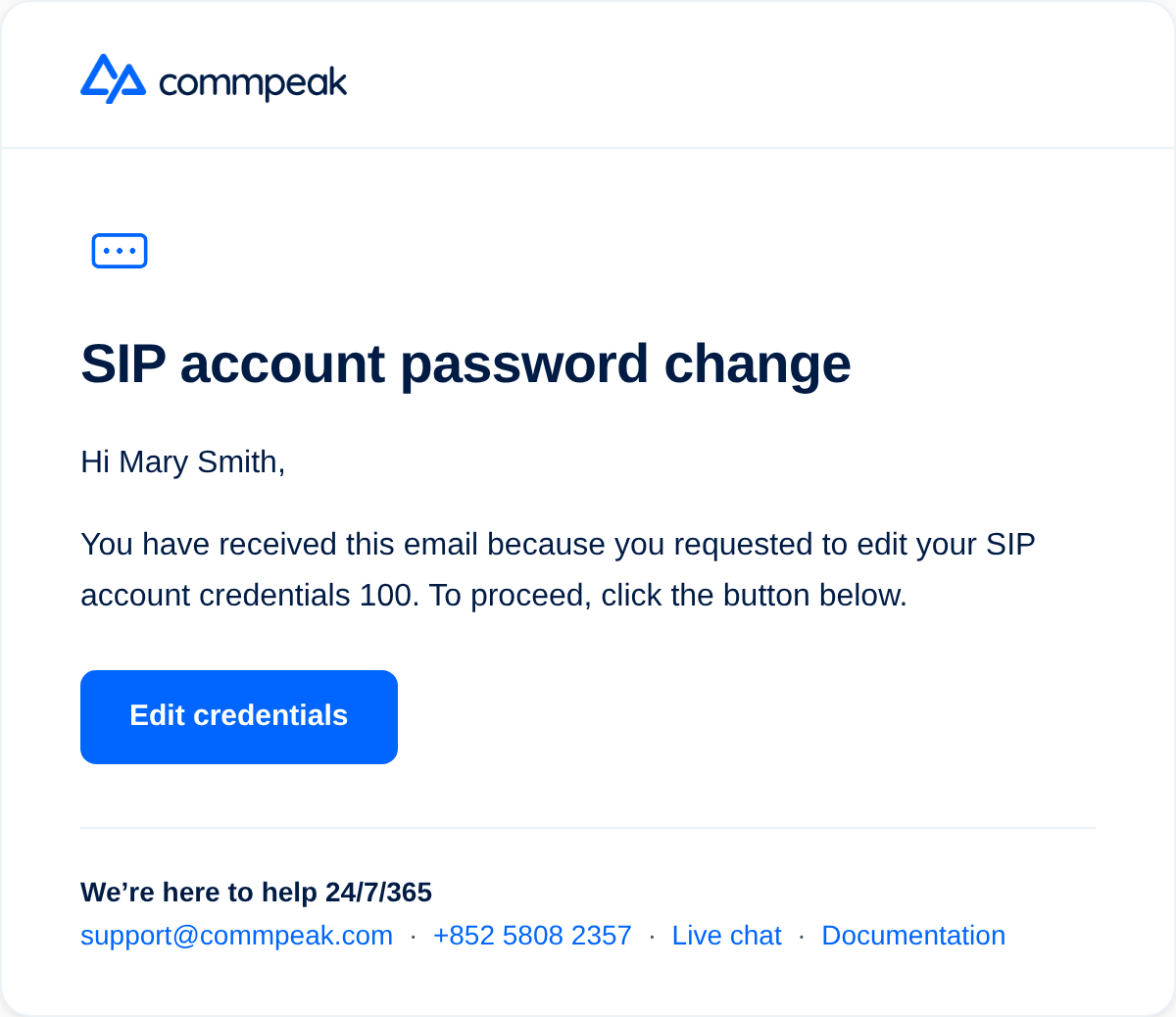
Password change confirmation alert with Edit Credentials button
Set a new password
Enter a new password, confirm it, and click Save changes. Here, you can also modify your username, if needed.

Modifying SIP account credentials
✔️ Congratulations! You are all set. You know the username, password, and domain of your SIP account. Now, you are ready to proceed with registering in a softphone application.
Later, you can set the Caller ID, change authentication settings, or add more SIP accounts.
NOTEFor more information, refer to the article on SIP Account Configuration.
Updated 2 days ago