

Portal Notifications
See your CommPeak Portal notifications from the bell icon in the top bar or on the Notifications page, filter them by category, and act on critical and warning alerts.
The CommPeak Portal notifies you about events on your account, such as a low or empty balance, failed payments, DID number renewals, suspended services, and finished reports. You can check them in two places: the bell icon in the top bar, for a quick look at what needs your attention, and the Notifications page, for the full list from the last 30 days.
Notification categories
Every notification belongs to one of six categories. On the Notifications page, the Category list shows how many notifications each category holds, and clicking a category shows only its notifications. The table describes each category.
| Category | What it covers |
|---|---|
| Billing & balance | Low or empty balance alerts, top-ups, failed payments, and recurring service fees |
| Numbers (DIDs) | DID number renewals, suspensions, and releases |
| Voice & monitoring | Blocked calls, Cloud PBX status, new SIP accounts, call record archives, caller ID rules, and rate changes |
| Messaging | Numbers flagged as spam, Speech-to-Text transcriptions, and LookUp results |
| Account & security | Account role changes and Terms of Service updates |
| Support | Updates from CommPeak Support |
In the bell icon panel, each notification shows a short form of its category name, such as Billing or Numbers.
Notification severity
Notifications that need your attention carry a severity label. The table describes each label.
| Label | What it means | Example |
|---|---|---|
| Critical | A service is stopped or about to stop. Act as soon as possible. | Your balance is empty, 2 numbers suspended |
| Warning | Something needs your attention soon, before it affects your service. | Balance low: $4.20 left, 6 numbers renew on Nov 8 |
| No label | Information only. No action is needed. | $500.00 added to your balance |
Checking notifications from the top bar
The bell icon opens a short list of your latest notifications, with the most urgent ones pinned at the top.
To check your notifications from the top bar:
Click the bell icon
Click the bell icon in the top bar.

Bell icon in the top bar
Review the list
The Notifications panel opens. The most urgent notifications are pinned under Needs action, and the rest follow under Earlier. Each notification shows its category, date, and severity label, and most have an action button, such as Add credit or Renew now, that takes you to the page where you resolve it.
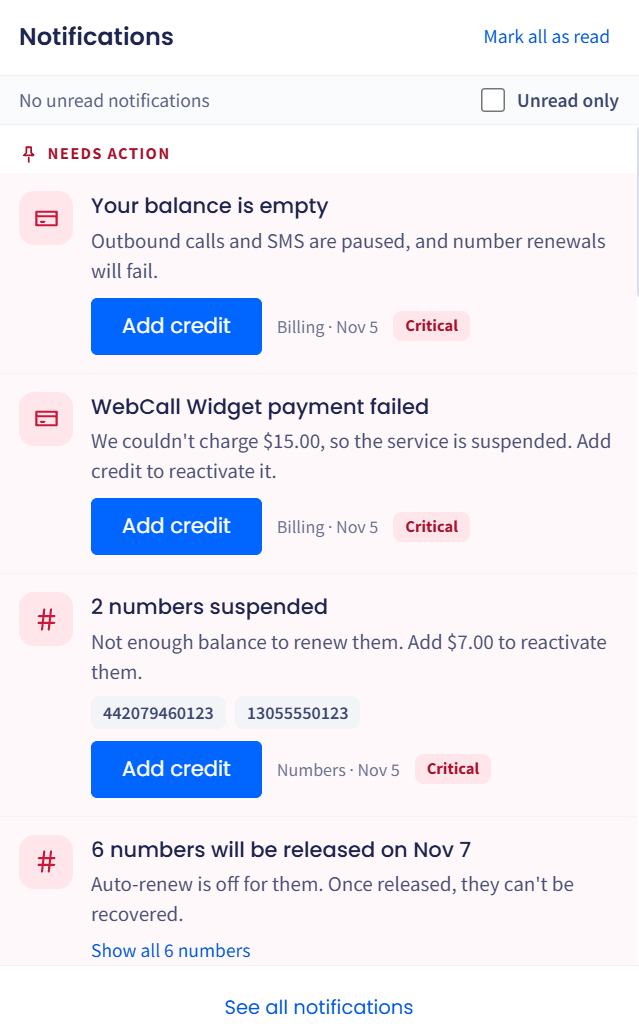
Notifications panel
Open the full list
To see every notification from the last 30 days, click See all notifications at the bottom of the panel.
The panel also includes these controls:
- Unread only: select it to show only the notifications you have not read yet.
- Mark all as read: marks every notification in the list as read.
Using the Notifications page
The Notifications page lists every notification from the last 30 days, grouped by day with the newest first. The page shows times in the time zone set in your profile, and notifications older than 30 days no longer appear on it.
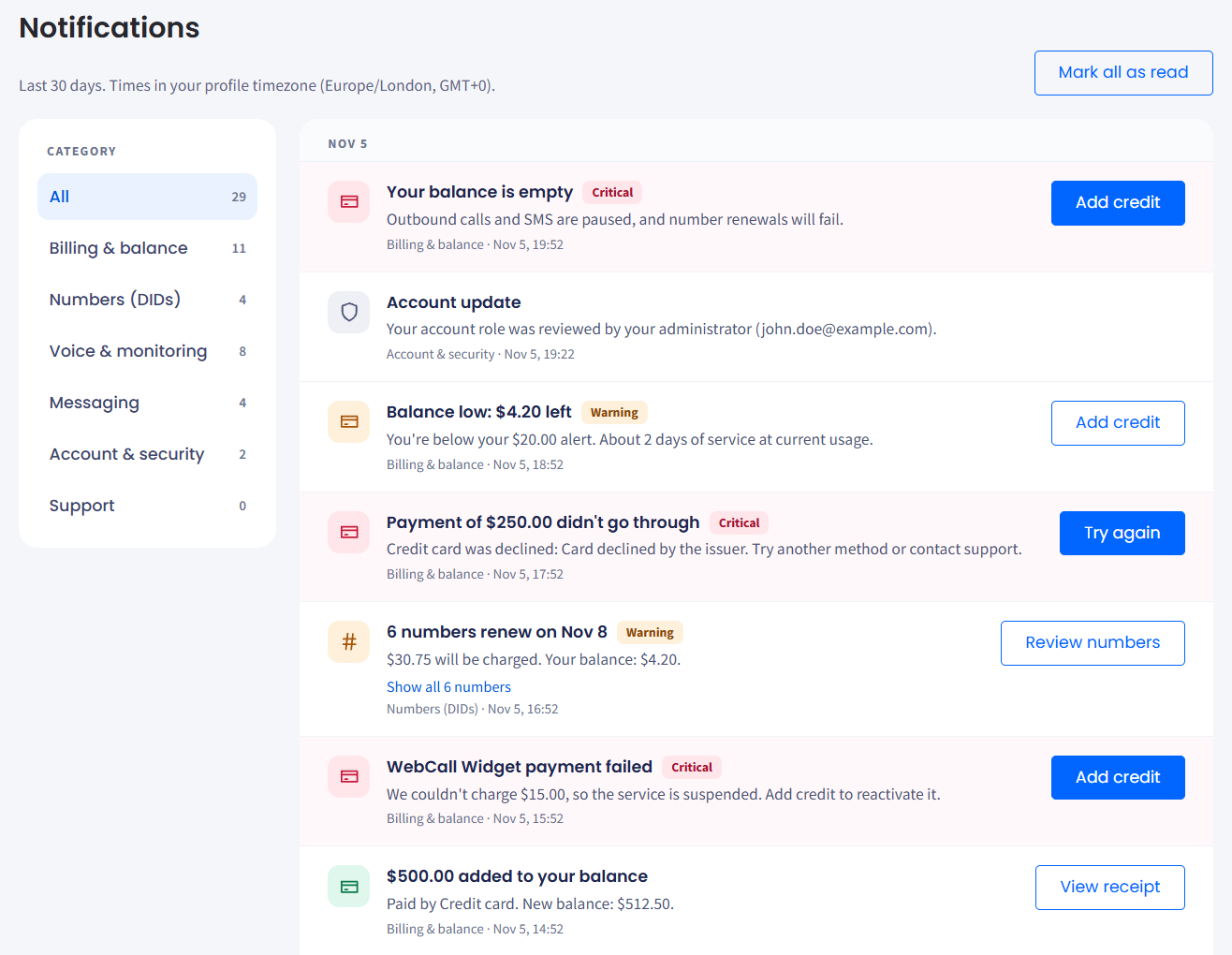
Notifications page
On the Notifications page, you can:
- Filter by category: click a category in the Category list to show only its notifications, and click All to see every notification again. For what each category covers, see Notification categories.
- Act on a notification: click the button on the right of the notification, such as Add credit, Try again, or View receipt.
- See the details: notifications about several DID numbers list the numbers they refer to. Click Show all numbers (for example, Show all 6 numbers) to expand the full list, and Hide numbers to collapse it.
- Mark all as read: click Mark all as read at the top right of the page.
- Move between pages: use the page buttons at the bottom of the list. To show more notifications on one page, select 25, 50, 100, or 250 in the selector on the left.
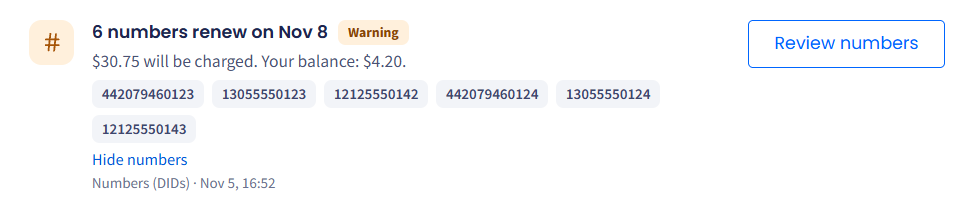
Notification with the full list of numbers expanded
Getting notifications by email
To get account notifications by email as well, and to choose who receives them, see Email Notifications.
Updated about 13 hours ago