

Blacklists Management
Manage blacklisted leads: upload leads to a blacklist to prevent them from being dialed, approve, and remove leads from the blacklist.
The Blacklists Management section under Leads & Campaigns lets you handle the leads you do not want to be called.
To optimize performance, Black list are not loaded automatically. Use the search criteria above to find and display relevant entries.

Blacklisted Leads tab
Here you can upload blacklisted leads, approve the uploaded numbers, or remove them from the blacklist.
NOTETo learn how to manage blacklisted leads using our API, refer to our API reference articles covering the following operations:
- Retrieving details of a specific blacklisted lead
- Deleting a specific blacklisted lead entry and all its associated details
- Moving a blacklisted lead's phone number to the approved DNC list
- Removing a blacklisted lead's phone number entry from the approved list
- Retrieving all blacklisted lead entries
- Creating a blacklisted lead (DNC) entry
- Retrieving blacklisted lead details by phone number
- Approving/Unapproving multiple blacklisted lead (DNC) entries simultaneously.
Adding leads to a blacklist
On the Add Blacklisted Leads tab, you can upload a file containing data about the leads that you do not want to be dialed (and mark them as DNC leads.
Requirements for the blacklist file:
- .csv format
- Contains only one column - the list of phone numbers
- No longer than 50K rows long to prevent overload.
To upload a blacklist file:
Open Blacklists Management
Go to Leads & Campaigns > Blacklists Management in the main menu and switch to the Add Blacklisted Leads tab.
Choose the upload options
Select the suggested checkboxes if you want to mark all the uploaded leads as approved or permanently approved at once. Otherwise, you can approve them later.

Upload the file
Click Upload.

Adding blacklisted leads
Track the upload
You will be redirected to the Tasks Logs page, where you can track the upload progress.

Tasks Logs tab
Approving blacklisted leads
You can approve the leads added to a blacklist while uploading them if you put a checkmark in one of the suggested checkboxes - Mark all dnc leads as approved.
The leads uploaded with approval will appear on the Blacklisted Leads tab.
Those leads that still need approval will be saved to the Blacklisted Leads for Review tab.
To approve a single blacklisted lead:
Open Leads for Review
Go to the Blacklisted Leads for Review tab.
Approve the lead
On the line for the lead you want to approve, select Approve Blacklist number in Actions.

Blacklisted leads for Review tab
The lead will be moved to the Blacklisted Leads tab.
To approve multiple blacklisted leads:
Select the leads
On the Blacklisted Leads for Review tab, select the lines with the leads you would like to approve.
Choose Approve
At the bottom of the page, select Approve in the drop-down list.
Choose more options
In the other drop-down list, you can choose from more options for which records to select.
Confirm
Click OK.
The selected numbers will be moved to the Blacklisted Leads tab.

Approving blacklisted leads in bulk
In the same way, you can unapprove the approved leads. Just select the relevant option under Actions, or a group action at the bottom of the page.
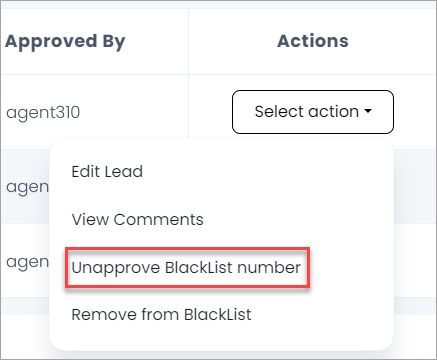
Unapproving blacklisted number

Selecting the unapprove action
Removing leads from the blacklist
You can remove both approved leads and leads under review from the blacklist.
To remove a single lead from the blacklist:
Open the blacklist tab
Go to the Blacklisted Leads or Blacklisted Leads for Review tab.
Remove the lead
On the line for the lead you want to remove, select Remove from Blacklist in Actions.
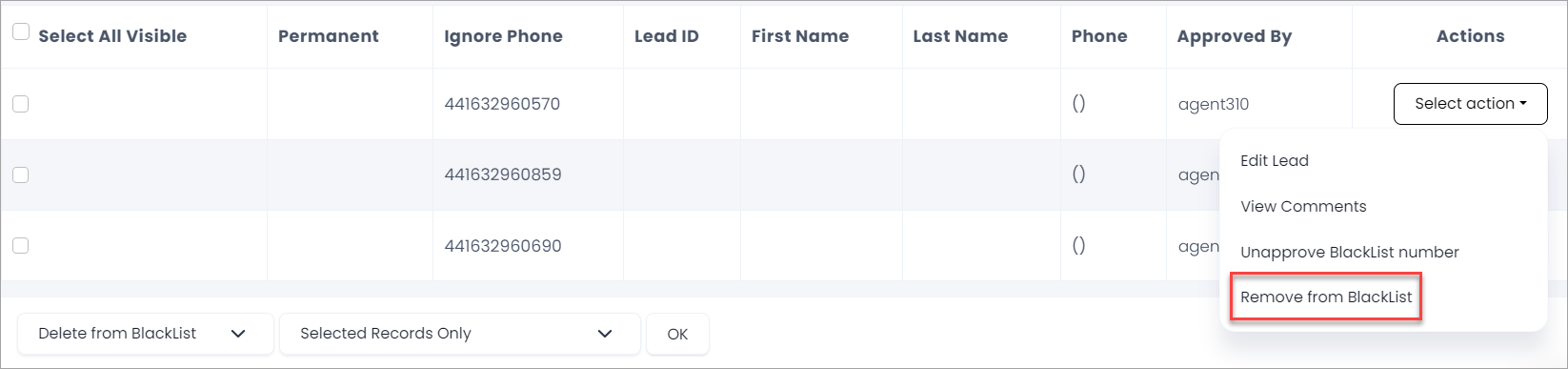
Removing leads from blacklist action
The lead will be removed from the blacklist and can be called again.
To remove multiple leads from the blacklist:
Select the leads
On the Blacklisted Leads or Blacklisted Leads for Review tab, select the lines with the leads you would like to remove.
Choose Delete from Blacklist
At the bottom of the page, select Delete from Blacklist in the drop-down list.
Choose more options
In the other drop-down list, you can choose from more options for which records to select.
Confirm
Click OK.

Options for selecting records
The selected numbers will be removed from the blacklist and can be called again.
Updated 6 days ago