

Access Control Lists
Configure IP address, FQDN, and country-based access controls for your Cloud PBX domain. Learn how to enable the feature, add entries, filter, and manage access for various types of connections.
Video tutorial
This feature allows you to limit access to the CommPeak Dialer or Cloud PBX domain by the user's IP address, fully qualified domain name (FQDN), and country.
To change whitelisting settings for your domain, in the Settings menu, go to General Settings and switch to the Access Control Lists tab.
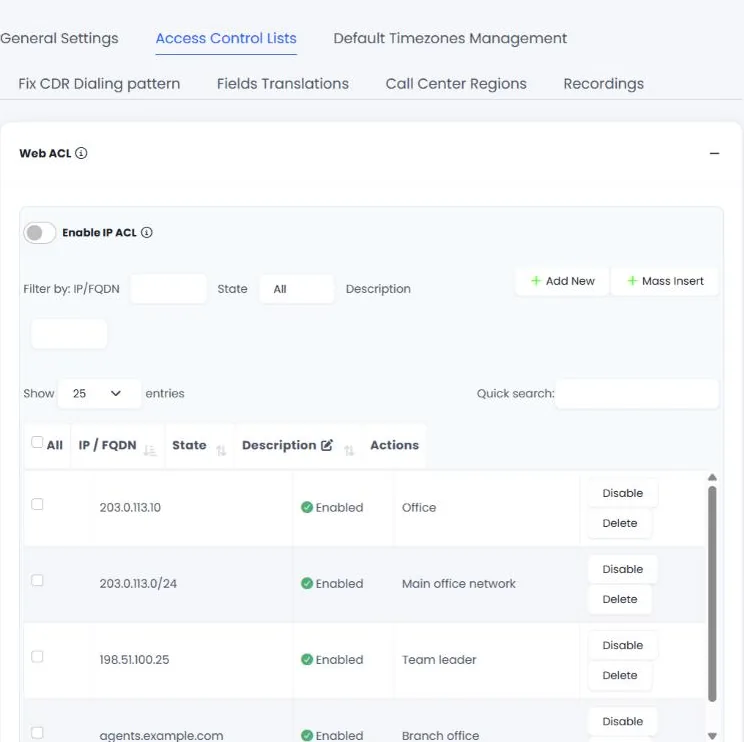
Web ACL section
Enabling the feature
To use the feature, move the Enable IPACL toggle to the right.
When enabled, the IP addresses and FQDNs outside the list of allowed ones will be blocked. If disabled, access will be open to any IP.

Enable IP ACL toggle
Adding new entries
To add a new allowed IP address or FQDN:
Click the Add New button, or to add multiple entries, click Mass Insert.
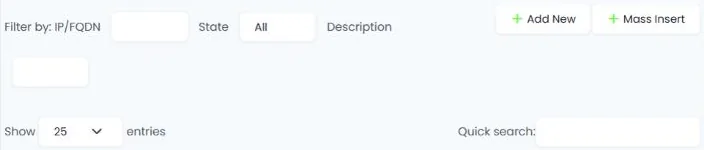
Add New entries button
Then, in the window displayed, specify the IP address/FQDN or multiple ones, add a description (optional), select the state of the new entry/ies — Enable or Disable, and click Add. You can enter a single IP (1.2.3.4), a CIDR (5.6.7.8/24), an IP range (10.11.12.13-10.11.12.15), or an FQDN. CIDRs and IP ranges are limited to /24 (256 IPs).
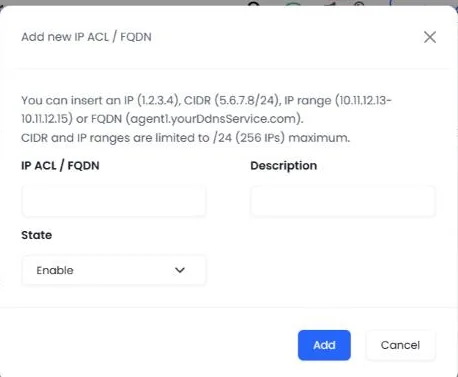
Specifying IP ACL/FQDN
The entries will be added to the list.
IMPORTANTRemember to include your own IP address / FQDN in the list before saving your settings. Otherwise, you will not be able to access the Dialer or Cloud PBX.
When should you use an FQDN?
Use an FQDN if you have a dynamic IP Address.
EXAMPLEYou want to limit the access to the Dialer or Cloud PBX, so that agents can log in from their workplaces only, but their IP addresses are dynamic. Then you specify their FQDNs, which will remain the same even if their IPs change.
TIPIf you hover the cursor over an FQDN, you will see the related IP address.
Filtering and searching
You can filter the visible entries by IP/FQDN, state, and description.
To apply the filter, just enter the needed text or select the required option.
Alternatively, you can search for the necessary entry by typing your request in the Quick search field.
Filtering and searching entries
Enabling, disabling and deleting entries
IPs or domain names can be enabled, disabled, and deleted per entry or in bulk.
To perform one of these actions for a single entry, on the entry line, click the Disable (Enable) or Delete button and confirm the action.

Enabling, disabling, and deleting entries
For bulk actions:
-
Place a checkmark on as many lines as you need.
-
Select an action under the list.
-
Choose if you want to apply it to the selected entries or all entries.
-
Click Process.

Bulk actions
Filtering IPs by countries
There is an option to allow access to your system from selected countries only. To use it, move the Enable ACL by countries toggle to the right and choose one or more countries from the Countries IP ACL drop-down list.

Enabling ACL by countries
You can use both the list of allowed IPs and IP filtering by country.
EXAMPLECall center agents are working from Country A, and the manager is located in Country B.
You can add the agents' IP addresses, which are in Country A, to the list of allowed ones. At the same time, you can select Country B as the country with allowed access and NOT include Country A in the list.
SIP IP ACL
Use this list for devices, softphones, WebRTC, and other SIP endpoints that register and authenticate to your Dialer or Cloud PBX. Only the IP addresses on this list can register and place outbound calls. Inbound calls from carriers are controlled by Incoming SIP IP ACL.
To add an entry, type it in the field and click Add. To remove an entry, click × next to it. Click Save at the bottom of the page to apply your changes.
You can add:
| Format | Example |
|---|---|
| Single IP address | 1.2.3.4 |
| CIDR from /24 to /32 | 5.6.7.0/24 |
| IP range of up to 256 addresses | 8.8.8.10-8.8.8.40 |
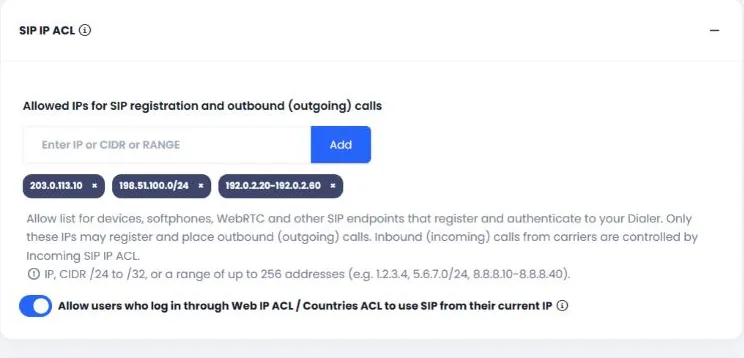
SIP IP ACL section
0.0.0.0/0 IS NO LONGER USEDWe no longer use
0.0.0.0/0(all IPs). Add the specific IPs, CIDRs, or ranges you need, or use the option below for agents whose IP changes.
IMPORTANTFor security reasons, we recommend adding the IP addresses of managers or team leaders only.
NOTEIf a user's IP address is not in this list, the built-in softphone in Dialer and Cloud PBX shows a banner with that IP address. For details, see Connection warning banners.
Allowing users to use SIP from their current IP
Use the Allow users who log in through Web IP ACL / Countries ACL to use SIP from their current IP option for agents whose IP address changes, for example, when they work from home. You do not need to add every home IP to the SIP IP ACL.
You can turn this option on only while Enable IP ACL (Web ACL) or Enable ACL by countries is on. Until then, the option is unavailable and shows Needs Web IP ACL or Countries IP ACL on. Because the user has already passed Web ACL or the country check to log in, their web login confirms that they are allowed.
How long the IP stays allowed:
- The IP stays allowed for SIP while the user's Dialer or Cloud PBX session is active.
- It is removed about a minute after the user logs out or clocks out, when the session expires, or after 1 hour with no activity.
- Each session can have one IP. If the user's IP changes, the new IP replaces the old one.
- The IP is allowed for SIP only, for that user's account. It is not added to the Web ACL or to the Incoming SIP IP ACL.
- The option does not apply to login-as sessions.
NOTEFor what agents see in the softphone while their IP is being allowed, see Connection warning banners.
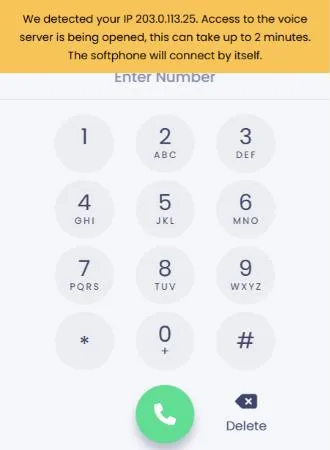
Banner shown in the softphone while access for the agent's IP address is being opened
Incoming SIP IP ACL
Use this section to manage the access control list for incoming calls. It defines which SIP providers, carriers, and PBX trunks are allowed to send inbound calls to your numbers. Only the IP addresses on this list can send incoming calls; all others are blocked. CommPeak's own carrier IPs are always allowed, so you only need to add your own.
The list accepts the same formats as SIP IP ACL: a single IP address, a CIDR from /24 to /32, or an IP range of up to 256 addresses (for example, 1.2.3.4, 5.6.7.0/24, 8.8.8.10-8.8.8.40). New accounts start with an empty Incoming SIP IP ACL.
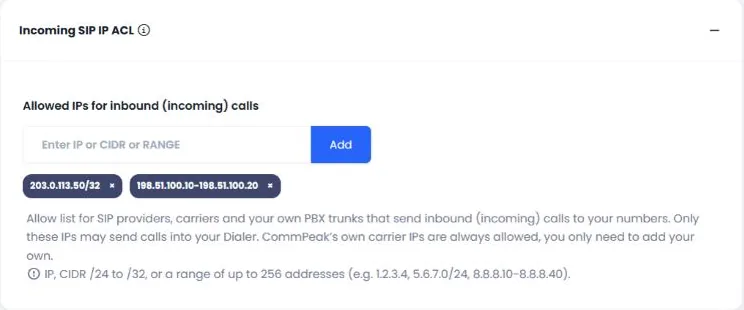
Incoming SIP IP ACL section
NOTEWe no longer use
0.0.0.0/0(allow any incoming connection). Add the specific IPs of your providers instead.
Public recordings ACL
Move the toggle to the right if you intend to authorize third-party downloads of your call record files via associated links. Afterward, specify the IP addresses you want to include in the whitelist.
Ensure to input IP addresses in CIDR format or IP range, accompanied by their respective masks.
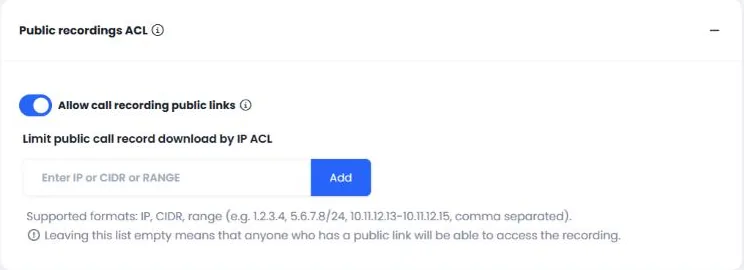
Configuring ACL for downloading public recordings
NOTEAn empty list implies that individuals with a public link have unrestricted access to the recordings.
Updated about 1 month ago