

SMS Marketing
Learn how to create an SMS Marketing channel in TextPeak, what each field on the channel details step does, and what happens when you activate it.
Video tutorial
An SMS Campaign sends from an SMS Marketing channel. The channel carries its own sender identity, consent rules and throughput-optimized routes, so create one channel per audience or per brand you promote to.
Creating the channel
- Log in to TextPeak in your browser.
- Click Channels in the main menu on the left.
- The Channels page opens and lists every channel type, with the number of channels you have created under each one.
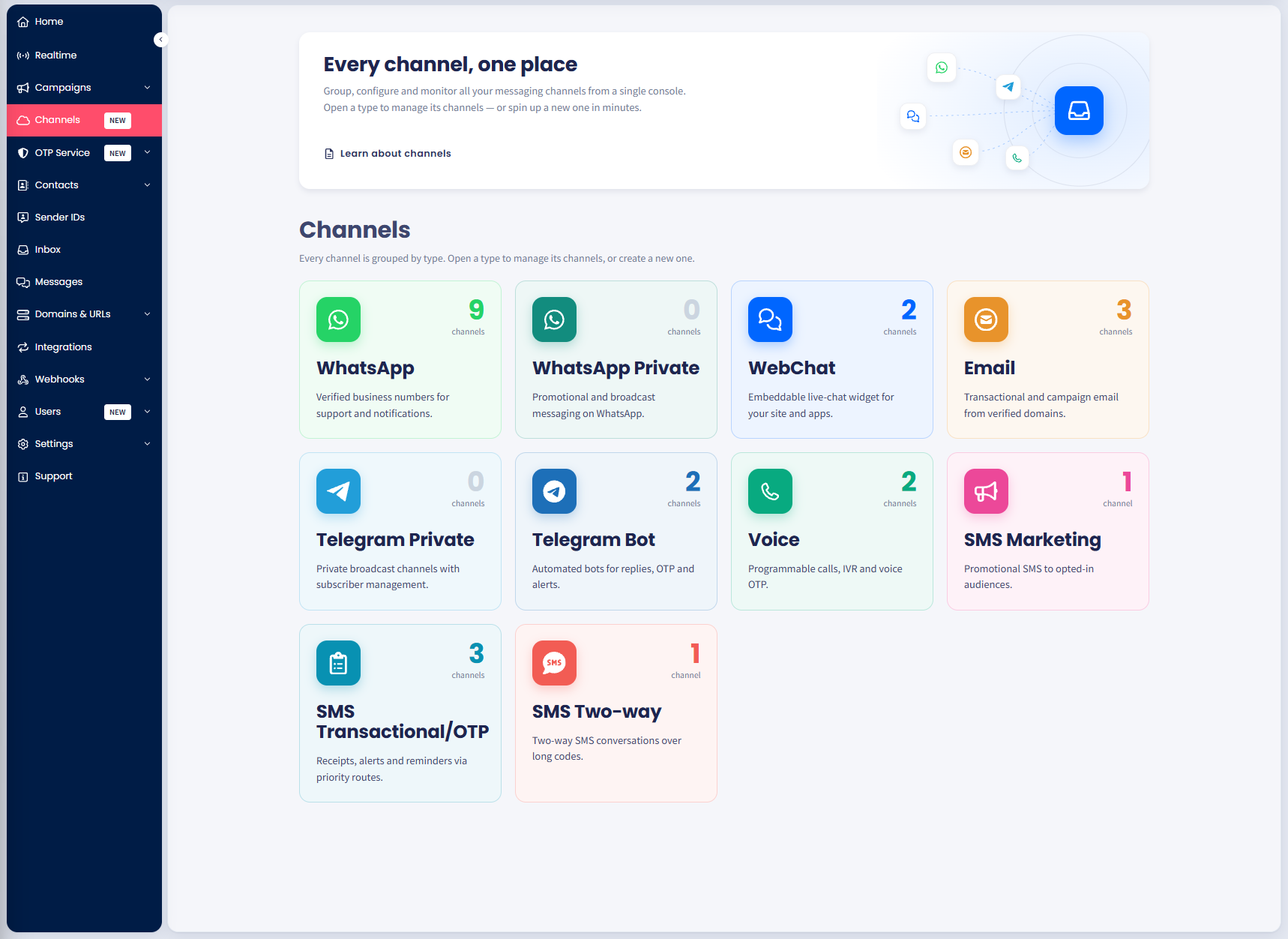
The Channels page in TextPeak
Add an SMS Marketing channel
Select the SMS Marketing card, then select Add channel.
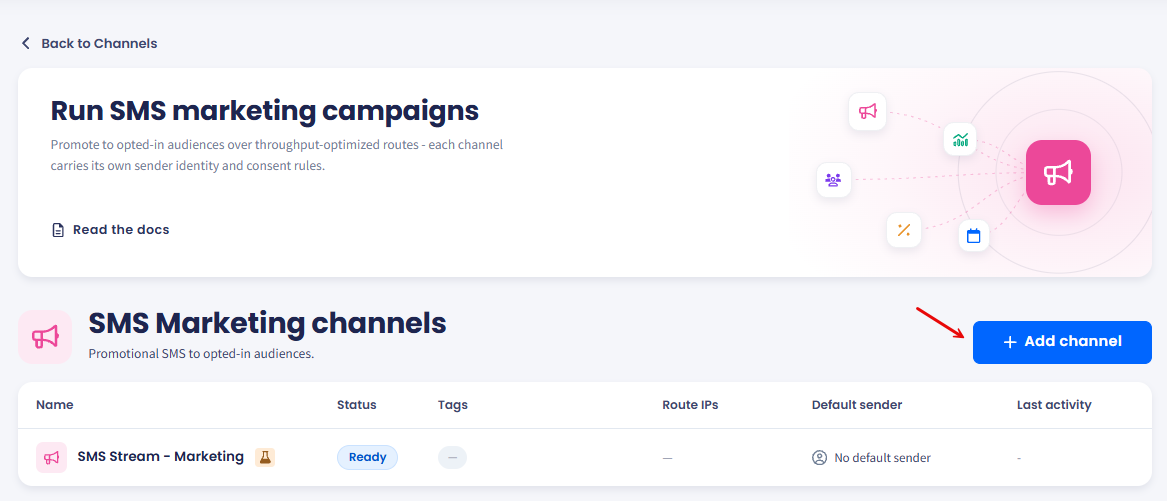
The channel list shows status, tags, route IPs and the default sender.
Name the channel
Enter a Channel name and a Channel description.
Set the IP ACL
To limit which IP addresses can call this channel, select Enable IP ACL and add the addresses under Add IP.
Add tags
Add Tags if you group channels by team, campaign or environment.
Use the demo sender
To try the channel without sending real messages, select Use Demo Sending.
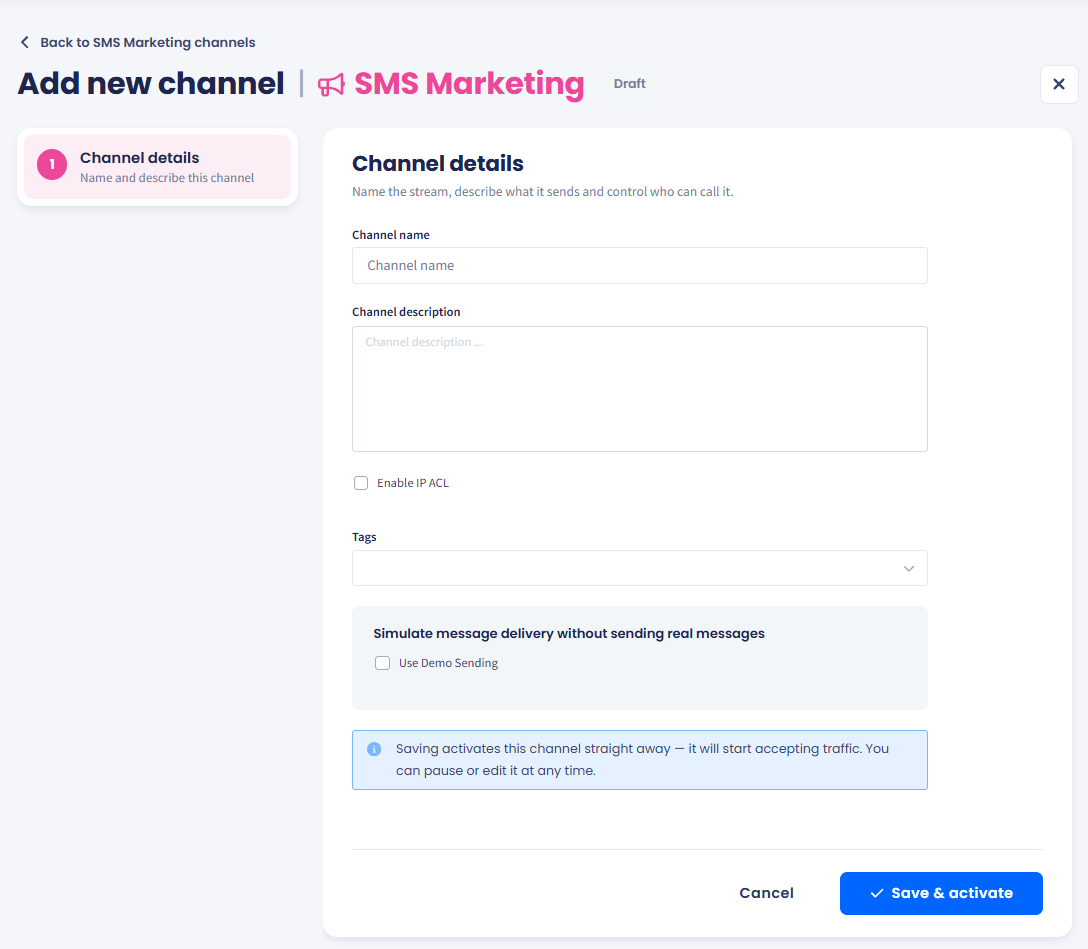
SMS Marketing has a single step: the channel is live as soon as you save
Check the channel status
The channel appears in the SMS Marketing list with the status Ready. Its Default sender column reads No default sender until you set one.
Updated 7 days ago