

Call Transfers & Conferences
This guide explains how to and use call transfer, conferencing, and call forwarding options in the CommPeak Dialer Agent Workspace including transferring to extensions, queues, or manually dialed numbers.
If you're using the legacy Dialer Agent Interface, refer to the legacy Call Transfers & Conferences article.
Agents in the CommPeak Dialer have several call transfer options during predictive dialing calls.
Agents can do the following:
-
Transfer the call to another agent extension
-
Create a conference by dialing additional phone numbers and including them into the call
-
Create a 3-way conversation with a specific agent extension or agent queue.
Call transfer
Transfer an active call with a lead from the call panel located in the top-left section of your Agent Workspace.
-
In the call panel, click Transfer.
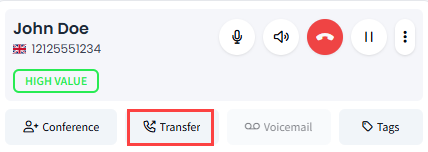
Transfer button in the call panel
-
Select an agent's name or extension from the drop-down list.
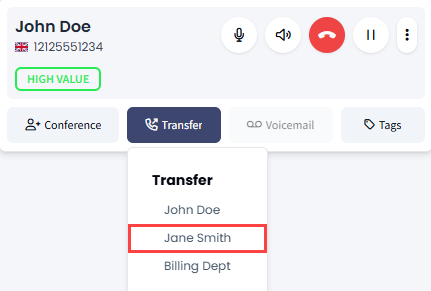
Selecting an extension for a call transfer
-
Once the agent answers, the call will be transferred.
Conference call
To start a conference call with a third party:
-
In the call panel, click Conference.
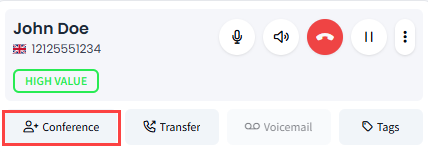
Conference button
-
Select Enter number for conference call.
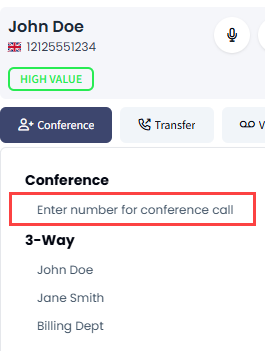
Conference options
-
Enter the phone number and click the green Dial button.
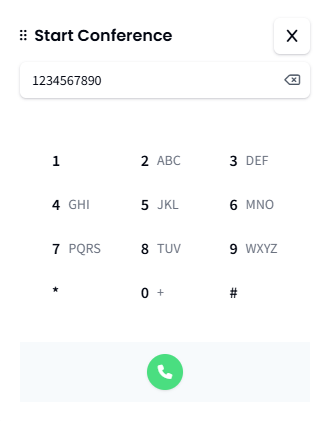
Entering a phone number
NOTE
- You can also use your keyboard for entering numbers
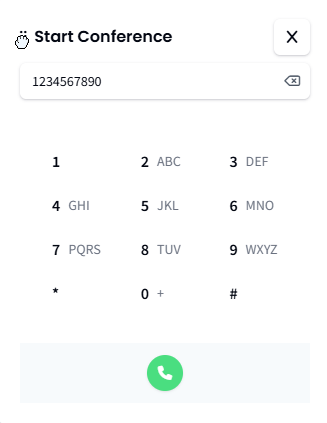
- The widget is draggable and can be placed anywhere on your screen:
Moving the Conference widget
- Once the third party answers, the conference call will begin.
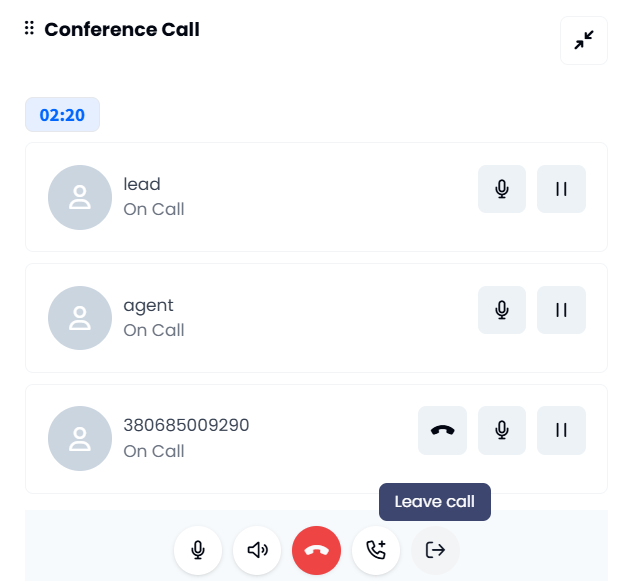
Conference Call window
Use the controls at the bottom to do the following:
- Put yourself on mute
- Change volume
- Hang up (finish the call for all participants)
- Add participants
- Leave the conference.
3-Way
To create a 3-way conversation (connect another agent or manager to the call):
-
In the call panel, click Conference.
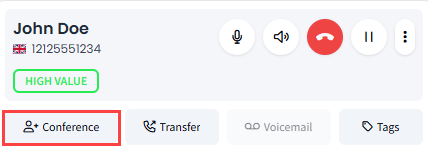
Conference button
-
Scroll down to the 3-Way section and select an agent's name or extension.
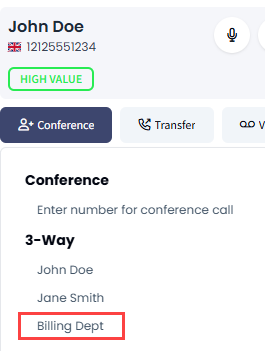
Selecting an extension for a 3-way call
-
The agent will be connected to the call.
Updated 5 days ago