

Messaging Campaigns in the CommPeak Portal
See your recent TextPeak campaigns in the CommPeak Portal and open TextPeak to build, schedule, and track SMS and WhatsApp campaigns.
The Messaging Campaigns page in the CommPeak Portal shows your most recent campaigns and opens TextPeak, where you build, send, and track bulk SMS and WhatsApp campaigns. Campaigns, contact lists, and message templates are managed in TextPeak, so this page works as your entry point to them from the Portal.
NOTEThe Portal refers to TextPeak as SMS Platform. The Open in SMS Platform and Manage campaigns buttons open TextPeak in a new browser tab, already signed in with your CommPeak Portal account.
Opening the Messaging Campaigns page
- Expand Messaging in the main menu and select Messaging Campaigns.
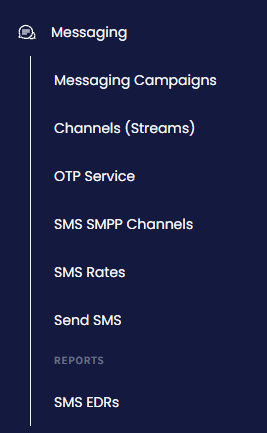
Messaging Campaigns menu tab
- The Messaging Campaigns page opens.
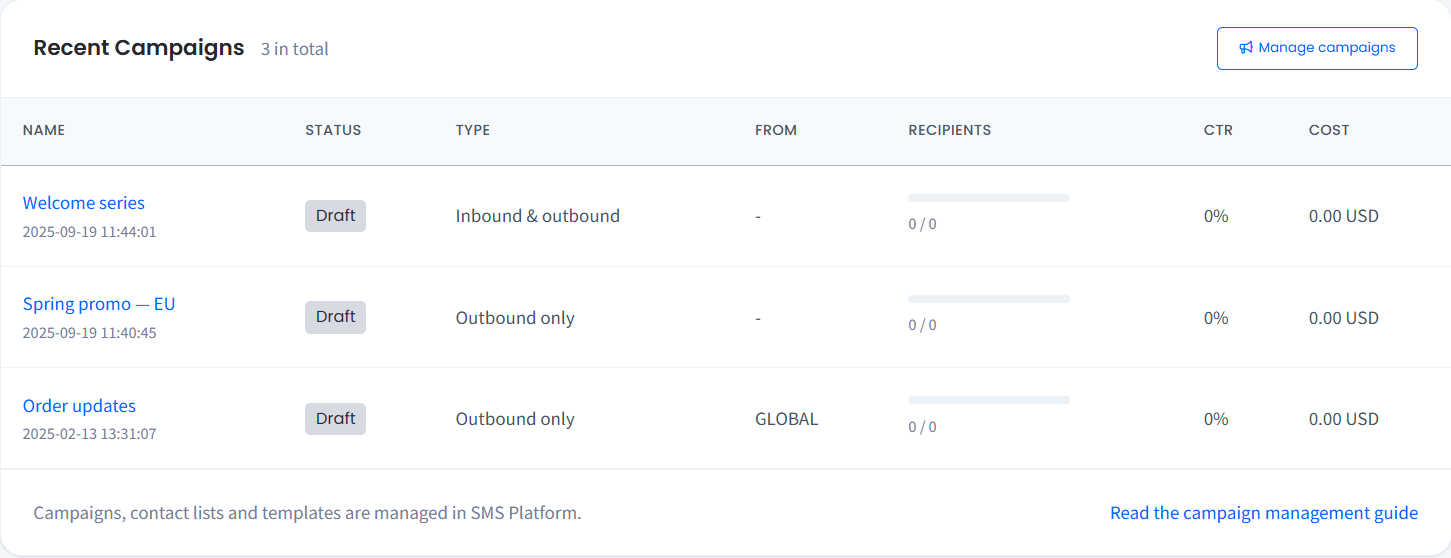
Messaging Campaigns page
Recent campaigns
The Recent Campaigns table lists your latest TextPeak campaigns, and the counter next to the table title shows how many campaigns your account has. Click a campaign name to open that campaign in TextPeak, or click Manage campaigns to open the full campaign list.
| Column | Description |
|---|---|
| Name | The campaign name, with the date and time the campaign was created. |
| Status | The current campaign status, for example Draft. For every status and what it means, see Campaign Management. |
| Type | The campaign type: Outbound only, Inbound & outbound, or Transactional. |
| From | The sender ID the campaign sends from. |
| Recipients | Sending progress, shown as messages sent out of the total number of recipients. |
| CTR | The click-through rate for short links in the message. |
| Cost | The amount the campaign has cost so far. |
What you can do with campaigns in TextPeak
The cards under Everything you need to run SMS campaigns summarize what the TextPeak campaign tools cover:
- Build a campaign step by step: pick contact lists, a sender ID, and the message, then send it right away or schedule it within your working days and hours. See Creating Campaigns.
- Run A/B tests: split a campaign into message variants with custom ratios and compare their results to find the text that performs best.
- Track links and CTR: short URLs count every click, so you can follow the CTR per domain and build a segment of contacts who clicked for a follow-up campaign. See Analytics & Insights.
- Reuse templates and personalize messages: insert contact fields and word groups into reusable templates. See Message Templates and Word Groups.
- Watch performance in real time: follow sending progress, delivery, clicks, opt-outs, and cost while the campaign runs.
- Stay in control: pause and resume a campaign at any time, set auto-pause rules, and rely on content checks that stop harmful links before the messages go out.
Campaign types
The Campaign types panel describes the three types you can choose when you create a campaign:
| Type | Use it for |
|---|---|
| Outbound only | One-way messages such as promotions and announcements. |
| Inbound & outbound | Two-way campaigns that let recipients reply. |
| Transactional | Service messages such as alerts and reminders. |
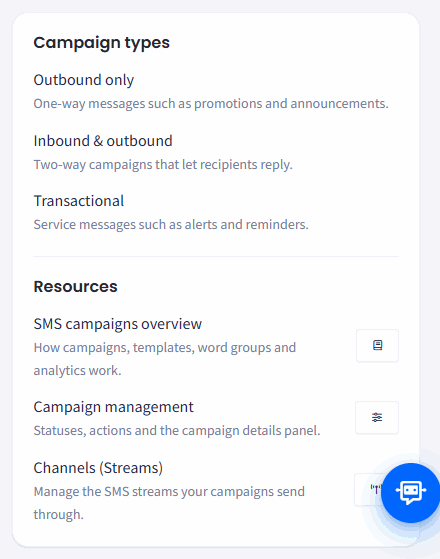
Campaign types and Resources panels
Each campaign sends through a channel. To see the SMS streams and other channels on your account, open Managing Channels (Streams) in the CommPeak Portal.
Getting started
The page also embeds the SMS Platform - Creating an SMS campaign video, a walkthrough of building a campaign in TextPeak.
To create your first campaign, see Creating Campaigns. For an overview of how campaigns, templates, word groups, and analytics work together, see Campaigns.
Updated 13 days ago