

Built-In Softphone Login Error 403: IP Mismatch
Learn how to troubleshoot the login issues with the built-in Softphone for JWT-enabled SIP accounts.
Issue
When starting the Built in CommPeak Softphone widget from the JWT-enabled account, the user gets the "403 - IP mismatch" error.
In Dialer and Cloud PBX, the softphone pop-up also shows a yellow banner with the user's public IP address and a request to add it to the SIP IP ACL. For details, see Connection warning banners.
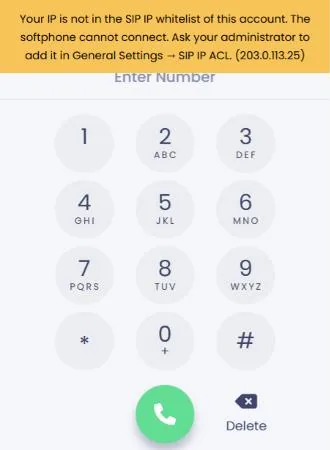
Banner shown when the IP address is not in the SIP IP ACL
Possible reason
The error occurs when the user's IP address is not present in the IP Access Control List (ACL) of the used SIP Account.
Solution
To resolve the issue, check your SIP account's IP ACL settings.
You need to ensure that the IP address from which you're trying to access the Softphone is included in the allowed IPs list.
TIPCopy the IP address shown in the banner and send it to your administrator. They can add it in Settings → General Settings → Access Control Lists → SIP IP ACL.
Agents whose IP address changes
If agents work from home or their IP address changes often, the administrator can turn on Allow users who log in through Web IP ACL / Countries ACL to use SIP from their current IP under SIP IP ACL. This option requires Web IP ACL or Countries IP ACL to be on. When it is on, the softphone shows We detected your IP (IP address). Access to the voice server is being opened… and connects by itself, usually within a minute. You do not need to add each home IP to the list.
If the banner says Cannot reach the voice server. Check your network or firewall., the issue is not related to the SIP IP ACL. Check your network connection and firewall settings.
Updated 3 days ago