

User Group Parameters
Edit user groups by adjusting basic parameters, filter groups, and predictive settings to tailor how leads are managed and dialed.
To edit a user group, go to Users and select Groups Management. Then click the Edit button in the Actions column for the group you wish to change. On the page that opens, you can modify basic parameters, filter groups, and predictive settings.
Several sections show parameters on the editing page as you scroll down from top to bottom.
Basic parameters
In the main section at the top of the page, enter a user group name and provide additional information about the group in the description. Leave the rest of the settings as they are.
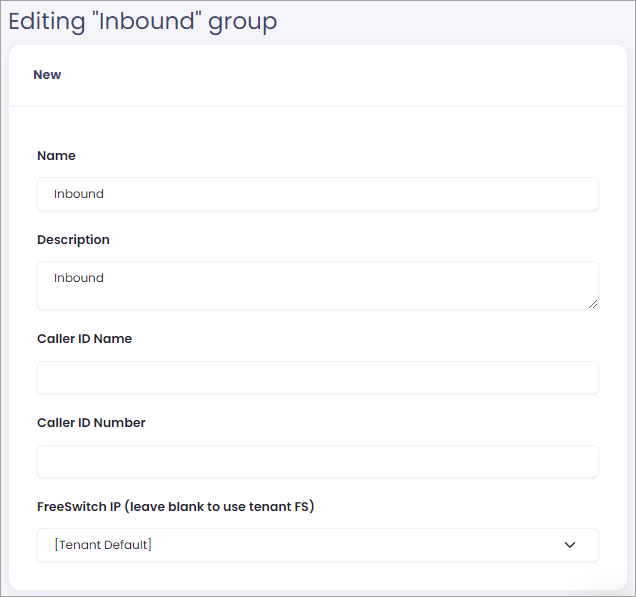
Basic user group parameters
Filter groups
Filter groups are essential for user groups and indicate which lead each skill group will call. The CommPeak support team can help you configure the filters. For more details about filter groups, refer to the Filter Groups article.
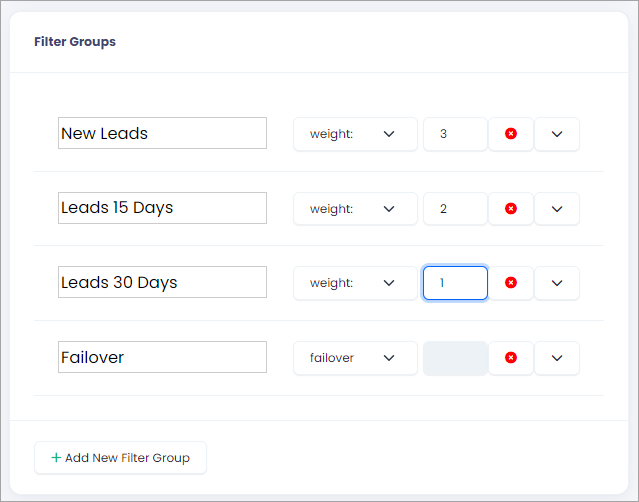
Group filters
Predictive settings
Predictive settings relate to predictive dialing.
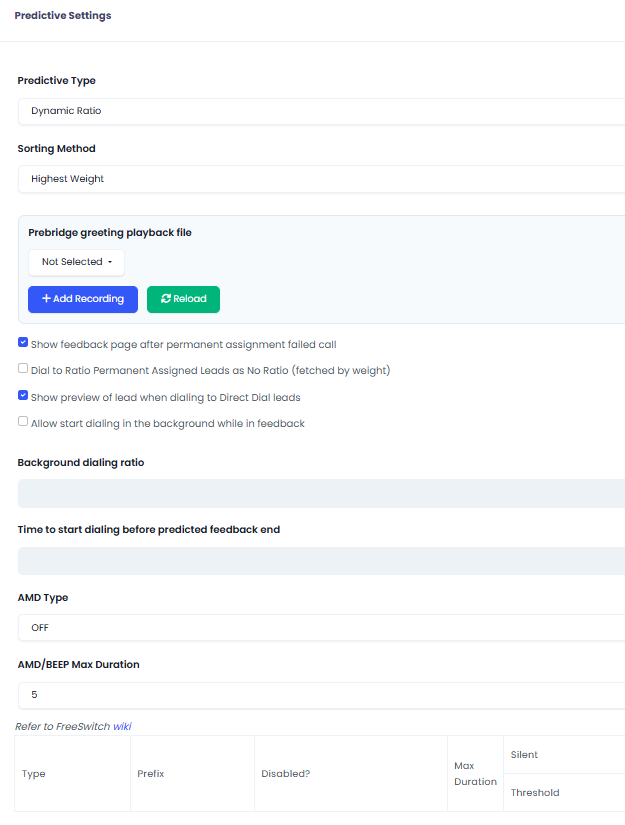
Predictive Settings in User Groups
| Parameter | Description |
|---|---|
| Predictive Type | The CommPeak support team sets this. |
| Sorting Method | The CommPeak support team sets this. |
| Prebridge greeting playback file | You can upload a new audio file, generate one or choose from existing Dialer recordings to be played to the lead before an agent connects to the call. |
| Show feedback page after permanent assignment failed call | This setting aims to let the agent choose a new time for the call or add additional comments if a scheduled meeting call fails. |
| Dial to Ratio Permanent Assigned Leads as No Ratio | This setting is currently not used. |
| Show preview of lead when dialing to Direct Dial leads | This setting will allow an agent to preview the lead information before calling a permanently assigned lead. |
| Allow start dialing in the background while in feedback | Select this option to allow the system to call the leads while the agent is still in feedback. |
| AMD Type | Answering Machine Detection (AMD) is an optional free feature that enables automatic detection of Voicemail. It allows recognition of about 85% of all machine answer cases. Please get in touch with your account manager, and open a support ticket to enable this feature. |
| AMD/BEEP Max Duration | Please get in touch with your account manager or open a support ticket for more information. |
NOTECheck the Recordings page to learn more about fast uploading or generation of voice recordings.
Dropped call settings
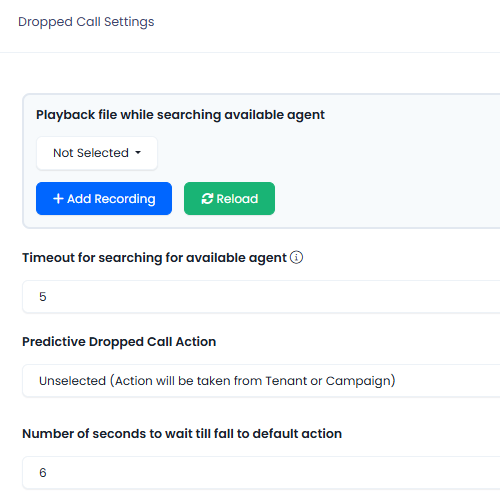
Dropped Call Settings
| Parameter | Description |
|---|---|
| Playback file while searching available agent | You can upload a new audio file, generate one or choose from existing Dialer recordings to be played to the lead while the system is searching for an available agent. Learn more in the dedicated Recordings article. |
| Timeout for searching for available agent | Specify the maximum duration the system should search for an available agent before automatically dropping the call. |
| Predictive Dropped Call Action | Specify the automated action the Dialer should execute from the dropdown menu whenever a call is dropped (Hang-up call, Play file, Forward call to SIP URI, Unselected - the action will be taken from the tenant or the campaign). |
| Number of seconds to wait till fall to default action | Not used |
Predictive outbound IVR
Predictive Outbound IVR allows configuring a voice menu with an interactive message that reaches the lead. Playback will start after the lead answers before the call is bridged to an available agent (bridged call).
Please contact your account manager or open a support ticket to enable this feature.
Updated 5 days ago