

Linking a Social Login to Your Account
Connect a Google or Microsoft account to your existing CommPeak account, or understand what happens when the two overlap.
Connect your CommPeak Account to Google or Microsoft so you can sign in with either method, without creating a duplicate account.
Connecting Google or Microsoft login to your profile
-
Log in to CommPeak Portal.
-
Click your account name in the top-right corner, then select Profile Settings.
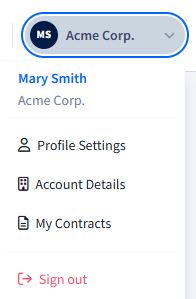
Profile settings tab
-
On the Profile Settings tab, go to Security settings > Social logins, and click Connect next to Google or Microsoft.
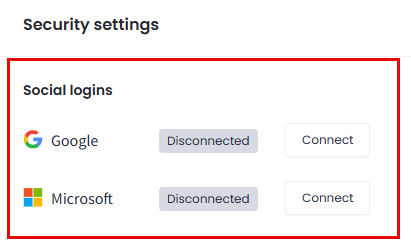
Social logins section
-
Sign in to the provider using the same email address as your CommPeak account.
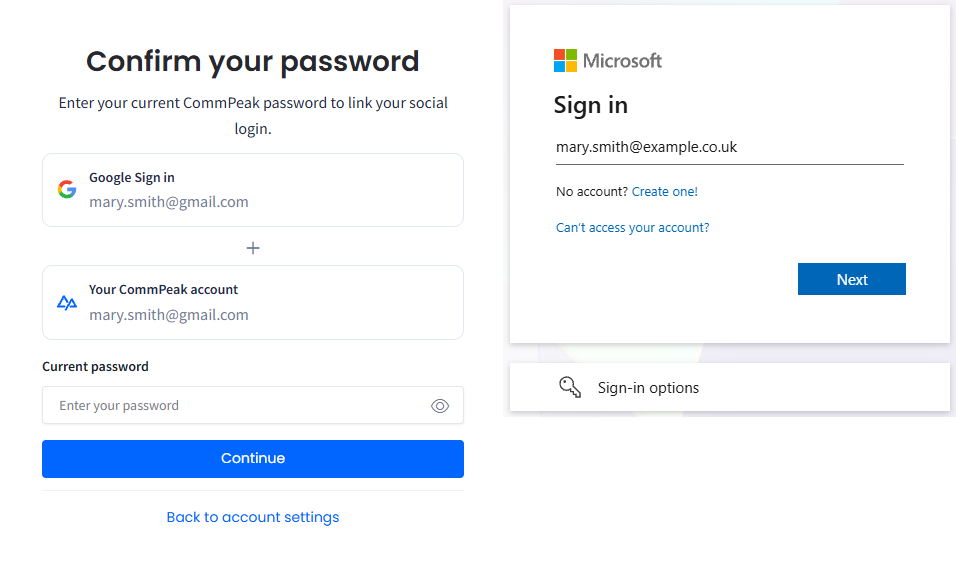
Social sign in options
-
The account is connected and you can proceed with your CommPeak account.
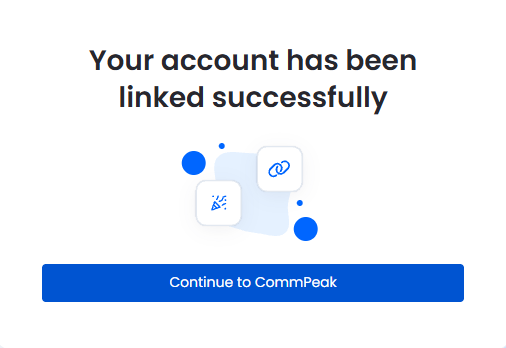
Your account has been successfully linked message
-
Once connected, you also receive a confirmation email.
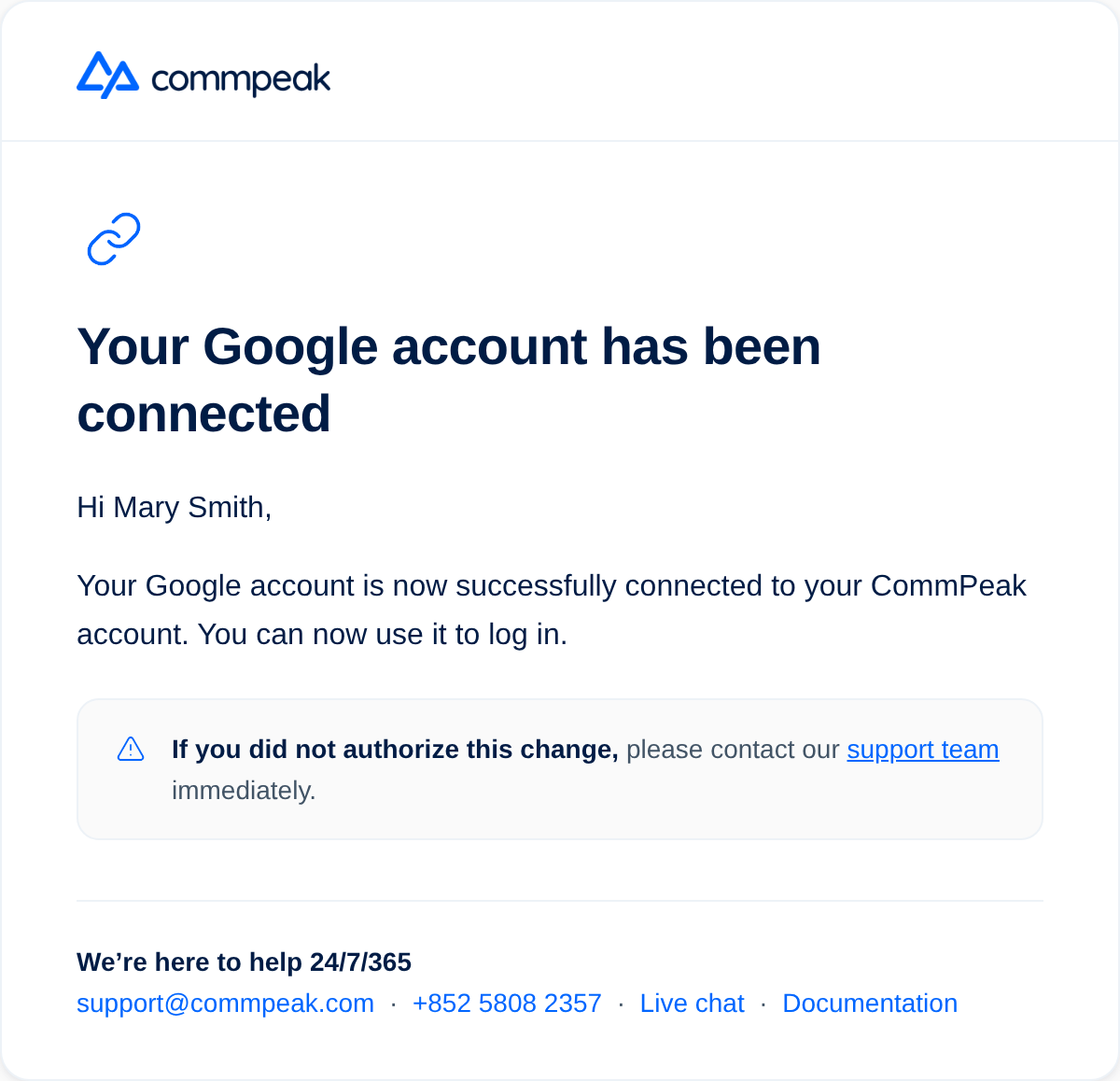
Your account has been connected email
-
The provider now shows as Connected.
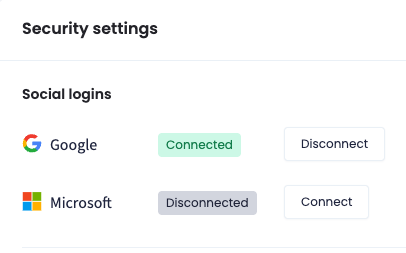
Security settings section: Social logins with Google Connected and Microsoft Disconnected
✔️ Congratulations! You can now sign in with either your password or the connected provider.
NOTEFor more details, see our Logging In article.
If you already have an account under that email
If you try to sign up or log in with Google or Microsoft using an email address that already has a password-based CommPeak account, CommPeak detects the match instead of creating a second account.
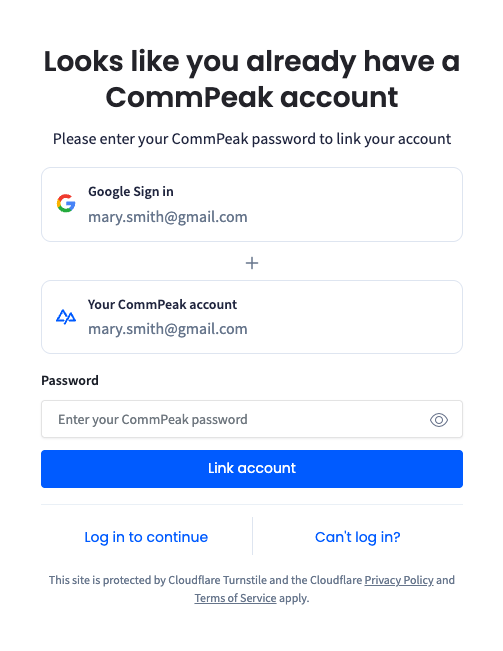
Looks like you already have a CommPeak account screen
Follow the on-screen prompt to confirm it's you, and CommPeak links the social login to your existing account. Your account history, balance, and settings stay the same: only the sign-in method changes.
TIPIf you're not sure which sign-in method your account uses, check the Security settings section of Your Profile page.
Disconnecting Google or Microsoft login from your profile
-
Go to your Profile Settings.
-
On the Profile tab, under Security settings > Social logins, click Disconnect next to the account you want to unlink.
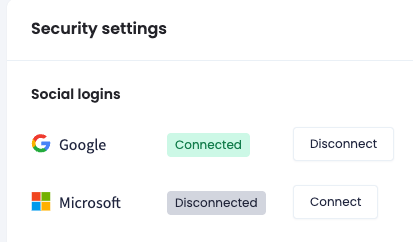
Security settings section: Social logins with Google Connected and Microsoft Disconnected
-
Provide your CommPeak account password.
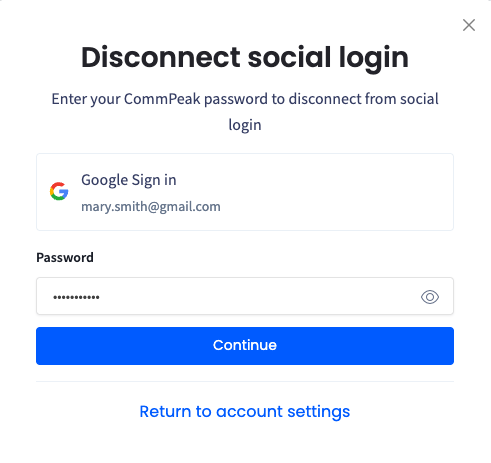
Disconnect social login form
-
Enter the verification code to confirm it's you.
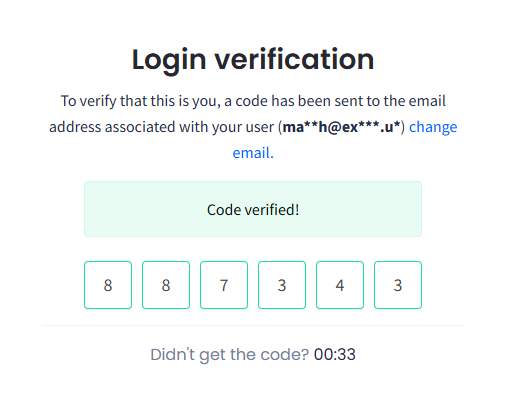
Login verification screen
- Once disconnected, you see a notification in the portal.
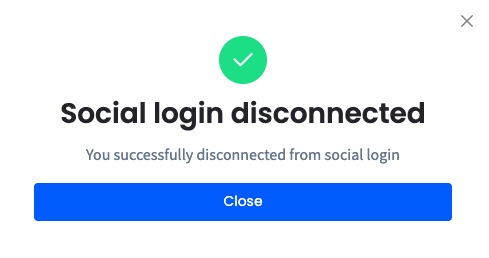
Social login disconnected message
- You also receive a confirmation email.
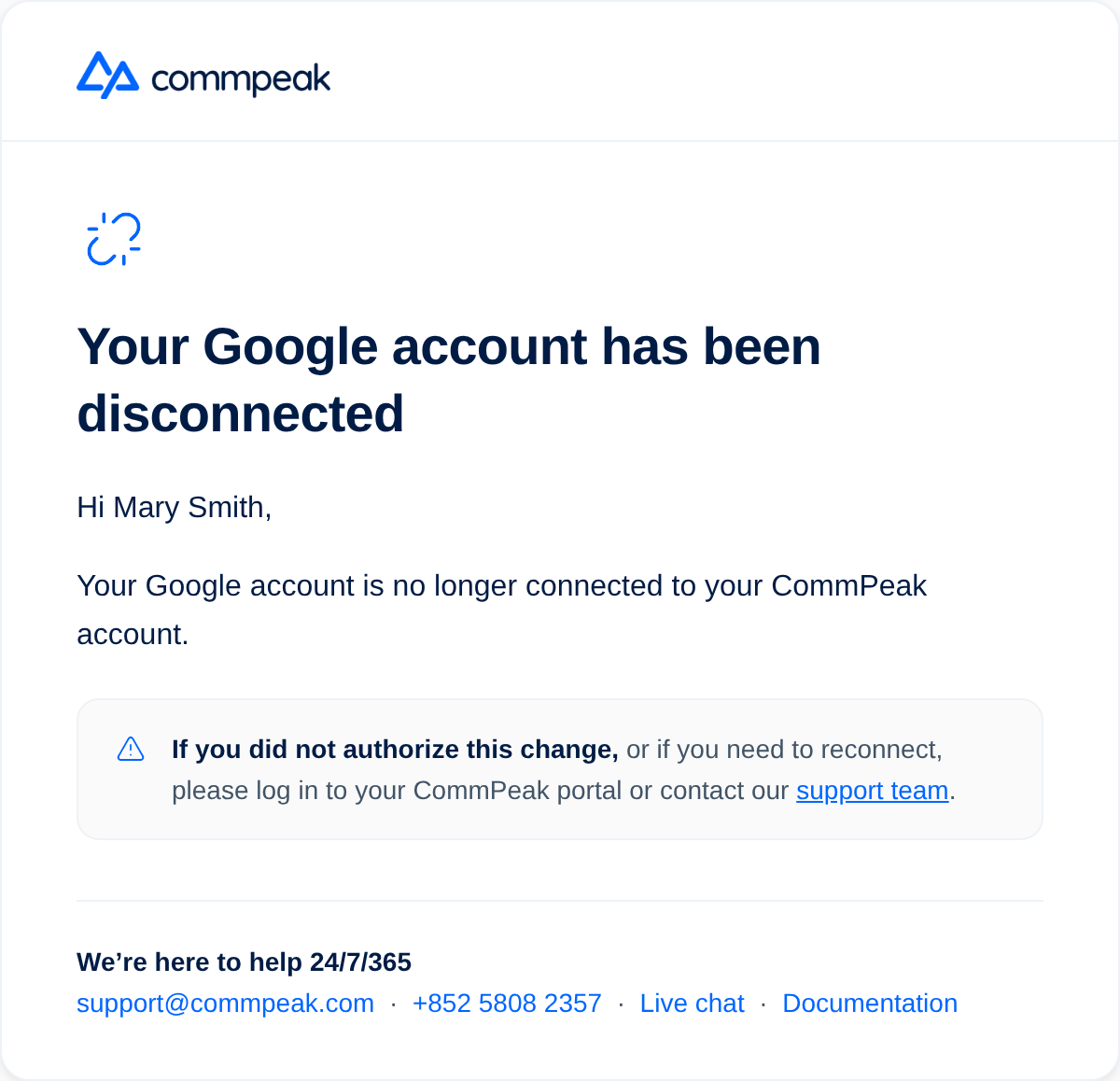
Google account has been disconnected email
- On the Security settings > Profile tab, the provider now shows as Disconnected.
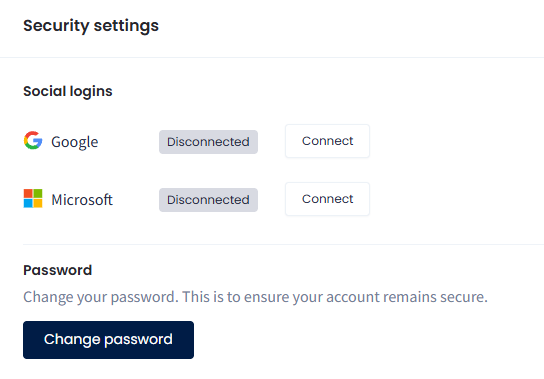
Security settings section with Social logins with Google and Microsoft Disconnected
Updated 5 days ago