

Dialer Navigation & Search
Learn how to navigate your Dialer instance and search for leads, pages, or look for needed information using the AI bot.
Learn how to navigate your CommPeak Dialer account and discover how our search tools can help you find exactly what you need.

Search on the Dialer dashboard
Navigation elements
You can navigate through your Dialer instance using elements at the top of any page.
-
To open a page, hover over the main menu on the page header and click on the needed item in the drop-down list.
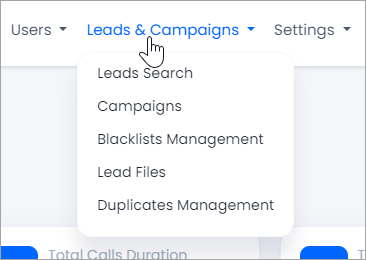
Opening a page from a menu
-
Go to your profile icon at the top right and hover over it to:
- Check your extension
- Check your region
- Go to your user profile settings
- Clock in to receive calls in Predictive mode
- Test your connection
- Change your state
- Open your inbox
- Log out of your account.
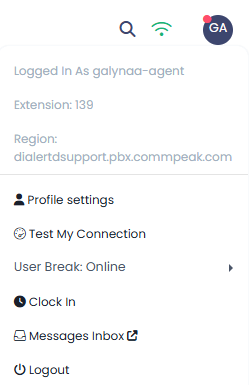
User profile menu
-
Click on the Dialer logo at the top left to return to the Dashboard from any page.
Dialer logo
-
Use the multiple-purpose navigation and search bar as described in the section below.
Using the navigation search bar
Click the navigation search icon at the top-right of any page to open the search bar, which you can use to quickly find the needed lead or navigate the Dialer menu items.

Search icon
Lead search
To find the lead you need, just enter the lead ID or phone number into the search bar. The link that you will see below will redirect you to the lead details page.
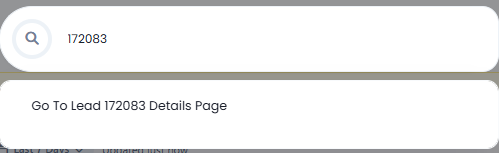
Lead Search
Navigation assistant
With the search bar, you can search for any page within the Dialer, including pages that have been renamed.
Enter the page name; if it has been changed, the search results display the new name. For example, if you type "User Tags", it will take you to Desks, which is the new name of the same page.
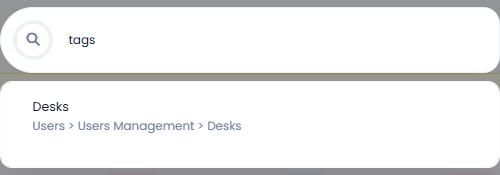
Navigation assistant
The search results also show pages with similar names, which helps when you are unsure of the exact page name.
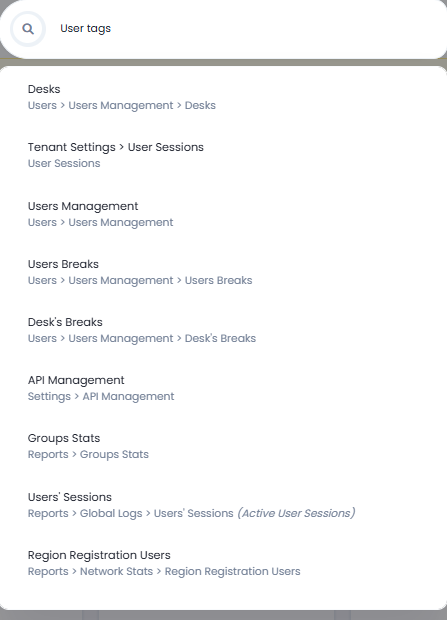
Pages with similar names in search results
Updated 5 days ago