

Lead Details
This guide provides a comprehensive overview of how to manage lead data and view CRM integrations directly from your Agent Workspace during a live call.
If you're using the legacy Dialer Agent Interface, refer to the legacy Predictive Dialing article.
During an active call, the middle section of the Agent Workspace displays the lead's profile details and their engagement history.
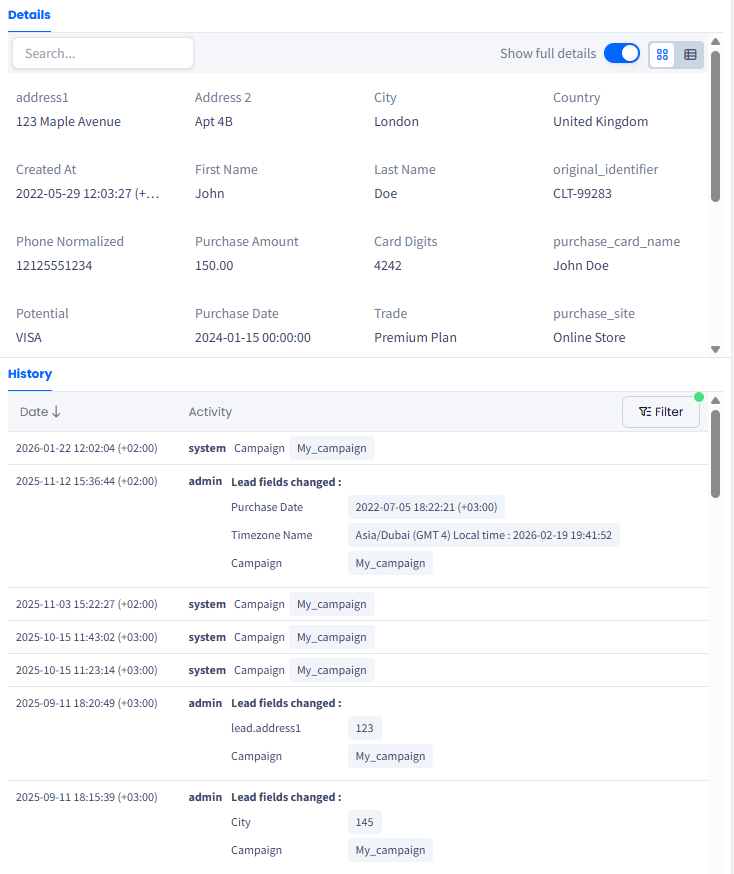
Lead details and history
Managing lead details
After you connect with the lead, the Details section opens in the middle of your Agent Workspace area. It displays the lead's main information and lets you view and edit data in real time.
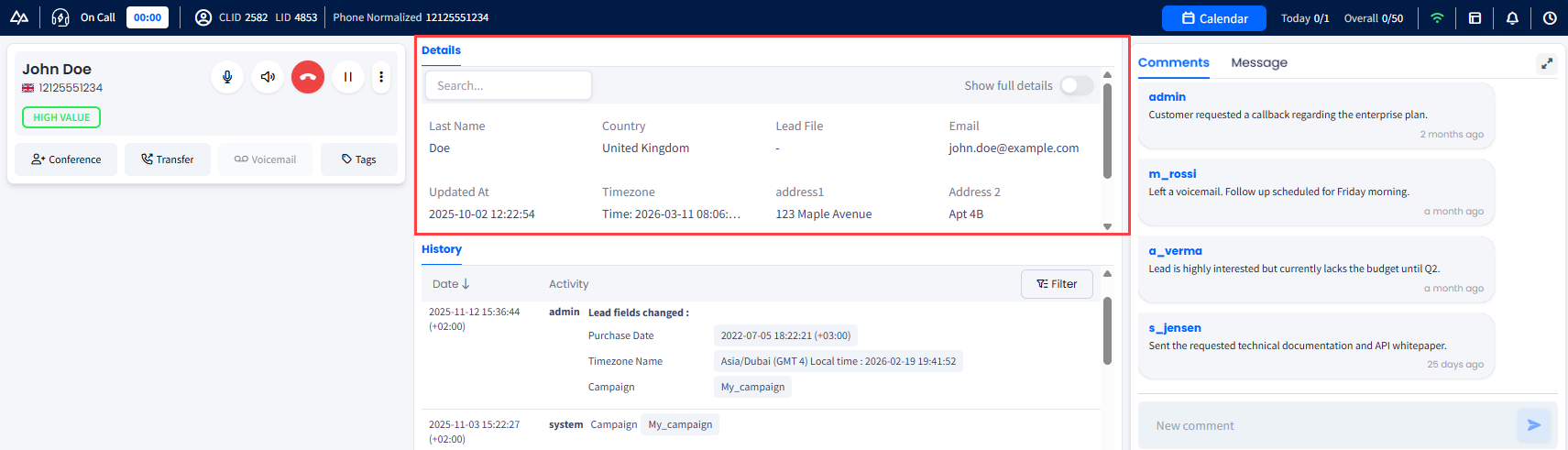
Details section
You can customize how you view and manage lead information to suit your workflow:
- Adjust Your View: Click and drag the edges of the history panel to resize it, expanding the history timeline or shrinking it to focus on the lead's profile data.
- Real-Time Editing: Edit lead details directly within the interface. Click a field, update it with new information received during the call, and save your changes.
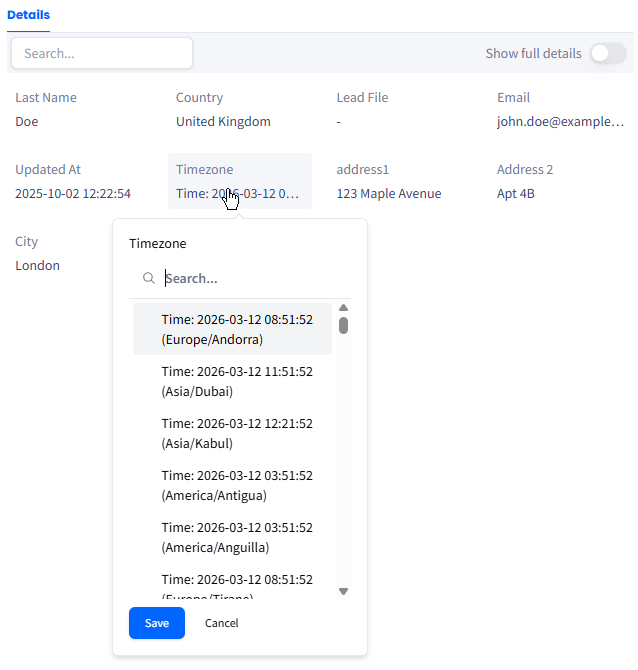
Updating lead data
- Search Functionality: Use the search bar within the lead details section to instantly locate specific data points, keywords, or notes without manual scrolling.
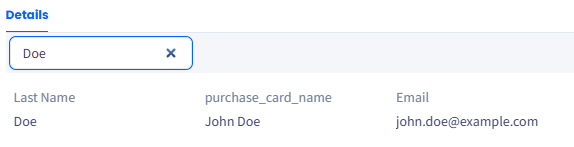
Searching for lead data
- Full Details Toggle: Switch to the full details view by using the toggle in the top-right corner.
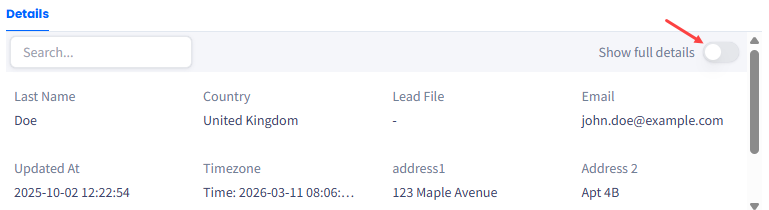
Show full details toggle
In this expanded mode, you can alternate between:
- Grid Layout: A structured, visual arrangement of fields
- Table Layout: A high-density view for reviewing multiple data points.
Reviewing lead interaction history
The History section is located under the Detail section and provides the logs of all the activities related to the current lead.
NOTEAfter the call is ended, the Details and History tabs will be combined in the middle section of the agent workspace below the Feedback page that opens automatically.
To clean up your timeline by filtering the interaction history by specific events, select:
- Data updates: View a log of when and how lead information was modified
- Comments Review the date and comment activity on the lead
- Status changes: Track how the lead has progressed through different stages
- Calls: Review previous conversation logs and touchpoints.
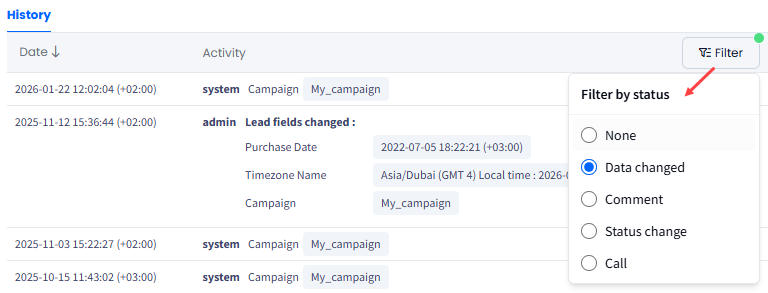
Filtering by lead data changes
NOTEThe green dot over the Filter button indicates that the history filtering is enabled for this lead.
Working with the CRM
If your CommPeak Dialer instance is integrated with a CRM (Customer Relationship Management) system, you will see the extended lead information pulled directly from the CRM in the lower section of your Agent Workspace. The Details and History tabs will be combined in the section above.
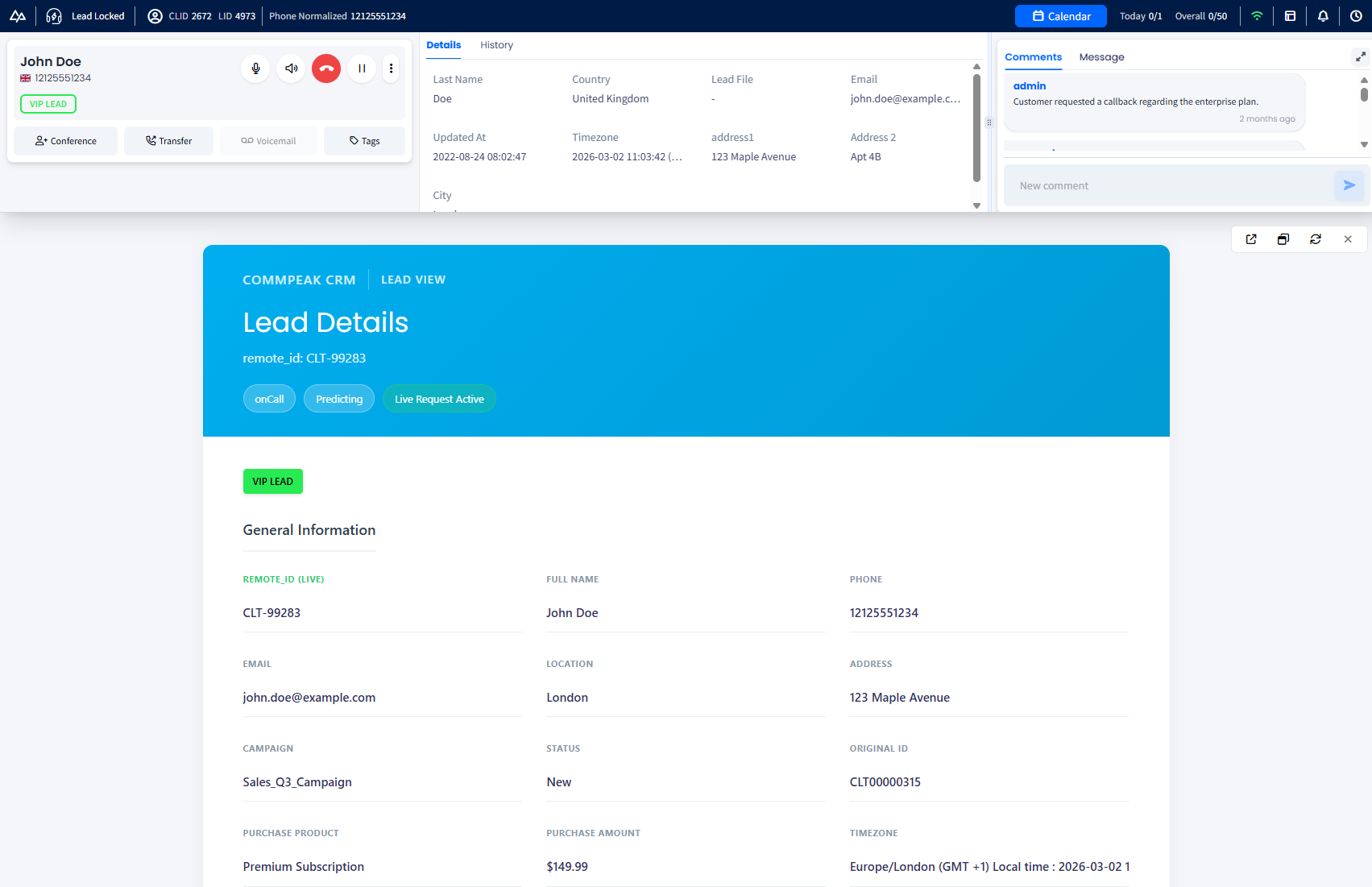
Lead details obtained from the CRM
NOTETo learn more about how to work with the CRM data within the Agent Workspace, check the Making Calls article.
Updated 1 day ago