For AI agents: visit https://docs.commpeak.com/llms.txt for an index of all pages formatted in Markdown and endpoints in OpenAPI. Append .md to any documentation page URL to get its markdown version.
Discover the calling options agents have in CommPeak Dialer to communicate with leads.
🚧
IMPORTANT! Legacy Agent Interface Update
You are viewing the documentation for the legacy Dialer Agent Interface.
To learn about the new Agent Workspace with the latest Predictive Mode features, please check the updated Dialer Calling Options guide.
Video tutorial: Dialer calling options
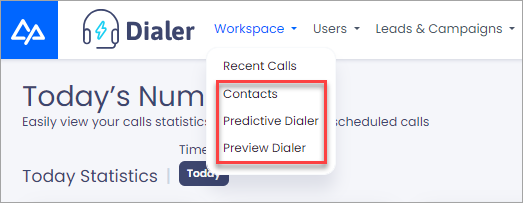
Agents use the CommPeak Dialer to communicate with leads and convert them into clients. To view all Dialer calling options, go to your Dialer workspace. Select any option from the drop-down menu to use it:
Scheduled calls with your contacts
Predictive calling
Manual calls.
Calling options
Scheduled calls
You can view your appointments with leads scheduled for specific times in Workspace > Contacts. Here, you can view the leads assigned to you. They are stored in the Scheduled Calls list, and you can view and edit these leads and manually call them.
👍
NOTE
If working in the Predictive Mode within the new Agent Workspace, you can also schedule calls from the Feedback page and view your scheduled appointments with leads by using the Calendar option.
Additionally, in the Header area on the right, you can:
see the number of your meetings scheduled for today out of the total allowed per day
view the total number of your personal meetings with leads compared to the maximum allowed:
Calendar button and meeting limits
There are three types of filters:
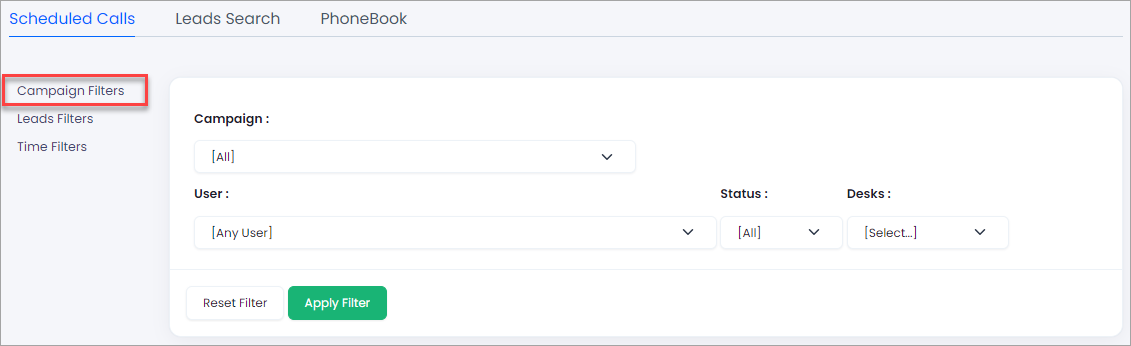
campaignFilters that include campaigns, users, statuses, and user tags.
Campaign filters
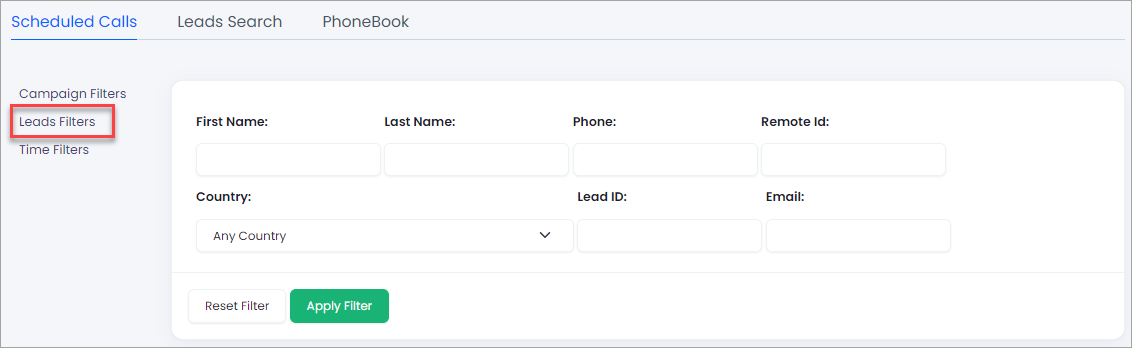
leadFilters that have leads’ names, phone numbers, original identifiers, countries, and IDs.
Also, we have added the email filter.
Lead filters
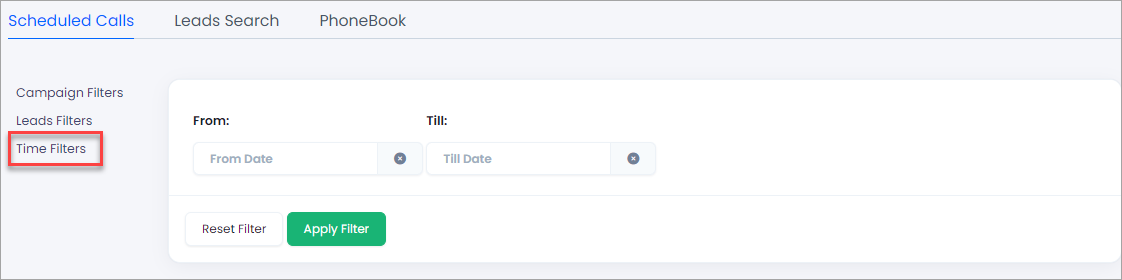
Time Filters that let you choose the date and time of the call-back.
Time filters
After you apply one of the filters, you’ll see all the leads assigned to you.
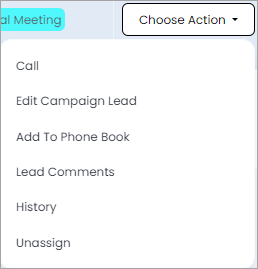
Each lead has a Choose Action menu on the right, where you can access the following options:
Actions with leads
Action
Description
Call
Click this option to make a manual call
Edit campaign lead
Modify the status, assigned agent, and call date of the lead
Add to Phone Book
Add the lead to the phone book for future handling
Lead Comments
View here all the comments on the lead and add new ones
Calling in Predictive mode fulfills the main Dialer's purpose — it dials leads automatically based on previously set rules. If the lead answers the automatic call, the call is transferred to an available agent and connects the lead to that agent. Learn more about this calling option in the Predictive Dialing and Guide to Campaign Parameters articles.
Check the Agent Workspace: How to Switch & What's New page to learn what has changed in the new Agent Workspace, where to find your favorite tools, and how to switch from the Legacy Agent Interface.
Manual calls
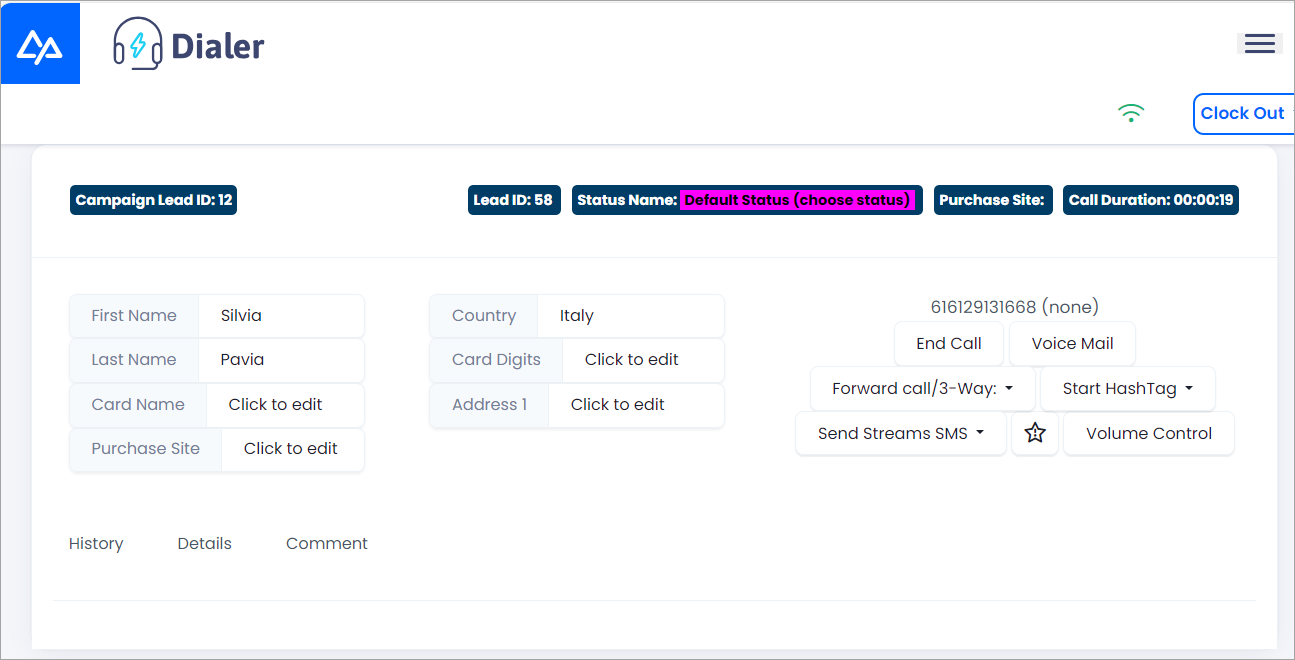
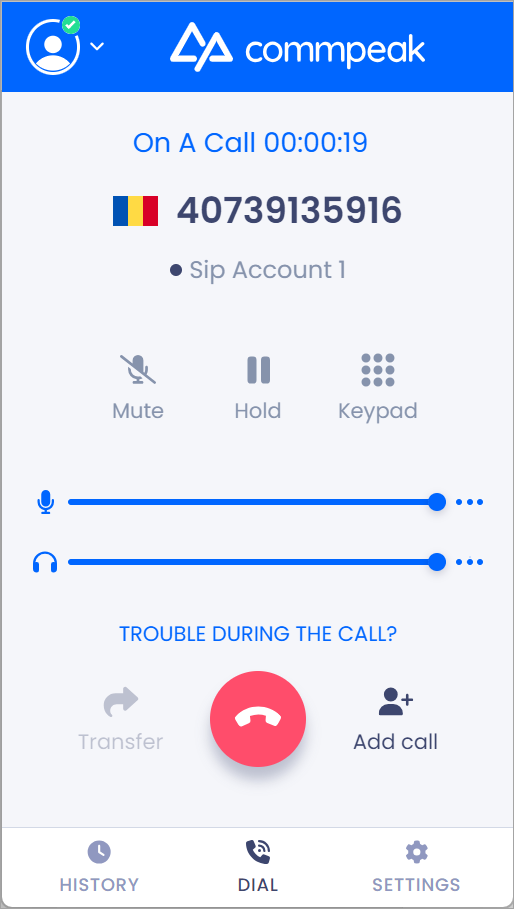
You can manually dial the leads' phone numbers from the softphone you use in the Dialer and talk to them immediately. This option is useful for urgent calls.
When dialing the lead's number, the system will apply a necessary Caller ID according to the predefined calling rules.