

Verifying With an Email Code
Finish signing in to CommPeak Portal with the six-digit code emailed to your account, resend it if it does not arrive, and recover access if you cannot reach that mailbox.
When Email code is enabled on your account, CommPeak emails a six-digit code to the address on your account each time you sign in. Enter it on the Login verification screen to finish logging in.
Entering the code
-
Check your inbox for the code.
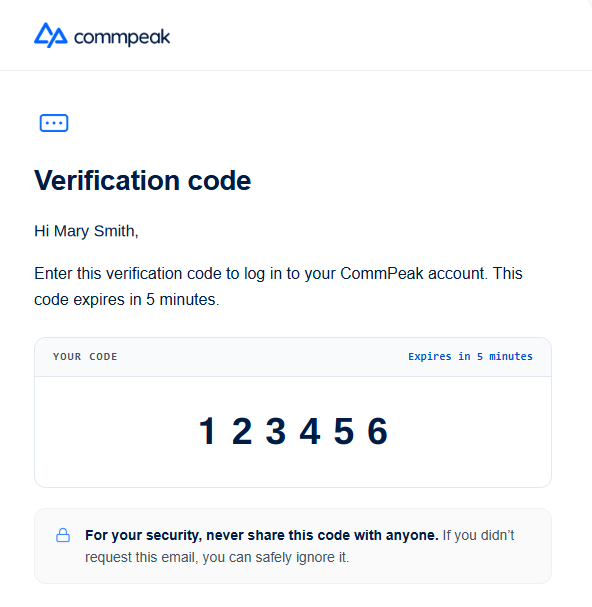
Email with the login verification code
-
Enter it in the six boxes on the Login verification screen.

Login verification screen for the email code
- If the code does not arrive, click Resend it. A countdown runs before you can request another one.

Countdown before Resend it becomes available again
To correct the address the code goes to, click change email. To switch methods for this login, click Use my authenticator app instead and see Verifying With an Authenticator App.
NOTEIf the code does not arrive within a minute, check your spam folder before requesting another one. For the full list of causes, see Two-Factor Authentication (2FA) Problems in CommPeak Portal.
Recovering access when you cannot receive the code
If you cannot reach the email address on your account, click Can't access your email? on the Login verification screen. Instead of entering a code, you confirm two details about your account.

Login verification screen with the Can't access your email? link
-
In the Account recovery dialog, select a question from the 1st Question drop-down and enter your answer. To go back without recovering, click Back to code verification.
-
Click Continue to next question, then select and answer a second question the same way.

Account recovery dialog
You can be asked to confirm any of these details:
- Last invoice amount
- Last payment amount and type
- Account address
- DID identity company name
- DID identity address
- PBX or dialer domain
- SIP account username.
IMPORTANTAfter you recover access this way, you must change the email address on your user before you continue.
NOTEAccount recovery covers a mailbox you cannot reach. If you know your email address but not your password, see Resetting Your Password.
Updated 14 days ago