Track and manage your CommPeak support tickets: open new tickets, filter and sort existing ones, check statuses, and review ticket conversations with Speaky.
The My Tickets page in the Help & Support section lists your tickets, and is where you open new ones and reply to the support team.
My Tickets tab
Opening a new ticket
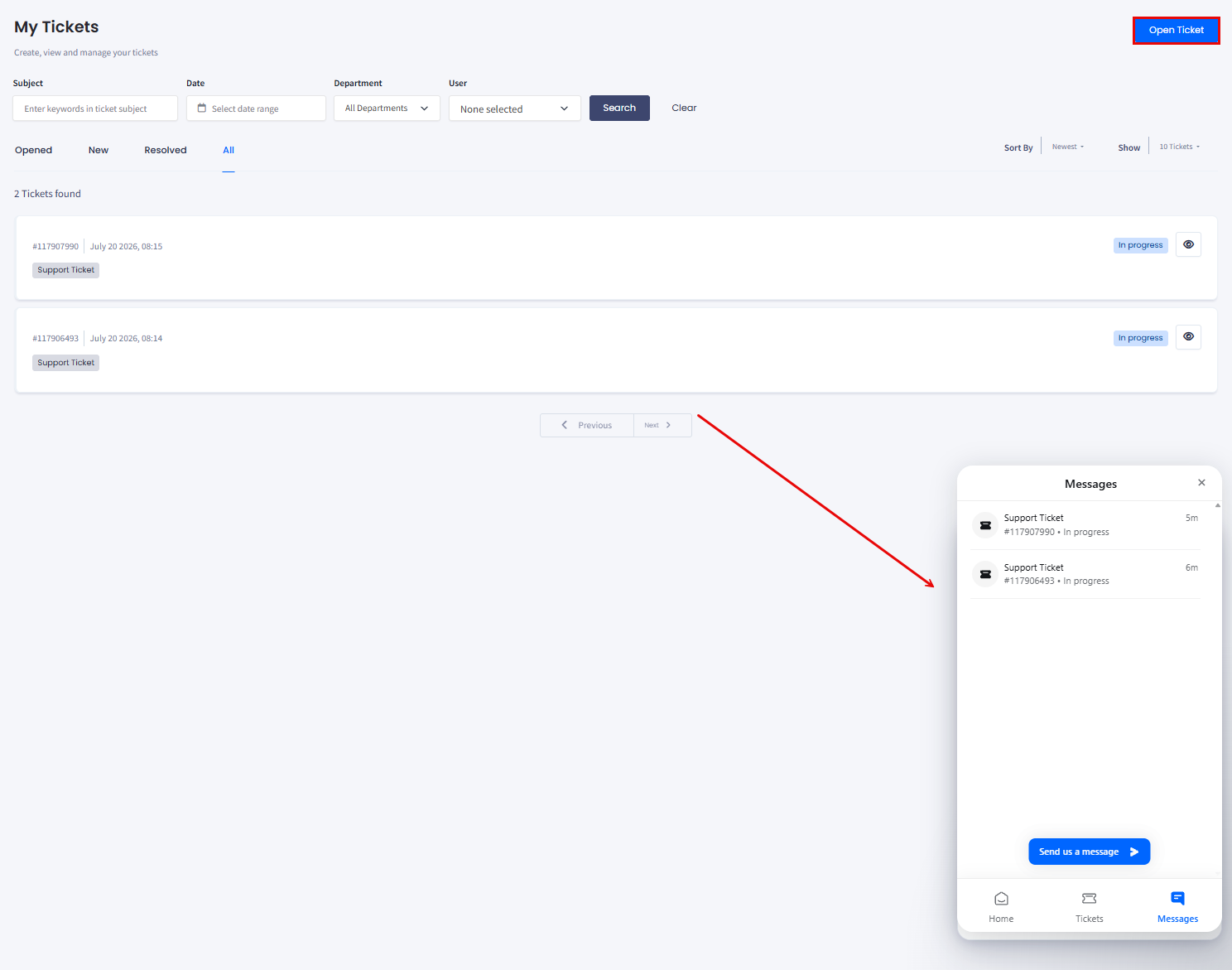
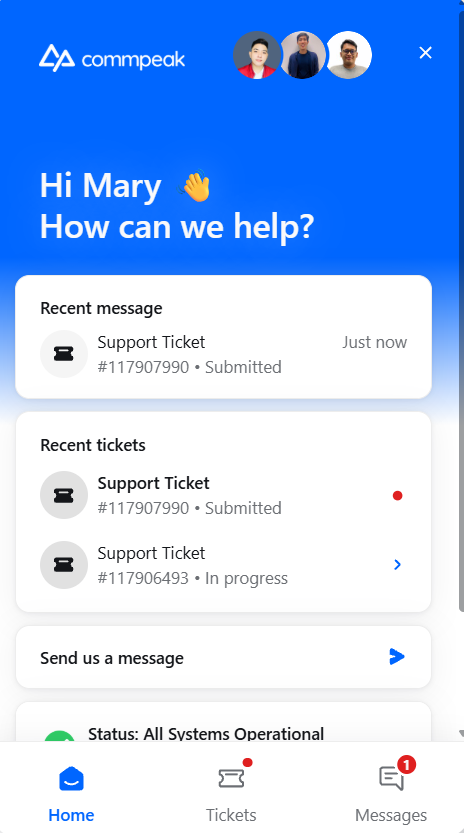
To create a new ticket from the My Tickets page, click Open Ticket in the top right corner. The support chat panel opens on the right side of the screen.
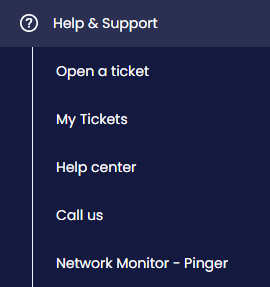
You can also open a ticket from the Help & Support > Open a ticket tab, or by clicking the Speaky button in the bottom right corner of any portal page and switching to a support agent.
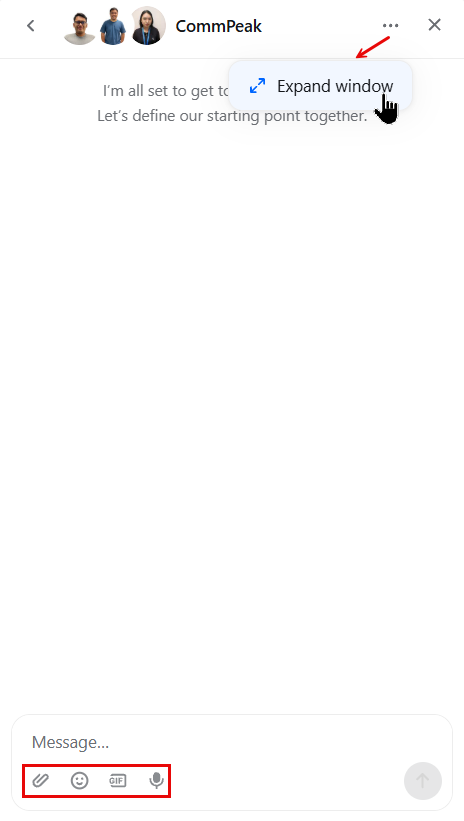
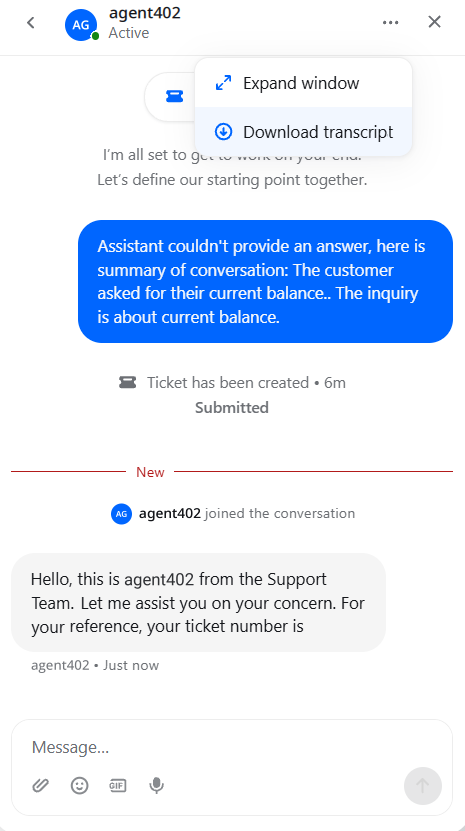
Next, click Send us a message and describe your question or issue; then submit it. If needed, you can expand the messaging window or use extras such as attaching files or inserting emojis.
Messaging window
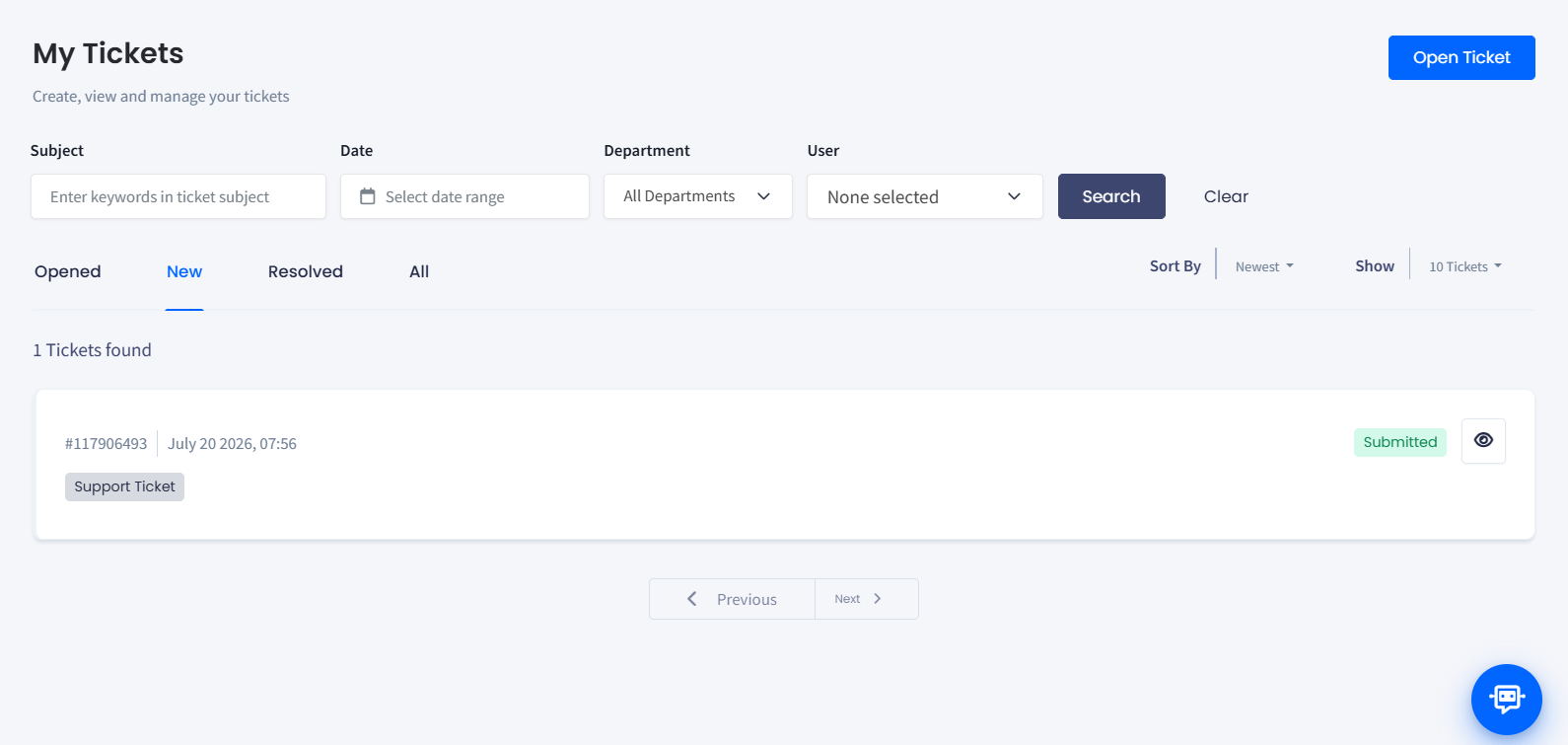
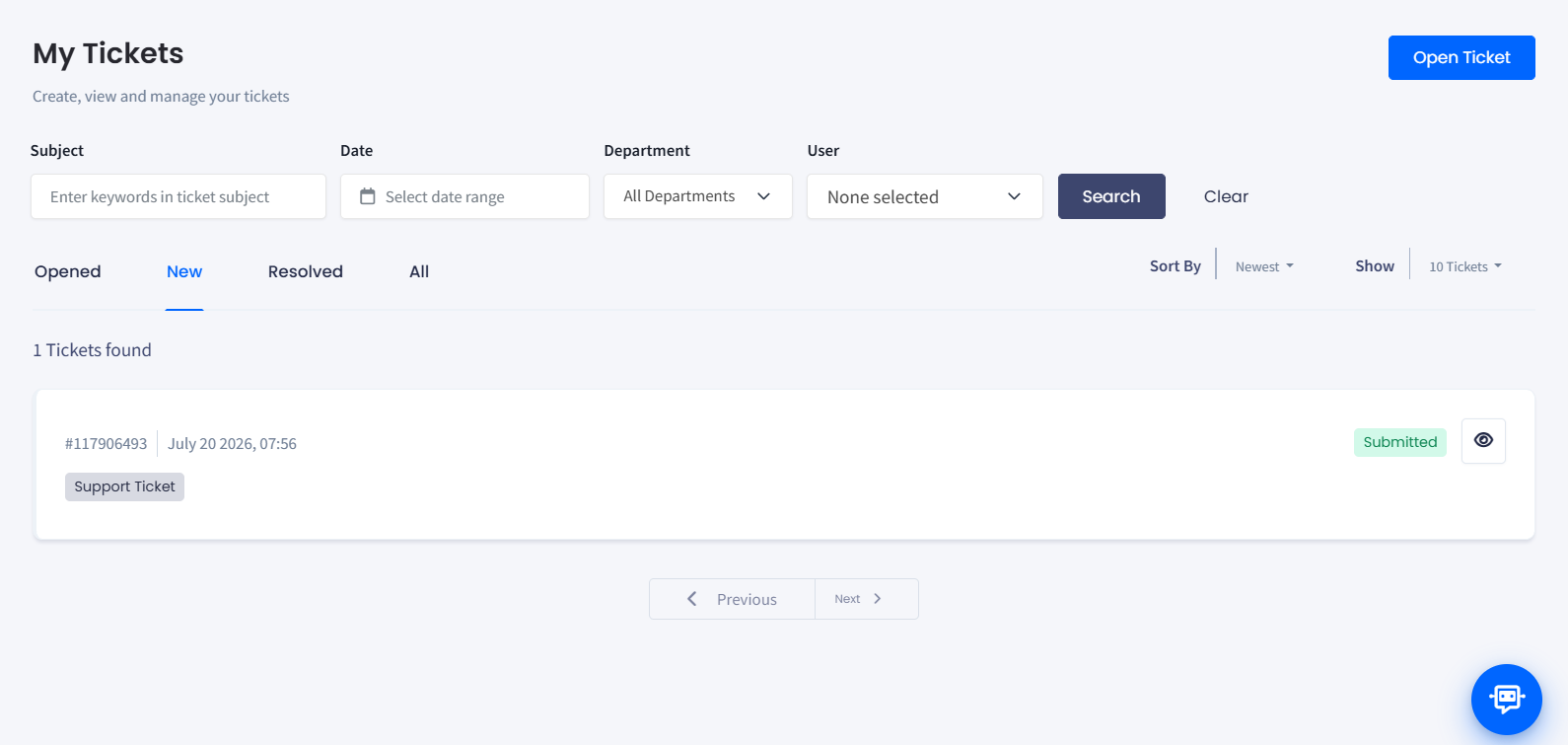
As soon as your ticket is submitted, it appears under the New tab.
New ticket submitted
The following sections describe each ticket management feature.
My Tickets page
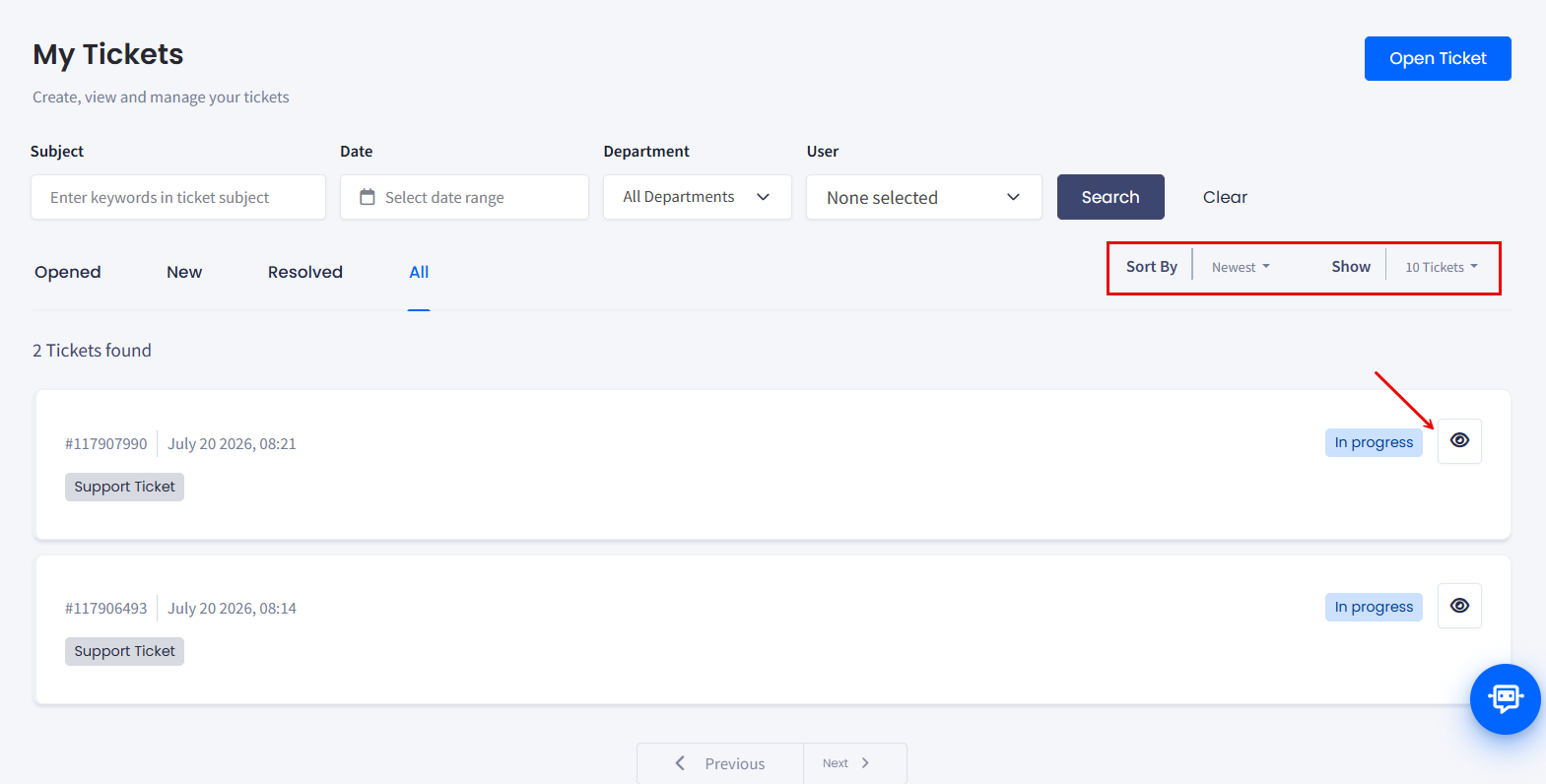
Ticket filters
Apply one or more filters, then click Search to locate the tickets you need.
Keyword: enter relevant keywords to find tickets containing those terms.
Date: select a date range from the drop-down menu to filter tickets by creation or update date.
Department: account owners can select a specific department to narrow the results. Users assigned to a department see only their department's tickets by default.
User: choose the user associated with the ticket from the drop-down list.
To start over, click Clear to empty every filter.
Ticket statuses
Switch between tabs to view tickets filtered by their current status, or view all tickets together.
Opened: tickets currently in progress and being actively resolved.
New: recently created tickets that have not yet received a response from the support team.
Resolved: tickets that have been resolved and closed.
All: every ticket under your account, regardless of status.
Sorting and display options
Sort By: organize your tickets by newest or oldest first.
Show: adjust the number of tickets displayed per page.
To open a ticket card, click the corresponding eye button.
Sorting and display options; eye button
Ticket details
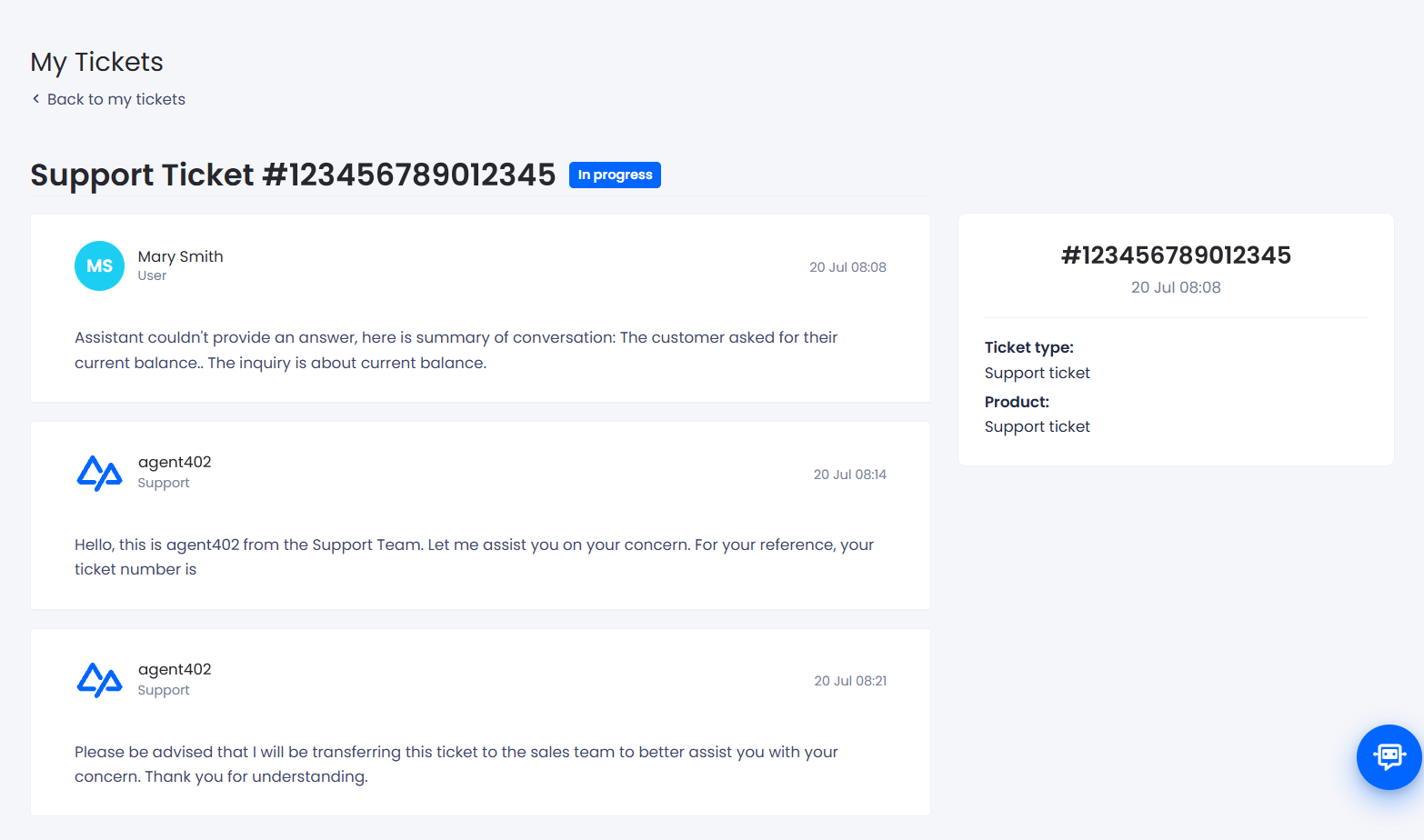
To open a ticket, click its subject or the arrow button at the end of its row. The ticket opens on its own page. Click Back to return to the list.
The summary panel on the right lists:
Ticket number: unique identifier for tracking.
Status: current stage of the ticket, shown as a badge under the ticket number.
Opened: date and time the ticket was opened.
Ticket type: classification of the issue type.
Product: the product the ticket relates to.
Viewing a ticket card
Replying to a ticket
The Conversation section holds every message on the ticket, oldest first, with the sender, their role and the timestamp on each one. The message count appears in the top right corner of the section.
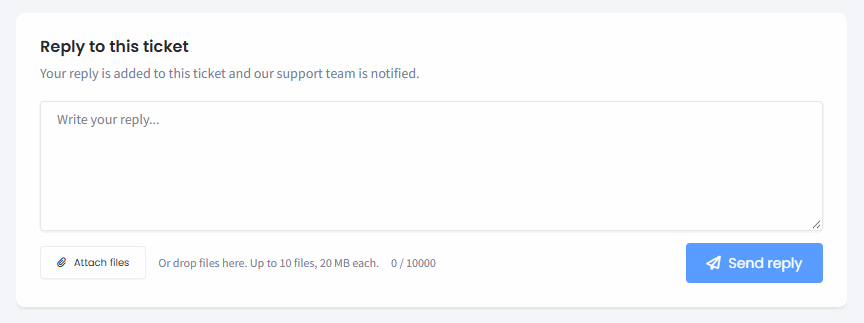
To answer the support team, write your message in the Reply to this ticket field and click Send reply. Your reply is added to the ticket and the support team is notified.
To send files with your reply, click Attach files or drop the files on the reply area. You can attach up to 10 files of 20 MB each, and a reply can hold up to 10,000 characters.
To download your ticket conversations in TXT format, select the needed ticket and click the three dot button located in the top right corner of the ticket details window; then select Download transcript.
Downloading ticket conversations
For all the ways to reach the support team, see the Help & Support page.