

Setting Up a SIP Trunk in FreePBX
This guide provides step-by-step instructions on how to add a new SIP trunk in FreePBX.
After signing up with CommPeak and getting your SIP account credentials, your next step is registering your SIP account in CommPeak Softphone, a third-party application, or with your IP phone to make your first call.
TIPYou can also use the Built-in CommPeak Softphone with your JWT-enabled SIP accounts to place calls right from your browser. You can read more in the Built-in Softphone for JWT-Enabled SIP Accounts article.
Video tutorial
TIPWith CommPeak Softphone, you get an enterprise-level tool without installing any third-party software.
IMPORTANTIf you're using third-party SIP clients (not CommPeak's Softphone), you must manually enable SRTP (Secure Real-Time Transport Protocol) when using TLS for SIP transport. This ensures media encryption and compatibility.
This document will guide you on how to add a new SIP trunk in FreePBX.
Prerequisites
Make sure you have the following:
-
an installed and running FreePBX server
-
a SIP account from CommPeak
The SIP credentials and domain details that you need are available in your account at CommPeak Portal in VoIP Services > SIP Accounts (Trunks): -
User - click the eye icon next to Username/IP in a SIP account line.
-
Password - click Reset Password if you forgot it.
-
Domain - sip.commpeak.com.
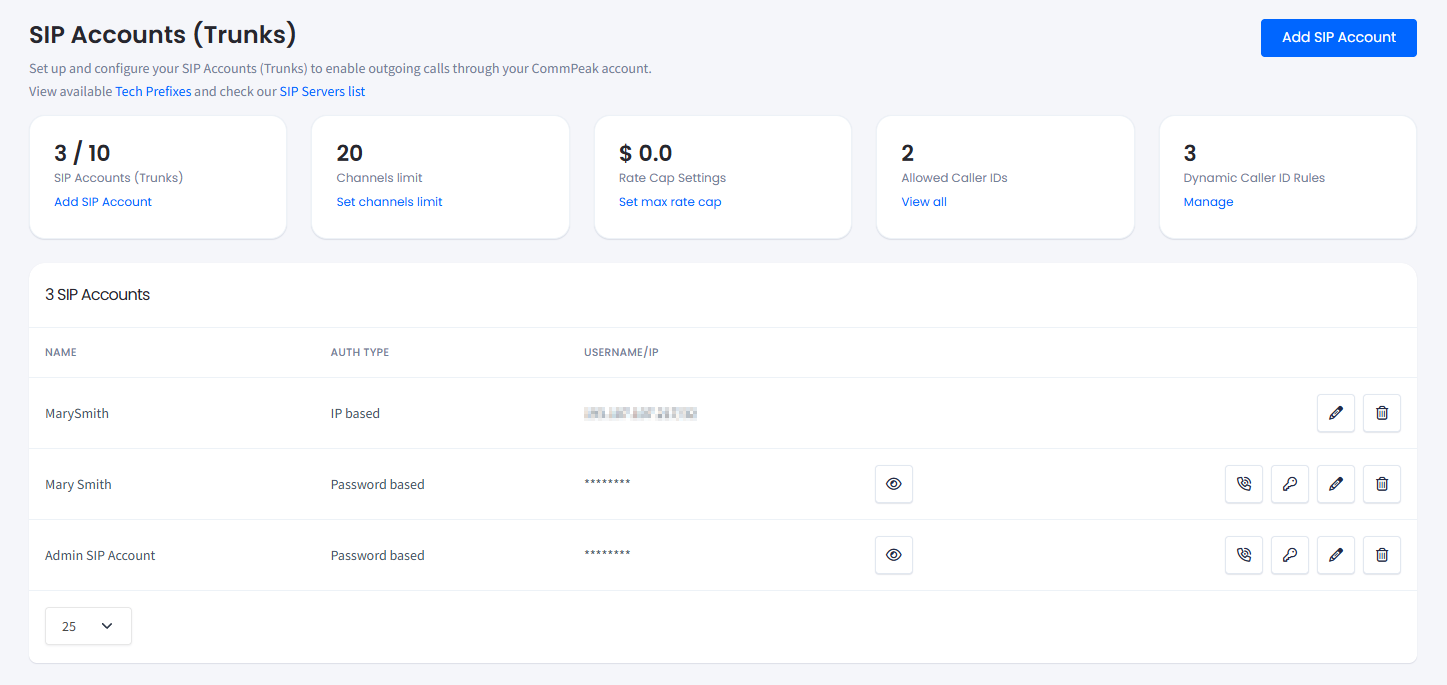
SIP account data in CommPeak Portal
Adding a SIP Trunk
Step 1: Access FreePBX
Open a web browser and navigate to your FreePBX server's IP address or domain. Log in to the server with your admin credentials.
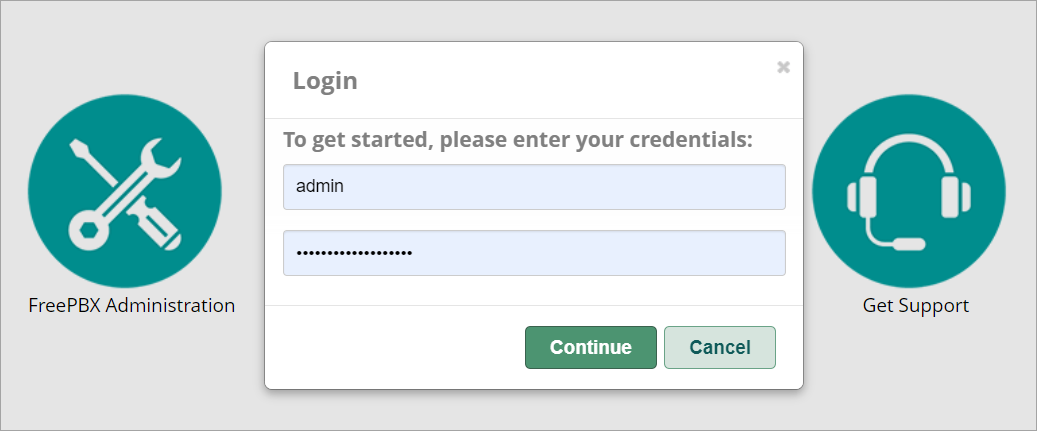
FreePBX login section
Step 2: Navigate to trunk management
Once logged in, go to the top menu and hover over Connectivity. In the drop-down menu, click Trunks.
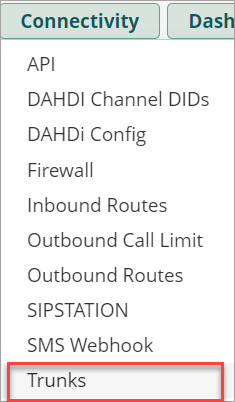
Connectivity section in the FreePBX top menu
Step 3: Add SIP Trunk
Click the Add Trunk button on the Trunks page, then select Add SIP (chan_pjsip) Trunk.
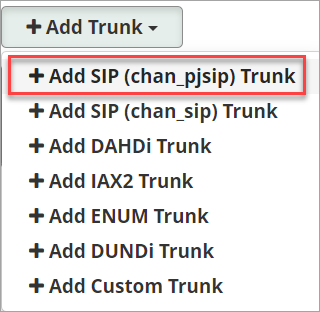
Add SIP Trunk option
Step 4: General settings
Enter the following data on the General tab:
-
Trunk Name: enter any name for the trunk, e.g., MyTrunk
-
Outbound CallerID: this is your Caller ID
-
Maximum Channels: this is the maximum number of simultaneous calls you can have; leave it blank for no limit.
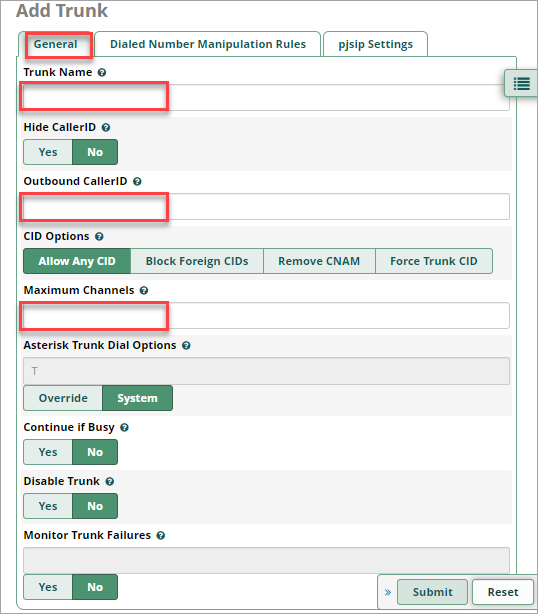
General tab of the trunk configuration
Step 5: pjsip settings
Enter the following data on the pjsip Settings tab:
-
Username: this is your SIP username
-
Secret: this is your SIP password
-
SIP Server: this is your SIP domain
-
Context: set this to from-internal, which ensures the trunk acts as if calls are originating from internal extensions
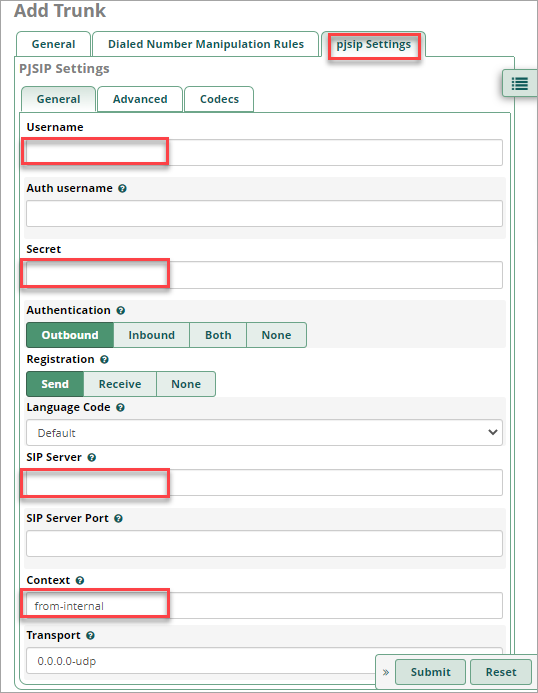
Settings tab of the trunk configuration
Step 6: Codecs
On the pjsip Settings tab, scroll down to Codecs and allow the _ulaw_and alaw codecs.
Setting codecs in the trunk configuration
Click the Submit button at the bottom of the page to save your changes.
Step 7: Apply changes
Click the Apply Config button at the top of the page to apply the changes.
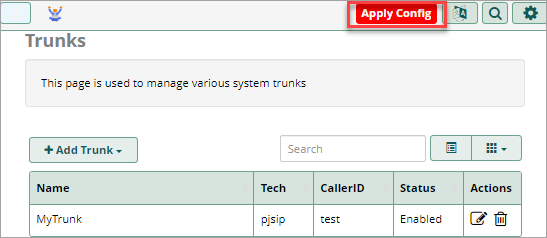
Applying config changes
Step 8: Configure outbound routes
To use this trunk for outbound calls, you must configure outbound routes.
Open Outbound Routes
Go to Connectivity > Outbound Routes.
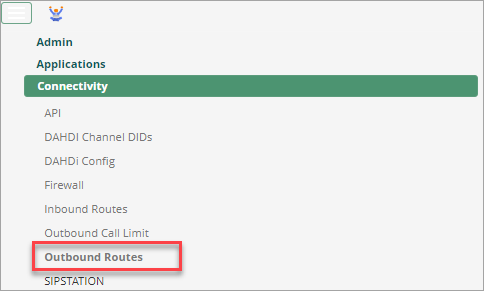
Connectivity section in the trunk settings
Add an outbound route
Click Add Outbound Route.
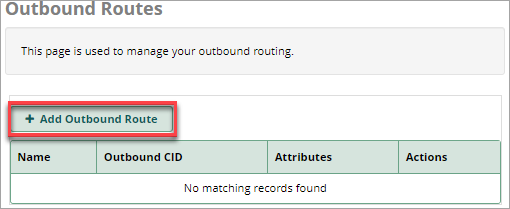
Adding an outbound route
Name the route
Provide a route name. In the Trunk Sequence section, select your new trunk.
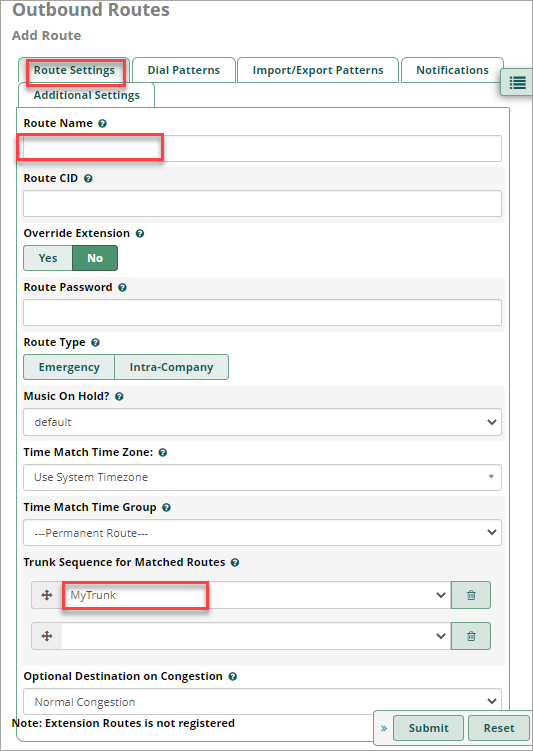
Outbound route settings
Add dial patterns
Add patterns for the numbers you want to route in the Dial Patterns section.
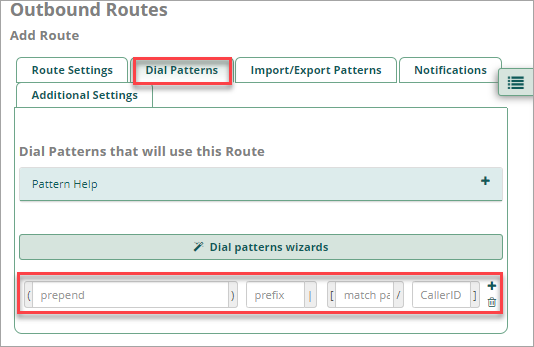
Outbound route dial patterns
Submit the route
Click the Submit button at the bottom of the page to save your changes. Then click Apply Config at the top-right again.
Step 9: Test the SIP trunk
Finally, you can make a test call to verify that everything works correctly. You can do this from a registered SIP device (Softphone or IP Phone) configured to use your FreePBX server.
Troubleshooting
If you encounter any issues, go to Reports >Asterisk Logfiles in your FreePBX to view logs for troubleshooting.
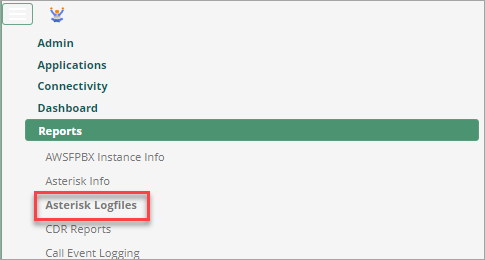
Asterisk logfiles in Reports
Updated 5 days ago