

Call Records (CDR)
Generate Call Records (CDR) reports for outbound calls: filter results in CommPeak Portal by SIP account, pricing group, and date range, and download as CSV or view on-screen.
Video tutorial
You can filter the results by SIP account, pricing group (the Tech.Prefix field), destination, and date range. Then, you can view the resulting CDRs data on the screen or download it as a .csv file.
Generating a report with CDRs
To generate the report:
Open Call Records (CDR)
In your CommPeak account, expand VoIP Services in the main menu and click Call Records (CDR).
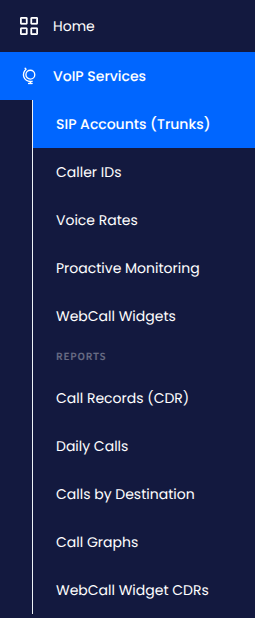
Call Records in the main menu
Filter and search
Apply filters as required and click Search. You will see the report output on the screen.
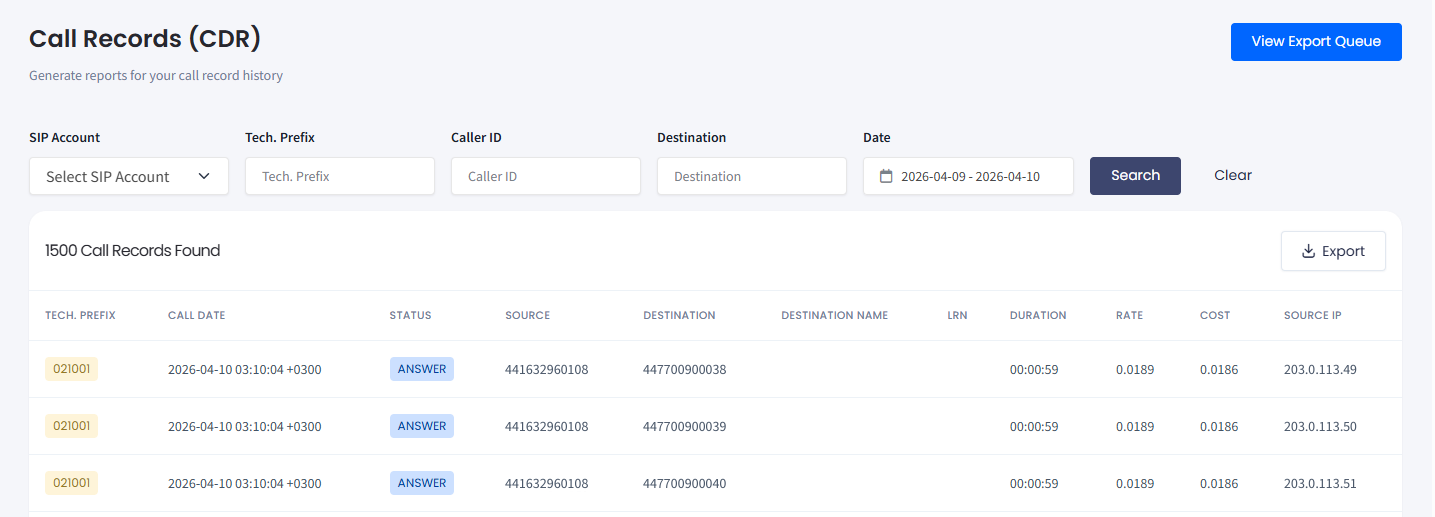
Call Records (CDR) page
The report output contains the following columns:
| Column | Explanation |
|---|---|
| Tech. prefix | The call pricing category used for this call |
| Call Date | The date and time of the call in the following format: YYYY-MM-DD hh:mm:ss |
| Status | The status of the call (ANSWER, USER BUSY, ORIGINATOR CANCEL, etc.) |
| Source | The caller ID |
| Destination | The phone number of the destination party |
| Destination Name | The country and network name |
| Duration | The duration of the call |
| Sell Rate | The price per minute for calls to this network |
| Cost | The total cost of the call |
Downloading CDRs
To download CDRs as a compressed folder with a_.csv_ file:
Open Call Records (CDR)
In your CommPeak account, expand VoIP Services in the left pane and click Call Records (CDR).
Filter and search
Apply filters and click Search.
Export the records
Click Export on the right above the table.
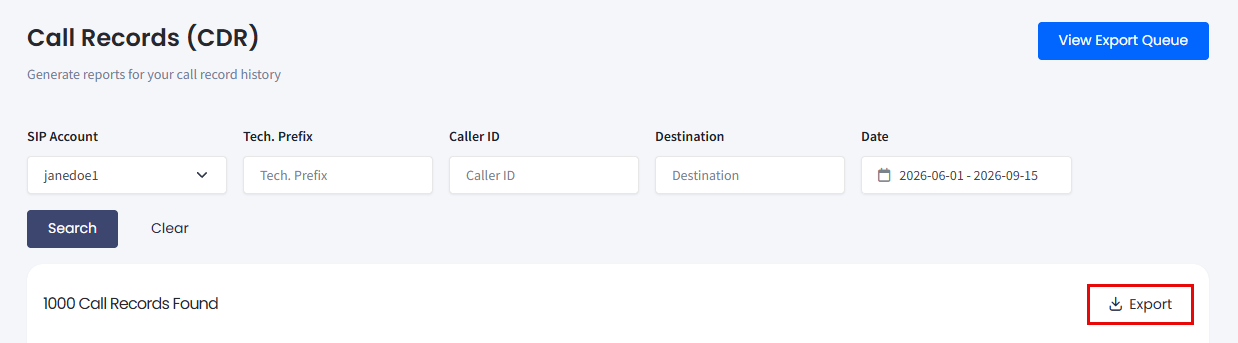
Export button
Check the notification
A notification will appear at the top right letting you know the system is processing your request.

Notification about report processing
Close the notification
You can click the close button to allow the system time to prepare the file.
Open the export queue
Click the View Export Queue button after a while.
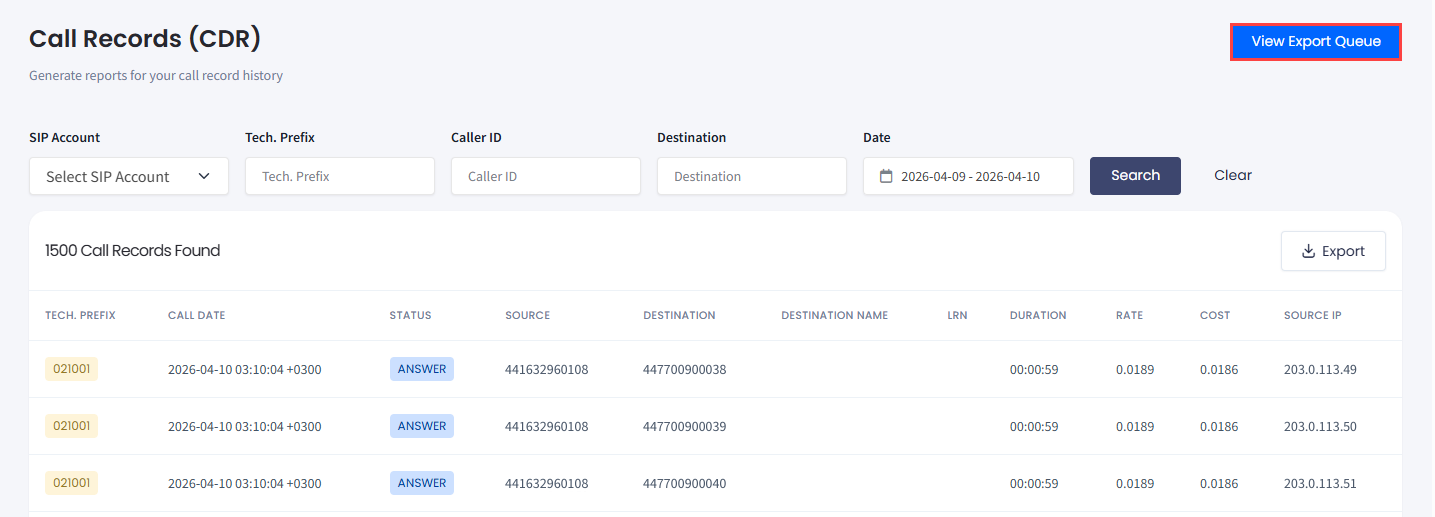
View Export Queue button
Find your report
You will see submitted and completed reports in the side panel available for download for seven days:
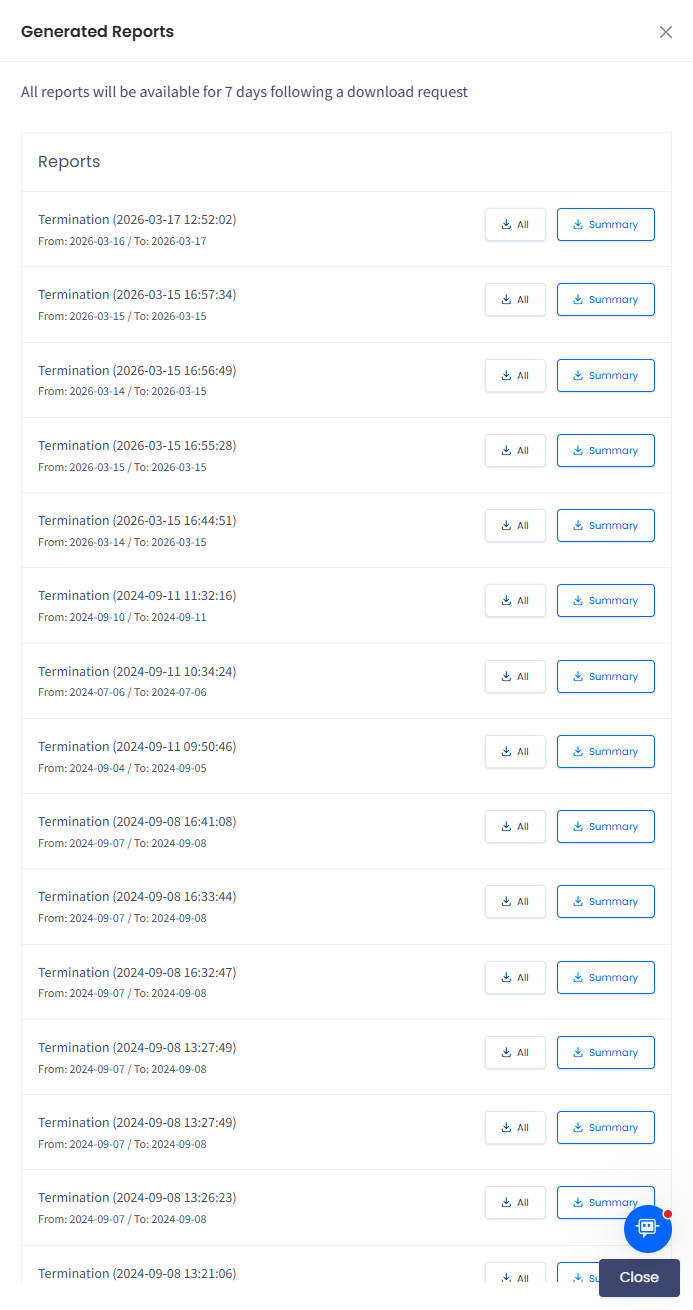
Generated Reports page
- click All to download the report with data on all calls
- click Summary for statistics by the destination country.
Save the file
Save your file to your drive.

Saving a report file
Updated 2 days ago