Manage your personal scheduled meetings with leads, view and edit upcoming calls, and perform actions such as making manual calls, adding comments, and reviewing lead history from the scheduled calls list.
Video tutorials
The agents' leads saved as personal scheduled meetings are stored in the scheduled calls list, where agents can view, edit, and manually call them.
📘
Personal scheduled meetings with a lead (permanent assignment) will not be kept after the lead is removed from a campaign.
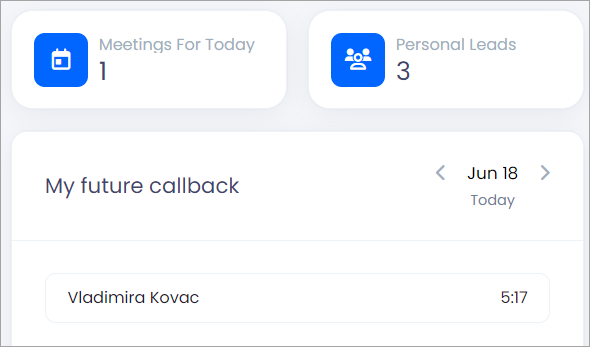
Agents can view how many scheduled calls they have each day in their dashboard'sMeetings For Today widget.
Meetings for Today widget
My future callback section below the widget shows lead names and exact times of the meetings. The agents can scroll between the days using the arrows.
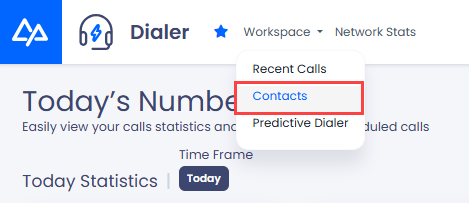
The Scheduled Calls page offers additional actions. Go to Workspace > Contacts in the main menu or click the Meetings for Today widget to open it.
Contacts in the Workspace menu
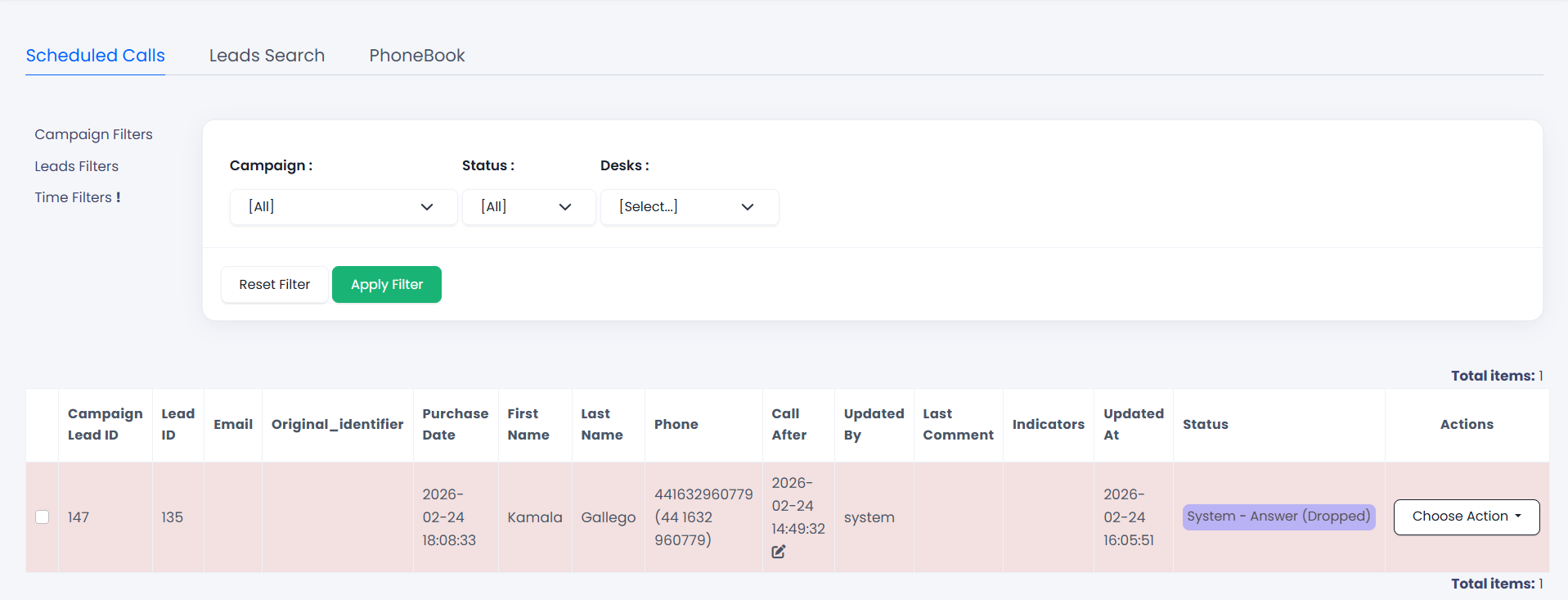
Agents will see all the leads assigned to them.
Scheduled Calls tab
Three filter options limit the displayed results:
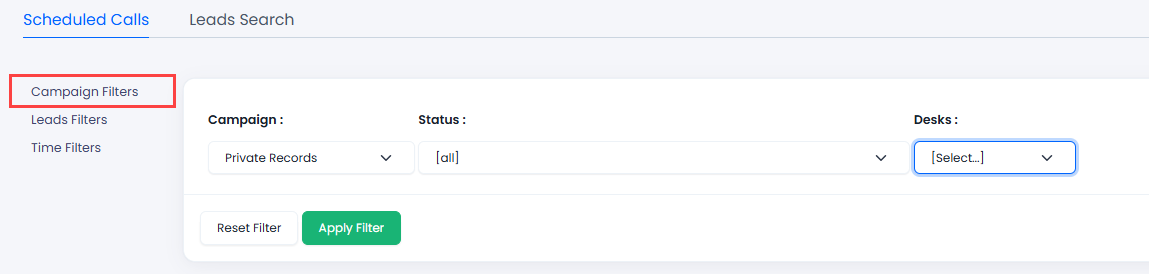
Campaign Filters: select the campaign, desk, or campaign lead status. You can also filter by user tags.
Campaign filters
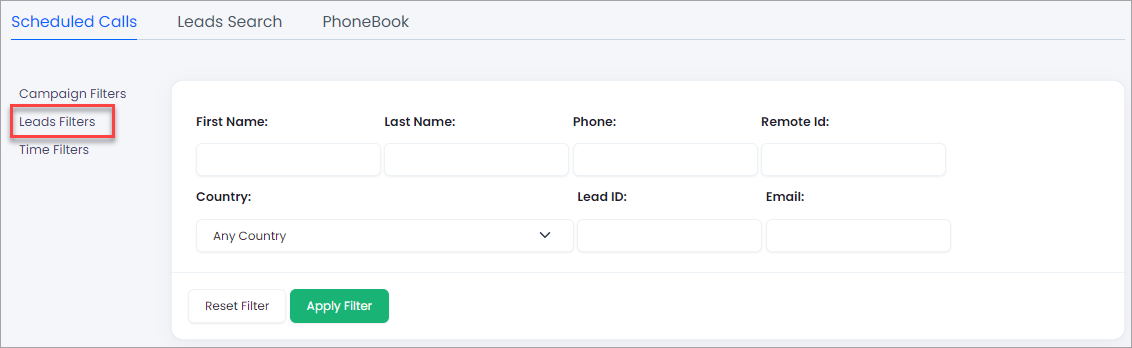
Lead Filters: filter by lead attributes such as name, phone number, email, original identifier, country, or ID.
Lead filters
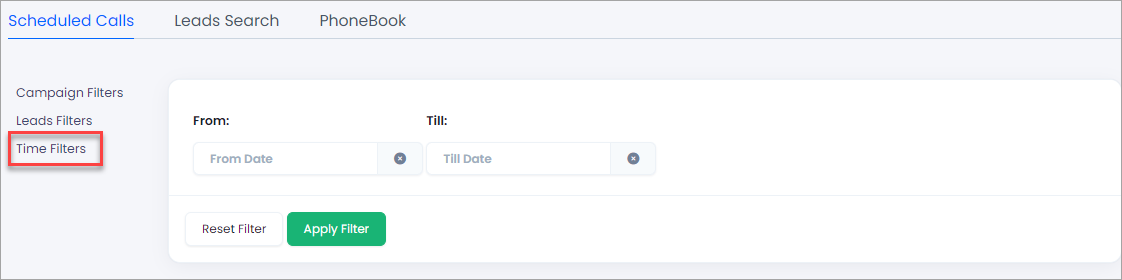
Time Filters: specify the date and time range for the next callback.
Time filters
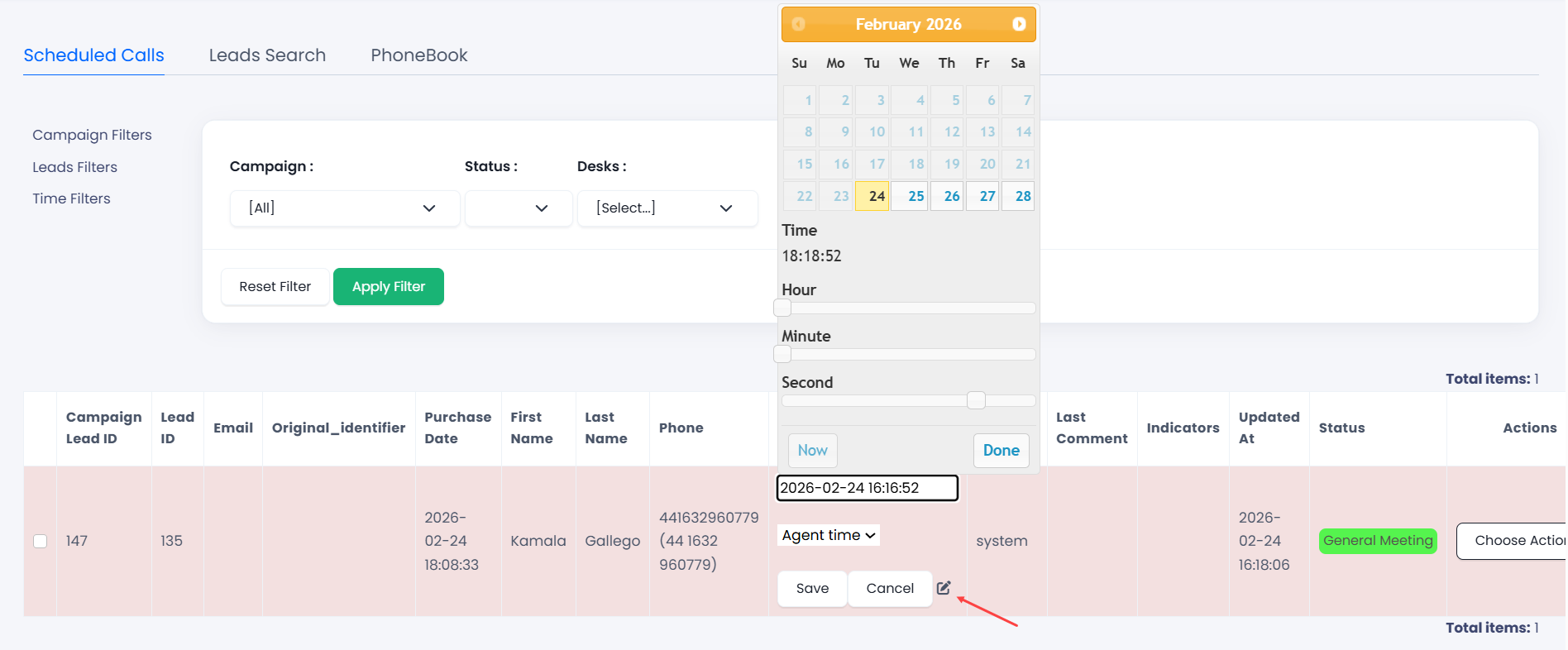
You can edit the date and time of your future call. Click the edit button in the field and select the required values in the pop-up window, then click Done.
Next, select the time zone - the lead's or the agent's - and click Save.
Setting callback time
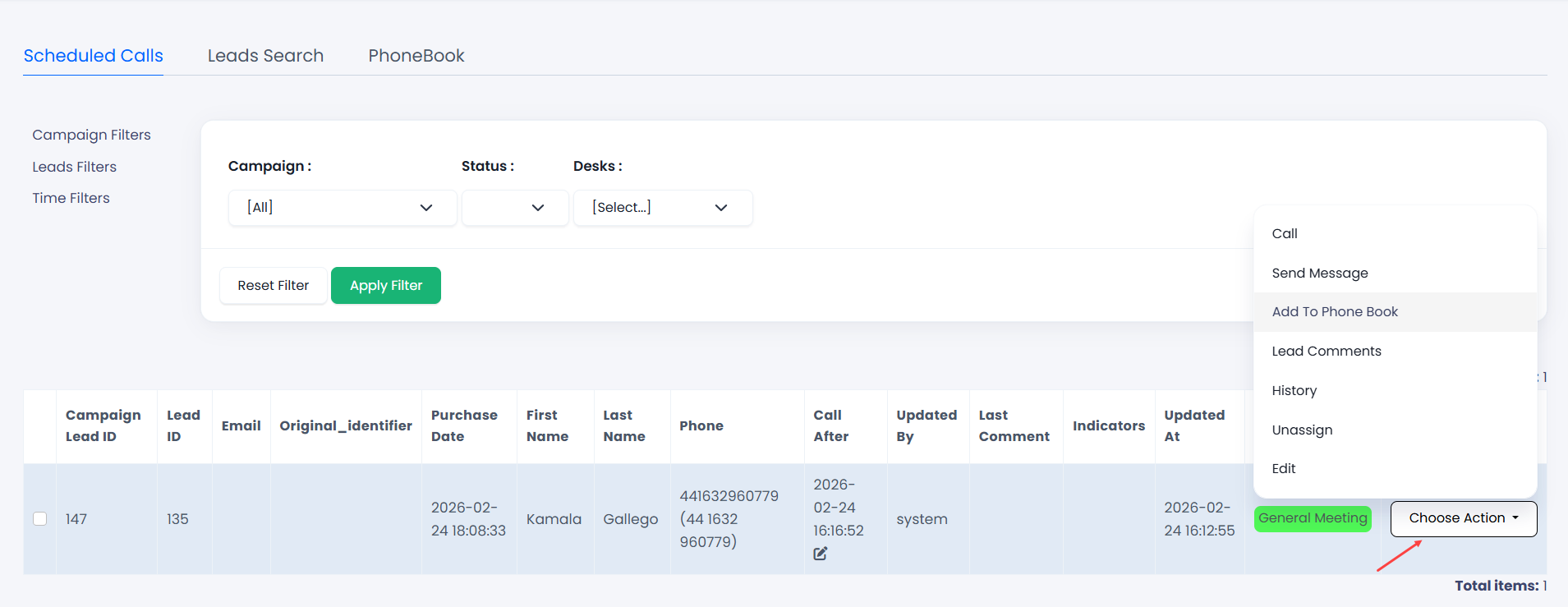
The Actions column suggests actions you can apply to the lead record.
Actions with leads
📘
NOTE
The actions available in the list may vary depending on CommPeak Dialer customization.
Call - make a manual call to the lead.
You can edit lead details right from the call.
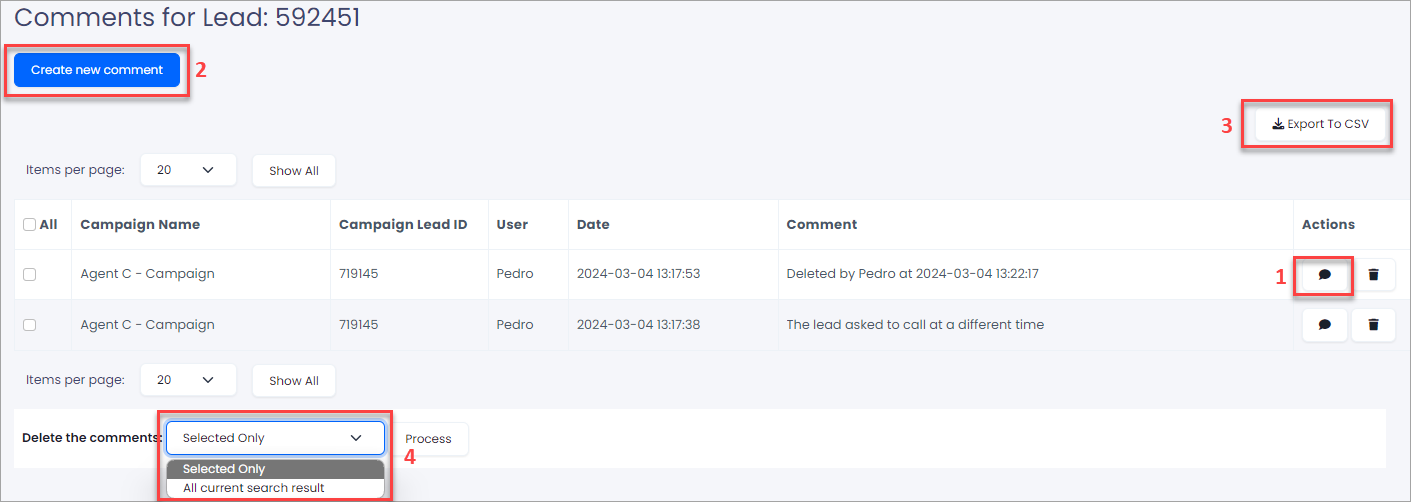
Load Comments: perform the following actions in the window displayed:
View a comment content in a pop-up window by clicking the quote image in the Actions column.
Add comments using the Create new comment button above the table.
Export selected comments as .csv or .xls files using the Export To control in the top-right above the table.
Delete chosen or all comments in your search results using the mass action control at the bottom.
Actions with comments
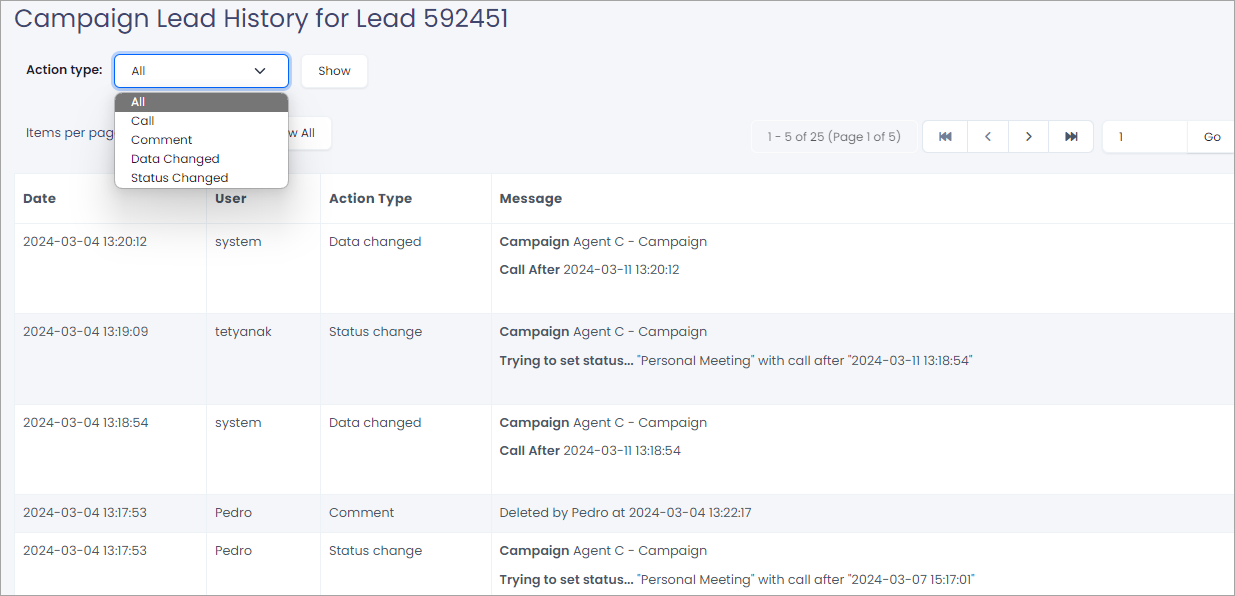
History - view the lead history, all or filtered by the action type.
Viewing lead history
Unassign - click to remove the lead assignment from yourself and allow the system to return the lead to the general calling pool.
👍
NOTE
If working in the Predictive Mode within the new Agent Workspace, you can also schedule calls from the Feedback page and view your scheduled appointments with leads by using the Calendar option.
Additionally, in the Header area on the right, you can:
see the number of your meetings scheduled for today out of the total allowed per day
view the total number of your personal meetings with leads compared to the maximum allowed.


 in the Actions column.