

Devices
Manage devices in PBX Stats by adding single or bulk devices, editing login and Caller ID details, resetting passwords, and deleting devices.
Video tutorial
Devices are SIP accounts agents use to sign in to and work in the system.
There are two types of devices: fixed and ad hoc.
A fixed device only has one login and password and is attached to one extension.
An ad hoc device can have several logins and passwords to be used by multiple agents with multiple extensions, for instance - at different shifts.
Viewing devices
To view the list of devices, go to Configuration and click Devices.
The table will display the device name, password, type, related caller ID, agent name, and the device's status.
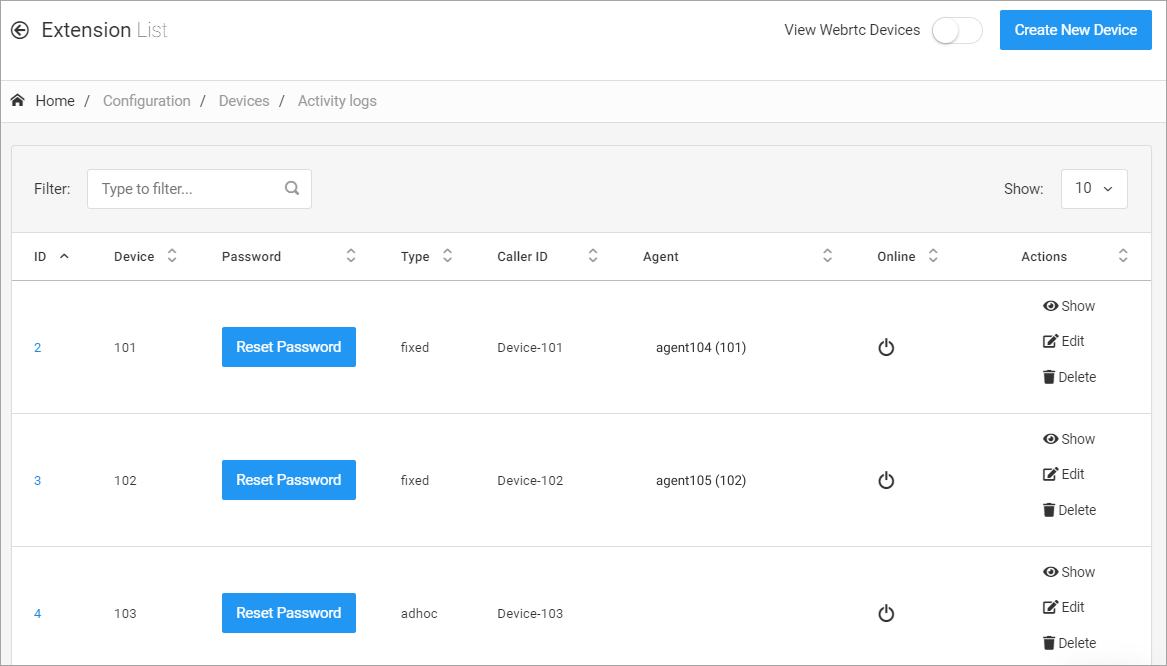
Configuration > Devices tab
Resetting passwords
To find out the password:
Reset the password
Click Reset Password in the Password column and proceed.
Copy the new password
Copy the password in the following window.

New password screen
Adding Devices
You can add fixed and ad hoc devices in PBX Stats.
NOTEFor every new device, two extensions are created: a regular SIP extension and a WebRTC extension.
Single device
To add one device:
Create a device
Click Create New Device in the top-right corner.
Fill in the form
Fill in the form:
-
Device - device name

New Device form
-
Alias - caller ID
-
Device - select one of the following options from the drop-down list:
-
standard - a device that agents use to register and work in a third-party softphone (Zoiper, MicroSIP, etc.).
-
webrtc (Web Real-Time Communication) - any third-party softphone running in a web browser can make encrypted audio calls in real-time using WebRTC.
IMPORTANT:This is only for third-party softphones, not the CommPeak Softphone.
-
-
Type - select ad-hoc or fixed. If you prefer a fixed device, choose a default agent from the drop-down box to assign to the device.
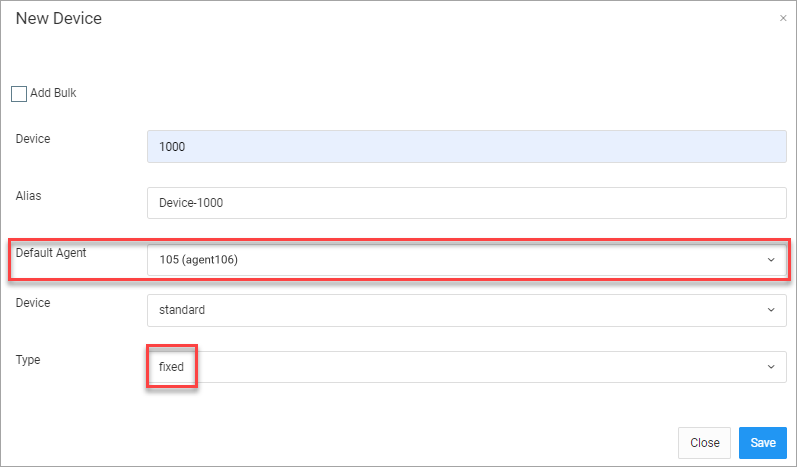
Fixed device default agent selection
Save the device
When you click Save, the system will automatically generate a password and take some time to complete the task. The pending device will be shown above the main table. After a while, it will disappear and will be added to the table.
Bulk adding
Users with the create_device_bulk permission enabled can add devices in bulk. Refer to this article for more information on roles and permissions.
To add multiple devices:
Open Add Bulk
Select the Add Bulk option in the New Device window.

New Device Bulk form
Enter the device range
Enter a range of device names that should include any number from 100 to 999999.
In the description box, enter a prefix for the Caller ID. For example, if you enter "Spanishdesk", the system will create devices with the following Caller IDs: Spanishdesk-200, Englishdesk-201, etc.
Add agents to fixed devices
There is an option to add a device with an agent for the fixed device type. If you select the Add with agent checkbox, the system automatically creates a default agent for each device.

Add with agent option
Save the devices
Click Save. The system will automatically generate passwords and take some time to complete the task. The pending devices will be shown above the main table. After a while, they will disappear and be added to the table.
Editing and deleting
You can edit the device name, caller ID, type, and assign different agents to fixed devices.
To modify a device:
Edit the device
Click Edit in the Actions column.
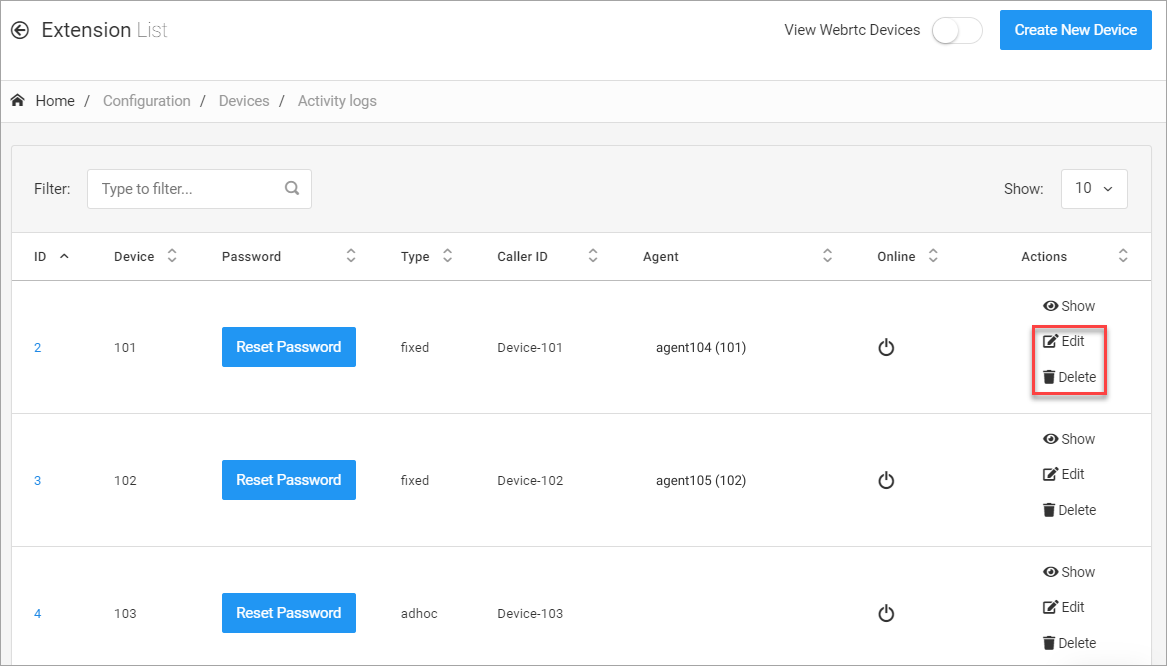
Actions options: edit
Enter the new details
Enter new details:

Edit Device form
Update the device
Click Update.
To delete a device, click Delete in the Actions column.
Updated 16 days ago