

Making Calls
Detailed instructions for making and receiving calls in both full and mini modes of the standalone CommPeak Softphone
Learn how to start a call or receive an incoming call.
To complete your call, click the red call end button.
Outgoing calls
To start an outgoing call, you can select from two options:
- Entering a phone number or
- Clicking a telephone number link.
Entering phone number
To initiate a call by entering a phone number, act as follows in full or mini modes.
Full mode:
-
Click numbers on the dialpad or enter the number into the field above it.
-
If you have configured several SIP accounts, select the required one. Disconnected SIP accounts will be grayed out. See how you can reconnect a SIP account in Settings.
-
Then click the dial button.
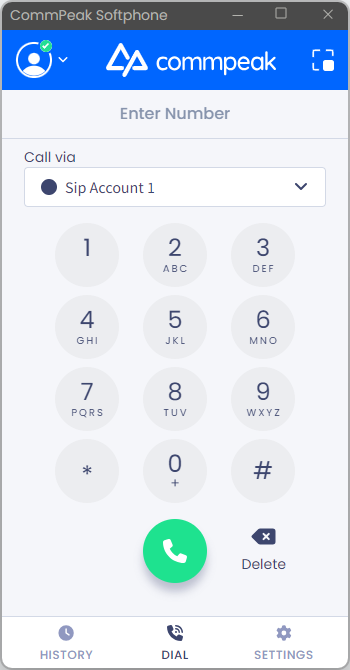
Softphone dialpad: full mode
Mini mode:
-
Enter the number in the suggested field.
-
Optionally, select the SIP account.
-
Click the dial button.
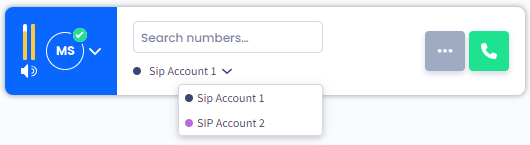
Softphone Dialpad: mini mode
Clicking telephone number link
You can also initiate a call by clicking the phone link directly in your Windows web browser and then dialing via the CommPeak Softphone app (starting from Softphone v.6.2.7).
Softphone automatically registers itself to handle the "tel:" link protocol.
You can then add the application to the system's default apps list (Settings > Apps > Default apps).
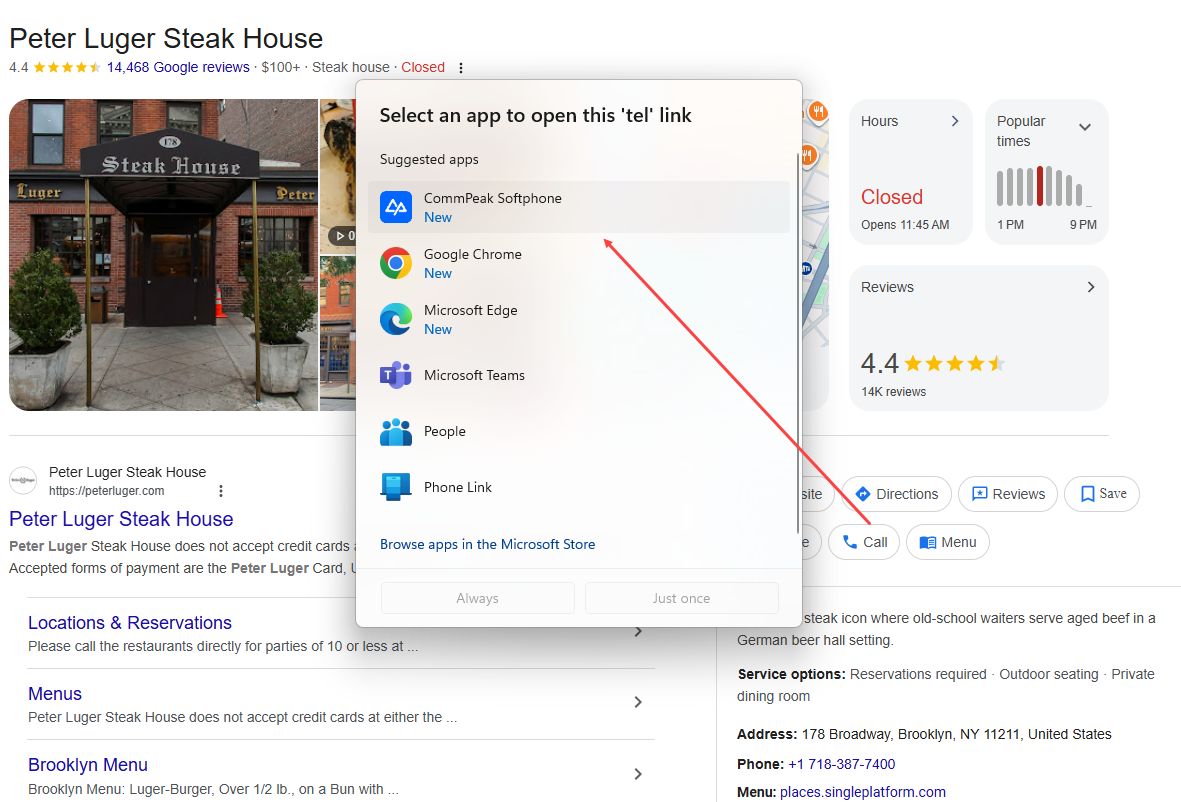
Adding Softphone as the default app in Windows OS
After you select Softphone as the default app for opening "tel:" links, every time you click a telephone number link in a web browser, that number will automatically be populated within the Softphone application.
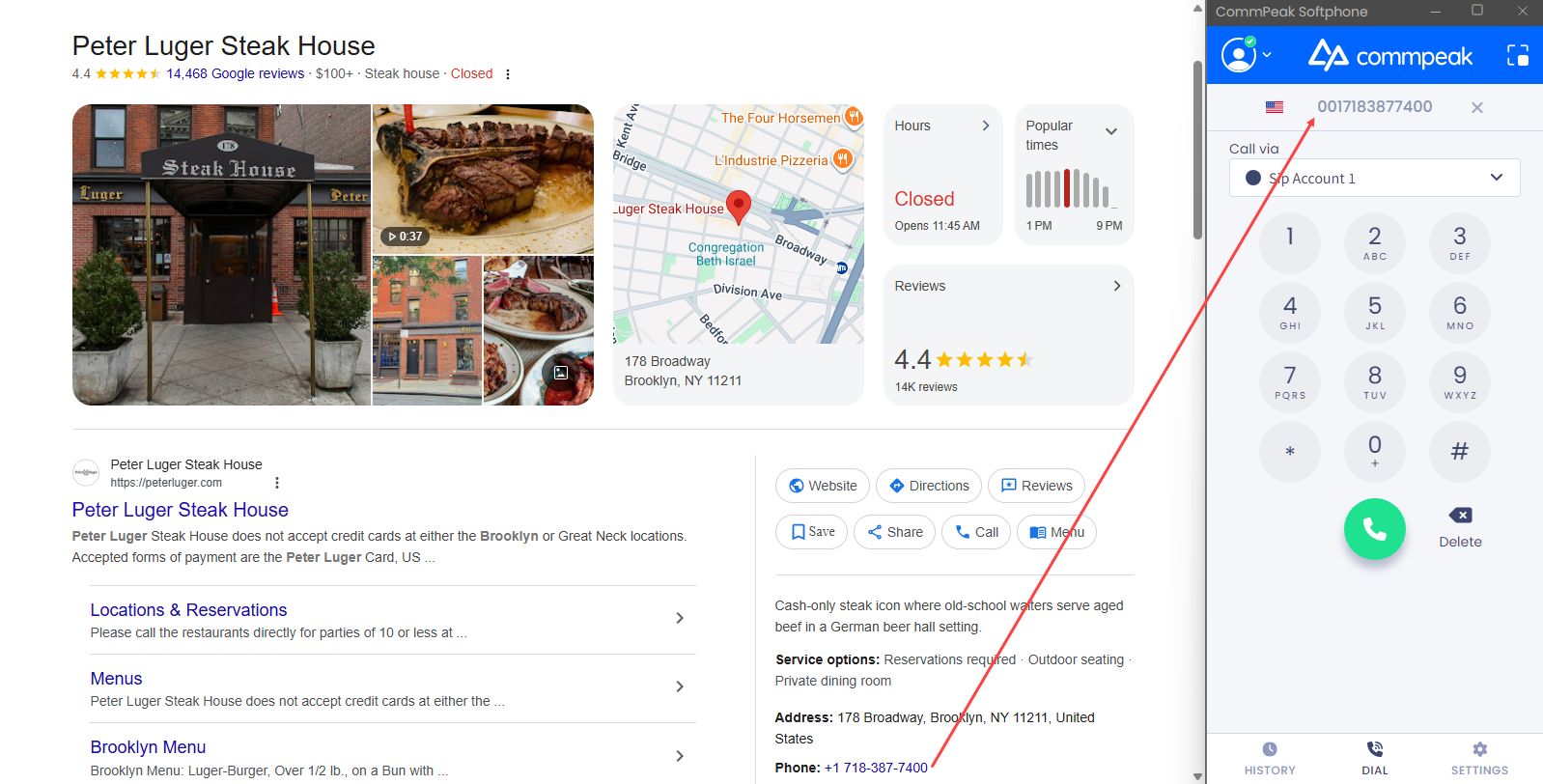
Dialing via the CommPeak softphone
Using predefined dialing Prefixes
You can also use predefined prefixes to match your call center's specific dialing requirements.
If your manager has enabled this feature, a drop-down menu will appear next to the destination bar on your Softphone instance.
Prefixes are loaded automatically upon login based on your user settings.
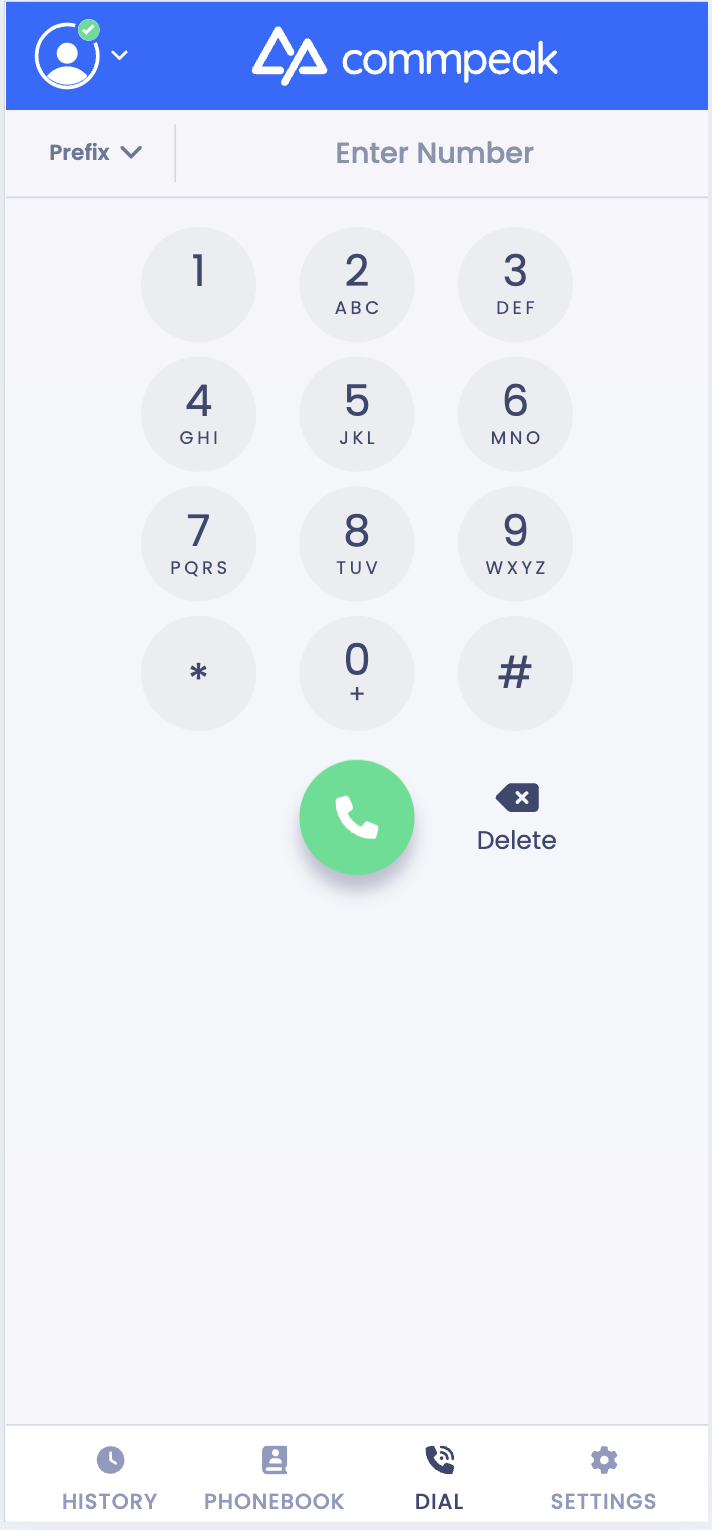
Prefix option
NOTEThis feature is available on the Standalone CommPeak Softphone, Built-in CommPeak Softphone, and Web-Based Softphone Widget.
IMPORTANTThe prefix dropdown is hidden by default. It will only appear in the full mode version of your instance if your manager has configured specific prefixes for your account.
To use the feature, choose the required prefix (which may include numbers, *, or #) from the drop-down list and the softphone automatically adds the selected prefix to the beginning of the phone number you are calling.
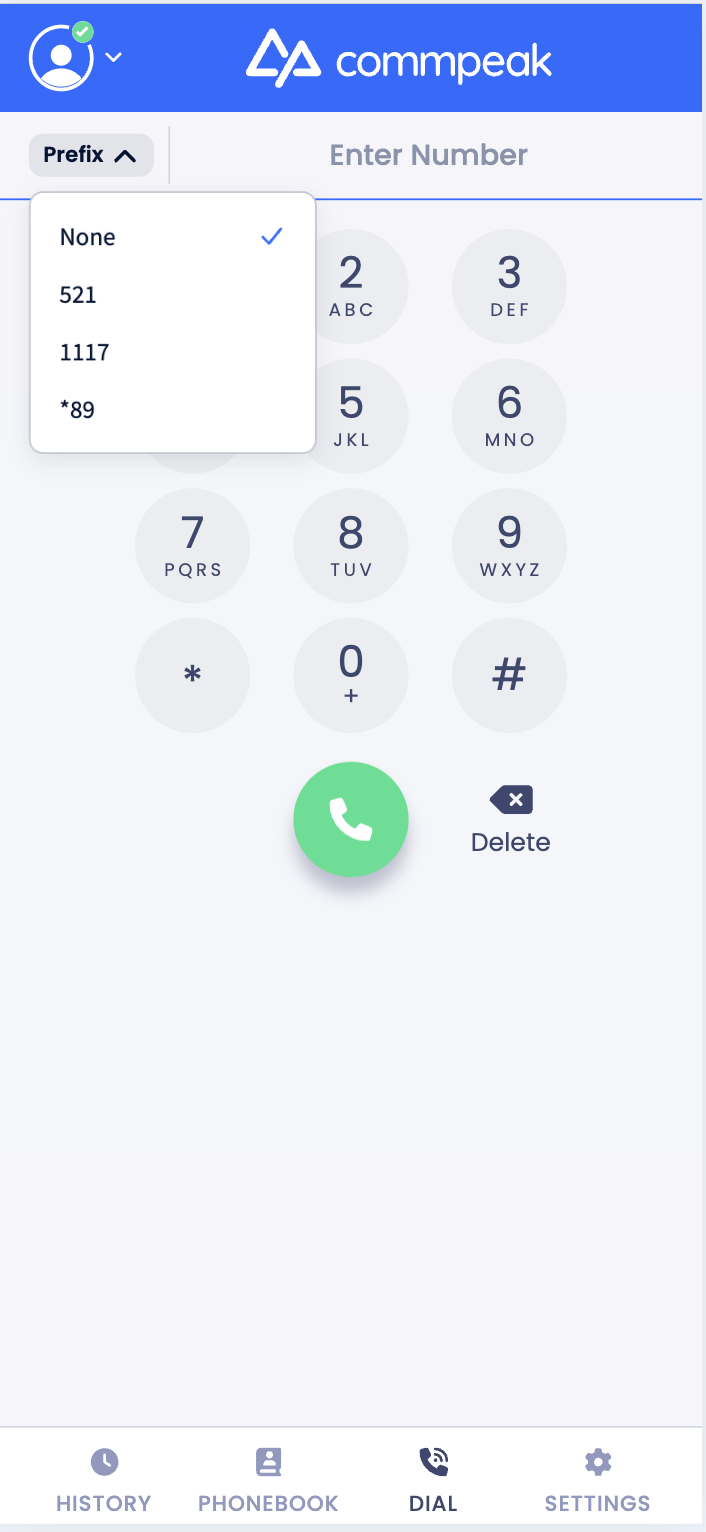
Selecting prefix
Incoming calls
IMPORTANTYou won't receive any calls if the DND status is enabled. You can learn how to exit DND and receive calls again from Available and DND Statuses article.
NOTEIf the Auto-Answer feature is turned on for the SIP account you are using, the ringtone will play for the number of seconds you have set. Then, the ringtone will be interrupted by a short beep signal, meaning that you have been connected and can start talking.
Starting from Softphone v6.2.15, you can set the delay (0 - 99 seconds) in Settings > Auto-Answer preferences so that incoming calls connect instantly.
Full mode:
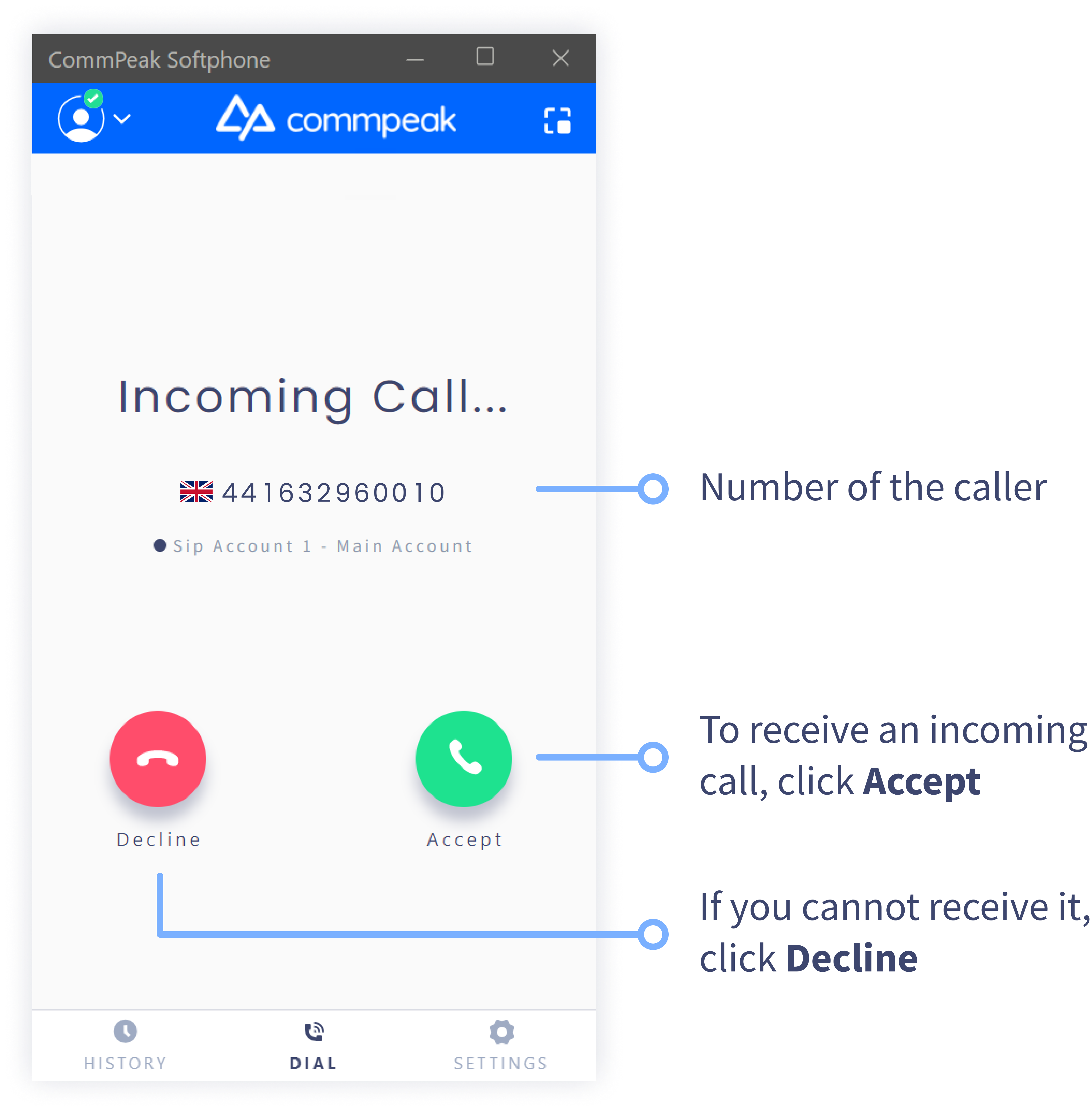
Incoming call screen: full mode
Mini mode:
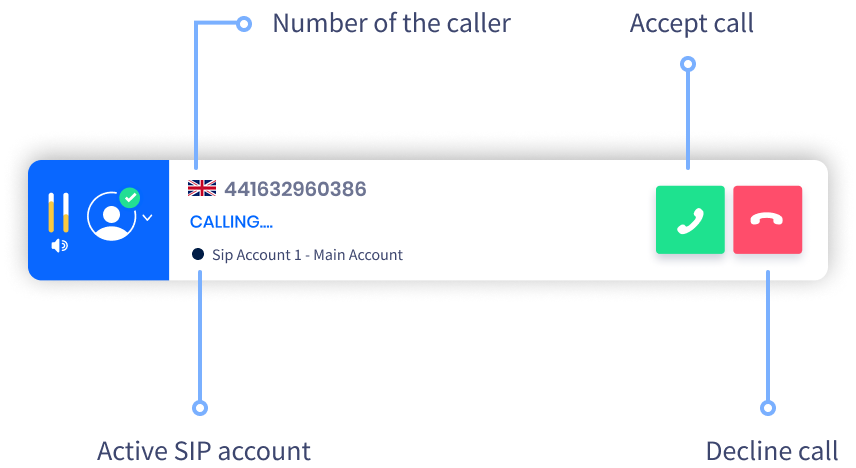
Incoming call screen: mini mode
Updated 5 days ago