

Word Groups
In this article, you will learn how to add word groups to your message template.
Video tutorial
You can add manual or automatic word groups to your SMS message template. Words that belong to a word group are selected for each sent message randomly. Your recipients will get unique messages, and it will help to avoid detecting them as spam.
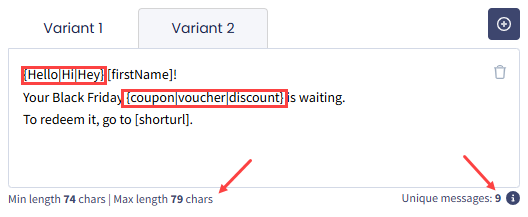
Message template variant
Word groups are presented in message templates in curly brackets.
Below the message box on the left, you will see the minimum and maximum length of your message, depending on the words chosen from word groups. On the right, you will see the number of unique messages that can be sent with the word groups used.
Manual word groups
To create a manual word group, just type text variants in the needed place of your message in curly brackets, separated with a vertical bar. E.g.: {Hello|Hi|Hey}.
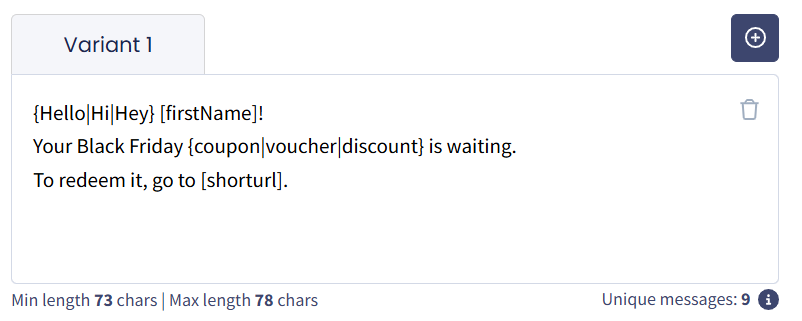
Adding manual word groups
Auto word groups
If you want to use the same word group in other messages later, you can create an automatic word group in a message template or in the message section while creating an SMS Campaign.
To create a new auto word group:
Open Auto Word Group
When adding a message template, click the Auto Word Group button in the Message > Tools section.
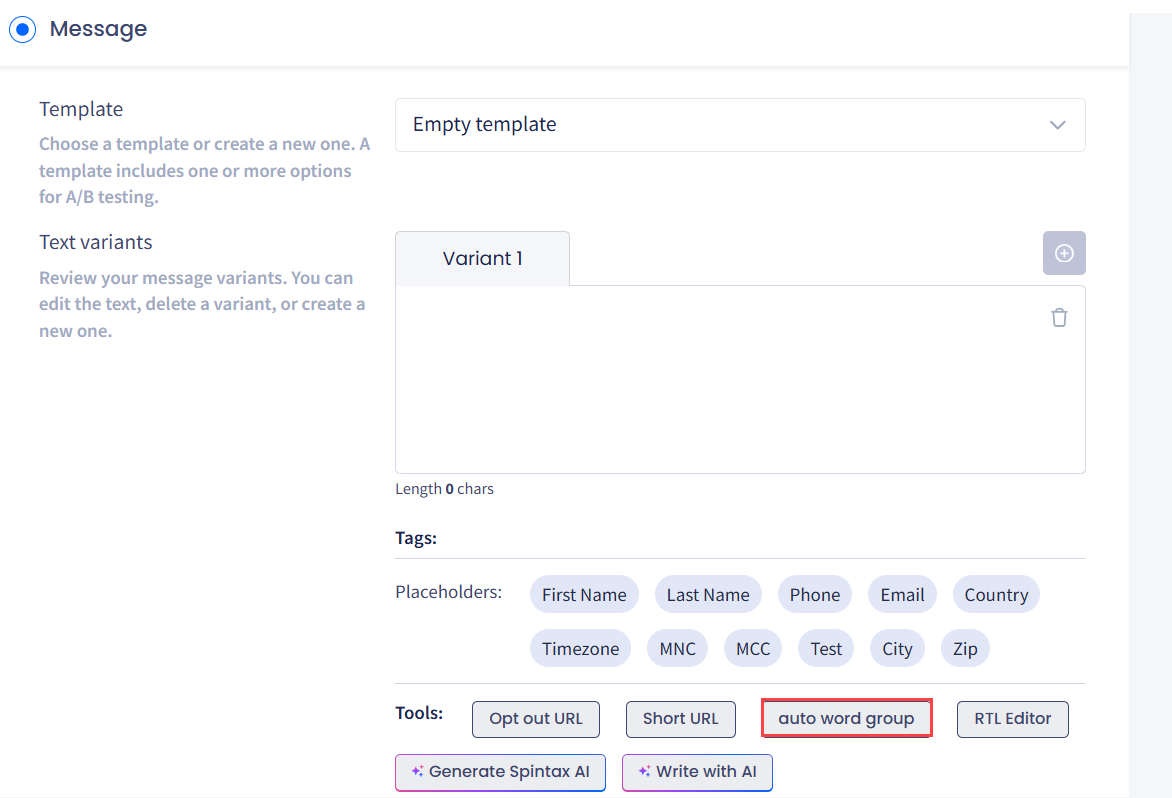
Auto Word Group button
Add a new word group
In the window that pops up, select Add new word group.
Name the group and add words
Enter the name of your group and add all the options you want to use.
Create the group
Click Create Group.
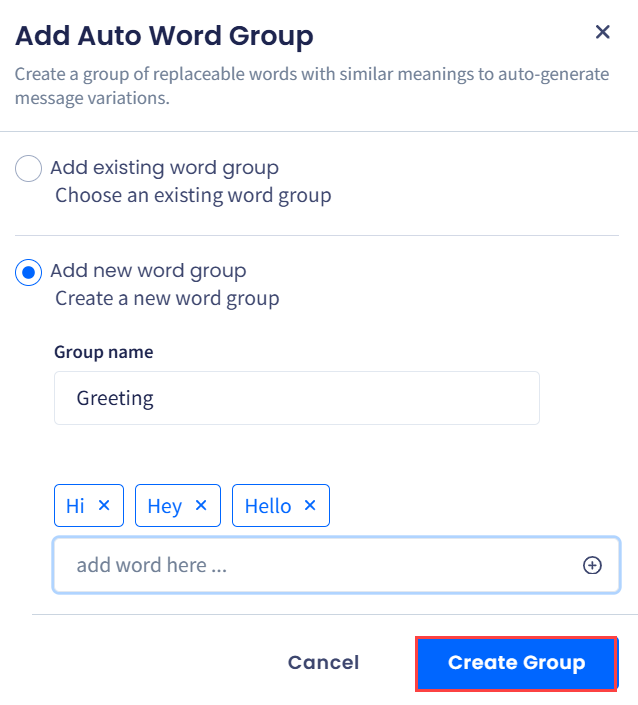
Adding new word group
Now, you can use this word group in your messages.
To use the existing auto word group:
Open Auto Word Group
Click the auto word group button in a message template or in the message section while creating a campaign.
Add an existing group
Select Add existing word group.
Select the group
In the drop-down list, select the needed word group.
Add the group
Click Add Word Group.
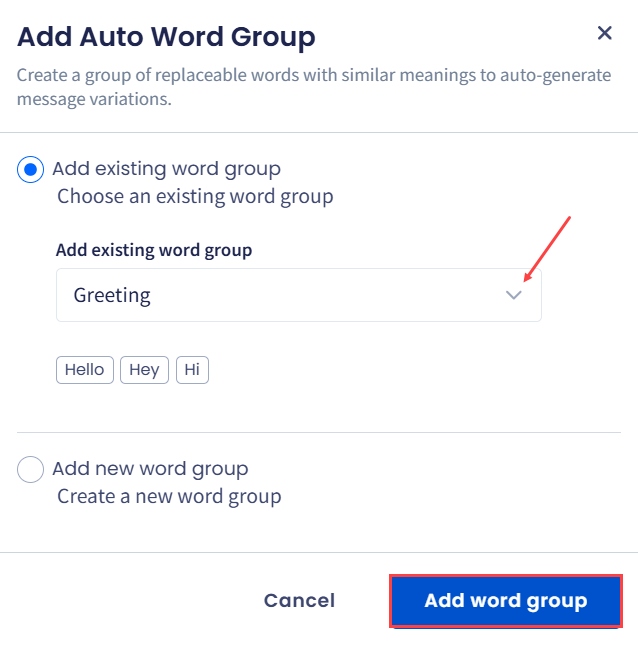
Adding existing word group
NOTEWith the Generate Spintax AI option, you can write auto word groups immediately as text in your template.
Updated 4 days ago