

Maintenance Mode
Enable or disable Maintenance Mode for a DID number in the CommPeak Portal to run technical tests without changing permanent settings.
You can enable Maintenance Mode for a specific DID number if you need to perform technical tests without changing permanent settings.
Enabling maintenance mode
To enable the maintenance mode:
-
Log in to the CommPeak Portal.
-
On the main menu on the left, navigate to DIDs and select Management.
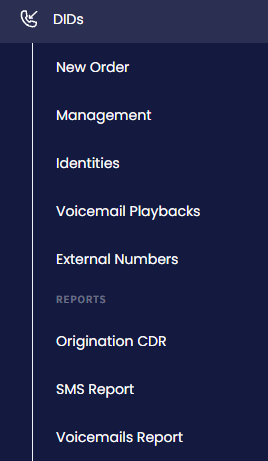
DIDs > Management tab
-
In the My DIDs table, use the checkbox(es) on the left or click the Filters button and select the needed number(s) by applying search filters at the top right of the DID Management page.
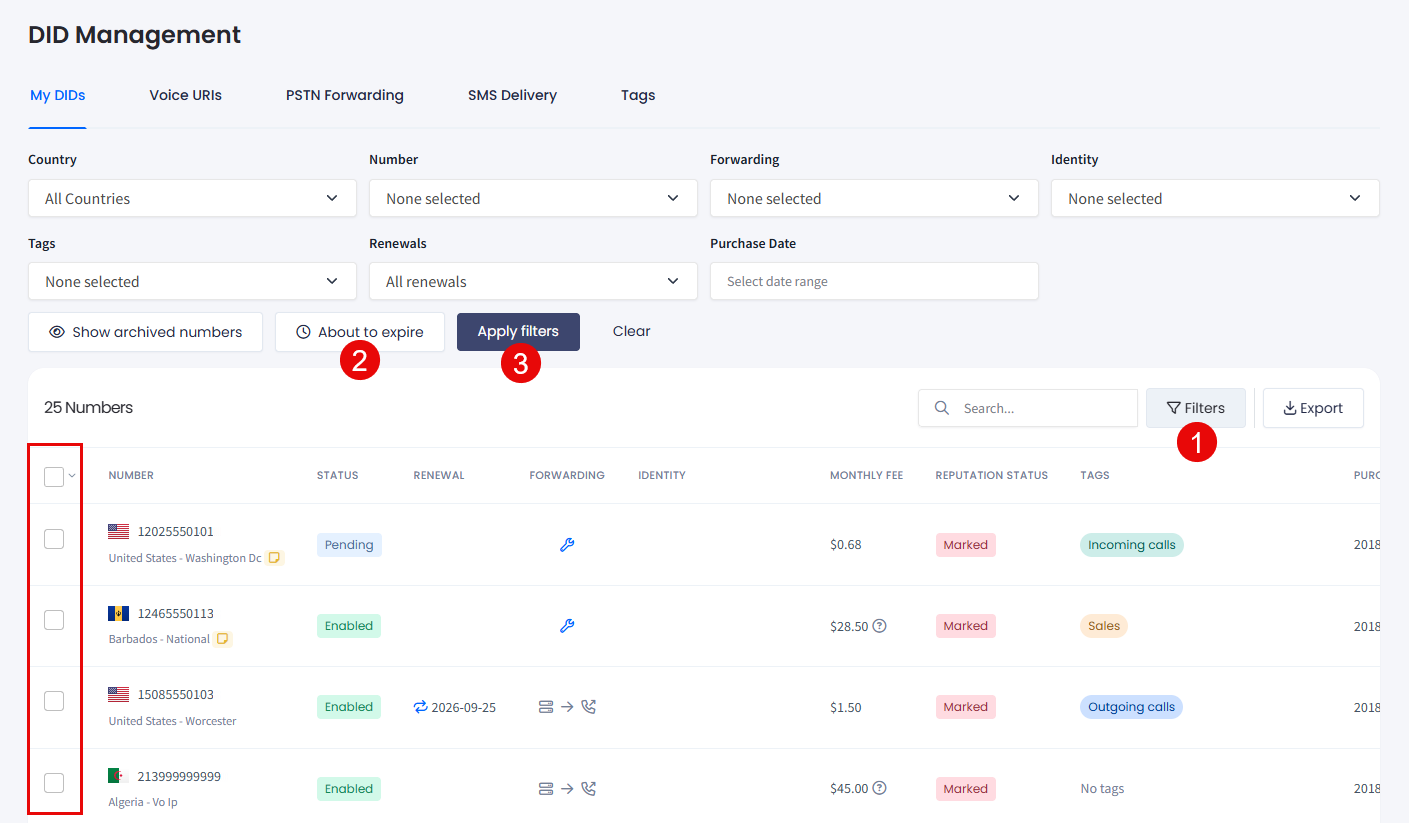
Filtering DID numbers
NOTETo build the set of numbers you want to change, you can filter the table by multiple DID numbers at once. See Filtering by multiple numbers at once.
- Click the corresponding three-dot icon and select the Enable maintenance mode action from the list.
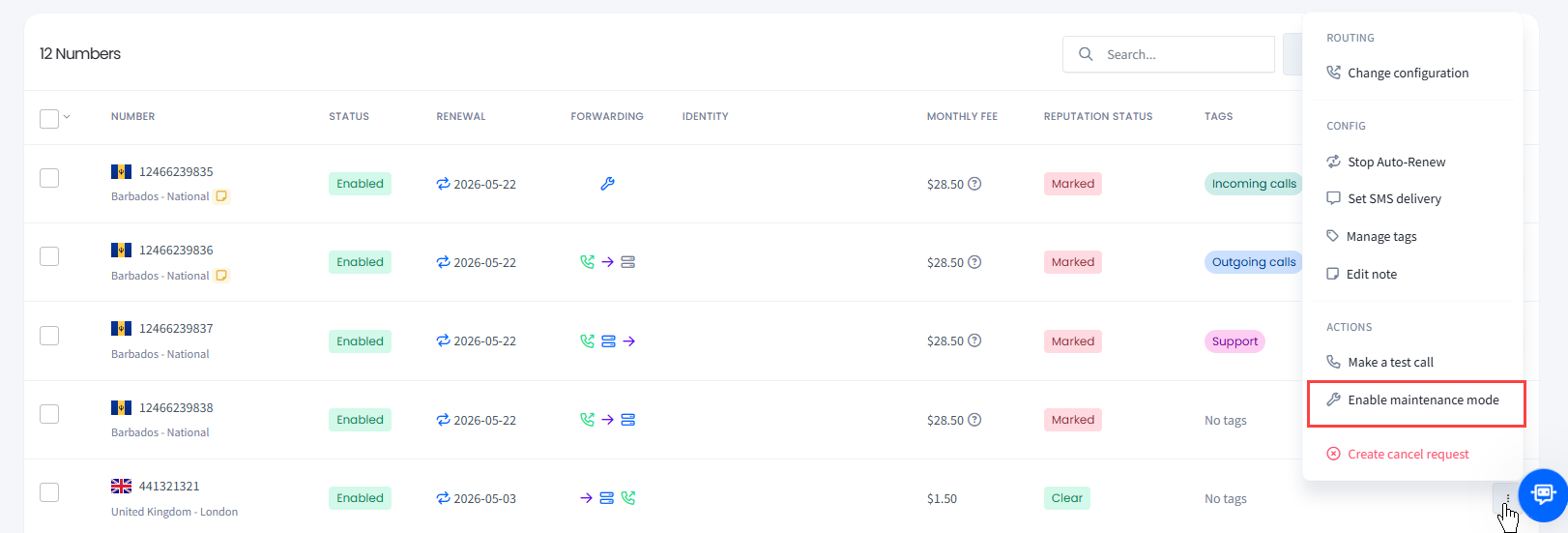
Enable maintenance mode action
- You will be notified that the maintenance mode is enabled for 1 hour. To close the message, click the x button.

Maintenance mode activated message
- The DID numbers table will be updated informing that the maintenance mode is activated for the particular number(s).

Maintenance mode activated
Disabling maintenance mode
The system automatically disables maintenance mode after 1 hour.
To disable it sooner, click the corresponding three-dot action button and select select Disable maintenance mode from the list.
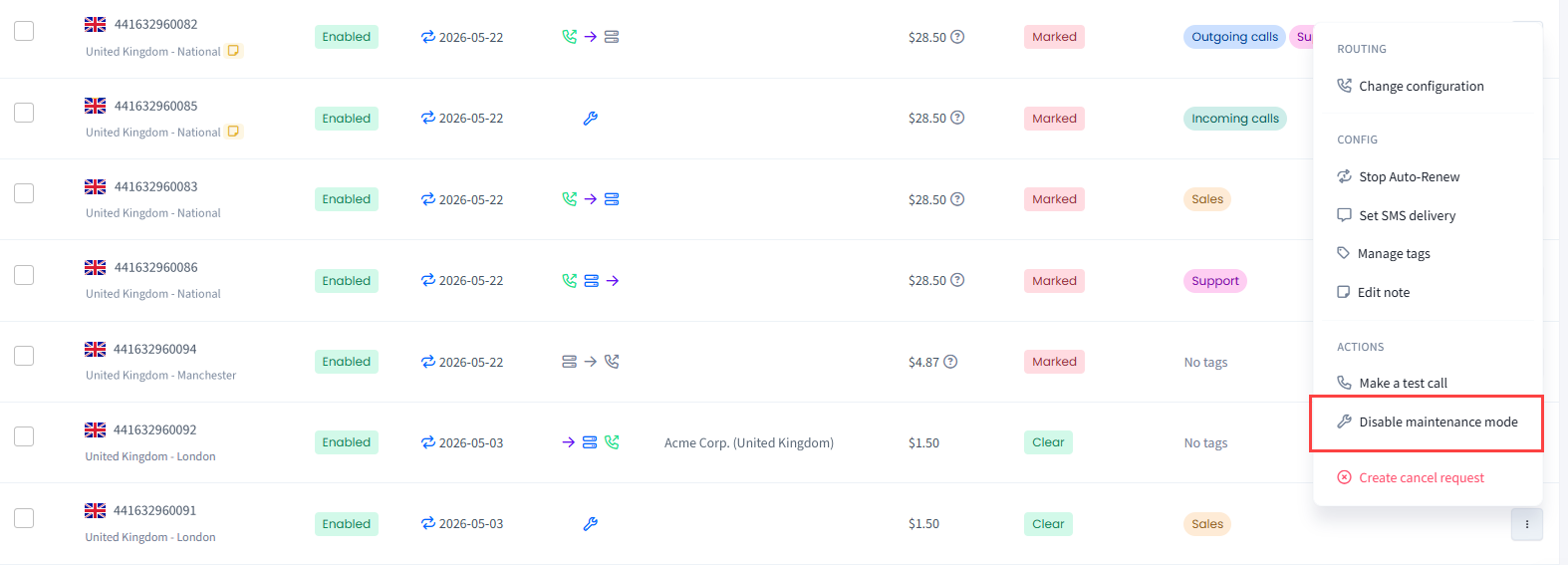
Disable maintenance mode action
The message at the top left will notify of the update performed:

Maintenance mode deactivated message
Updated 8 days ago