

Registering in Third-Party Softphones
Set up your Dialer account in MicroSIP or other third-party softphones.
This guide provides step-by-step instructions on how to register in third-party softphones using your CommPeak Dialer or Cloud PBX user account. We will use MicroSIP as an example of a softphone.
-
Configure SIP settings for the user and find your password.
-
Go to Users > User Management, find the needed user, and select the Edit action.
-
In User extension settings, select Use Built-in PBX and copy the registration password.
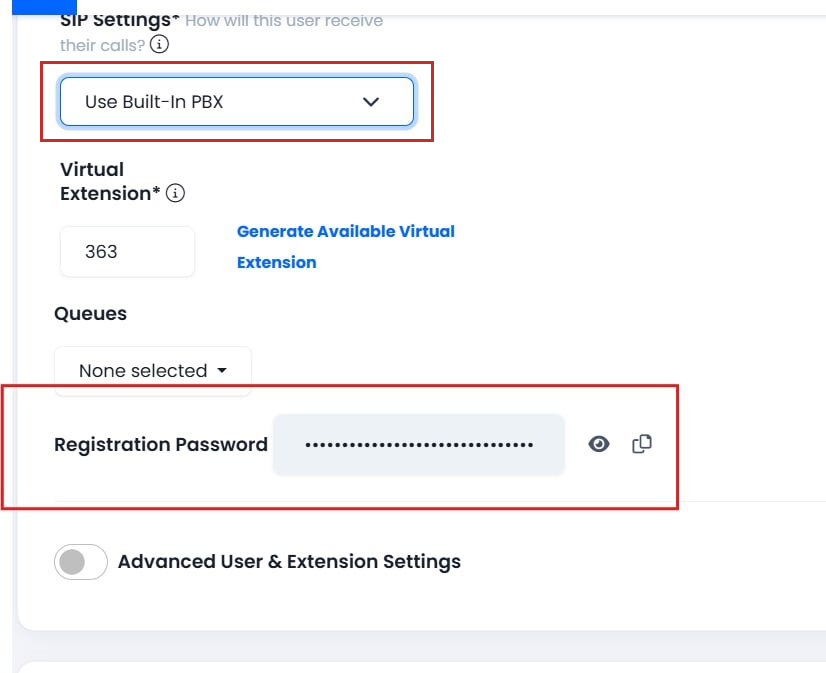
SIP settings
-
-
Open your MicroSIP application and then click the down to create an account.
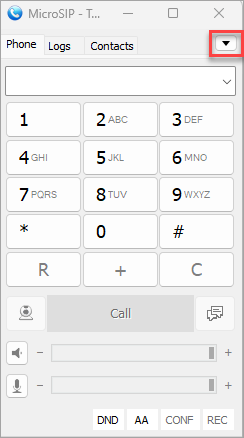
MicroSIP application dialpad
-
Click Add Account.
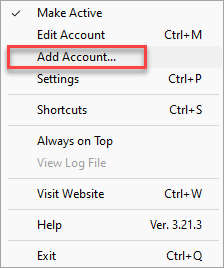
Add Account option
-
In the next window, enter your Dialer or PBX data as follows:
-
Account Name: name your account in MicroSIP
-
SIP Server: your PBX domain
-
Username: your user name in the Dialer or Cloud PBX
-
Domain: your PBX domain
-
Password: the password you copied in step 1 above.
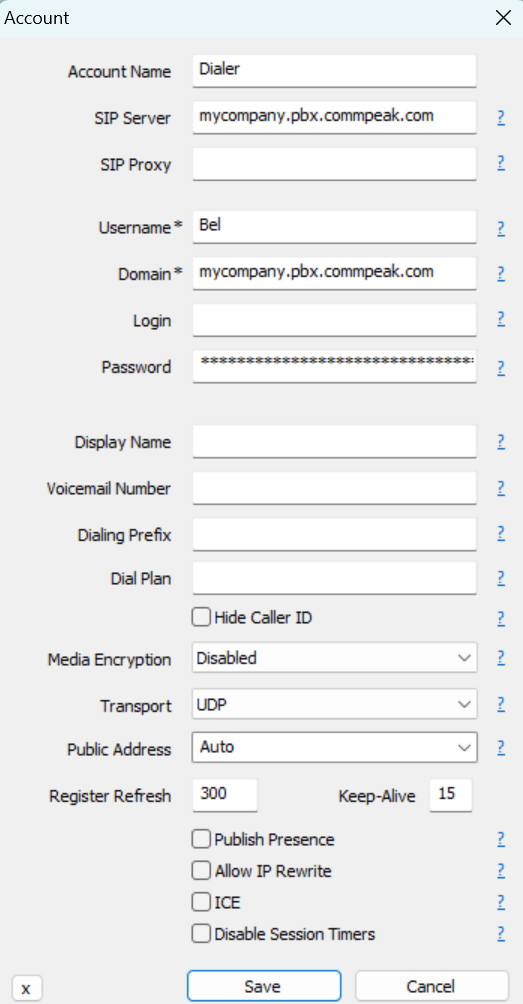
MicroSIP account settings
-
-
Click Save.
-
Now you can start making calls in your third-party softphone using the Dialer or Cloud PBX voice infrastructure.
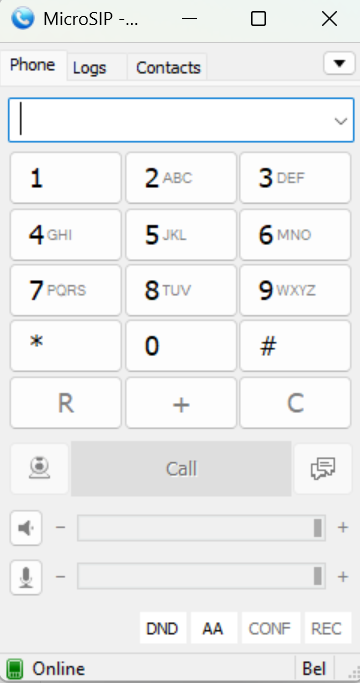
MicroSIP dialpad with the registered online user
Updated 6 days ago