

Setting Up PSTN on Your DID Number
A step-by-step guide to configuring forwarding DID calls to your landline or mobile phone.
If you want the calls that come to your DID number received at your landline or mobile phone, you must set call forwarding to a PSTN (public switched telephone network) profile.
Video tutorial
Creating PSTN forwarding rule
To add a new PSTN rule:
-
Log in to the CommPeak Portal.
-
On the main menu on the left, navigate to DIDs and select Management.
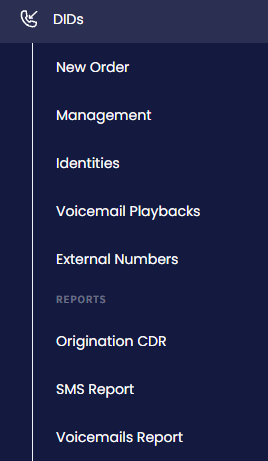
DIDs > Management tab
-
Switch to the PSTN Forwarding tab.
-
Click + Add rule at the top right of the page.
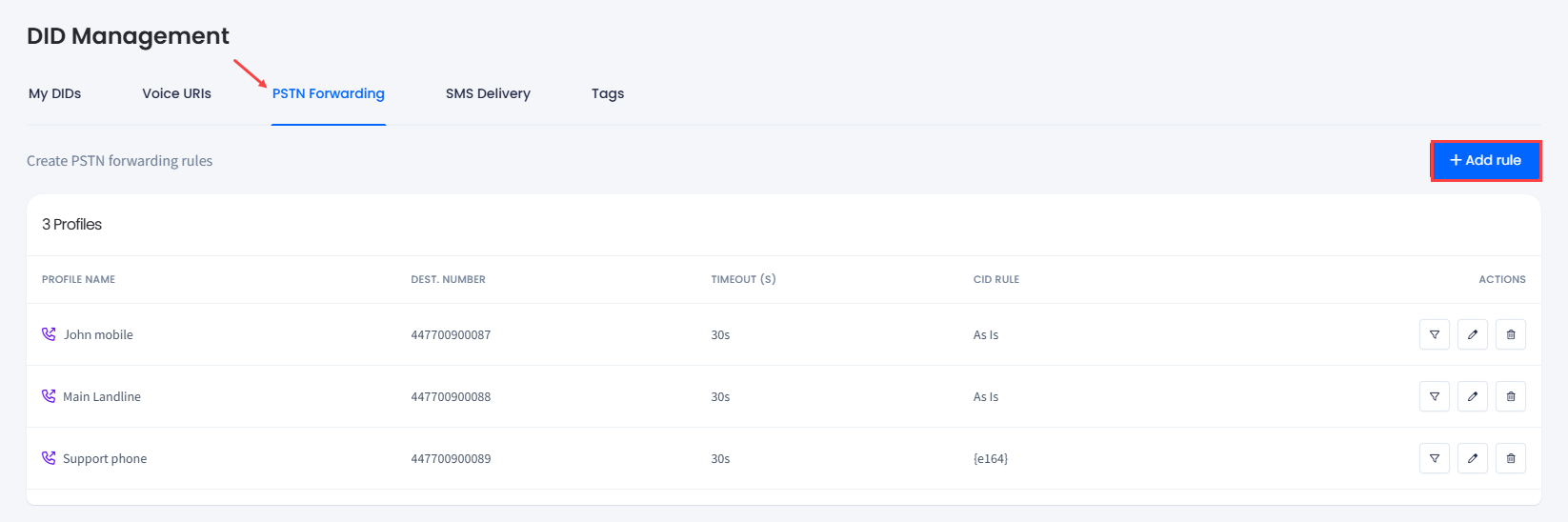
PSTN Forwarding tab
- In the side menu that appears, fill out the Name and PSTN fields:
- In the Name field, enter the name for the number you are going to forward your calls to
- In the Destination phone number (PSTN) field, specify the number to forward the calls to
- In the Origination timeout (seconds) field, define the needed timeout.
- The Caller ID format rule lets you manipulate the Caller ID shown at the end of the PSTN number. Configure a desired value as follows:
- Set it to As Is to pass the Caller ID through without any changes
- Use E .164 as the placeholder for the original Caller ID and add a prefix (optional).
NOTEThe Caller ID rule on the PSTN forwarding page takes precedence over the Dynamic Caller ID Rule configured on the selected SIP account.
- Finally, from the drop-down list, select the SIP account to handle your forwarded calls.
- Click Create rule.
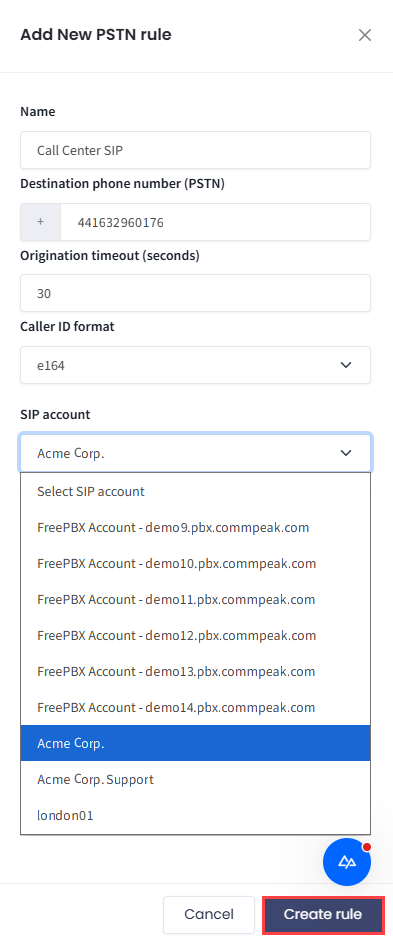
Add New PSTN Rule window
- A new profile record is added to the table.
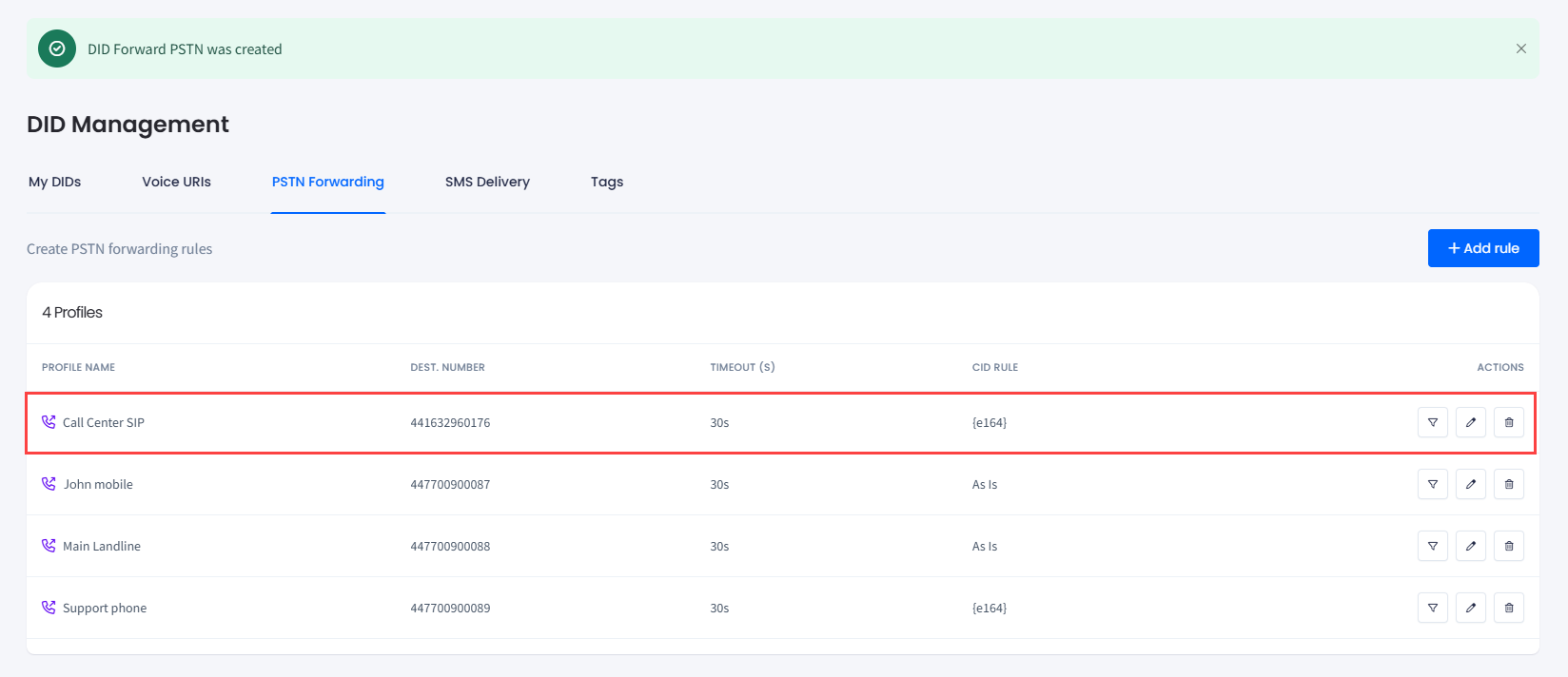
New profile record added
Configuring PSTN forwarding
To set up PSTN forwarding:
-
Open the My DIDs tab.
-
In the My DIDs table, use the checkbox on the left or select the needed number by applying search filters at the top right of the DID Management page.
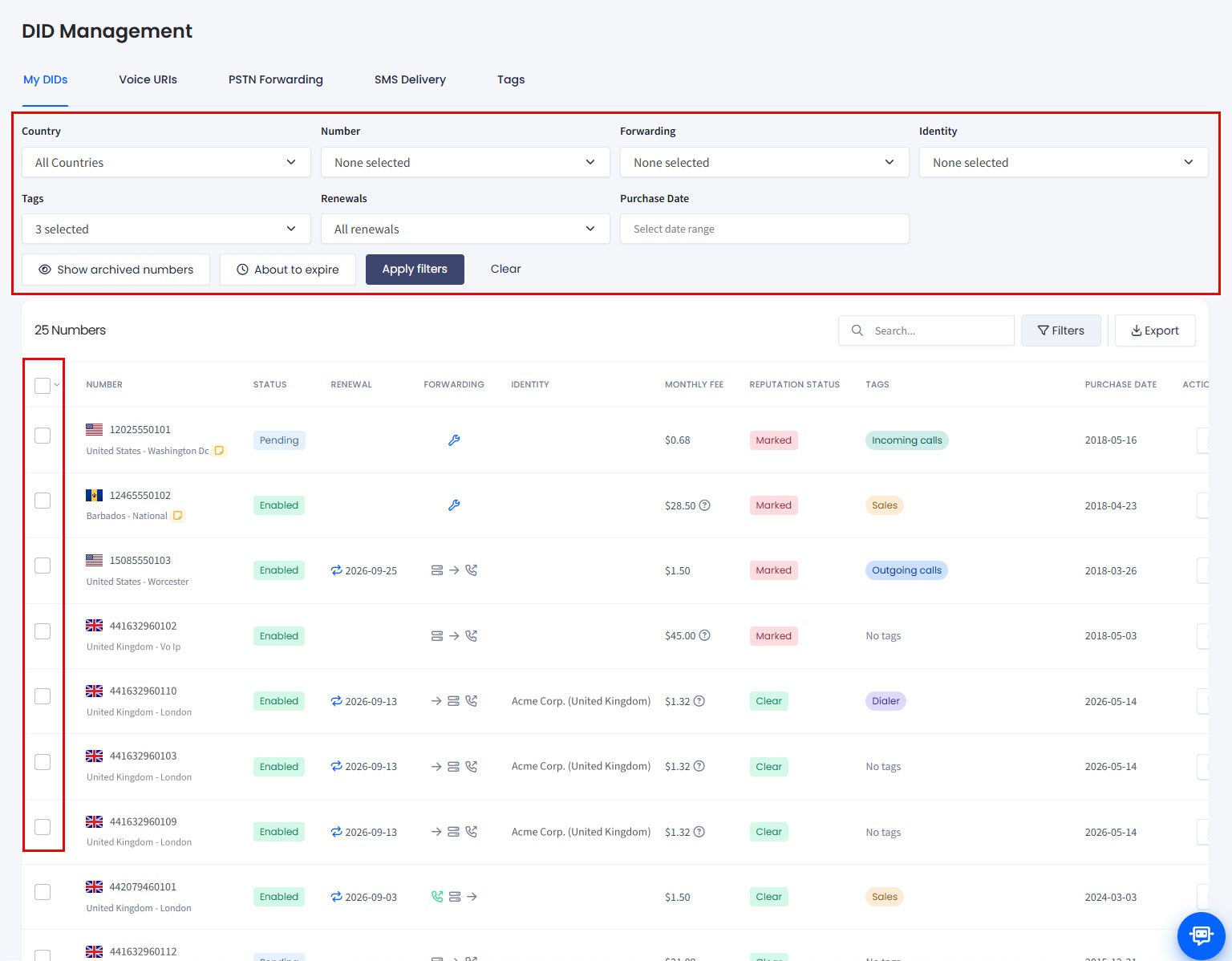
Filtering or selecting DID numbers
-
Click the three-dot action icon for the needed number and select the Change configuration action from the drop-down list.
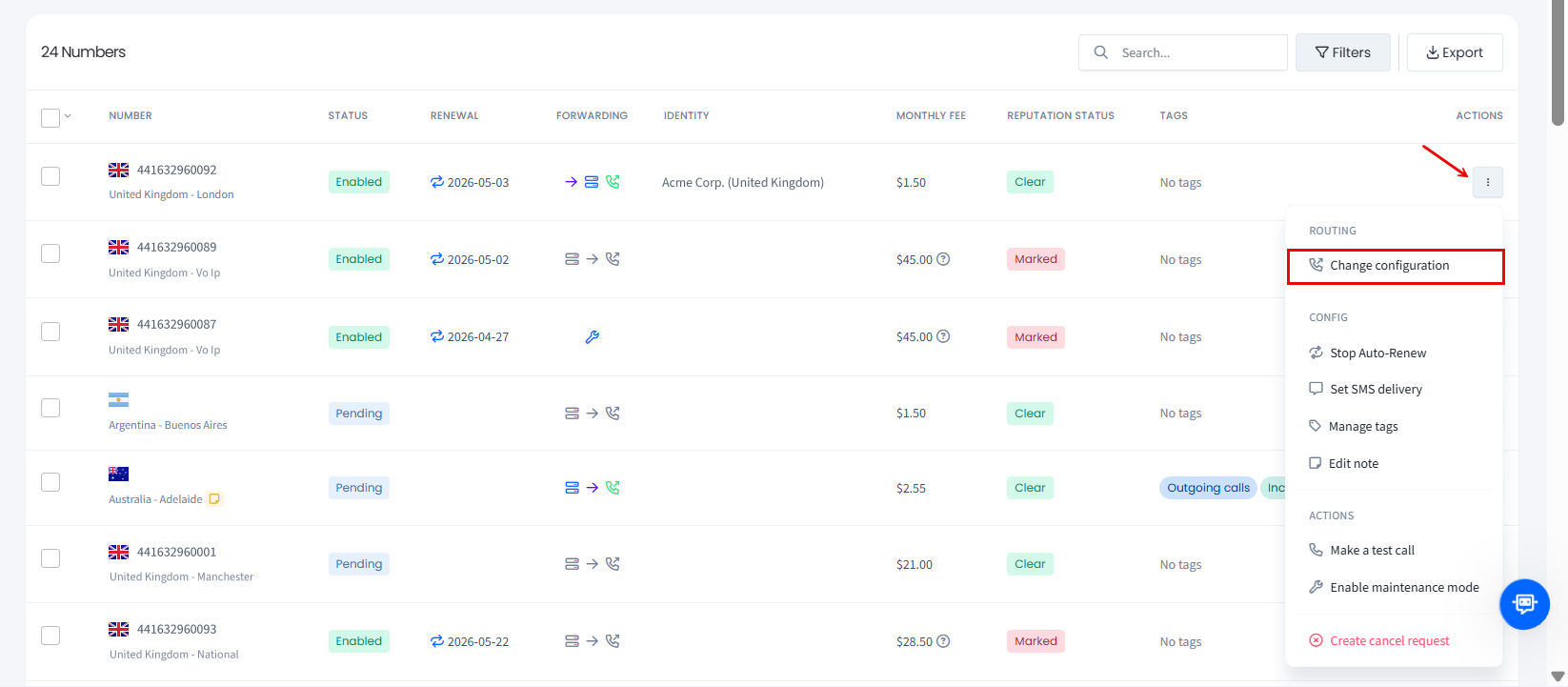
Selecting Change configuration option
NOTEYou can also apply this action across multiple DIDs. For more details, check the Managing Multiple DIDs article.
- In the Update call configuration window, review the number(s) selected, check the PSTN forwarding checkbox, select the needed profile, and click Save changes to confirm.
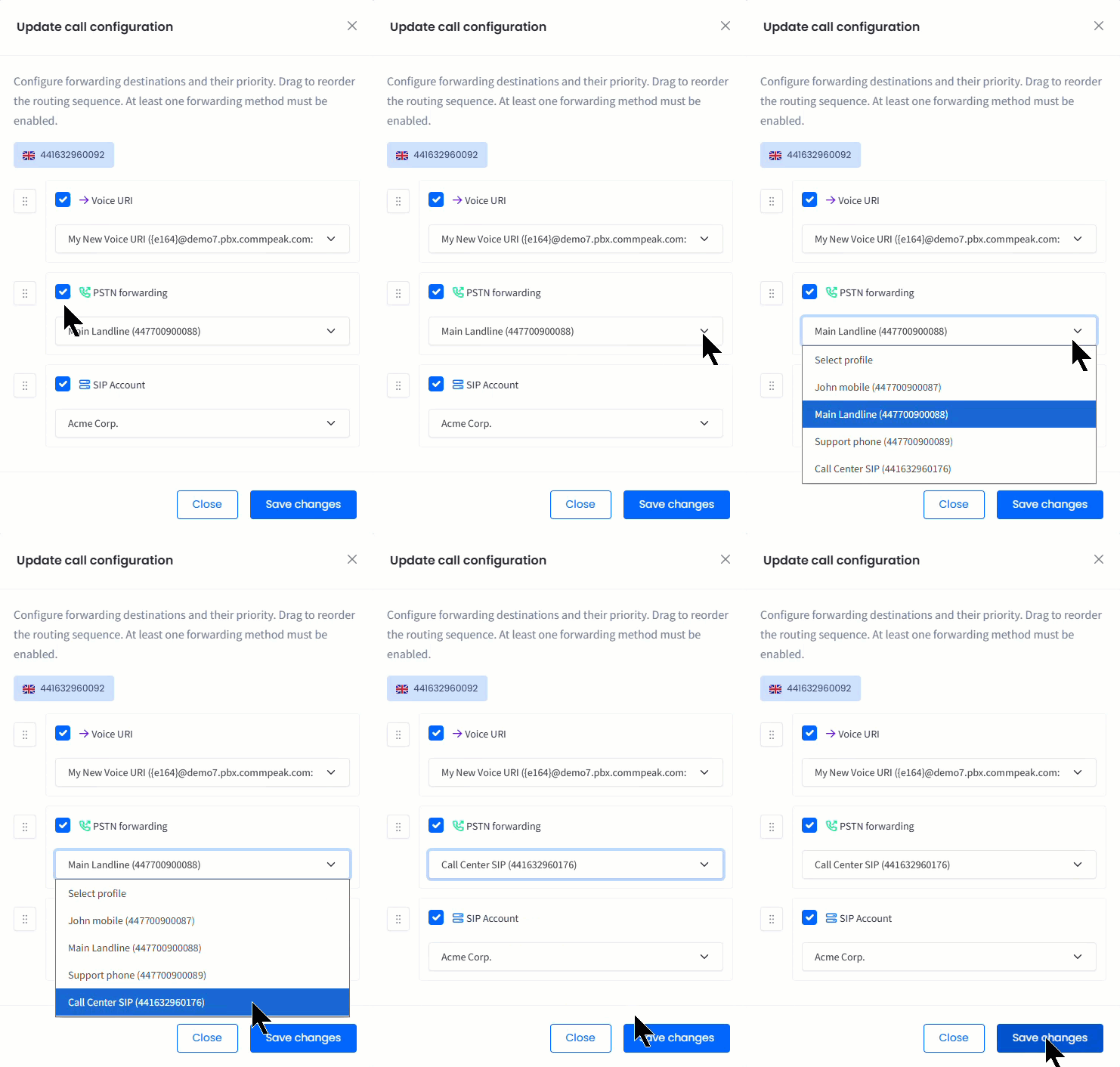
Update call configuration window
- You will be notified that the call configuration was successfully updated for the number.
- To check if the forwarding rule has been applied to the correct PSTN profile, hover over the corresponding icon for the DID number record (the phone handset icon should turn green which means the option is enabled).

New PSTN rule added to the DID number
NOTEWhen forwarding to your own number, you will be charged as for outbound calls within your pricing plan.
Managing PSTN profiles
You can apply the following actions to manage your PSTN profiles:
- Filter DIDs: click to open the DID Management tab with the DID records filtered by this profile.
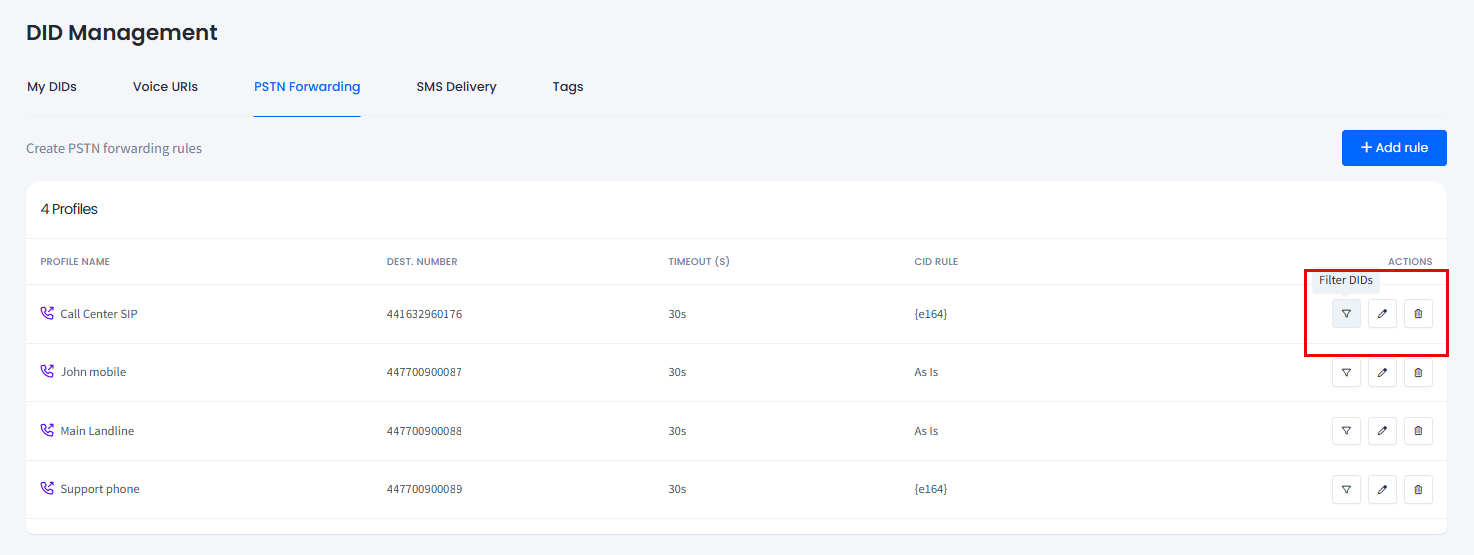
PSTN profiles management actions
-
Edit: click to open the PSTN profile side menu.
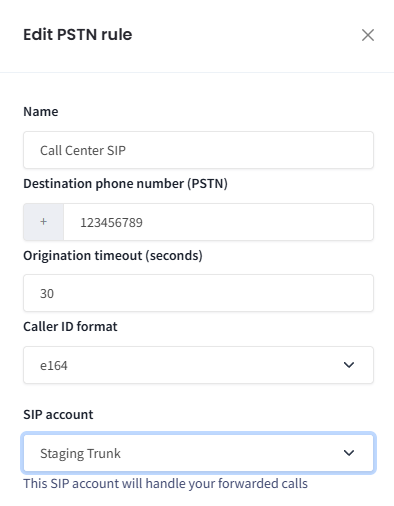
Editing PSTN rule
-
Delete: click to delete the profile record.
Updated 4 days ago