

Previous Conversations
Learn how to see a contact's earlier conversations from the Inbox Details panel, and how to continue an existing conversation instead of starting a new one.
Viewing previous conversations
A contact who has written before usually has context worth reading: an earlier complaint, a quote they were sent, a promise someone made. The Previous conversations section of the Details panel lists that history so you can catch up without searching the Inbox.
Opening a contact's previous conversations
Open Inbox
In the main TextPeak menu, select the Inbox tab.
Open the contact details
Select a conversation and click the button at the top right of the conversation timeline. The Details panel opens on the right.
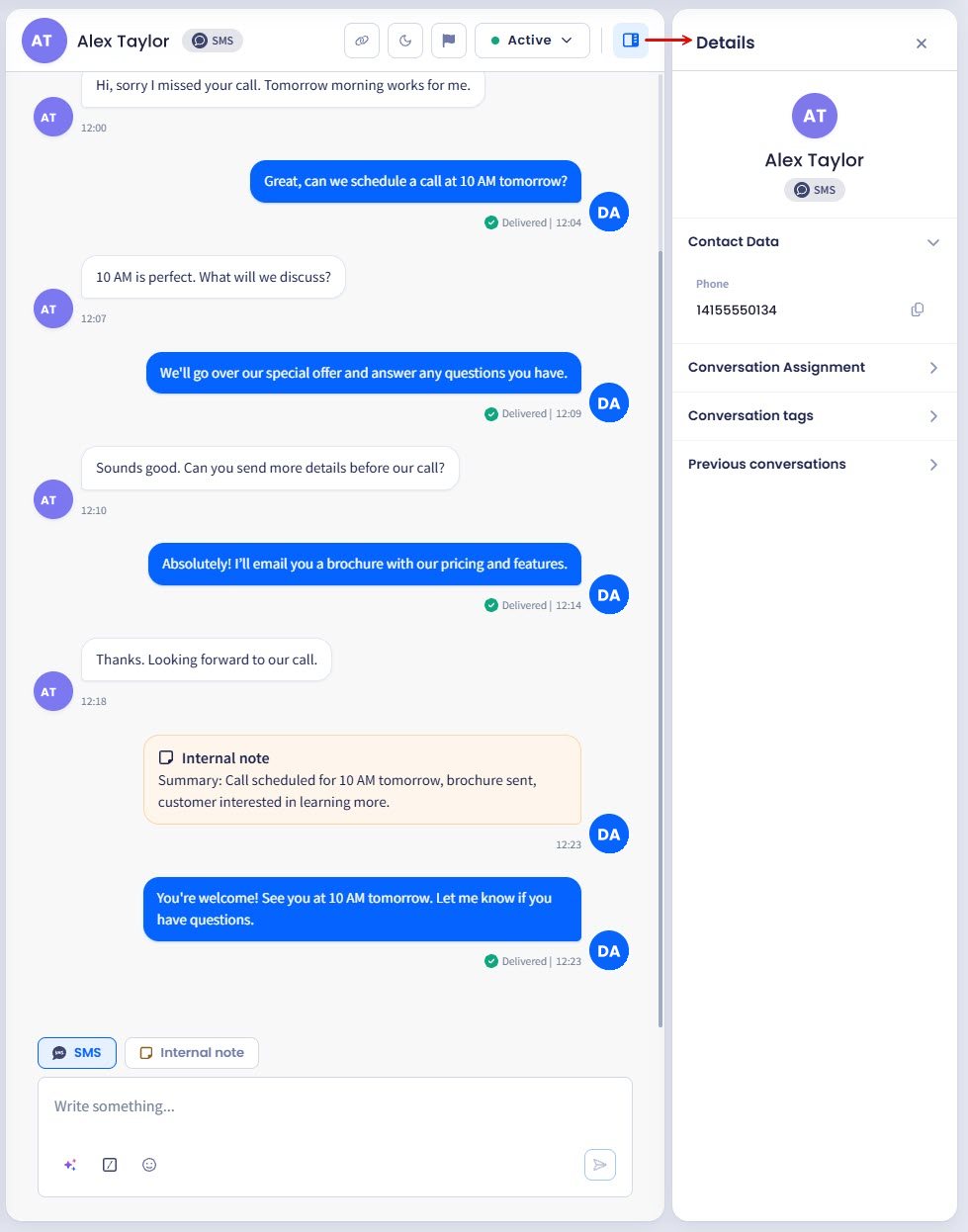
Opening Details panel
Expand Previous conversations
Expand the Previous conversations section.
Review earlier conversations
The section expands to list the contact's earlier conversations. Each entry shows the channel it used, the contact's number or name, the date, its status, and the last message where the conversation has one.
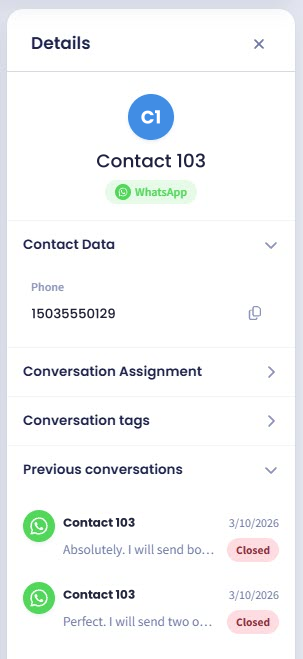
The Previous conversations section of the Details panel.
Check for no conversations
If the contact has no earlier conversations, the section reads No previous conversations.
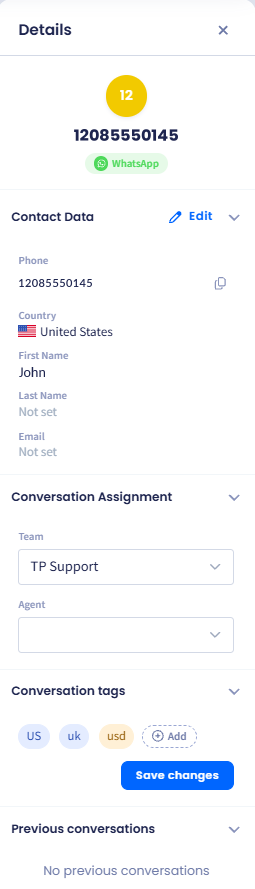
A contact with no earlier conversations.
NOTEThe Details panel groups everything about the conversation into sections you can expand and collapse independently: Contact Data, Conversation Assignment, Conversation tags, and Previous conversations.
Reading an earlier conversation
-
To open this conversation in a new window, click the redirect button.
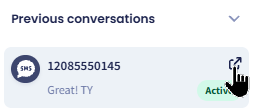
Opening the conversation
The earlier conversation opens in a new browser tab, so the conversation you were reading stays open in the original tab and nothing you were working on is lost.
Each conversation has its own address, which is also what the Copy URL button copies - so you can share a specific earlier conversation with a colleague. See the Agent's Guide: Managing Conversations page for details.
TIPBecause earlier conversations open in their own tab, you can leave the current conversation open in one tab and read the history alongside it.
Why a contact has more than one conversation
Messages from the same contact stay in one conversation while they keep replying. Once the contact has been quiet for longer than the period your manager has set, their next message starts a fresh conversation - which is how a contact builds up the history you see here.
That period is the New conversation after setting. A short period produces many short conversations; a long one keeps everything in a single thread. See the General Settings page.
Continuing an existing conversation instead of starting a new one
When you start a conversation with a contact who has written before, TextPeak offers their earlier conversations so you can continue one rather than opening a second thread on the same subject.
Start a new conversation
Click New conversation in the Inbox sidebar.
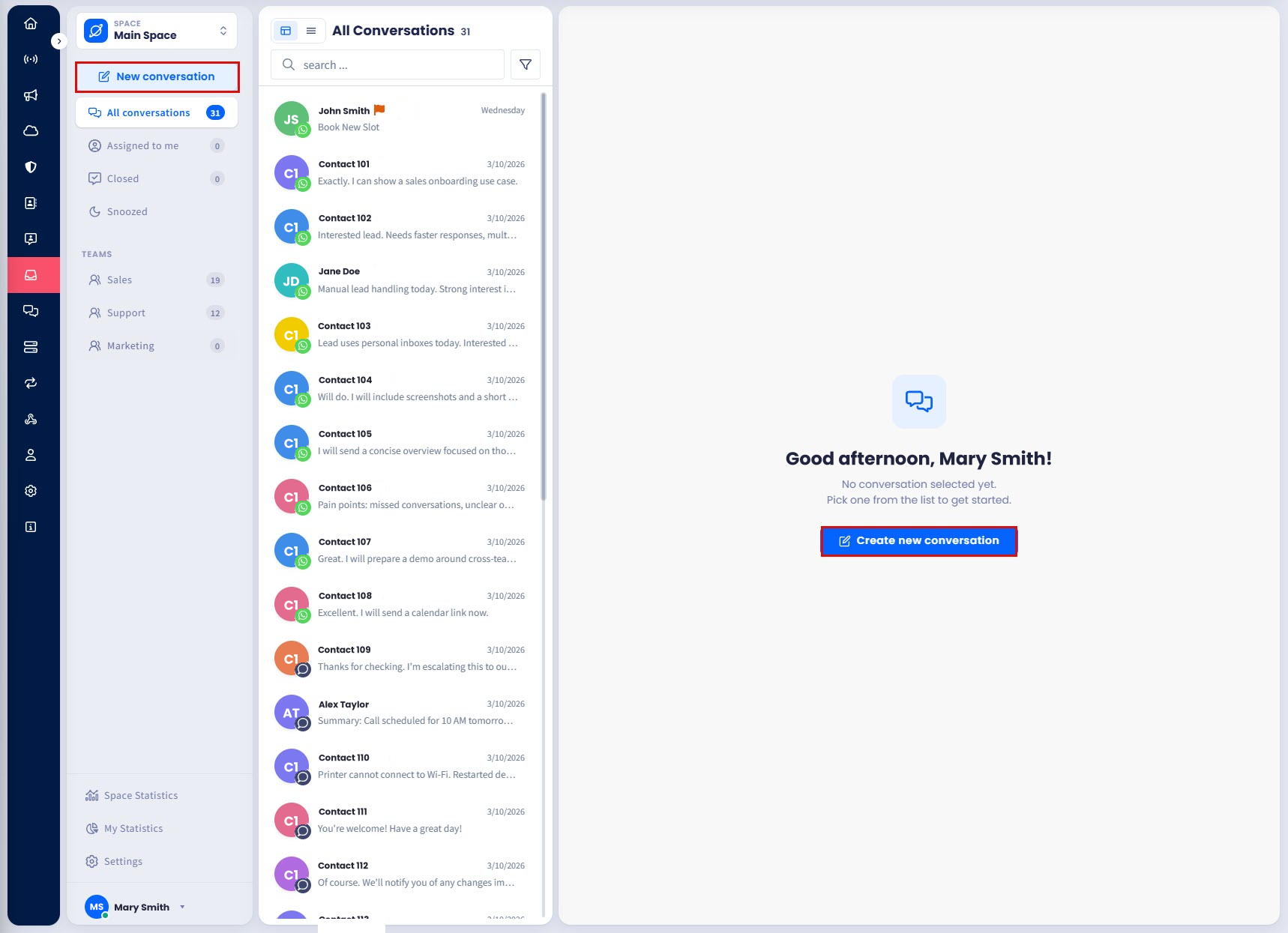
Creating a new conversation
Select the contact
Select the contact from the list, or type a number that is not saved as a contact into the insert number … field.
Select an earlier conversation
If the contact has earlier conversations, select the one you want to continue. To start a fresh conversation instead, continue without selecting one.
Send your message
Write your message and send it.
TIPContinuing an existing conversation keeps the contact's history in one thread, which helps whoever picks it up next. Start a new conversation when the subject is genuinely unrelated.
For full details of the agent workflow, see the Agent's Guide: Managing Conversations page.
Updated 1 day ago