

HubSpot Click2Call
Integrate with HubSpot CRM and make calls directly from HubSpot and view call history within the CRM.
This guide will walk you through integrating your HubSpot account with CommPeak Dialer or Cloud PBX Click2Call using the CommPeak app.
The CommPeak app enables you to call your leads from HubSpot CRM via your Softphone client or IP Phone.
You can start your integration by installing CommPeak from the HubSpot App Marketplace.
Step 1: Connect CRM with CommPeak
Choose how you prefer to initiate your connection. We recommend using Option 1.
Option 1: CommPeak one-click integration
- Start by connecting your CRM with CommPeak via HubSpot One-Click Integration.
- Continue to Step 2.
Option 2: HubSpot app marketplace
-
Navigate to HubSpot App Marketplace.
-
Log in to your HubSpot account. Enter your email address registered with HubSpot and proceed further.

-
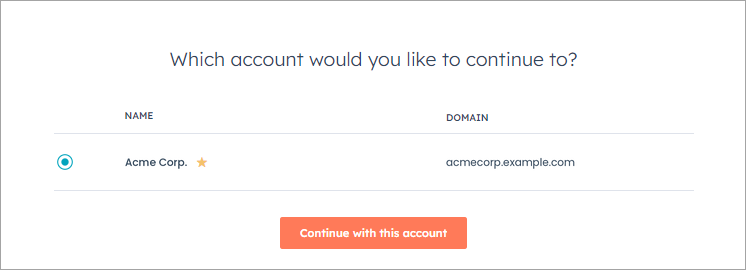
Select your HubSpot account to continue.
-
Use the search prompt to find CommPeak.

-
Click Install app.

-
Continue to Step 2.
Step 2: Connect CommPeak to HubSpot
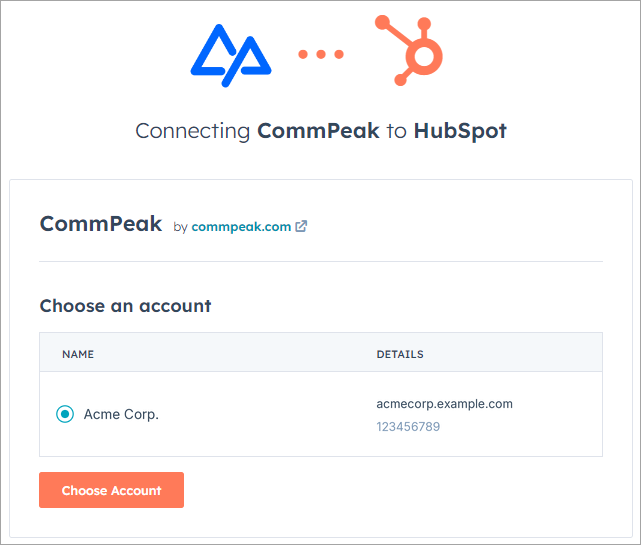
- Select your account in HubSpot and click Choose Account.
- Click Connect app.

- Enter your CommPeak Portal account credentials, verify that you are human, and click Login.

IMPORTANTWhen the SSO-only (Single Sign-On) login mode is enabled (which completely disables password-based login for all users), logging in with Dialer or Cloud PBX credentials is not supported.
To enable credential-based login, the SSO-only mode must be disabled on the Dialer or Cloud PBX side. For more details about the SSO-only click here.
- Select your CommPeak Account and then click Authorize.

- The system will redirect you to the CommPeak Portal home page.
✔️ Congratulations! The connection installation setup is completed.
Configuration
The Click2Call app requires no configuration on the Dialer / Cloud PBX side.
Making calls
Once the installation is complete, follow the steps below to call your leads.
-
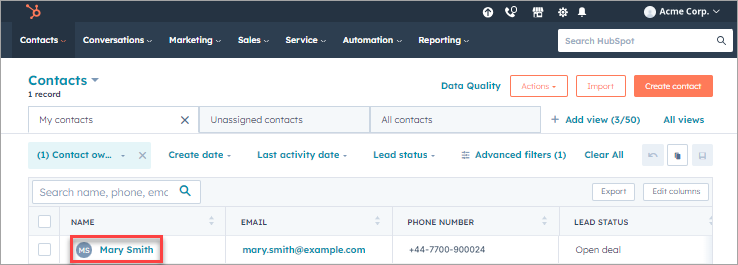
In your HubSpot account, navigate to Contact and click the contact name you wish to call to open it.
-
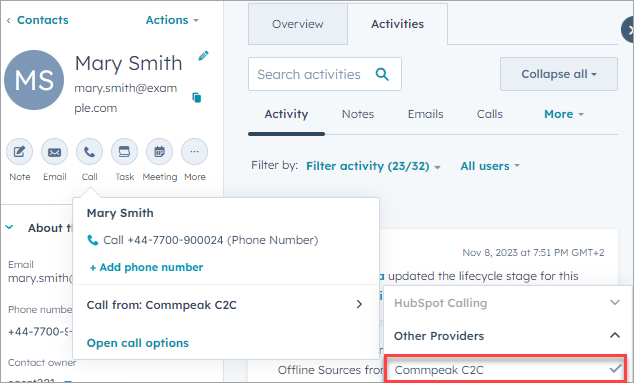
Click the dial button.

-
In Call from: select CommPeak C2C .
-
Click to call the number again.
-
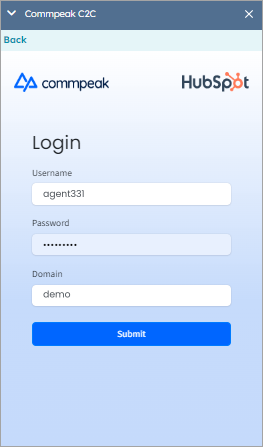
Submit your credentials for CommPeak Dialer or Cloud PBX. In the Domain field, enter the initial part of your domain (your account name in the Dialer or Cloud PBX). Same account domain you choose in the Installation section. For example, if your domain is <https://oakprise.td.commpeak.com>, enter oakprise .
-
The system will initiate a call to your softphone client.

We are using the built-in softphone. The incoming call looks as follows:

Click accept to answer the call.
-
Once you accept, the system will call your lead.

-
After the lead answers, a call will be established.

Call history
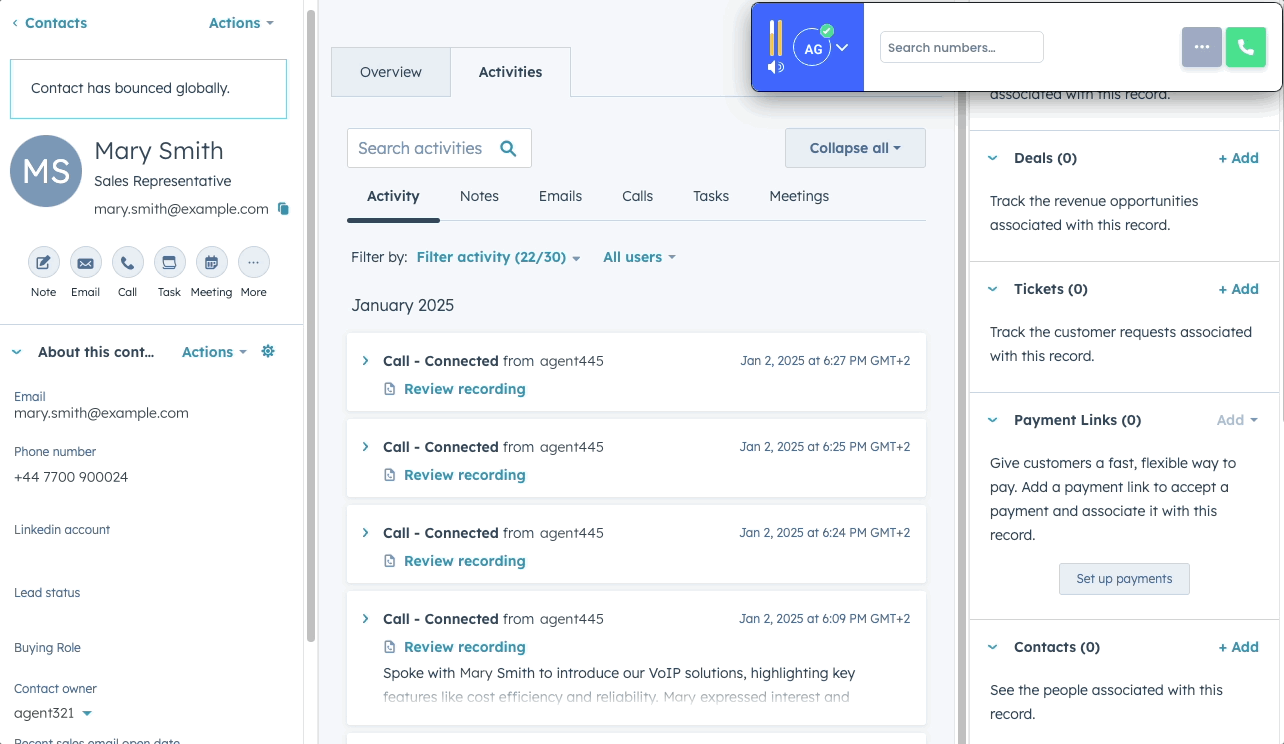
To view your call history, go to Calls under the Contacts menu. Here, you will see the details of each call, such as the date and time, the agent calling, and the call status (or outcome).
If you click on the call title, you will get to the calls page, where you can listen to the call recording and read notes and comments about the call.

IMPORTANTEnsure that your IPs are included in the Public Recordings ACL to access call recordings via the CRM widget.
Uninstallation
If you decide to uninstall the CommPeak app from your HubSpot account later, act so as follows. This will not affect your HubSpot data in any way.
-
In your HubSpot home page, navigate to Settings by clicking the gear icon in the top right.

-
Go to Integrations > Connected Apps.
-
Find CommPeak, then expand Actions and click Uninstall.
Updated 25 days ago