

Skill Groups
Understand how skill groups work and modify a skill group by editing its name or description, adding or deleting users.
Skill groups are categories of agents with specific competencies that allow them to receive similar calls.
One agent can belong to multiple skill groups, e.g., based on their language or professional experience.
IMPORTANTManagers should belong to the same skill group as their agents to see them on the Realtime page.
To modify a skill group:
Open Users Management
Go to the Users > Users Management.
Open Skill Groups
Switch to the Skill Groups tab. The table on the tab displays all existing skill groups with IDs, names, descriptions, and users belonging to the group. On each line, you can click a button in the Actions column to edit or delete the group.
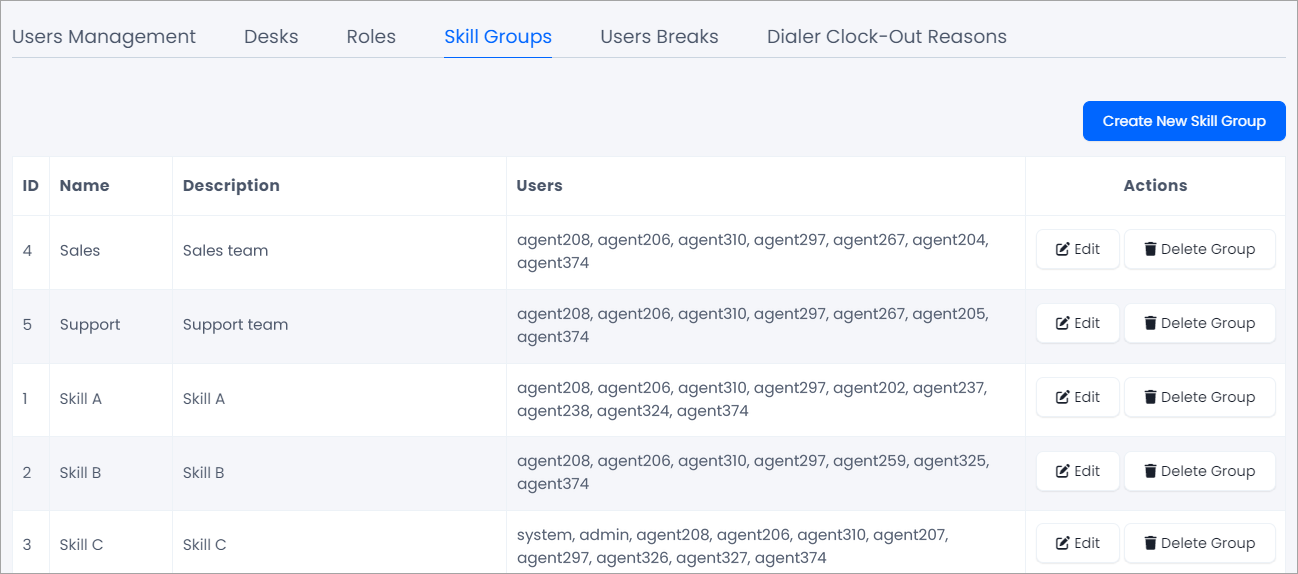
Skill Groups tab in Users Management
Edit the group
Click Edit for the group you wish to modify.
Edit the name or description
On the page that opens, edit the group name or description.
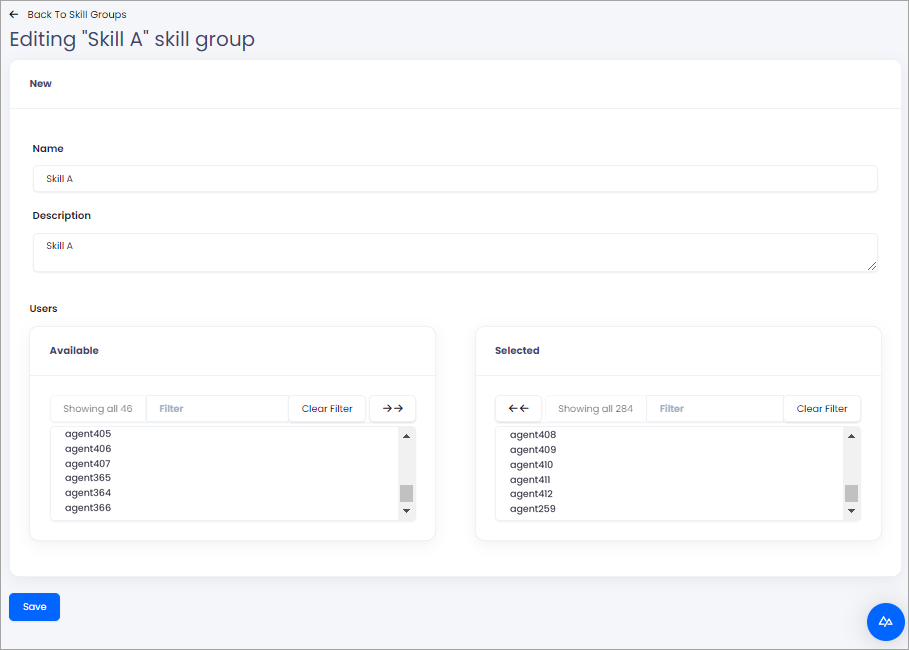
Editing skill groups
Add users
To add users to the group, click the user name in the Available box. Also, you can click the user name in the Selected box to remove the user from the group. You can use the double arrow buttons to select all users in the Available or Selected boxes. Enter a user name in the Filter box to find a specific user quickly.
Save the group
Click Save.
Managers can add agents to a skill group when creating new users.
The next step is to connect the skill group to a priority group - contact the support team or your account manager for more information.
Updated 15 days ago