

Manager Hashtags
Activate the Manager Hashtags feature, create, assign, and manage hashtags for specific campaigns, apply them during calls, and view related statistics in call records.
Agents can apply tags to conversation segments using the hashtag feature to tag a manager who assisted or classify calls by topic, lead type, or issue. Supervisors can later filter and review calls by hashtag in the Call Records List Report to evaluate agent performance or identify recurring issues.
Enabling the feature
If you are interested in the manager hashtag feature, you can submit a support ticket with a request to enable it. After permission has been granted, you can proceed with the next steps.
Creating hashtags
To create a hashtag:
Open All Campaigns
Go to Campaigns and select All Campaigns.
Expand all
Click Expand All.
Open the campaign hashtags
Find the campaign for which you want to create a hashtag. Go to the Actions column, click Rare, and select HashTags:

Hashtags in campaign actions
Add a hashtag
On the page that opens, click New HashTags.
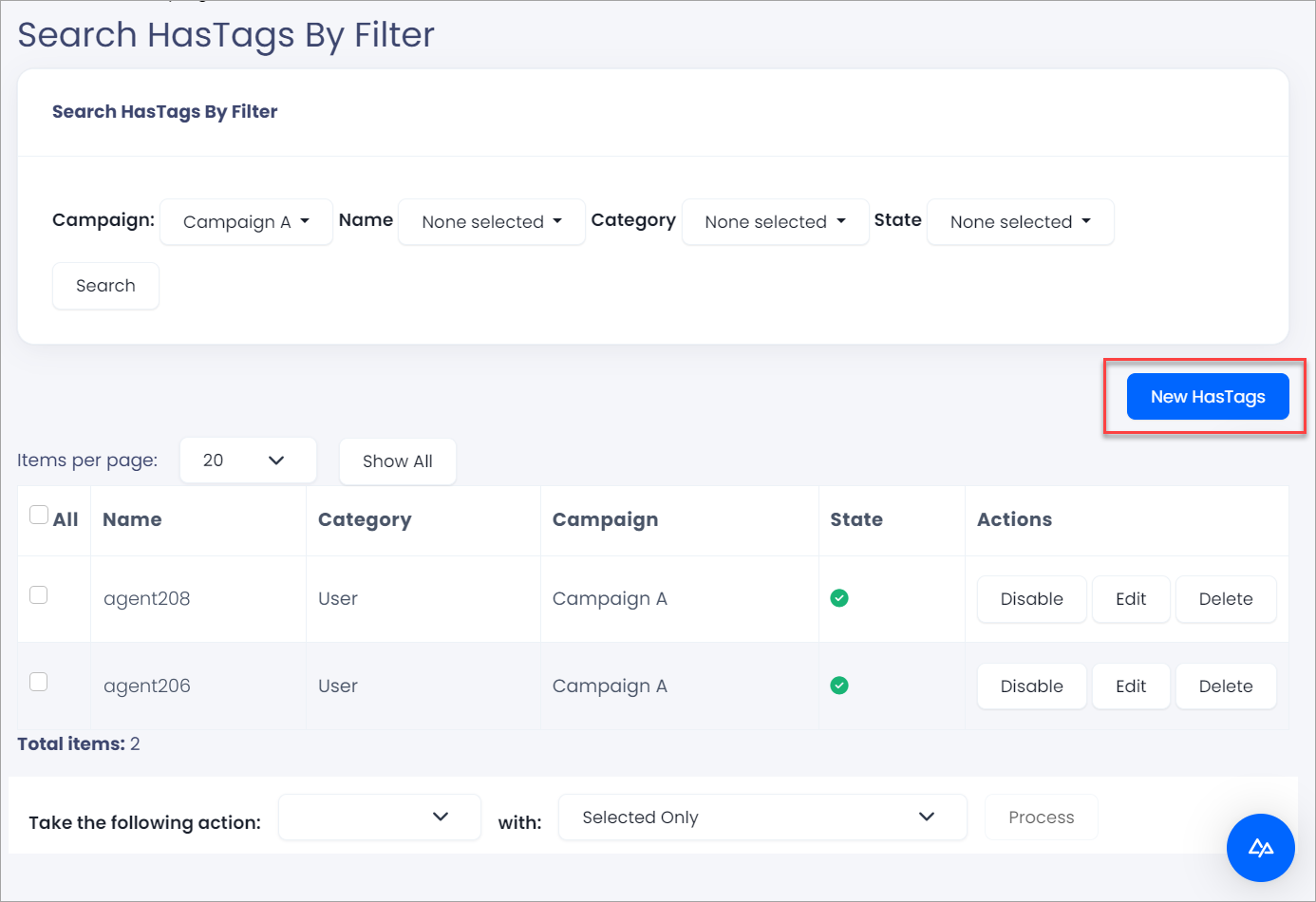
Adding a hashtag button
Fill in the details
In the pop-up window, fill in the necessary information:
-
In the HashTag Name/s box, enter hashtag names separated with a comma. Otherwise, you can select Dialer manager users from the Existing Users drop-down list.
-
Select campaigns from the Campaigns drop-down list. You can also assign campaigns later.
-
Leave Enable in the State drop-down list or select Disable if you don't want to enable the hashtag(s) immediately.

Hashtag settings
Add the hashtag
Click Add.
Assigning hashtags to campaigns
You can assign the hashtags while creating them, as explained in the previous step, or manage existing hashtags as follows.
To assign a hashtag to a campaign or several campaigns or unassign it:
Find the hashtag
In the list, find the hashtag you wish to assign. To limit the displayed results, you can use several search filters in the upper part of the page.
-
Click a button next to the filter name.
-
Select the necessary values from the drop-down list or search for a particular value. For example, in the Category filter, you can select User to display tags for Dialer user names or choose Tag Name to display tags for manager names:

Hashtag search
-
Click Search.
Edit the hashtag
Go to the Actions column in the hashtag row and click Edit.
Select the campaigns
In the window that pops up, select or unselect campaigns in the drop-down list.

Editing campaign for a hashtag
Save the changes
Click Save.
To assign multiple hashtags to campaigns:
Select hashtags
Select hashtags in the list.

Assigning several hashtags to a campaign
Choose Assign
Choose Assign next to Take the following action.
Select campaigns
Select campaigns from the Campaign drop-down list.
Process the action
Click Process.
You can enable, disable, and delete a hashtag or multiple hashtags similarly.
Applying hashtags in agent calls
Agents can apply tags to conversation segments during Predictive Mode calling.
Use the hashtag feature to tag a manager who assisted or classify calls by topic, lead type, or issue.
NOTEManagers can create hashtags to assign them a specific campaign or several campaigns.
To apply a hashtag during an active call:
Tag the call
Click the Tags button in the Call Panel and select a hashtag from the drop-down list.
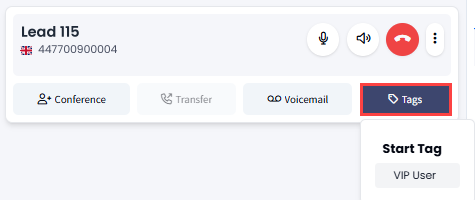
Start Tag button
Stop tagging
To finish tagging the segment, click Stop.
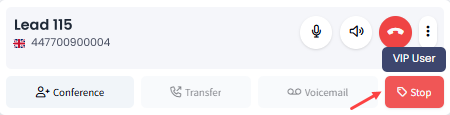
Stop Tag button
Viewing hashtag statistics
Hashtag statistics are available in the Call Records List report. You will see a hashtag symbol in the Status column.

Hashtag in the Status column
You can click on the hashtag to view its name and when the conversation segment started and ended

Viewing hashtag data
The hashtag details are also displayed on the call records list report (CSV / Excel).
Updated 4 days ago