

Interface Description
Introduction to the CommPeak Softphone interface in full and mini modes
CommPeak Softphone application can work in two modes: the full mode and the mini mode.
Dial view
Dial view in full mode:
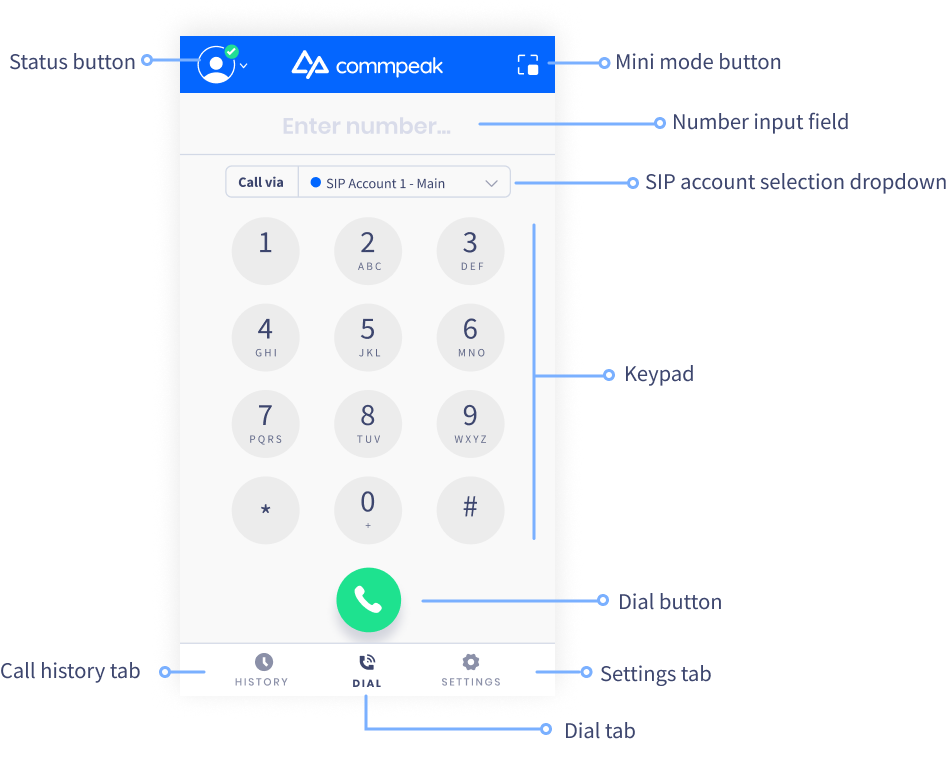
Dial view in full mode
Dial view in mini mode:
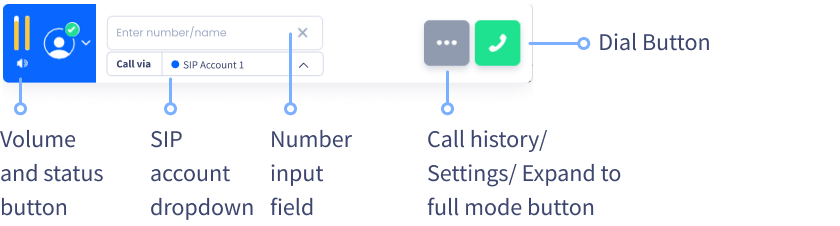
Dial view in mini mode
Call view
Call view in full mode:
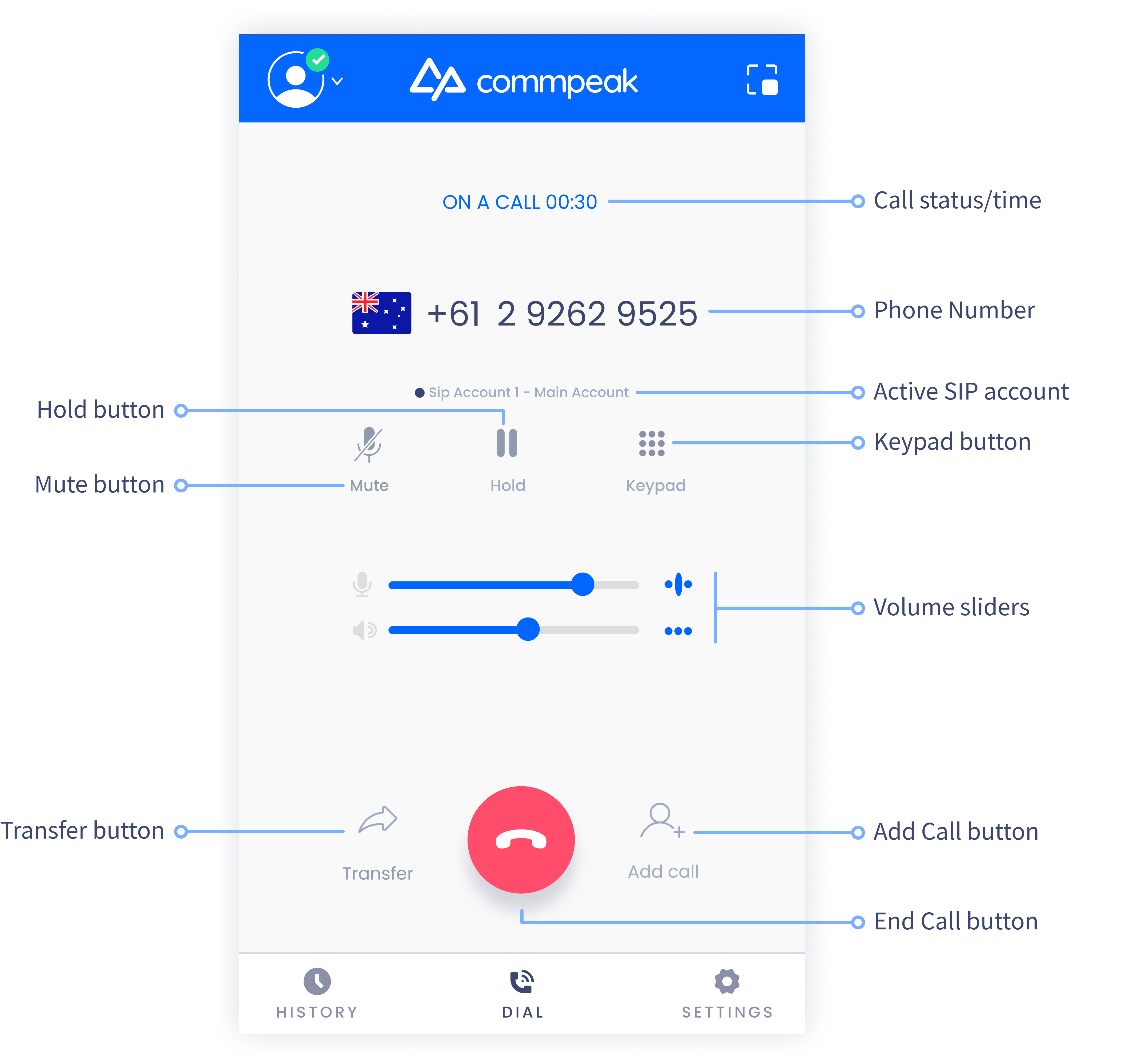
Call view in full mode
Call view in mini mode:
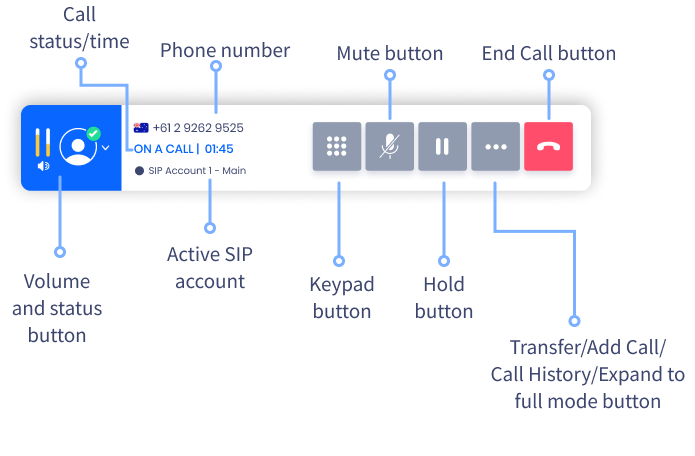
Call view in mini mode
Network and audio status indicators
Starting from Softphone v6.2.15, the call view displays real-time status indicators for critical network and audio settings:
- TURN: Enabled or Disabled (default).
- STUN: Enabled or Disabled (default).
- Noise Suppression: Enabled (default) or Disabled.
The indicators appear during an active call and in the call feedback form, so you always know which settings are currently active.
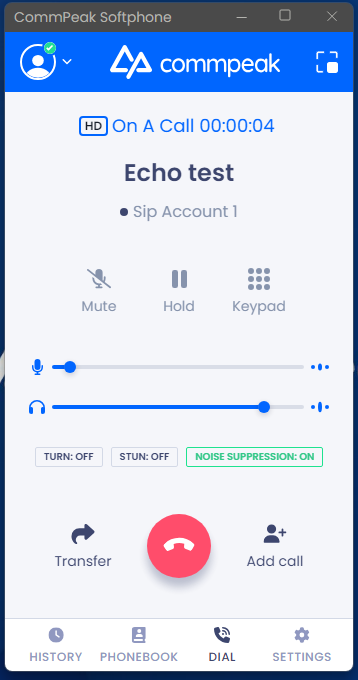
Call view with the status indicators highlighted
If you experience poor call quality, check the indicators and toggle the settings in Audio Settings.
For details on when to enable these settings, see Why Should I Enable STUN or TURN in CommPeak Softphone?
Updated 24 days ago